
1. ઉત્પાદન ઓવરview
The TP-Link TL-WA750RE is a 150Mbps Universal Wireless Range Extender designed to expand the coverage of an existing wireless network. It eliminates Wi-Fi dead zones by boosting the wireless signal to previously unreachable or hard-to-wire areas. Its compact, wall-mounted design allows for flexible deployment and easy relocation within your home or office.
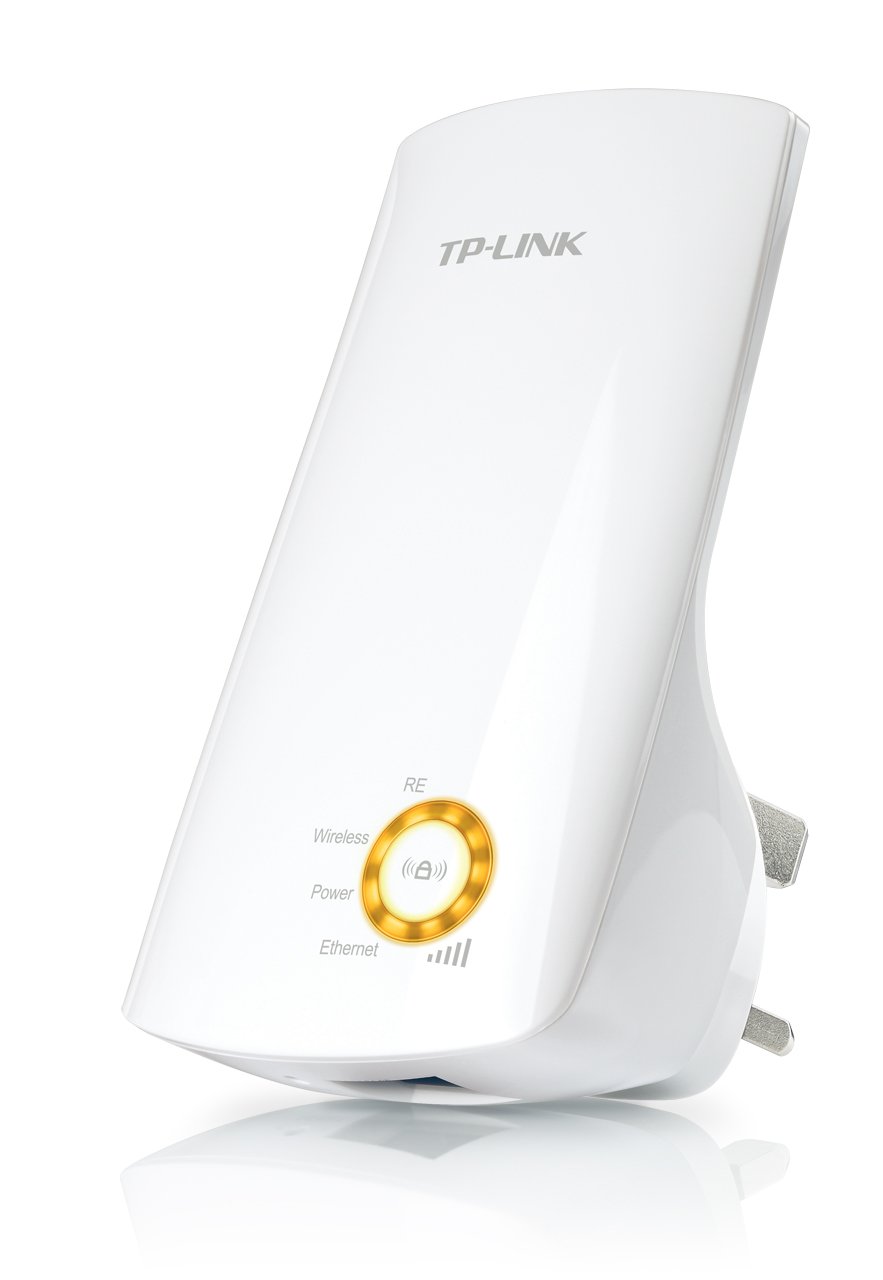
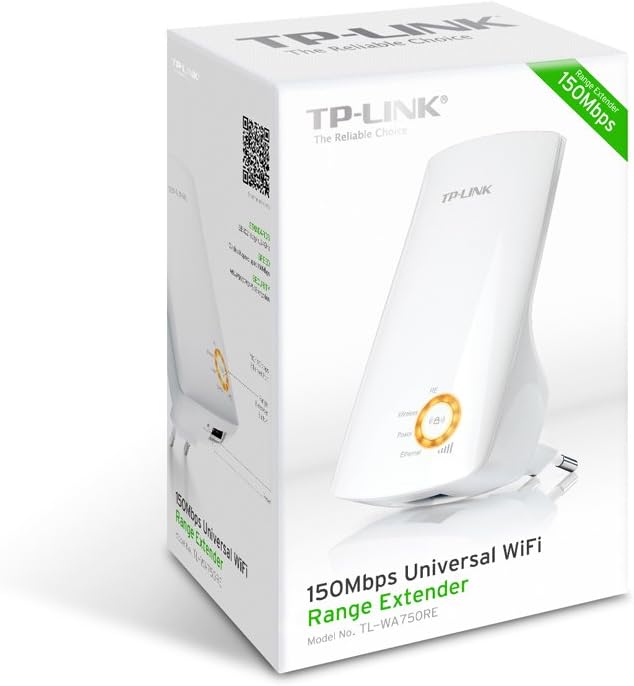
આકૃતિ 1: TP-Link TL-WA750RE Universal Wireless Range Extender. This image shows the device in its retail packaging, highlighting its compact design and wall-plug form factor.
2. મુખ્ય લક્ષણો
- રેંજ એક્સ્ટેન્ડર મોડ: Boosts wireless signal to eliminate Wi-Fi dead zones and extend network coverage.
- કોમ્પેક્ટ ડિઝાઇન: Small size and wall-mounted design for easy deployment and flexible movement.
- WPS બટન: Allows for instant setup and secure connection with compatible routers.
- સ્માર્ટ સિગ્નલ સૂચક: Helps users find the optimal location for placing the range extender for best performance.
- સાર્વત્રિક સુસંગતતા: Works seamlessly with all 802.11n/g/b wireless devices.
3. પેકેજ સામગ્રી
ઉત્પાદન પેકેજમાં સામાન્ય રીતે નીચેની વસ્તુઓ શામેલ હોય છે:
- TP-Link TL-WA750RE 150Mbps Universal Wireless Range Extender
- સૂચના માર્ગદર્શિકા
4. સેટઅપ માર્ગદર્શિકા
4.1. Quick Setup using WPS Button
- પ્લગ ઇન: તમારા વાયરલેસ રાઉટરની નજીકના ઇલેક્ટ્રિકલ આઉટલેટમાં TL-WA750RE પ્લગ કરો.
- રાઉટર પર WPS સક્રિય કરો: Press the WPS button on your main wireless router. Refer to your router's manual for the exact location and procedure.
- એક્સ્ટેન્ડર પર WPS સક્રિય કરો: Within two minutes, press the WPS button on the TL-WA750RE. The Signal LED on the extender should begin to flash.
- કનેક્શન માટે રાહ જુઓ: The Signal LED will turn solid blue or green when a successful connection is established.
- એક્સ્ટેન્ડરને સ્થાનાંતરિત કરો: Unplug the extender and move it to a location between your router and the Wi-Fi dead zone. Ensure the Signal LED indicates a strong connection (e.g., solid blue or green) in the new location.
૪.૩. મેન્યુઅલ સેટઅપ દ્વારા Web બ્રાઉઝર
- પ્લગ ઇન: Plug the TL-WA750RE into an electrical outlet near your computer.
- એક્સ્ટેન્ડર સાથે કનેક્ટ કરો: Connect your computer to the extender's Wi-Fi network (e.g., "TP-LINK_Extender_XXXXXX"). No password is required initially.
- એક્સેસ Web ઇન્ટરફેસ: ખોલો એ web બ્રાઉઝર અને પ્રકાર http://tplinkrepeater.net or the extender's default IP address (usually 192.168.0.254) into the address bar.
- લોગ ઇન કરો: Enter "admin" for both the username and password when prompted.
- ઑન-સ્ક્રીન સૂચનાઓને અનુસરો: Use the Quick Setup wizard to select your main Wi-Fi network and enter its password.
- એક્સ્ટેન્ડરને સ્થાનાંતરિત કરો: Once configured, unplug the extender and move it to an optimal location between your router and the desired coverage area.
આકૃતિ 2: બાજુ view of the TL-WA750RE. This image illustrates the physical layout of the device, including the WPS button and Ethernet port, which are crucial for setup and operation.
5. Operating the Range Extender
Once the TL-WA750RE is successfully set up, it will automatically extend your existing Wi-Fi network. Devices within the extended range can connect to the network name created by the extender (e.g., "YourNetworkName_EXT").
૫.૧. સ્માર્ટ સિગ્નલ સૂચક
The Smart Signal Indicator LEDs on the front of the device provide real-time feedback on the signal strength received from your main router. This helps you determine the best placement for the extender:
- સોલિડ બ્લુ/લીલો: Excellent signal strength.
- ઘન લાલ: Weak signal strength. Consider relocating the extender closer to your router.
- બંધ: No connection to the main router.
5.2. ઇથરનેટ પોર્ટનો ઉપયોગ
The TL-WA750RE includes an Ethernet port. This port can be used to connect a wired device, such as a desktop computer, gaming console, or smart TV, to your wireless network, providing a stable wired connection in the extended Wi-Fi area.
6. જાળવણી
- સફાઈ: ઉપકરણને સાફ કરવા માટે નરમ, સૂકા કપડાનો ઉપયોગ કરો. પ્રવાહી અથવા એરોસોલ ક્લીનર્સનો ઉપયોગ કરશો નહીં.
- પ્લેસમેન્ટ: એક્સટેન્ડરને સીધા સૂર્યપ્રકાશમાં, ગરમીના સ્ત્રોતોની નજીક અથવા વધુ ભેજવાળા વિસ્તારોમાં રાખવાનું ટાળો.
- ફર્મવેર અપડેટ્સ: સમયાંતરે TP-Link અધિકારીને તપાસો webશ્રેષ્ઠ કામગીરી અને સુરક્ષા સુનિશ્ચિત કરવા માટે ફર્મવેર અપડેટ્સ માટેની સાઇટ.
- પાવર સાયકલ: If the device experiences issues, try unplugging it from the power outlet for 10 seconds and then plugging it back in.
7. મુશ્કેલીનિવારણ
- પ્રશ્ન 1: જો હું એક્સટેન્ડરનો ઉપયોગ ન કરી શકું તો મારે શું કરવું જોઈએ? web મેનેજમેન્ટ પાનું?
- A1: Ensure your computer is connected to the extender's network. Verify that http://tplinkrepeater.net is correctly typed in the browser. If issues persist, try using the extender's IP address (e.g., 192.168.0.254) or reset the extender to factory defaults.
- Q2: My extended network has poor signal or frequent disconnections.
- A2: Check the Smart Signal Indicator on the extender. If it's red or off, the extender is too far from your main router. Relocate the extender to a position where the indicator shows a strong signal (solid blue/green). Ensure there are no major obstructions between the router and the extender.
- Q3: હું એક્સ્ટેન્ડરને ફેક્ટરી ડિફોલ્ટ સેટિંગ્સમાં કેવી રીતે રીસેટ કરી શકું?
- A3: With the extender powered on, use a pin to press and hold the Reset button (usually a small hole) for approximately 5-10 seconds until all LEDs flash briefly. The extender will then restart with factory default settings.
8. સ્પષ્ટીકરણો
| બ્રાન્ડ | ટીપી-લિંક |
| મોડલ નંબર | TL-WA750RE |
| વાયરલેસ માનક | 802.11b/g/n |
| ડેટા ટ્રાન્સફર રેટ | 150 Mbps |
| આવર્તન | 2.4 GHz |
| ખાસ લક્ષણો | Smart Signal Indicator, WPS Button |
| કનેક્ટર પ્રકાર | RJ45 (ઇથરનેટ પોર્ટ) |
| વસ્તુનું વજન | 0.4 પાઉન્ડ |
| રંગ | સફેદ |
9. વોરંટી અને સપોર્ટ
9.1. વોરંટી માહિતી
This TP-Link TL-WA750RE device comes with a 2 વર્ષની વોરંટી ખરીદીની તારીખથી. વોરંટી દાવાઓ માટે કૃપા કરીને ખરીદીનો પુરાવો રાખો. વોરંટી સામાન્ય ઉપયોગ હેઠળ સામગ્રી અને કારીગરીમાં ખામીઓને આવરી લે છે.
9.2. ટેકનિકલ સપોર્ટ
ટેકનિકલ સહાય, મુશ્કેલીનિવારણ અથવા વધુ પૂછપરછ માટે, કૃપા કરીને સત્તાવાર TP-Link સપોર્ટની મુલાકાત લો. website or contact their customer service. You can find detailed support resources, FAQs, and contact information at www.tp-link.com/support.