
1. ઉત્પાદન ઓવરview
The Comfast CF-WR150N is a versatile 150M high-speed 802.11n wireless device designed to enhance and extend your Wi-Fi network. It functions as a personal assistant for your existing router, improving transfer rates and expanding coverage.
This device supports three primary operating modes: Access Point (AP), Repeater, and Router, offering flexible solutions for various networking needs. It is backward compatible with all 802.11b/g/n devices.
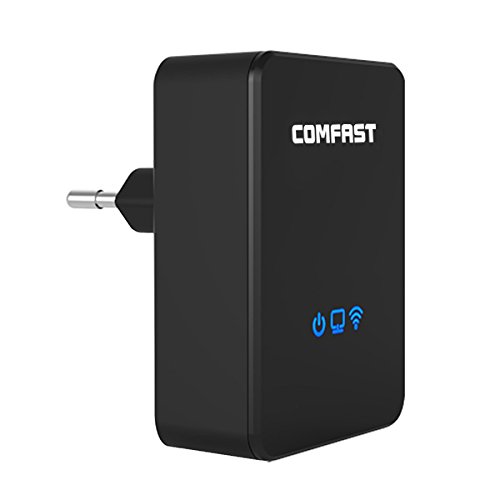
આકૃતિ 1.1: ફ્રન્ટ view of the Comfast CF-WR150N Wireless Repeater.
2. પેકેજ સામગ્રી
Before proceeding with setup, please verify that all items are present in the package:
- 1 x Comfast CF-WR150N Wireless Repeater
- 1 x Network Cable (Ethernet Cable)
- ૧ x વપરાશકર્તા માર્ગદર્શિકા (આ દસ્તાવેજ)
- 1 x ગેરંટી કાર્ડ
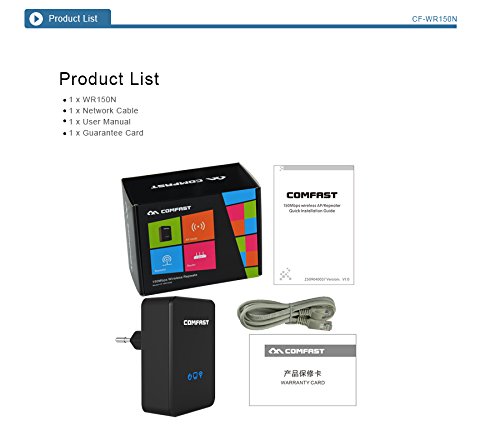
Figure 2.1: Contents included in the Comfast CF-WR150N product package.
3. ઉપકરણ ઘટકો
Familiarize yourself with the various parts and indicators of the CF-WR150N device:
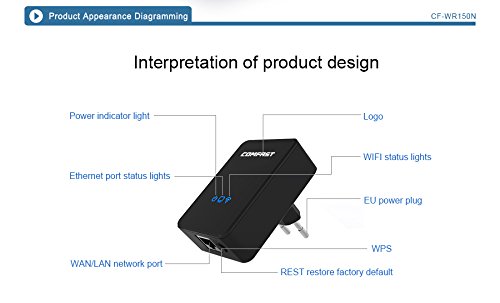
Figure 3.1: Detailed diagram of the CF-WR150N's external components and indicators.
- પાવર સૂચક લાઇટ: પાવર સ્થિતિ દર્શાવે છે.
- Ethernet Port Status Lights: Indicate activity on the WAN/LAN port.
- WAN/LAN Network Port: Used for wired connections.
- EU Power Plug: પાવર આઉટલેટ સાથે જોડાવા માટે.
- WPS બટન: For quick and secure wireless setup.
- REST (Reset) Button: ફેક્ટરી ડિફોલ્ટ સેટિંગ્સ પુનઃસ્થાપિત કરવા માટે વપરાય છે.
- લોગો: Comfast brand logo.
- WIFI Status Lights: વાયરલેસ નેટવર્ક પ્રવૃત્તિ સૂચવો.
4. સેટઅપ અને રૂપરેખાંકન
The Comfast CF-WR150N can be configured to operate in three distinct modes: Access Point (AP) Mode, Repeater Mode, and Router Mode. Choose the mode that best suits your network requirements.
4.1. General Setup Steps
- પાવર ચાલુ: Plug the CF-WR150N into a standard power outlet. Wait for the power indicator light to stabilize.
- ઉપકરણ સાથે કનેક્ટ કરો:
- વાયરલેસ કનેક્શન: On your computer or mobile device, search for available Wi-Fi networks. Connect to the network named "COMFAST_XXXX" (where XXXX are the last four digits of the device's MAC address). No password is required for the initial connection.
- વાયર્ડ કનેક્શન: Connect your computer directly to the CF-WR150N's WAN/LAN port using the provided Ethernet cable.
- એક્સેસ Web ઇન્ટરફેસ: ખોલો એ web browser and enter the default IP address (usually 192.168.10.1 or 192.168.1.254) into the address bar. Refer to the label on the device or the quick start guide for the exact IP.
- લૉગિન: Enter the default username and password (typically "admin" for both).
- ઓપરેટિંગ મોડ પસંદ કરો: Once logged in, you will be prompted to select the desired operating mode (AP, Repeater, or Router).
4.2. Operating Modes Explained
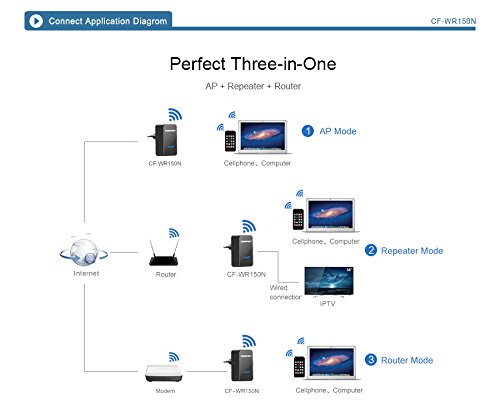
Figure 4.1: Application diagram showing AP, Repeater, and Router modes.
- AP મોડ (એક્સેસ પોઈન્ટ): In this mode, the CF-WR150N connects to a wired network (e.g., from a modem or router) and broadcasts a new wireless network. This is ideal for adding Wi-Fi capability to a wired-only network.
- રીપીટર મોડ (રેન્જ એક્સટેન્ડર): This mode extends the coverage of an existing wireless network. The CF-WR150N connects wirelessly to your main router's Wi-Fi signal and re-broadcasts it, effectively eliminating Wi-Fi dead zones.
- રાઉટર મોડ: When configured as a router, the CF-WR150N connects directly to your internet service provider's modem via the WAN/LAN port and creates a new wireless network, providing internet access to connected devices.
4.3. WPS Setup (Wireless Protected Setup)
For a quick and secure wireless connection to your existing router in Repeater Mode, you can use the WPS function:
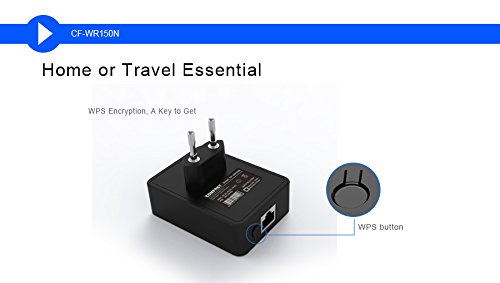
Figure 4.2: Location of the WPS button on the CF-WR150N.
- Plug the CF-WR150N into a power outlet near your main router.
- તમારા મુખ્ય રાઉટર પર WPS બટન દબાવો.
- Within two minutes, press the WPS button on the CF-WR150N.
- The devices will automatically establish a secure connection. The Wi-Fi status light on the CF-WR150N will indicate a successful connection.
5. ઓપરેશન અને ઉપયોગ
Once configured, the CF-WR150N operates automatically based on the selected mode. Ensure the device is placed in an optimal location for signal coverage.
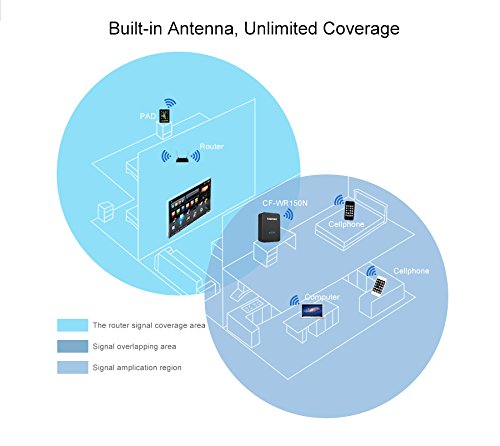
Figure 5.1: Illustration of signal coverage extension with the CF-WR150N.
For Repeater Mode, place the CF-WR150N approximately halfway between your router and the area where you need improved Wi-Fi signal. Avoid placing it in areas with significant interference or physical obstructions.
6. જાળવણી
To ensure optimal performance and longevity of your Comfast CF-WR150N, consider the following maintenance tips:
- ફર્મવેર અપડેટ્સ: Periodically check the Comfast official website for any available firmware updates. Updating firmware can improve performance, add new features, and fix bugs.
- સફાઈ: ઉપકરણને સ્વચ્છ અને ધૂળથી મુક્ત રાખો. બહારનો ભાગ સાફ કરવા માટે નરમ, સૂકા કપડાનો ઉપયોગ કરો. પ્રવાહી ક્લીનર્સ અથવા એરોસોલ્સનો ઉપયોગ કરશો નહીં.
- વેન્ટિલેશન: Ensure the device has adequate ventilation to prevent overheating. Do not cover the device or place it in an enclosed space.
- પુનartપ્રારંભ: If you experience network issues, a simple restart of the device (unplugging and re-plugging after 10 seconds) can often resolve minor glitches.
7. મુશ્કેલીનિવારણ
This section addresses common issues you might encounter with your Comfast CF-WR150N.
| સમસ્યા | સંભવિત કારણ | ઉકેલ |
|---|---|---|
| ઍક્સેસ કરી શકતા નથી web મેનેજમેન્ટ ઈન્ટરફેસ. | Incorrect IP address, device not powered on, or network configuration issue. |
|
| No internet access after setup. | Incorrect mode configuration, weak signal (Repeater Mode), or ISP issue. |
|
| Frequent disconnections or slow speeds. | દખલગીરી, ખરાબ પ્લેસમેન્ટ, અથવા નેટવર્ક ભીડ. |
|
| Forgot login password or device settings are corrupted. | Password forgotten or misconfiguration. |
|
8. સ્પષ્ટીકરણો
| લક્ષણ | વિગત |
|---|---|
| બ્રાન્ડ | આરામદાયક |
| મોડલ નંબર | CF-WR150N |
| કનેક્ટિવિટી પ્રકાર | Wi-Fi |
| વાયરલેસ પ્રકાર | 802.11b, 802.11g, 802.11n |
| વાયરલેસ કમ્યુનિકેશન માનક | 802.11b, 802.11g, 802.11n |
| ડેટા ટ્રાન્સફર રેટ | 150 Megabits Per Second (as per product description, not 750 from spec list) |
| આવર્તન બેન્ડ વર્ગ | Single-Band (implied by 802.11n 150M, Dual-Band from spec list seems incorrect for 150M) |
| ખાસ લક્ષણો | Access Point Mode, LED Indicator |
| વસ્તુનું વજન | 180 ગ્રામ |
| પેકેજ પરિમાણો | 13.8 x 10.4 x 6.2 સેમી |
| પ્રથમ ઉપલબ્ધ તારીખ | 1 જુલાઈ 2014 |
Note: Data Transfer Rate and Frequency Band Class are based on the primary product description. Some specification lists may contain discrepancies.
9. વોરંટી અને સપોર્ટ
For detailed information regarding the product warranty, please refer to the ગેરંટી કાર્ડ included in your product package. This card contains specific terms, conditions, and duration of the warranty.
For technical support, troubleshooting assistance beyond this manual, or service inquiries, please contact Comfast customer support through the channels provided on the Guarantee Card or the official Comfast webસાઇટ