
1. પરિચય
This manual provides detailed instructions for installing, configuring, and maintaining your GIGABYTE GA-B150M-D3H Micro ATX motherboard. The GA-B150M-D3H is designed to support 6th Generation Intel Core Processors and features Dual Channel DDR4 memory, PCIe Gen3 x4 M.2 connector, SATA Express, and 8-channel HD audio with Audio Noise Guard.
Please read this manual thoroughly before beginning installation to ensure proper setup and operation.
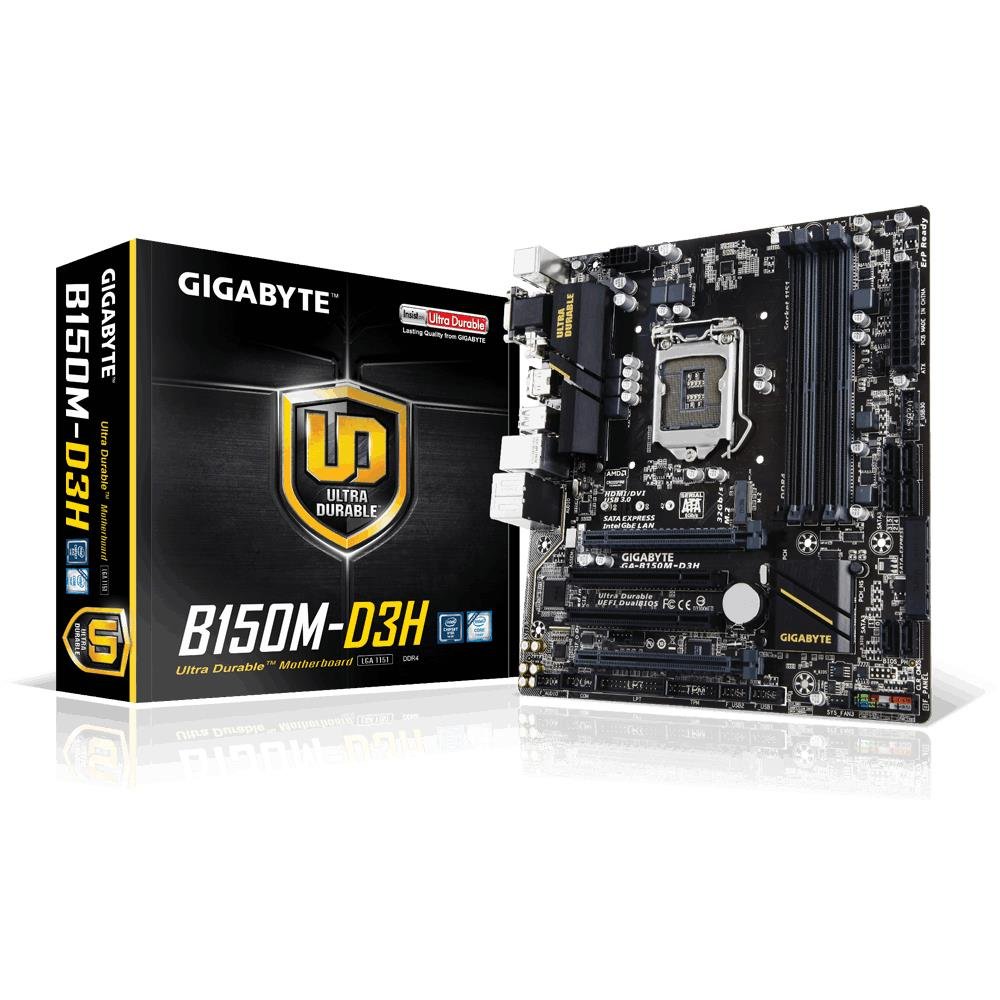
Image 1.1: GIGABYTE GA-B150M-D3H Micro ATX Motherboard. This image displays the overall layout of the motherboard, highlighting its compact Micro ATX form factor and various component slots.
2. સલામતી માહિતી
Observe the following safety precautions to prevent damage to the motherboard and injury to yourself:
- કોઈપણ ઘટકોને સ્પર્શ કરતા પહેલા હંમેશા પાવર કોર્ડને દિવાલના આઉટલેટથી ડિસ્કનેક્ટ કરો.
- સ્થિર વીજળી છોડવા માટે એન્ટિ-સ્ટેટિક કાંડાનો પટ્ટો પહેરો અથવા જમીન પર પડેલી ધાતુની વસ્તુને વારંવાર સ્પર્શ કરો.
- સંવેદનશીલ ઘટકોને સ્પર્શ ન થાય તે માટે મધરબોર્ડને તેની કિનારીઓથી પકડો.
- મધરબોર્ડને ભેજ અને અતિશય તાપમાનથી દૂર રાખો.
- ઓવરહિટીંગ અટકાવવા માટે કમ્પ્યુટર કેસની અંદર યોગ્ય વેન્ટિલેશનની ખાતરી કરો.
3. પેકેજ સામગ્રી
ચકાસો કે બધી વસ્તુઓ તમારા મધરબોર્ડ પેકેજમાં હાજર છે:
- GIGABYTE GA-B150M-D3H Motherboard
- વપરાશકર્તા માર્ગદર્શિકા
- આઇ / ઓ શીલ્ડ
- SATA કેબલ્સ
- Driver CD/DVD
Note: Contents may vary slightly depending on region or revision.
૧. મધરબોર્ડ લેઆઉટ
Familiarize yourself with the various components and connectors on the GA-B150M-D3H motherboard.
Image 4.1: GIGABYTE GA-B150M-D3H Motherboard Layout. This image provides a visual reference for the location of key components such as the CPU socket, DIMM slots, PCIe slots, SATA ports, and M.2 connector.
મુખ્ય ઘટકો:
- LGA 1151 CPU સોકેટ: For 6th Generation Intel Core Processors.
- DDR4 DIMM સ્લોટ્સ (4): Supports Dual Channel DDR4 memory up to 2133 MHz.
- PCIe સ્લોટ્સ: Includes PCIe Gen3 x16 for graphics cards and PCIe x1 slots for expansion.
- M.2 Connector: Supports PCIe NVMe & SATA SSDs with up to 32Gb/s data transfer.
- SATA Express Connector: For up to 16Gb/s data transfer.
- SATA 6Gb/s પોર્ટ્સ: For connecting traditional SATA storage devices.
- 24-Pin ATX Power Connector: મુખ્ય પાવર ઇનપુટ.
- 8-Pin ATX 12V Power Connector: CPU power input.
- ફ્રન્ટ પેનલ હેડર્સ: For power button, reset button, LED indicators, and USB ports.
- ઓડિયો કનેક્ટર્સ: 8-channel HD Audio with high quality capacitors and Audio Noise Guard.
5. સેટઅપ અને ઇન્સ્ટોલેશન
તમારા મધરબોર્ડ અને ઘટકોના યોગ્ય ઇન્સ્ટોલેશન માટે આ પગલાં અનુસરો.
૩.૧. CPU ઇન્સ્ટોલ કરવું
- LGA 1151 CPU સોકેટ શોધો.
- CPU સોકેટ લીવર ખોલો અને લોડ પ્લેટ ઉપાડો.
- Carefully align the CPU with the socket, ensuring the gold triangle on the CPU matches the triangle on the socket. Do not force the CPU into the socket.
- લોડ પ્લેટ નીચે કરો અને તેને લીવરથી સુરક્ષિત કરો.
5.2. CPU કુલર ઇન્સ્ટોલ કરવું
Refer to your CPU cooler's instruction manual for specific installation steps. Ensure thermal paste is applied correctly between the CPU and cooler base.
૩.૨. મેમરી (RAM) ઇન્સ્ટોલ કરી રહ્યા છીએ
- DDR4 DIMM સ્લોટના બંને છેડા પર ક્લિપ્સ ખોલો.
- મેમરી મોડ્યુલને સ્લોટ સાથે સંરેખિત કરો, ખાતરી કરો કે મોડ્યુલ પરનો નોચ સ્લોટમાં રહેલી કી સાથે મેળ ખાય છે.
- ક્લિપ્સ સ્થાને ન આવે ત્યાં સુધી મેમરી મોડ્યુલના બંને છેડા પર મજબૂત રીતે દબાવો.
- For dual-channel performance, install memory modules in matching colored slots (e.g., DIMM1 and DIMM2).
૫.૩. વિસ્તરણ કાર્ડ્સ ઇન્સ્ટોલ કરવા
- તમારા કમ્પ્યુટર કેસ પર ઇચ્છિત PCIe સ્લોટમાંથી મેટલ બ્રેકેટ દૂર કરો.
- Align the expansion card with the PCIe slot and press down firmly until it is seated correctly.
- કાર્ડને સ્ક્રૂ વડે કોમ્પ્યુટર કેસમાં સુરક્ષિત કરો.
5.5. Connecting Storage Devices
- SATA ઉપકરણો: Connect one end of the SATA data cable to a SATA 6Gb/s port on the motherboard and the other end to your hard drive or SSD. Connect the SATA power cable from your power supply to the device.
- M.2 SSD: Insert the M.2 SSD into the M.2 slot at an angle, then gently push it down and secure it with the provided screw.
- SATA Express: If using a SATA Express device, connect it to the designated SATA Express connector.
૩.૬. ફ્રન્ટ પેનલ કનેક્ટર્સને કનેક્ટ કરવું
Connect the cables from your computer case's front panel (power button, reset button, HDD LED, power LED, front USB, front audio) to the corresponding headers on the motherboard. Refer to the motherboard layout diagram for exact locations and pin assignments.
5.7. પાવર સપ્લાય કનેક્ટ કરવું
- Connect the 24-pin ATX main power connector from your power supply to the 24-pin power socket on the motherboard.
- Connect the 8-pin ATX 12V CPU power connector to the 8-pin socket near the CPU.
- ખાતરી કરો કે બધા પાવર કનેક્શન સુરક્ષિત છે.
6. ઓપરેટિંગ સૂચનાઓ
૪.૧. પહેલું બુટ
After assembling all components, connect your monitor, keyboard, and mouse. Power on the system. The system should display the GIGABYTE splash screen and then enter the BIOS/UEFI setup or attempt to boot from a connected storage device.
૪.૧. BIOS/UEFI સેટઅપ
BIOS/UEFI સેટઅપ દાખલ કરવા માટે, દબાવો DEL key repeatedly during the boot process when the GIGABYTE logo appears. Here you can configure system settings, boot order, and monitor hardware status. The GA-B150M-D3H features GIGABYTE UEFI Dual BIOS for enhanced reliability.
6.3. ડ્રાઇવર ઇન્સ્ટોલેશન
After installing your operating system, install the necessary drivers for the motherboard components. These can be found on the included driver CD/DVD or downloaded from the official GIGABYTE website. Key drivers include chipset, audio (Realtek ALC892 codec), LAN, and any integrated graphics drivers.
6.4. ઓપરેટિંગ સિસ્ટમ ઇન્સ્ટોલેશન
Insert your operating system installation media (USB drive or DVD) and configure the boot order in the BIOS/UEFI to boot from it. Follow the on-screen instructions to install your preferred operating system (e.g., Windows 8.1, Windows 10).
7. જાળવણી
7.1. સફાઈ
Regularly clean the interior of your computer case to prevent dust buildup, which can lead to overheating. Use compressed air to remove dust from fans, heatsinks, and motherboard components. Ensure the system is powered off and unplugged before cleaning.
૪.૧. BIOS અપડેટ્સ
GIGABYTE periodically releases BIOS updates to improve system stability, compatibility, and performance. Visit the official GIGABYTE website for your motherboard model (GA-B150M-D3H) to check for the latest BIOS version and follow the provided instructions for updating. Exercise caution during BIOS updates, as an interruption can render the motherboard inoperable.
8. મુશ્કેલીનિવારણ
આ વિભાગ તમને આવી શકે તેવી સામાન્ય સમસ્યાઓનું નિરાકરણ લાવે છે.
8.1. No Power / System Does Not Turn On
- Check if the power supply is connected correctly to the motherboard (24-pin and 8-pin connectors).
- ખાતરી કરો કે પાવર સપ્લાય સ્વીચ ચાલુ સ્થિતિમાં છે.
- Verify that the front panel power button cable is correctly connected to the motherboard header.
- Test the power supply with another system or a power supply tester.
8.2. કોઈ ડિસ્પ્લે આઉટપુટ નથી
- Ensure the monitor is connected to the correct graphics output (either integrated graphics on the motherboard or a dedicated graphics card).
- ગ્રાફિક્સ કાર્ડ અને મેમરી મોડ્યુલ્સ ફરીથી સેટ કરો.
- ફક્ત એક જ મેમરી મોડ્યુલ ઇન્સ્ટોલ કરીને બુટ કરવાનો પ્રયાસ કરો.
- Check if the monitor is powered on and set to the correct input source.
૫.૩. સિસ્ટમ અસ્થિરતા / ક્રેશ
- CPU અને GPU તાપમાન તપાસો જેથી ખાતરી કરી શકાય કે તેઓ સુરક્ષિત ઓપરેટિંગ મર્યાદામાં છે.
- Verify that all drivers are installed and up to date.
- ખામીયુક્ત RAM તપાસવા માટે મેમરી ડાયગ્નોસ્ટિક ટૂલ્સ ચલાવો.
- Ensure the power supply provides sufficient and stable power to all components.
9. સ્પષ્ટીકરણો
Detailed technical specifications for the GIGABYTE GA-B150M-D3H motherboard:
| લક્ષણ | સ્પષ્ટીકરણ |
|---|---|
| મોડેલનું નામ | GA-B150M-D3H |
| ફોર્મ ફેક્ટર | માઇક્રો ATX (24.4cm x 22.5cm) |
| CPU સોકેટ | એલજીએ 1151 |
| સુસંગત પ્રોસેસર્સ | 6th Generation Intel Core Processors |
| ચિપસેટ | ઇન્ટેલ B150 એક્સપ્રેસ ચિપસેટ |
| મેમરી ટેકનોલોજી | DDR4 |
| મેમરી સ્લોટ્સ | 4 x DDR4 DIMM સોકેટ્સ (ડ્યુઅલ ચેનલ) |
| મહત્તમ મેમરી ક્ષમતા | 16 જીબી |
| મેમરી ઘડિયાળની ગતિ | 2133 MHz |
| પીસીઆઇ સ્લોટ્સ | 1 x PCI Express x16, 1 x Total PCIe Ports |
| સ્ટોરેજ ઇન્ટરફેસ | PCIe Gen3 x4 M.2, SATA Express, SATA 6Gb/s |
| ઓડિયો કોડેક | Realtek ALC892 codec, 8-channel HD Audio |
| યુએસબી પોર્ટ્સ | Total 8 USB Ports (including USB 2.0) |
| મુખ્ય પાવર કનેક્ટર | 24-Pin ATX |
| CPU પાવર કનેક્ટર | 8-Pin ATX 12V |
| અનન્ય લક્ષણો | GIGABYTE UEFI Dual BIOS, Audio Noise Guard with LED Trace Path Lighting, App Center (Easy Tune, Cloud Station) |
10. વોરંટી અને સપોર્ટ
For warranty information, please refer to the warranty card included in your product package or visit the official GIGABYTE webસાઇટ. વોરંટીના નિયમો અને શરતો પ્રદેશ પ્રમાણે બદલાઈ શકે છે.
For technical support, driver downloads, BIOS updates, and further product information, please visit the GIGABYTE official support webસાઇટ:
https://www.gigabyte.com/Support
When contacting support, please have your motherboard model (GA-B150M-D3H) and serial number ready.