
1. પરિચય
This manual provides essential information for the safe and efficient use of your InFocus IF195a Touch Pad. Please read this manual thoroughly before operating the device and retain it for future reference.
2. સલામતી માહિતી
- ઉપકરણને અતિશય તાપમાન, સીધો સૂર્યપ્રકાશ અથવા ઉચ્ચ ભેજના સંપર્કમાં ન લાવો.
- ઉપકરણને મજબૂત અસરમાં મૂકવા અથવા આધીન કરવાનું ટાળો.
- Use only the charger provided or approved by InFocus.
- ઉપકરણને જાતે ડિસએસેમ્બલ કરવાનો કે રિપેર કરવાનો પ્રયાસ કરશો નહીં. બધી સર્વિસિંગ લાયક કર્મચારીઓને સોંપો.
- ઉપકરણને પાણી અને અન્ય પ્રવાહીથી દૂર રાખો.
- સ્થાનિક નિયમો અનુસાર ઉપકરણ અને તેની બેટરીનો જવાબદારીપૂર્વક નિકાલ કરો.
3. ઉત્પાદન ઓવરview
The InFocus IF195a is a 20-inch Android-powered touch pad designed for interactive use. Familiarize yourself with its components.
3.1 મોરચો View

આકૃતિ 1: આગળ view of the InFocus IF195a Touch Pad. This image shows the large 20-inch display with the Android operating system interface, including various app icons and the Google search bar. The device features a sleek bezel around the screen.
- પ્રદર્શન: 20-inch multi-touch screen.
- ફ્રન્ટ કેમેરા: Located at the top center bezel.
- માઇક્રોફોન: Integrated for voice input.
3.2 બાજુ View અને બંદરો
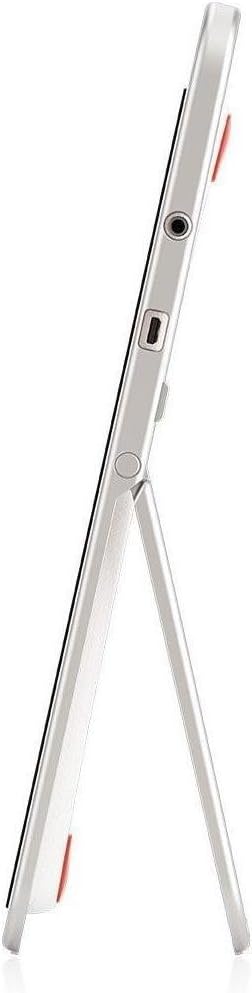
આકૃતિ 2: બાજુ view of the InFocus IF195a Touch Pad. This image highlights the device's slim profile and the integrated kickstand, which allows for upright positioning. Visible ports include a headphone jack and a USB port.
- પાવર બટન: Used to turn the device on/off or put it to sleep.
- વોલ્યુમ બટનો: Adjust the device's audio output.
- હેડફોન જેક (3.5 મીમી): બાહ્ય ઑડિઓ ઉપકરણોને કનેક્ટ કરવા માટે.
- માઇક્રો-યુએસબી પોર્ટ: ચાર્જિંગ અને ડેટા ટ્રાન્સફર માટે.
- સંકલિત કિકસ્ટેન્ડ: Allows the device to stand upright.
4. સેટઅપ
૧.૧ અનબોક્સિંગ અને પ્રારંભિક ચાર્જ
- Carefully remove the InFocus IF195a Touch Pad and all accessories from the packaging.
- Connect the provided power adapter to the Micro-USB port on the device and plug it into a power outlet. Allow the device to charge fully before first use. The charging indicator will typically show a full battery when complete.
4.2 પાવરિંગ ચાલુ/બંધ
- પાવર ચાલુ કરવા માટે: Press and hold the Power button until the InFocus logo appears on the screen.
- પાવર ઓફ કરવા માટે: પાવર-ઓફ મેનૂ દેખાય ત્યાં સુધી પાવર બટન દબાવી રાખો. "પાવર ઓફ" પસંદ કરો અને પુષ્ટિ કરો.
- સૂવા/જાગવા માટે: ઉપકરણને સ્લીપ મોડમાં મૂકવા અથવા તેને જગાડવા માટે પાવર બટનને થોડા સમય માટે દબાવો.
૨.૫ પ્રારંભિક સેટઅપ વિઝાર્ડ
Upon first power-on, the device will guide you through an initial setup process:
- ભાષા પસંદગી: તમારી પસંદીદા ભાષા પસંદ કરો.
- Wi-Fi કનેક્શન: Select your Wi-Fi network from the list and enter the password. A stable internet connection is required for many features.
- Google એકાઉન્ટ: Sign in with an existing Google account or create a new one. This is necessary to download apps from the Google Play Store and access Google services.
- તારીખ અને સમય: Set the correct date and time or allow the device to set it automatically via the network.
- ગોપનીયતા સેટિંગ્સ: Review અને ઈચ્છા મુજબ ગોપનીયતા સેટિંગ્સ ગોઠવો.
5. ઉપકરણનું સંચાલન
5.1 ટચ હાવભાવ
- ટૅપ કરો: કોઈ વસ્તુ પસંદ કરવા અથવા એપ્લિકેશન ખોલવા માટે સ્ક્રીનને એકવાર ટચ કરો.
- ટચ એન્ડ હોલ્ડ: Press and hold an item to access contextual menus or drag items.
- સ્વાઇપ કરો: યાદીઓમાંથી સ્ક્રોલ કરવા અથવા હોમ સ્ક્રીન વચ્ચે સ્વિચ કરવા માટે તમારી આંગળીને સ્ક્રીન પર ખેંચો.
- ઝૂમ કરવા માટે પિંચ કરો: છબીઓ, નકશાઓ, અથવા પર ઝૂમ ઇન અથવા આઉટ કરવા માટે બે આંગળીઓનો ઉપયોગ કરો web પૃષ્ઠો
૫.૧ હોમ સ્ક્રીન અને નેવિગેશન
- હોમ બટન: Returns you to the main home screen.
- પાછળનું બટન: પાછલી સ્ક્રીન પર પાછા ફરે છે અથવા વર્તમાન એપ્લિકેશન બંધ કરે છે.
- તાજેતરની એપ્લિકેશન્સ બટન: ઝડપી સ્વિચિંગ માટે તાજેતરમાં વપરાયેલ એપ્લિકેશનોની સૂચિ દર્શાવે છે.
- સૂચના પેનલ: સૂચનાઓ અને ઝડપી સેટિંગ્સને ઍક્સેસ કરવા માટે સ્ક્રીનની ટોચ પરથી નીચે સ્વાઇપ કરો.
૫.૩ એપ્લિકેશનો ઇન્સ્ટોલ અને મેનેજ કરવી
- Google Play Store: Open the "Play Store" app to browse and download applications. A Google account is required.
- એપ્સ ઇન્સ્ટોલ કરી રહ્યા છીએ: Select an app and tap "Install." Follow on-screen prompts for permissions.
- એપ્લિકેશનો અનઇન્સ્ટોલ કરવી: પર જાઓ સેટિંગ્સ > એપ્લિકેશનો, select the desired app, and tap "Uninstall." Alternatively, touch and hold an app icon on the home screen and drag it to the "Uninstall" option (if available).
૪.૨ બાહ્ય ઉપકરણો સાથે કનેક્ટ કરવું
- હેડફોન: હેડફોન જેકમાં 3.5mm હેડફોન પ્લગ કરો.
- યુએસબી ઉપકરણો: Connect compatible USB devices (e.g., flash drives, keyboards) to the Micro-USB port using an appropriate adapter if necessary. The device supports USB On-The-Go (OTG).
6. જાળવણી
6.1 ઉપકરણની સફાઈ
- ઉપકરણની સ્ક્રીન અને શરીરને સાફ કરવા માટે નરમ, લિન્ટ-ફ્રી કાપડનો ઉપયોગ કરો.
- હઠીલા ગુણ માટે, સહેજ ડીampપાણી અથવા ખાસ ઇલેક્ટ્રોનિક્સ માટે રચાયેલ સ્ક્રીન ક્લીનર સાથે કાપડ.
- કઠોર રસાયણો, ઘર્ષક ક્લીનર્સ અથવા એરોસોલ સ્પ્રેનો ઉપયોગ કરવાનું ટાળો.
6.2 બેટરી કેર
- બેટરીનું જીવન વધારવા માટે, વારંવાર બેટરીને સંપૂર્ણપણે ડિસ્ચાર્જ કરવાનું ટાળો.
- સંપૂર્ણ ચાર્જ થયા પછી ઉપકરણને લાંબા સમય સુધી ચાર્જર સાથે જોડાયેલ ન રાખો.
- Store the device in a cool, dry place if not used for a long time, with the battery charged to about 50%.
6.3 સોફ્ટવેર અપડેટ્સ
Periodically check for software updates to ensure optimal performance and security. Go to સેટિંગ્સ > ટેબ્લેટ વિશે > સિસ્ટમ અપડેટ્સ to check for and install available updates. Ensure your device is connected to Wi-Fi and has sufficient battery charge before starting an update.
7. મુશ્કેલીનિવારણ
| સમસ્યા | શક્ય ઉકેલ |
|---|---|
| Device will not power on. | Ensure the device is charged. Connect the charger and wait a few minutes before attempting to power on again. If unresponsive, perform a hard reset by holding the power button for 10-15 seconds. |
| Wi-Fi કનેક્શન સમસ્યાઓ. | Check if Wi-Fi is enabled in settings. Restart your Wi-Fi router. Forget the network and reconnect. Ensure you are within range of the Wi-Fi signal. |
| એપ્લિકેશનો ક્રેશ થઈ રહી છે અથવા ફ્રીઝ થઈ રહી છે. | Close and restart the application. Clear the app's cache (સેટિંગ્સ > એપ્લિકેશન્સ > [એપ્લિકેશન નામ] > સ્ટોરેજ > કેશ સાફ કરો). If the problem persists, uninstall and reinstall the app. |
| સ્ક્રીન પ્રતિભાવવિહીન છે. | Restart the device. Ensure the screen is clean and free of debris. If the issue continues, contact support. |
| ધીમું પ્રદર્શન. | Close unnecessary background applications. Clear cache for frequently used apps. Check available storage (સેટિંગ્સ > સ્ટોરેજ) and free up space if needed. Consider a factory reset as a last resort. |
7.1 ફેક્ટરી રીસેટ
ફેક્ટરી રીસેટ તમારા ઉપકરણમાંથી બધો ડેટા ભૂંસી નાખશે અને તેને તેના મૂળ ફેક્ટરી સેટિંગ્સમાં પુનઃસ્થાપિત કરશે. આગળ વધતા પહેલા બધા મહત્વપૂર્ણ ડેટાનો બેકઅપ લો.
- પર જાઓ સેટિંગ્સ > બેકઅપ અને રીસેટ > ફેક્ટરી ડેટા રીસેટ.
- Read the warning message carefully.
- Tap "Reset tablet" and then "Erase everything" to confirm.
- ઉપકરણ ફરીથી શરૂ થશે અને રીસેટ પ્રક્રિયા શરૂ થશે.
8. ટેકનિકલ વિશિષ્ટતાઓ
| લક્ષણ | સ્પષ્ટીકરણ |
|---|---|
| મોડલ | IF195a |
| બ્રાન્ડ | ઇનફોકસ |
| ડિસ્પ્લે માપ | 20 ઇંચ |
| મહત્તમ રીઝોલ્યુશન | 1600 x 900 |
| પ્રોસેસર | ARM Cortex-A15 Quad-Core 1.8 GHz |
| રેમ ક્ષમતા | 2 જીબી |
| સંગ્રહ ક્ષમતા | 16 જીબી |
| ઓપરેટિંગ સિસ્ટમ | એન્ડ્રોઇડ 4.4 કિટકેટ |
| રીઅર કેમેરા રિઝોલ્યુશન | 5 MP |
| પરિમાણો (L x W x H) | 61.6 x 47 x 8.6 સેમી |
| વજન | 3.7 કિગ્રા |
| રંગ | ગ્રે |
9. વોરંટી અને સપોર્ટ
For warranty information, please refer to the warranty card included with your product or visit the official InFocus website. For technical support, product registration, or service inquiries, please contact InFocus customer service through their official channels.
Please note that warranty terms may vary by region and retailer. Keep your proof of purchase for warranty claims.