
પરિચય
This manual provides comprehensive instructions for the setup, operation, maintenance, and troubleshooting of your SiriusXM Sound Station Internet Radio, model GDI-SXTTR2. Please read this manual thoroughly before using your device to ensure proper functionality and to maximize your listening experience.
The SiriusXM Sound Station allows you to access SiriusXM live news, talk, sports, weather, and music channels, personalized channels, and on-demand shows via your Wi-Fi network. A SiriusXM Streaming Subscription or All Access Subscription Plan is required and sold separately.
બૉક્સમાં શું છે:
- SiriusXM Sound Station (GDI-SXTTR2)
- રીમોટ કંટ્રોલ
- એસી પાવર એડેપ્ટર
- ઝડપી પ્રારંભ માર્ગદર્શિકા
સેટઅપ
1. પાવર કનેક્શન
Connect the supplied AC power adapter to the DC IN port on the back of the Sound Station and then plug the adapter into a standard electrical outlet. The unit will power on automatically or enter standby mode.
૩.૩. નેટવર્ક કનેક્શન (Wi-Fi)
The Sound Station requires a Wi-Fi 802.11 b/g/n wireless connection with WEP or WPA security to access SiriusXM content. An optional Ethernet adapter is sold separately if a wired connection is preferred.
- Upon initial power-on, the device will guide you through the network setup process.
- Use the navigation controls (typically a rotary dial and select button) to scan for available Wi-Fi networks.
- યાદીમાંથી તમારા ઘરનું Wi-Fi નેટવર્ક પસંદ કરો.
- Enter your Wi-Fi password using the on-screen keyboard and navigation controls. This process can be tedious due to the rotary dial input method.
- Confirm the connection. The device should indicate a successful connection.

Image: The SiriusXM Sound Station internet radio shown with its remote control. The radio features a digital display, control knobs, and a speaker grille.
3. SiriusXM Account Setup
After connecting to the internet, you will need to log in with your SiriusXM account credentials. Ensure you have an active SiriusXM Streaming or All Access subscription.
- Follow the on-screen prompts to enter your SiriusXM username and password.
- Use the rotary dial and select button to input characters.
- Once logged in, the Sound Station will be ready to stream content.
ઓપરેટિંગ સૂચનાઓ
મૂળભૂત નિયંત્રણો
The Sound Station features intuitive controls for navigation and playback:
- Rotary Dial (Tune/Scroll): Used to scroll through menus, channels, and adjust settings.
- બટન પસંદ કરો: પસંદગીની પુષ્ટિ કરે છે.
- વોલ્યુમ નોબ: ઓડિયો આઉટપુટ સ્તરને સમાયોજિત કરે છે.
- હોમ બટન: મુખ્ય મેનુ પર પાછા ફરે છે.
- પાછળનું બટન: Navigates to the previous screen or menu.
- નંબર બટનો (0-9): For direct channel entry or preset recall.
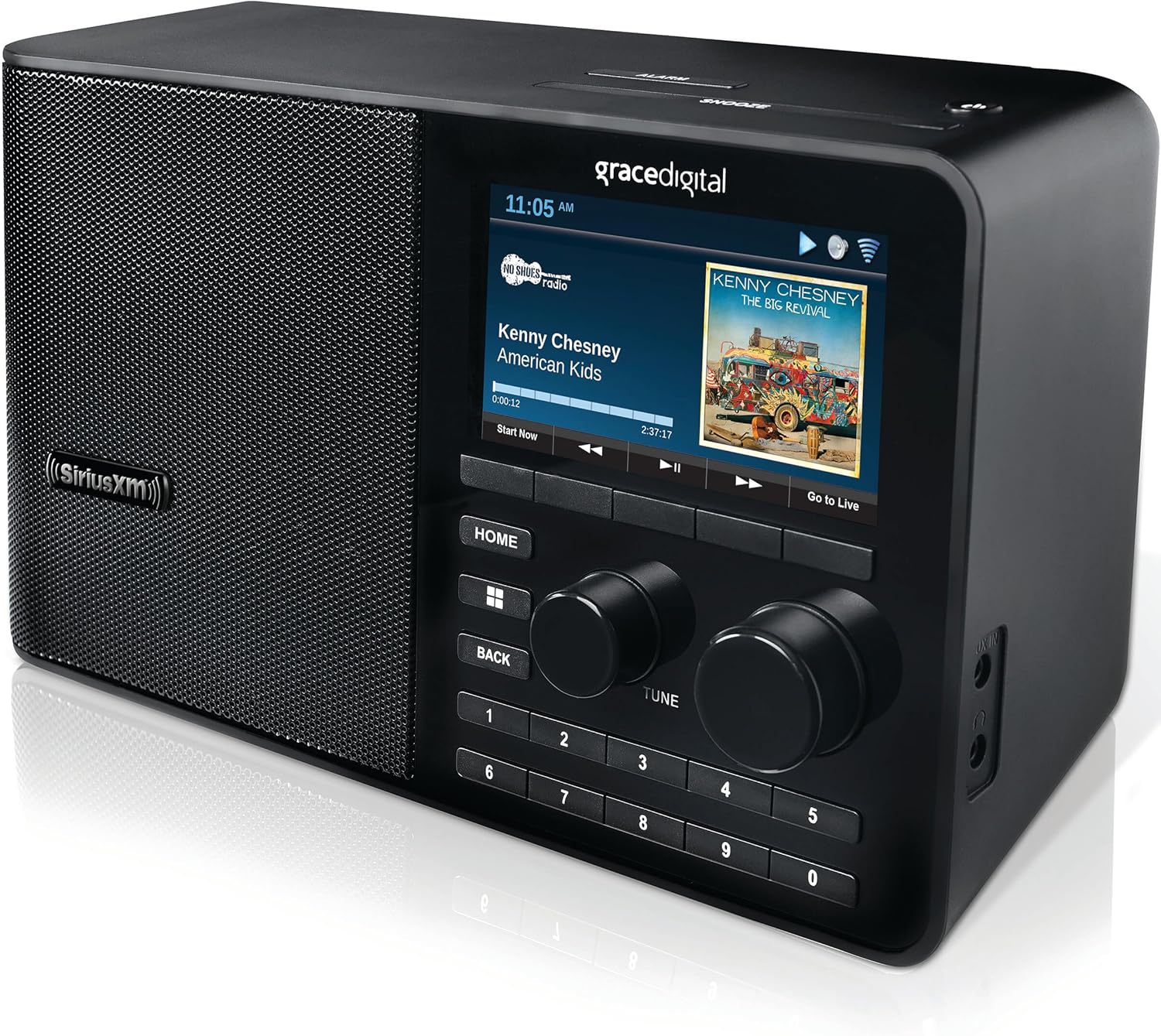
છબી: ક્લોઝ-અપ view of the SiriusXM Sound Station's display, showing channel information, album art, and control buttons.
Channel Selection and Presets
- Browsing Channels: Use the rotary dial to scroll through the list of available SiriusXM channels. Press the Select button to tune in.
- Direct Channel Entry: Use the number buttons on the unit or remote control to directly enter a channel number.
- પ્રીસેટ્સ સેટ કરી રહ્યા છીએ: Tune to your desired channel. Press and hold one of the number buttons (1-10) until the display confirms the preset has been saved.
- રિસીલ્ડિંગ પ્રીસેટ્સનો: Briefly press the corresponding number button (1-10) to instantly tune to a saved preset channel.
પ્લેબેક સુવિધાઓ
- Pause, Rewind, Replay: The Sound Station allows you to pause, rewind, and replay live radio content. Use the dedicated playback controls on the unit or remote.
- Start Now Function: On select channels, you can access the "Start Now" function to hear shows from the beginning, even if you tune in late.
- On-Demand Shows: Access a library of on-demand content through the device's menu.
એલાર્મ સિસ્ટમ
The Sound Station includes an advanced digital alarm system:
- Access the alarm settings through the main menu.
- Set up to 5 custom alarms with options for weekly, weekends, weekdays, or one-time activation.
- Configure snooze duration and sleep timer settings.
સહાયક ઇનપુટ
The unit features an integrated auxiliary input jack, allowing you to connect external audio devices (e.g., MP3 players, smartphones) using a 3.5mm audio cable (not included). Select the auxiliary input source from the device's menu to play audio from the connected device.
જાળવણી
સફાઈ
To maintain the appearance and functionality of your Sound Station:
- સફાઈ કરતા પહેલા પાવર આઉટલેટમાંથી યુનિટને અનપ્લગ કરો.
- બાહ્ય સપાટીઓ સાફ કરવા માટે નરમ, સૂકા કપડાનો ઉપયોગ કરો.
- Do not use liquid cleaners, abrasive cleaners, or solvents, as these may damage the finish.
- Avoid spraying cleaners directly onto the unit.
ફર્મવેર અપડેટ્સ
The Sound Station may periodically receive firmware updates to improve performance or add new features. The device will typically prompt you when an update is available. It is generally recommended to install updates, but be aware that some updates may introduce unforeseen issues. Ensure a stable power connection during any update process.
મુશ્કેલીનિવારણ
If you encounter issues with your SiriusXM Sound Station, refer to the following common problems and solutions:
| સમસ્યા | સંભવિત કારણ / ઉકેલ |
|---|---|
| નો પાવર |
|
| No Wi-Fi Connection / Cannot Connect to Network |
|
| "Playback stopped - Invalid Session (208)" Error |
|
| Poor Sound Quality / Crackling |
|
| રીમોટ કંટ્રોલ કામ કરતું નથી |
|
જો આ ઉકેલો તમારી સમસ્યાનું નિરાકરણ ન લાવે, તો વધુ સહાય માટે કૃપા કરીને સપોર્ટ વિભાગનો સંદર્ભ લો.
વિશિષ્ટતાઓ
| લક્ષણ | વિગત |
|---|---|
| મોડલ નંબર | GDI-SXTTR2 |
| ઉત્પાદન પરિમાણો | 5.25 x 10.75 x 6 ઇંચ |
| વસ્તુનું વજન | 3 પાઉન્ડ |
| કનેક્ટિવિટી ટેકનોલોજી | Wi-Fi (802.11 b/g/n) |
| ટ્યુનર ટેકનોલોજી | ઈન્ટરનેટ રેડિયો |
| પાવર સ્ત્રોત | AC (Input: 100-240 VAC, 50/60 Hz, 0.2 A) |
| ખાસ લક્ષણ | એલાર્મ |
| રંગ | કાળો |
| સમાવાયેલ ઘટકો | SiriusXM Sound Station, Remote Control, AC Power Adapter, Quick Start Guide |
વોરંટી અને આધાર
Warranty information for your SiriusXM Sound Station is typically provided with your purchase documentation. Please refer to the warranty card or the original packaging for details regarding coverage and terms.
For technical support, customer service, or further assistance with your SiriusXM subscription, please contact SiriusXM directly. You can often find support contact information on the official SiriusXM website or within your account details.
For product-specific inquiries related to the hardware, you may also refer to Grace Digital's support resources, as they are the manufacturer of this device.
ઑનલાઇન સંસાધનો: