
1. પરિચય
ખરીદી બદલ આભારasing the Zebronics ZEB-A18 Plus 17.3-inch LED Monitor. This manual provides essential information for setting up, operating, and maintaining your monitor. Please read it thoroughly before use and retain it for future reference.
૧.૧ બોક્સમાં શું છે
- મોનીટર
- પાવર એડેપ્ટર
- મોનિટર સ્ટેન્ડ
- વપરાશકર્તા માર્ગદર્શિકા
- વીજીએ કેબલ
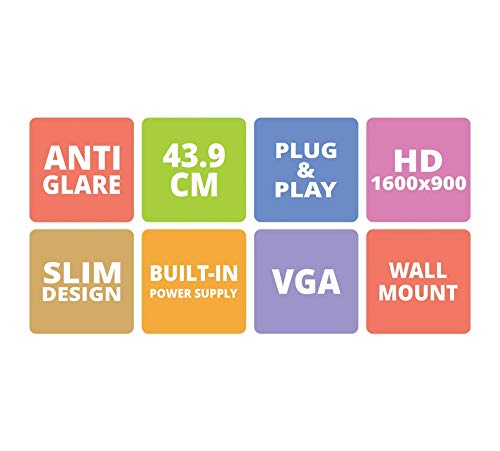
Figure 1: Key features of the Zebronics ZEB-A18 Plus monitor, including Anti Glare, 43.9 CM screen size, Plug & Play functionality, HD 1600x900 resolution, Slim Design, Built-in Power Supply, VGA connectivity, and Wall Mount compatibility.
2. સલામતી માહિતી
સલામત કામગીરી સુનિશ્ચિત કરવા અને નુકસાન અટકાવવા માટે, કૃપા કરીને નીચેની સલામતી સાવચેતીઓનું પાલન કરો:
- મોનિટરને વરસાદ કે ભેજના સંપર્કમાં ન લાવો.
- મોનિટર ખોલશો નહીં casing; બધી સેવા લાયક કર્મચારીઓને સોંપવી.
- મોનિટરને સ્થિર, સપાટ સપાટી પર મૂકો.
- મોનિટરની આસપાસ યોગ્ય વેન્ટિલેશનની ખાતરી કરો.
- ફક્ત પ્રદાન કરેલ પાવર એડેપ્ટરનો ઉપયોગ કરો.
- વીજળીના તોફાન દરમિયાન અથવા લાંબા સમય સુધી ઉપયોગ ન કરવામાં આવે ત્યારે પાવર કેબલ ડિસ્કનેક્ટ કરો.
3. સેટઅપ
૧.૨ સ્ટેન્ડ એસેમ્બલ કરવું
- પેકેજિંગમાંથી મોનિટર અને સ્ટેન્ડના ઘટકો કાળજીપૂર્વક દૂર કરો.
- સ્ટેન્ડ બેઝને સ્ટેન્ડ નેક સાથે જોડો.
- આપેલા સ્ક્રૂનો ઉપયોગ કરીને એસેમ્બલ સ્ટેન્ડને મોનિટરની પાછળ સુરક્ષિત કરો. ખાતરી કરો કે તે મજબૂત રીતે જોડાયેલ છે.
3.2 મોનિટરને કનેક્ટ કરવું
- પાવર કનેક્શન: Connect the power adapter to the monitor's power input and then plug the adapter into a power outlet.
- વિડિઓ કનેક્શન: Connect one end of the VGA cable to the VGA port on your computer's graphics card and the other end to the VGA input port on the monitor.
- ઓડિયો કનેક્શન (જો લાગુ હોય તો): The monitor has built-in speakers. No separate audio cable is typically needed for VGA connections as audio is not transmitted via VGA. Ensure your computer's audio output is configured correctly.
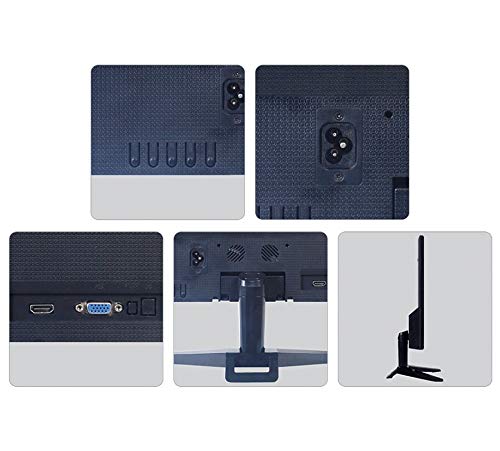
આકૃતિ 2: પાછળ view of the Zebronics ZEB-A18 Plus monitor showing the power input, VGA port, and side profile. This image illustrates the available connection points for power and video input.
4. ઓપરેટિંગ સૂચનાઓ
4.1 પાવરિંગ ચાલુ/બંધ
મોનિટર ચાલુ કે બંધ કરવા માટે તેના પર સ્થિત પાવર બટન દબાવો. જ્યારે મોનિટર સક્રિય હશે ત્યારે પાવર સૂચક લાઇટ પ્રકાશિત થશે.
4.2 Basic Display Adjustments
The monitor features an On-Screen Display (OSD) menu for adjusting various settings. Use the control buttons (usually located on the bottom or back of the monitor) to navigate the OSD menu. Common adjustments include:
- તેજ: સ્ક્રીનના એકંદર તેજને સમાયોજિત કરે છે.
- કોન્ટ્રાસ્ટ: પ્રકાશ અને શ્યામ વિસ્તારો વચ્ચેના તફાવતને સમાયોજિત કરે છે.
- રંગ સેટિંગ્સ: Fine-tune color temperature or individual RGB levels.
- ઇનપુટ પસંદ કરો: Manually select the video input source (e.g., VGA).
૬.૫ બિલ્ટ-ઇન સ્પીકર્સ
The ZEB-A18 Plus monitor includes built-in speakers. Ensure your computer's audio output is directed to the monitor if you wish to use them. Volume can typically be controlled via your computer's operating system.
5. જાળવણી
5.1 મોનિટરની સફાઈ
- સફાઈ કરતા પહેલા હંમેશા મોનિટરને પાવર આઉટલેટમાંથી અનપ્લગ કરો.
- હળવાશથી નરમ, લિન્ટ-ફ્રી કાપડનો ઉપયોગ કરો ડીampપાણી અથવા ઘર્ષણ વિનાના સ્ક્રીન ક્લીનરથી ધોઈ લો.
- સ્ક્રીન પર સીધું ક્લીનર સ્પ્રે કરશો નહીં.
- કઠોર રસાયણો, દ્રાવકો અથવા ઘર્ષક સામગ્રીનો ઉપયોગ કરવાનું ટાળો.
- સી સાફ કરોasinનરમ, સૂકા કપડાથી g.
6. મુશ્કેલીનિવારણ
જો તમને તમારા મોનિટરમાં સમસ્યાઓ આવે, તો નીચેની સામાન્ય સમસ્યાઓ અને ઉકેલોનો સંદર્ભ લો:
- No Display / "No Signal" Message:
- Ensure the monitor is powered on and the power indicator is lit.
- Check that the VGA cable is securely connected to both the monitor and the computer.
- Verify that your computer is powered on and not in sleep mode.
- તમારા કમ્પ્યુટરને ફરીથી પ્રારંભ કરવાનો પ્રયાસ કરો.
- If using multiple monitors, ensure the correct display output is selected on your computer.
- Poor Image Quality (Blurry, Distorted, Incorrect Colors):
- Check the VGA cable for damage or loose connections.
- તમારા કમ્પ્યુટર પરના રિઝોલ્યુશન સેટિંગ્સને મોનિટરના મૂળ રિઝોલ્યુશન (૧૯૨૦ x ૧૦૮૦) સાથે મેચ કરવા માટે ગોઠવો.
- Use the OSD menu to adjust brightness, contrast, and color settings.
- બિલ્ટ-ઇન સ્પીકર્સમાંથી કોઈ અવાજ નથી:
- Ensure the monitor's volume is not muted or set too low via the OSD (if available) or your computer's audio settings.
- Verify that your computer's audio output is correctly configured to send sound to the monitor.
7. સ્પષ્ટીકરણો
| બ્રાન્ડ | ઝેબ્રોનિકસ |
| મોડેલનું નામ | ZEB A18 Plus |
| મોડલ નંબર | ZEB-A18 |
| સ્ક્રીન માપ | 17.2 ઇંચ |
| ડિસ્પ્લે પ્રકાર | એલઇડી |
| મહત્તમ ડિસ્પ્લે રિઝોલ્યુશન | ૧૬૦૦ x ૭૨૦ (એચડી+) |
| પાસા રેશિયો | 16:9 |
| તાજું દર | 60 હર્ટ્ઝ |
| પ્રતિભાવ સમય | 8 મિલિસેકંડ |
| છબીની તેજ | 220 cd/m² |
| કોન્ટ્રાસ્ટ રેશિયો | 400:1 |
| Viewએન્ગલ | 178 ડિગ્રી |
| કનેક્ટિવિટી | વીજીએ |
| બિલ્ટ-ઇન સ્પીકર્સ | હા |
| માઉન્ટિંગ પ્રકાર | વોલ માઉન્ટ |
| રંગ | કાળો |
| પાવર વપરાશ | 15W |
| વજન | 1.1 કિગ્રા |
| સ્ટેન્ડ સાથેના પરિમાણો (W x D x H) | 415 x 13 x 340 મીમી |
8. વોરંટી અને સપોર્ટ
8.1 વોરંટી માહિતી
Your Zebronics ZEB-A18 Plus monitor is covered by a limited warranty. Please refer to the warranty card included with your product for specific terms and conditions. Keep your purchase receipt as proof of purchase for warranty claims.
8.2 ગ્રાહક સપોર્ટ
For technical assistance, troubleshooting, or warranty inquiries, please contact Zebronics customer support. Contact details can typically be found on the official Zebronics webસાઇટ પર અથવા ઉત્પાદન પેકેજિંગ પર.