
પરિચય
This manual provides instructions for the setup, operation, maintenance, and troubleshooting of your Rampage KM-RX9 CYPHER Gaming Keyboard and Mouse Set. This set includes a USB wired keyboard with rainbow ground illumination and a wired gaming mouse. Please read this manual thoroughly before using the product to ensure proper functionality and longevity.
સલામતી માહિતી
- Keep the device away from liquids and excessive moisture.
- આત્યંતિક તાપમાને ઉપકરણને ખુલ્લું પાડશો નહીં.
- ઉપકરણને મજબૂત અસરમાં મૂકવા અથવા આધીન કરવાનું ટાળો.
- ઉપકરણને જાતે ડિસએસેમ્બલ કરવાનો કે રિપેર કરવાનો પ્રયાસ કરશો નહીં. લાયક સેવા કર્મચારીઓનો સંપર્ક કરો.
- Use only with compatible USB ports.
પેકેજ સામગ્રી
પેકેજને અનબોક્સ કરતી વખતે કૃપા કરીને તેની સામગ્રી તપાસો. માનક પેકેજમાં શામેલ હોવું જોઈએ:
- Rampage KM-RX9 CYPHER Gaming Keyboard
- Rampage KM-RX9 CYPHER Gaming Mouse
- વપરાશકર્તા માર્ગદર્શિકા (આ દસ્તાવેજ)
સેટઅપ
Follow these steps to set up your Rampage KM-RX9 CYPHER Gaming Keyboard and Mouse Set:
- કીબોર્ડ કનેક્ટ કરો: Locate an available USB port on your computer. Plug the USB connector of the Rampage KM-RX9 keyboard into the USB port.
- માઉસને કનેક્ટ કરો: Locate another available USB port on your computer. Plug the USB connector of the Rampage KM-RX9 mouse into the USB port.
- ડ્રાઇવર ઇન્સ્ટોલેશન: The keyboard and mouse are typically plug-and-play devices. Your operating system (Windows, macOS, Linux) should automatically detect and install the necessary drivers. This process may take a few moments.
- ચકાસણી: Once drivers are installed, the keyboard and mouse should be ready for use. Test by typing on the keyboard and moving/clicking the mouse. The keyboard's rainbow illumination should activate automatically.
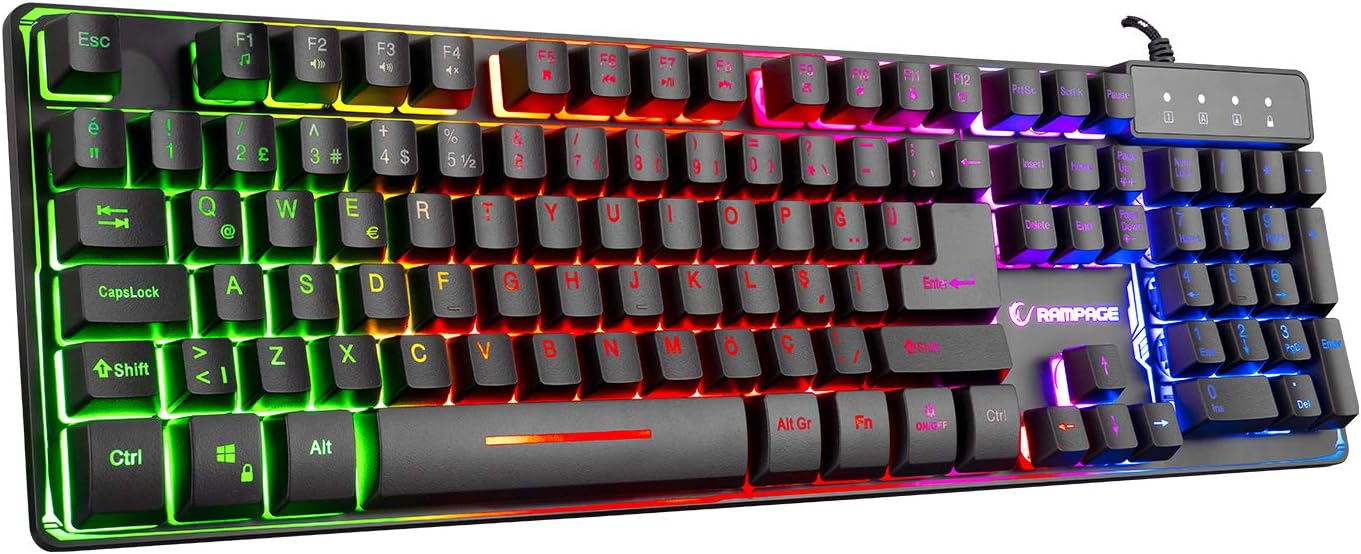
આકૃતિ 1: ટોચ view of the Rampage KM-RX9 CYPHER Gaming Keyboard, showcasing its full QWERTY layout and vibrant rainbow backlighting.
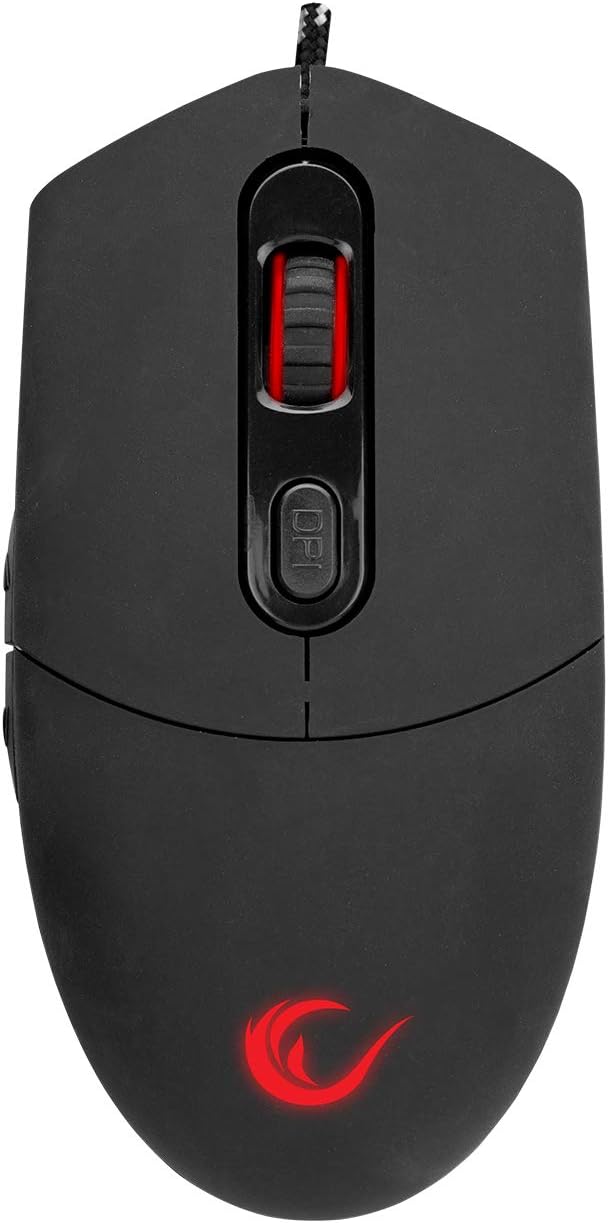
આકૃતિ 2: ટોચ view of the Rampage KM-RX9 CYPHER Gaming Mouse, featuring the scroll wheel and DPI adjustment button.
કીબોર્ડનું સંચાલન
મૂળભૂત કાર્યો
- ટાઈપિંગ: The keyboard features a standard QWERTY layout for general typing and gaming.
- ફંક્શન કી (F1-F12): These keys may have secondary multimedia or system functions when pressed in combination with the Fn key. Refer to the keycap legends for specific functions (e.g., volume control, media playback).
રોશની નિયંત્રણ
The KM-RX9 keyboard features rainbow ground illumination. Specific controls for lighting modes or brightness are typically managed via dedicated keys or key combinations:
- Look for keys with light bulb icons or specific 'Fn' key combinations (e.g., Fn + સ્ક્રોલ લોક or Fn + પેજ ઉપર/નીચે) to cycle through lighting effects or adjust brightness.
- The illumination is designed to provide a consistent rainbow effect across the keyboard's base.
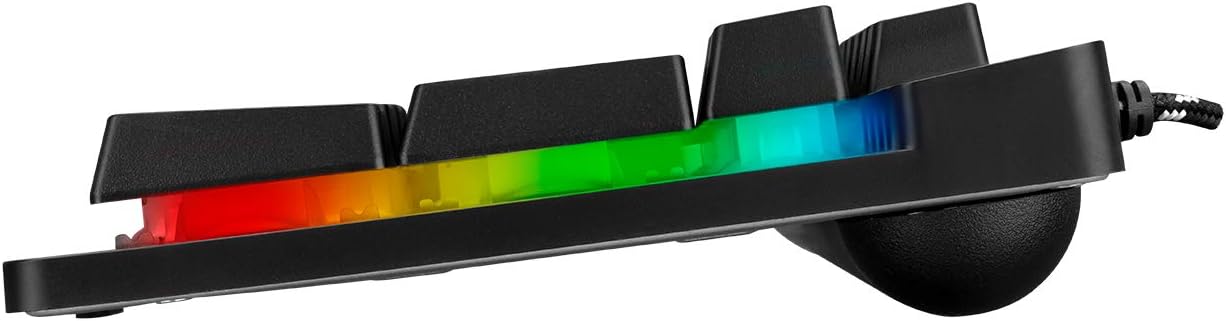
આકૃતિ 3: સાઇડ પ્રોfile of the Rampage KM-RX9 keyboard, illustrating the distinct rainbow ground illumination effect.
માઉસ ચલાવવું
મૂળભૂત કાર્યો
- ડાબું ક્લિક કરો: પ્રાથમિક ક્રિયા બટન.
- જમણું બટન દબાવો: ગૌણ ક્રિયા બટન, સામાન્ય રીતે સંદર્ભ મેનૂ માટે.
- સ્ક્રોલ વ્હીલ: દસ્તાવેજો દ્વારા સ્ક્રોલ કરવા માટે વપરાય છે અને web pages. Can also function as a middle click button.
- બાજુના બટનો: The mouse features additional side buttons, commonly used for forward/backward navigation in web browsers or programmable for in-game actions.
DPI ગોઠવણ
The mouse includes a DPI (Dots Per Inch) adjustment button, usually located near the scroll wheel. Pressing this button cycles through different sensitivity levels, allowing you to adjust cursor speed on the fly to suit your preferences or game requirements.
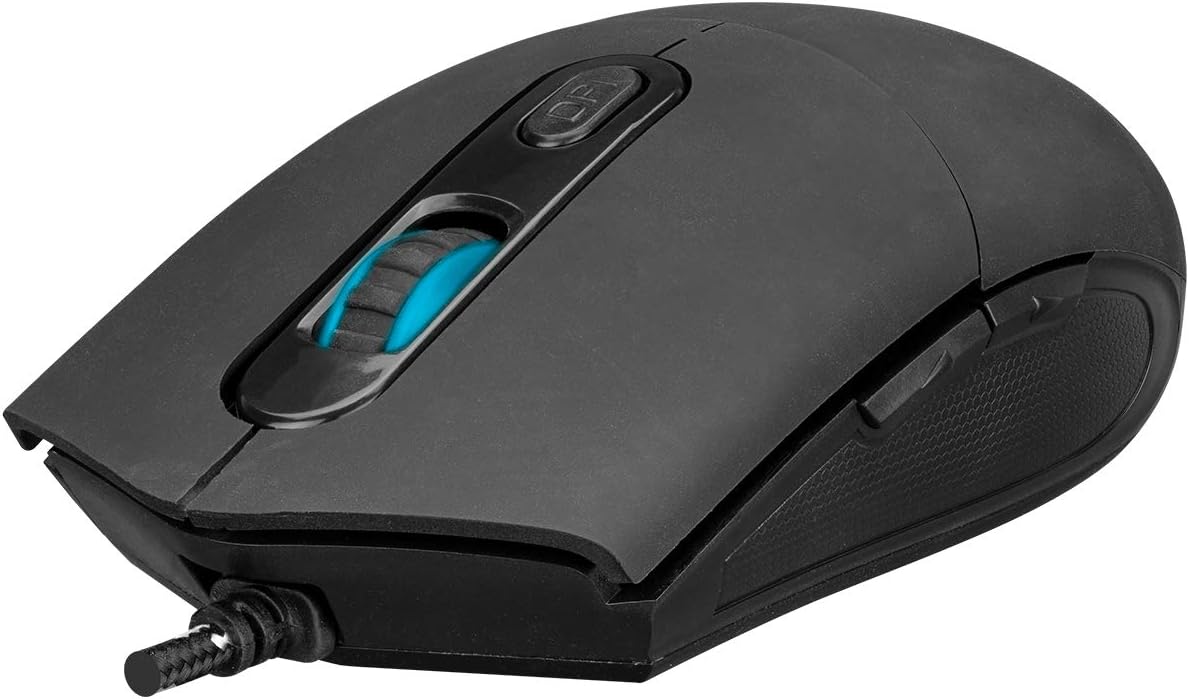
આકૃતિ 4: કોણીય view of the Rampage KM-RX9 mouse, highlighting the scroll wheel and the DPI adjustment button.

આકૃતિ 5: બાજુ view of the Rampage KM-RX9 mouse, showcasing its ergonomic design and textured grip for enhanced control.
જાળવણી
Proper maintenance ensures the longevity and performance of your gaming set:
- કીબોર્ડ સાફ કરવું: Use a soft, dry cloth to wipe down the keyboard surface. For dust between keys, use compressed air. Do not use harsh chemicals or abrasive cleaners.
- માઉસ સાફ કરવું: Wipe the mouse surface with a soft, slightly damp cloth. Ensure no moisture enters the device. Clean the optical sensor area on the bottom of the mouse with a cotton swab if tracking issues occur.
- સંગ્રહ: When not in use for extended periods, store the keyboard and mouse in a clean, dry environment, away from direct sunlight and extreme temperatures.
મુશ્કેલીનિવારણ
If you encounter issues with your Rampage KM-RX9 set, try the following solutions:
- કીબોર્ડ/માઉસ જવાબ આપતું નથી:
- ખાતરી કરો કે USB કેબલ તમારા કમ્પ્યુટરના USB પોર્ટમાં સુરક્ષિત રીતે પ્લગ થયેલ છે.
- ઉપકરણોને અલગ અલગ USB પોર્ટમાં પ્લગ કરવાનો પ્રયાસ કરો.
- તમારા કમ્પ્યુટરને ફરીથી પ્રારંભ કરો.
- Check your computer's Device Manager (Windows) or System Information (macOS/Linux) to see if the devices are recognized.
- Illumination Not Working (Keyboard):
- Verify that the keyboard is properly connected.
- Press the dedicated lighting control keys or Fn key combinations to ensure illumination is not turned off or set to a very dim mode.
- માઉસ ટ્રેકિંગ સમસ્યાઓ:
- માઉસના તળિયે આવેલા ઓપ્ટિકલ સેન્સરને સાફ કરો.
- Ensure you are using the mouse on a suitable surface (e.g., a mouse pad, not a reflective or transparent surface).
- Adjust the DPI settings using the DPI button.
વિશિષ્ટતાઓ
| ઉત્પાદન મોડલ | KM-RX9 |
| બ્રાન્ડ | Rampage (Everest Rampઉંમર) |
| કનેક્ટિવિટી ટેકનોલોજી | યુએસબી વાયર્ડ |
| કીબોર્ડ લેઆઉટ | QWERTY |
| ખાસ લક્ષણો | Rainbow Ground Illuminated Keyboard, DPI Adjustable Mouse |
| સુસંગત ઉપકરણો | ડેસ્કટોપ, લેપટોપ, ટેબ્લેટ |
| ઓપરેટિંગ સિસ્ટમ સુસંગતતા | Windows, macOS, Linux |
| ઉત્પાદન પરિમાણો | Keyboard: 54 x 17 x 4.2 cm; 830 g |
| પાવર સ્ત્રોત | Electric Corded (USB) |
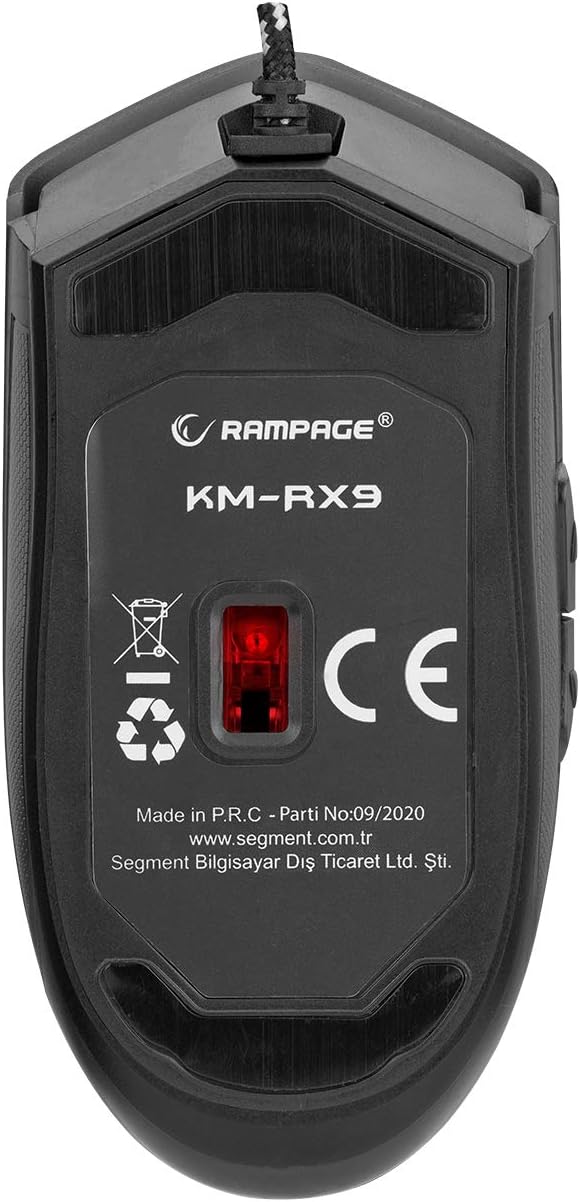
આકૃતિ 6: નીચે view of the Rampage KM-RX9 mouse, displaying the model number and optical sensor.
વોરંટી અને આધાર
For warranty information and customer support, please refer to the documentation provided at the time of purchase or contact your retailer. You may also visit the official Rampઉંમર webવધુ સહાય માટે સાઇટ.