
1. ઉત્પાદન ઓવરview
The FIYAPOO 4K 5G Wireless Miracast Dongle is designed to facilitate screen mirroring from your devices to a larger display. It supports various interactive multi-screen features, including Airplay, DLNA, Miracast, and Chromecast. This portable dongle allows you to stream high-definition videos, photos, and presentations from your smartphone, tablet, or computer to an HDTV or projector.
મુખ્ય લાક્ષણિકતાઓમાં શામેલ છે:
- Support for Airplay, DLNA, Miracast, and Chromecast.
- કોમ્પેક્ટ અને પોર્ટેબલ ડિઝાઇન.
- સક્ષમ કરે છે viewing of videos and games on larger screens.
- Simple plug-and-play operation; no dedicated app or driver installation required.
- Automatic online firmware upgrades.
- HDMI output with Full HD 1080p support.
2. પેકેજ સામગ્રી
કૃપા કરીને ચકાસો કે બધી વસ્તુઓ પેકેજમાં હાજર છે:
- 1 x WiFi Display Receiver (Miracast Dongle)
- 1 x Micro USB WiFi Cable
- 1 x વપરાશકર્તા માર્ગદર્શિકા
- 1 x HDMI કેબલ
3. સ્પષ્ટીકરણો
| બ્રાન્ડ | ફિયાપૂ |
| મોડલ નંબર | ZNM7-5G |
| કનેક્ટિવિટી ટેકનોલોજી | HDMI, USB, Wi-Fi (2.4GHz & 5GHz) |
| સપોર્ટેડ ઈન્ટરનેટ સેવાઓ | Amazon Prime Video, Netflix (Note: iOS devices do not support Netflix mirroring) |
| નિયંત્રક પ્રકાર | બટન નિયંત્રણ |
| રંગ | M7-5G |
| યુપીસી | 718689246106 |
4. સેટઅપ સૂચનાઓ
Follow these steps to connect your FIYAPOO Miracast Dongle. Ensure all cables are securely connected for proper functionality.
- ડિસ્પ્લે સાથે કનેક્ટ કરો: Plug the HDMI connector of the dongle into an available HDMI port on your TV, projector, or monitor.
- પાવર પૂરો પાડો: Connect the USB cable to a power adapter (minimum 5V/1A) to supply power to the dongle. The dongle requires stable power to operate.
- ઇનપુટ પસંદ કરો: On your display device (TV/projector), switch the input source to the corresponding HDMI port where the dongle is connected.
- પ્રારંભિક સ્ક્રીન: The FIYAPOO main screen will appear on your display, showing the SSID (network name) and password for the dongle's Wi-Fi network.
- Connect Device to Dongle Wi-Fi: On your smartphone, tablet, or computer, go to Wi-Fi settings and connect to the FIYAPOO dongle's network (SSID displayed on screen). The default password is usually
12345678. - Access Setup Page (Optional): ખોલો એ web browser on your connected device and enter the IP address
http://192.168.203.1(as shown on the dongle's display) to access the setup page. Here you can configure settings like connecting the dongle to your home Wi-Fi network for internet access.
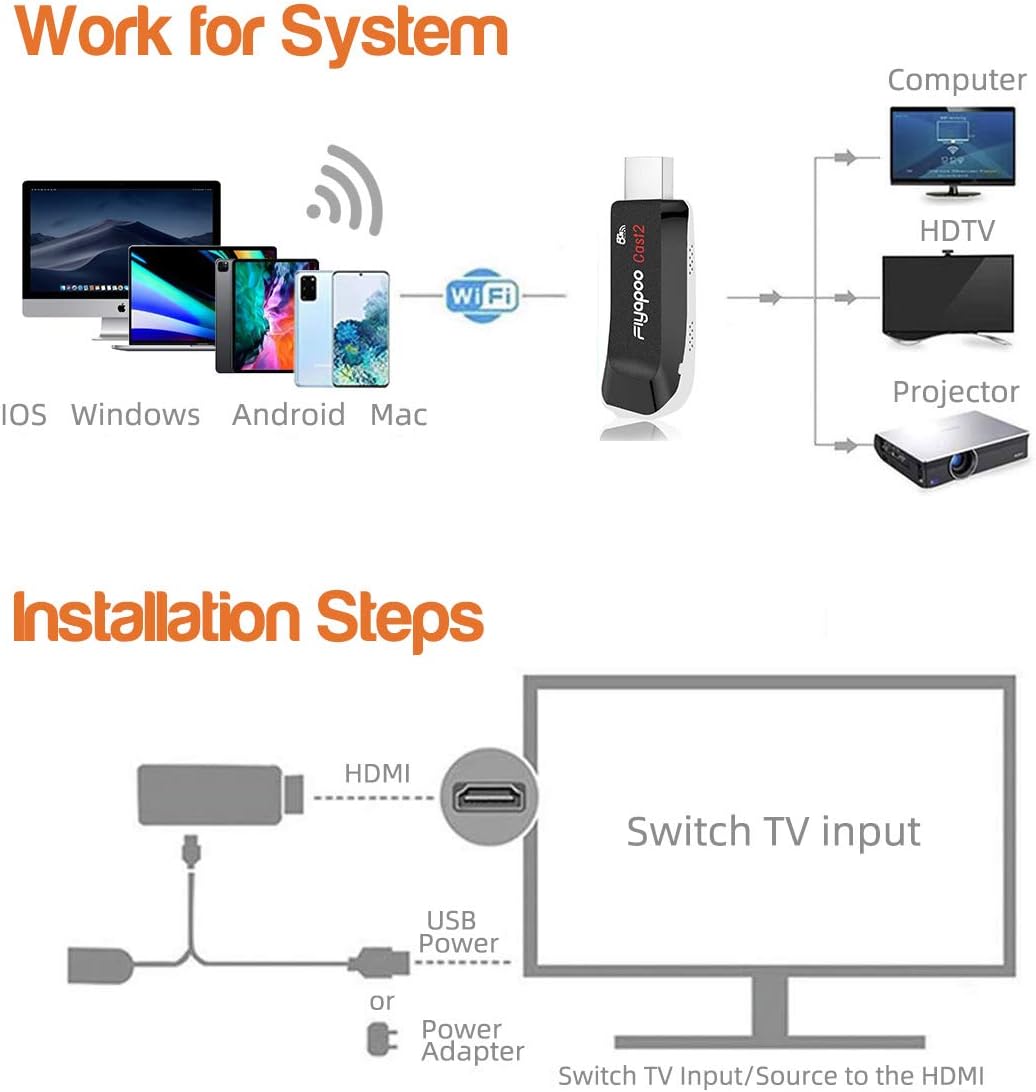
Figure 1: Basic connection diagram for the Miracast dongle.
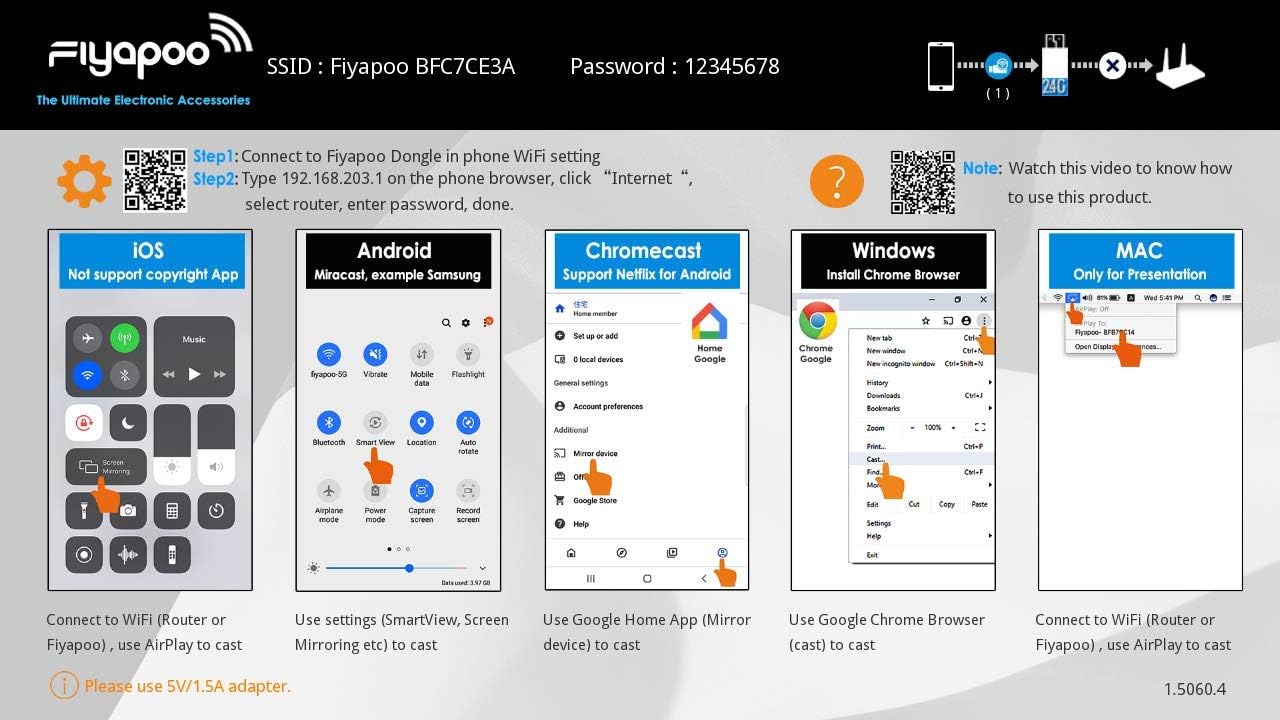
Figure 2: Fiyapoo dongle setup screen with Wi-Fi details and device-specific connection guidance.
5. ઓપરેટિંગ સૂચનાઓ
Once connected, you can begin mirroring content from your device to the large screen using the appropriate casting protocol.
General Mirroring Steps:
- પ્લગ: Connect the dongle to your TV and power source.
- કનેક્ટ કરો: Connect your smart device to the dongle's Wi-Fi network.
- અરીસો: Initiate screen mirroring from your device using Airplay, Miracast, or Chromecast.
Device-Specific Mirroring:
- iOS Devices (iPhone, iPad, MacBook, iMac): Use AirPlay. Swipe down from the top-right corner (or up from the bottom for older models) to open Control Center, then tap 'Screen Mirroring' and select the FIYAPOO dongle.
- Android Devices (Samsung, Google Pixel, LG, Huawei, etc.): Use Miracast or Chromecast. Look for options like 'SmartView', 'Screen Mirroring', 'Cast', or 'Wireless Display' in your device's settings or quick panel. For Chromecast, use the Google Home app.
- વિન્ડોઝ ઉપકરણો: Open the Google Chrome browser, click the three-dot menu, select 'Cast...', then choose 'Cast tab' or 'Cast desktop' and select the FIYAPOO dongle.
- મેક ઉપકરણો: Use AirPlay. Click the AirPlay icon in the menu bar and select the FIYAPOO dongle.

Figure 3: System compatibility and connection flow.

આકૃતિ 4: ઉદાample of content mirrored to a large screen.

Figure 5: Enhanced gaming experience through screen mirroring.

Figure 6: Benefits of 5GHz Wi-Fi for reduced delay.
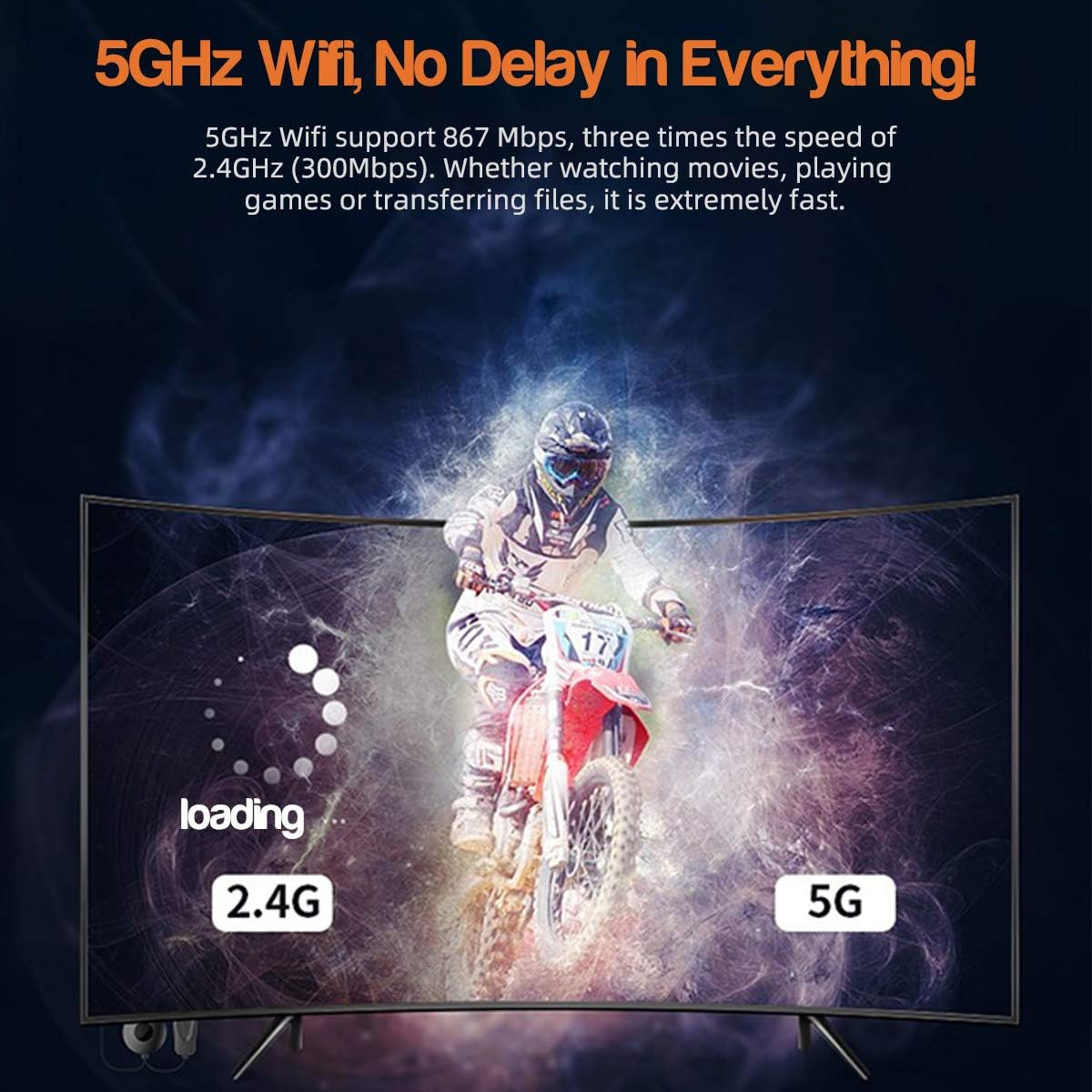
Figure 7: Supported applications for casting content.
6. સુસંગતતા
The FIYAPOO Miracast Dongle is compatible with a wide range of operating systems and devices:
- એન્ડ્રોઇડ: Version 5.0 and later (e.g., Samsung Galaxy S9/S8/S7/Note 8/5/4, Google Pixel 2, LG, Sony, Huawei).
- iOS: Version 9.0 and later (e.g., iPhone, iPad, MacBook, iMac).
- વિન્ડોઝ: Version 8.1 and later.
- મેક: Version 10.9 and later.
7. Important Notes and Troubleshooting
- પાવર સપ્લાય: The dongle requires a stable power supply of at least 5V/1A. Insufficient power can lead to unstable performance or failure to operate.
- Encrypted Content (Netflix, Amazon Prime Video): Only Android smartphones support mirroring encrypted video content from services like Netflix and Amazon Prime Video. iOS devices do not support this functionality due to copyright protection.
- ફેક્ટરી રીસેટ: If the dongle is not functioning correctly, you can perform a factory reset by pressing the 'Fn' button located on the side of the dongle.
- ઓનલાઈન અપડેટ્સ: The dongle supports automatic online firmware updates when connected to Wi-Fi, ensuring you have the latest features and improvements.
- વિડિઓ ટ્યુટોરિયલ્સ: For additional assistance, you can refer to video tutorials available online. A playlist of instructional videos can be found at: FIYAPOO YouTube Playlist.
8. વોરંટી અને સપોર્ટ
FIYAPOO is committed to providing quality products and customer service.
- ૩૦-દિવસની રીટર્ન પોલિસી: You may return the product within 30 days of purchase without justification.
- ૪૫-દિવસ રિપ્લેસમેન્ટ: In case of any quality issues, the product is eligible for a replacement within 365 days from the purchase date.
- ગ્રાહક સંપર્ક: For any issues or to request a replacement, please contact FIYAPOO customer support directly.