
1. પરિચય
This manual provides essential instructions for the safe and efficient use of your LIFX Color Smart LED Bulb. The LIFX Color bulb offers a wide spectrum of colors and white tones, controllable via Wi-Fi without the need for a separate hub. It is designed to enhance your lighting experience with smart features and energy efficiency.

Image: The LIFX Color Smart LED Bulb alongside its product packaging, highlighting its features.
મુખ્ય લક્ષણો:
- Billions of Colors: Access a vast range of colors and a wide cool-to-warm white spectrum (1500K to 9000K).
- 800 લ્યુમેન્સ બ્રાઇટનેસ: પૂરી પાડે છે ampવિવિધ સેટિંગ્સ માટે પ્રકાશ.
- E26 Edison Screw Base: Standard fitting for easy installation.
- Wi-Fi કનેક્ટિવિટી: Connects directly to your 2.4GHz Wi-Fi network, no hub required.
- અવાજ નિયંત્રણ: Compatible with Alexa, Apple HomeKit/Siri, and Hey Google.
- સમયપત્રક અને દ્રશ્યો: Customize lighting schedules and create personalized scenes.
2. સલામતી માહિતી
Please read and follow these safety guidelines to prevent injury or damage to the product.
- ફક્ત આંતરિક ઉપયોગ: આ બલ્બ સૂકા સ્થળોએ ઘરની અંદર ઉપયોગ માટે રચાયેલ છે.
- યોગ્ય સ્થાપન: Ensure the power is off before installing or removing the bulb.
- ભાગtage સુસંગતતા: Use only within the specified voltage range (AC 100-240V, 50/60 Hz).
- બંધ ફિક્સ્ચર ટાળો: Do not use in fully enclosed luminaires as this may reduce bulb life.
- ડિમર સ્વીચો: Do not use with standard dimmer switches. Dimming is controlled via the app or voice assistants.
- નિકાલ: સ્થાનિક નિયમો અનુસાર ઇલેક્ટ્રોનિક કચરાનો જવાબદારીપૂર્વક નિકાલ કરો.
3. પેકેજ સામગ્રી
Your LIFX Color Smart LED Bulb package should contain the following:
- 1 x LIFX Color Smart LED Bulb (E26 Edison Screw)
4. સેટઅપ માર્ગદર્શિકા
4.1 ભૌતિક સ્થાપન
- Ensure the power to the light fixture is turned off at the switch.
- Carefully screw the LIFX Color Smart LED Bulb into a standard E26 Edison screw socket. Do not overtighten.
- Turn the power back on at the switch. The bulb should illuminate with a default white light.

Image: A visual guide showing the three simple steps for setting up the LIFX bulb: screwing it into a lamp, downloading the app, and enjoying the light.
4.2 એપ ડાઉનલોડ અને Wi-Fi કનેક્શન
- Download the official LIFX app from the Apple App Store or Google Play Store.
- Open the LIFX app and create an account or log in.
- Follow the in-app instructions to add your new LIFX bulb. This typically involves scanning a QR code on the bulb or its packaging and connecting to your home's 2.4GHz Wi-Fi network.
- Ensure your mobile device is connected to the 2.4GHz Wi-Fi network during the setup process.
૪.૪ વૉઇસ આસિસ્ટન્ટ ઇન્ટિગ્રેશન
The LIFX Color bulb is compatible with popular voice assistants. Follow the instructions within your preferred voice assistant's app to link your LIFX account.
- એમેઝોન એલેક્સા: Enable the LIFX skill in the Alexa app and discover devices.
- એપલ હોમકિટ/સિરી: Use the Home app on your iOS device to add the accessory.
- હે ગુગલ: Link your LIFX account in the Google Home app.

Image: A collage of logos indicating compatibility with various smart home platforms and voice assistants.
5. ઓપરેટિંગ સૂચનાઓ
5.1 Controlling Color and Brightness
Use the LIFX app to adjust the bulb's color and brightness. The app features a color wheel and sliders for precise control.
- Open the LIFX app and select your bulb.
- Drag your finger across the color wheel to choose a desired color.
- Adjust the brightness slider to set the light intensity from 1% to 100%.
- For white light, select from the warm to cool white spectrum options.

Image: A smartphone displaying the LIFX app interface, featuring a color wheel for selecting light colors and adjusting brightness.
5.2 અવાજ નિયંત્રણ
Once integrated with a voice assistant, you can control your LIFX bulb using simple voice commands.
- "એલેક્સા, લિવિંગ રૂમની લાઈટ ચાલુ કર."
- "Hey Google, set the kitchen light to blue."
- "Siri, dim the bedroom light to 50%."
- "Alexa, set the kitchen to 'Frozen'."

Image: A person in a kitchen interacting with a voice assistant to control the lighting, demonstrating hands-free operation.
5.3 Scheduling and Scenes
Automate your lighting to fit your daily routine or create custom ambiances.
- સમયપત્રક: In the LIFX app, set specific times for your lights to turn on/off, change color, or adjust brightness. For example, schedule lights to gradually brighten in the morning for a gentle wake-up or dim in the evening for winding down.
- દ્રશ્યો: Create and save custom lighting configurations (e.g., "Movie Night," "Relax," "Party"). Activate these scenes with a single tap in the app or via voice command.
- સુરક્ષા: Use scheduling to make it appear as if someone is home when you are away.

છબી: બાહ્ય ભાગ view of a house at dusk, illustrating how scheduled lighting can provide added security by making it appear occupied.

Image: A person waking up in bed as a smart light gradually brightens, demonstrating the use of light as an alarm clock replacement.
6. જાળવણી
The LIFX Color Smart LED Bulb requires minimal maintenance.
- સફાઈ: Ensure the bulb is cool and the power is off before cleaning. Wipe with a soft, dry cloth. Do not use liquid cleaners or abrasive materials.
- સંગ્રહ: If storing the bulb, keep it in its original packaging or a protective container in a cool, dry place.
7. મુશ્કેલીનિવારણ
If you encounter issues with your LIFX Color Smart LED Bulb, refer to the following common solutions:
| સમસ્યા | શક્ય ઉકેલ |
|---|---|
| Bulb not connecting to Wi-Fi/App |
|
| Bulb is unresponsive or offline |
|
| વૉઇસ કમાન્ડ કામ કરતા નથી |
|
8. સ્પષ્ટીકરણો
Detailed technical specifications for the LIFX Color Smart LED Bulb (Model: L3A19LC08E26US):
| લક્ષણ | વિગત |
|---|---|
| મોડેલનું નામ | LIFX Color - 800 Lumens |
| મોડલ નંબર | L3A19LC08E26US |
| પ્રકાશ પ્રકાર | એલઇડી |
| બલ્બ આકારનું કદ | A19 |
| બલ્બ બેઝ | E26 |
| તેજ | 800 લ્યુમેન્સ |
| વાટtage ઉપયોગ કરો | 9.0W at full brightness |
| અગ્નિથી પ્રકાશિત સમાન | 60W |
| ભાગtage રેન્જ | AC 100-240V 50/60 Hz |
| રંગ તાપમાન | 1500K થી 9000K |
| કલર રેન્ડરિંગ ઇન્ડેક્સ (CRI) | 80 |
| બીમ એંગલ | 235° |
| ડિમિંગ | Software dimming 1% - 100% |
| Wi-Fi | 2.4GHz (WPA, WPA2 Security) |
| પરિમાણો (W x H) | 2.36 in x 4.13 in (60mm x 105mm) |
| સામગ્રી | એલ્યુમિનિયમ, પ્લાસ્ટિક |
| સરેરાશ જીવન | 206,432 Hours (approx. 22.8 years) |
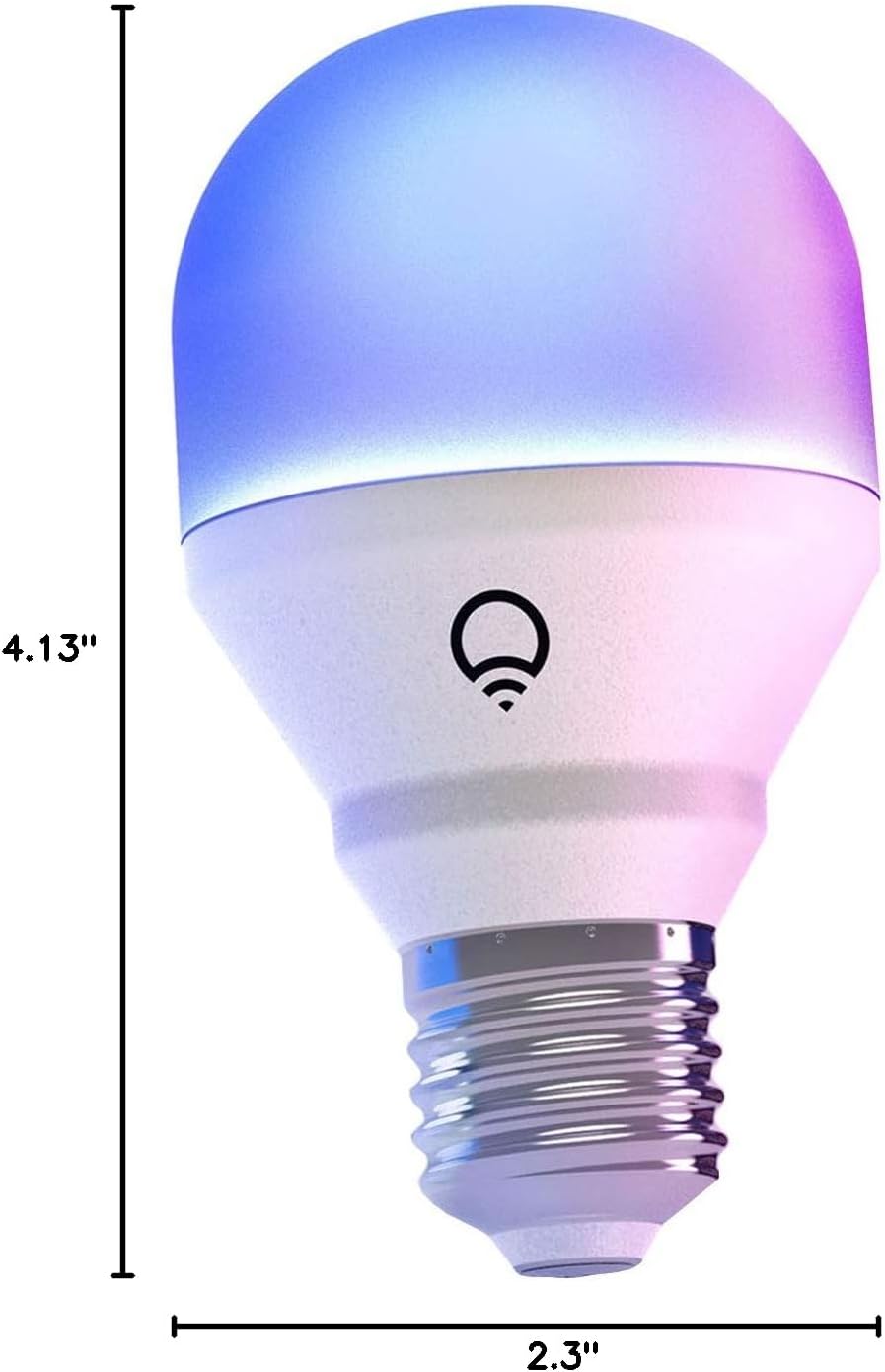
Image: A diagram illustrating the physical dimensions of the LIFX Color Smart LED Bulb.
9. વોરંટી માહિતી
The LIFX Color Smart LED Bulb comes with a 2 વર્ષની વોરંટી. Please retain your proof of purchase for warranty claims. For specific terms and conditions, refer to the official LIFX webસાઇટ અથવા ગ્રાહક સપોર્ટનો સંપર્ક કરો.
10. આધાર
વધુ સહાય માટે, ટેકનિકલ સપોર્ટ માટે, અથવા view frequently asked questions, please visit the official LIFX support website. You can typically find contact information for customer service on their webસાઇટ તેમજ.
ઑનલાઇન સંસાધનો:
- LIFX Official Webસાઇટ: www.lifx.com
- Support Section: Refer to the support or FAQ section on the official website for troubleshooting guides and contact options.