
PD 61 Key RGB Gateron Switch Wireless Bluetooth Mechanical Gaming Keyboard
વપરાશકર્તા માર્ગદર્શિકા
FEKER 61 Key RGB Gateron Switch Wireless Bluetooth Mechanical Gaming Keyboard
Model: 61 Key RGB Gateron Switch | Brand: PD
પરિચય
ખરીદી બદલ આભારasing the FEKER 61 Key RGB Gateron Switch Wireless Bluetooth Mechanical Gaming Keyboard. This manual provides detailed instructions on how to set up, operate, maintain, and troubleshoot your new keyboard. Please read this manual thoroughly before using the product to ensure optimal performance and longevity.
પેકેજ સામગ્રી

Image: The FEKER 61 Key RGB Gateron Switch Wireless Bluetooth Mechanical Gaming Keyboard, its retail box, a USB-C cable, a keycap puller, and a switch puller.
- FEKER 61 Key RGB Mechanical Keyboard
- USB-C થી USB-A કેબલ
- કીકેપ પુલર
- સ્વિચ પુલર
- વપરાશકર્તા માર્ગદર્શિકા (આ દસ્તાવેજ)
મુખ્ય લક્ષણો

Image: A diagram highlighting the key features of the FEKER 01 keyboard, including fully programmable keys, compact layout, Bluetooth 5.0, 1550mAh battery, customizable RGB backlight, and Outemu mechanical switches.
- Full RGB Backlight: Each key features independent RGB backlighting, allowing for extensive customization.
- PBT કીકેપ્સ: Equipped with durable double-shot PBT keycaps, which are more resistant to shine and wear compared to ABS keycaps.
- Dual FN Keys: Includes FN1 and FN2 keys, providing enhanced possibilities for layer function customization.
- Long Endurance Time: Features a 1900mAh large capacity battery with a built-in protection circuit to prevent battery damage.
- Dual Mode Connection: Supports both Bluetooth 4.0 and Type-C USB-C wired connections for wide compatibility.
- વ્યાપક સુસંગતતા: Compatible with multiple operating systems including iOS, Windows, Linux, and Android.
- NKRO Support: Supports N-Key Rollover (NKRO) in wired mode for precise input.

Image: An illustration displaying the four available switch options: Blue Switch, Brown Switch, Red Switch, and Black Switch, indicating the variety of mechanical switches this keyboard can be equipped with.
વિશિષ્ટતાઓ
| વિશેષતા | મૂલ્ય |
|---|---|
| બ્રાન્ડ | PD |
| મોડલ | 61 Key RGB Mechanical Keyboard |
| કનેક્ટિવિટી ટેકનોલોજી | બ્લૂટૂથ 4.0, USB-C |
| ઓપરેટિંગ સિસ્ટમ સુસંગતતા | એન્ડ્રોઇડ, આઇઓએસ, લિનક્સ, વિન્ડોઝ |
| ખાસ લક્ષણો | Backlit (Full RGB), Programmable Keys, PBT Keycaps |
| બેટરી ક્ષમતા | 1900mAh (લિ-આયન) |
| ભાગtage | 5 વોલ્ટ (DC) |
| વસ્તુનું વજન | 3 કિગ્રા |
| રંગ | કાળો |
સેટઅપ
૩.૧. કીબોર્ડ ચાર્જ કરવું
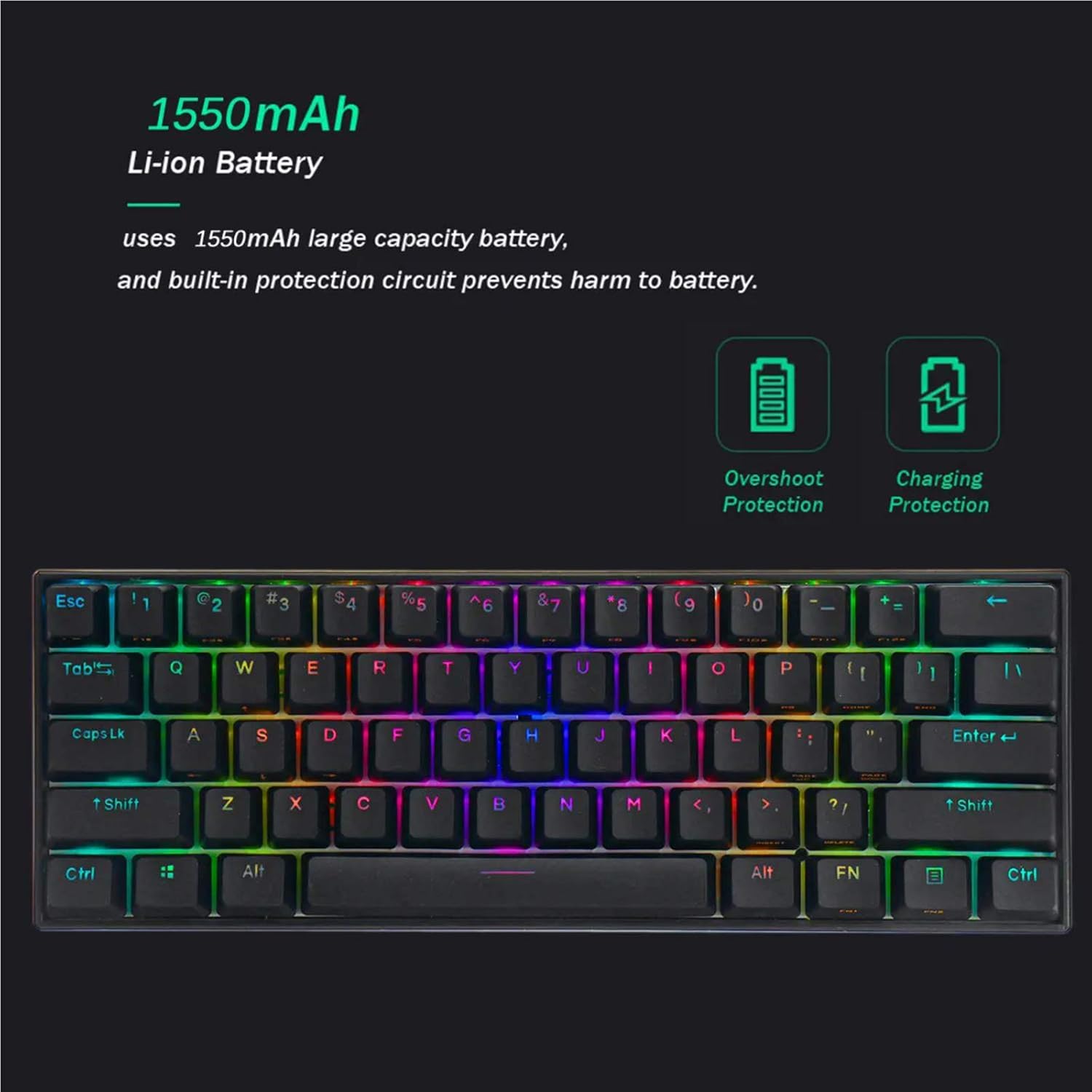
Image: A visual representation of the keyboard's 1550mAh Li-ion battery, highlighting its overshoot protection and charging protection features.
Before first use, it is recommended to fully charge the keyboard.
- આપેલ USB-C કેબલને કીબોર્ડના USB-C પોર્ટ સાથે કનેક્ટ કરો.
- કેબલના બીજા છેડાને USB પાવર સ્ત્રોત સાથે જોડો (દા.ત., કમ્પ્યુટર USB પોર્ટ, USB વોલ એડેપ્ટર).
- The keyboard's indicator light will show charging status (refer to LED indicator section for details). A full charge typically takes a few hours.
2. કનેક્શન મોડ્સ
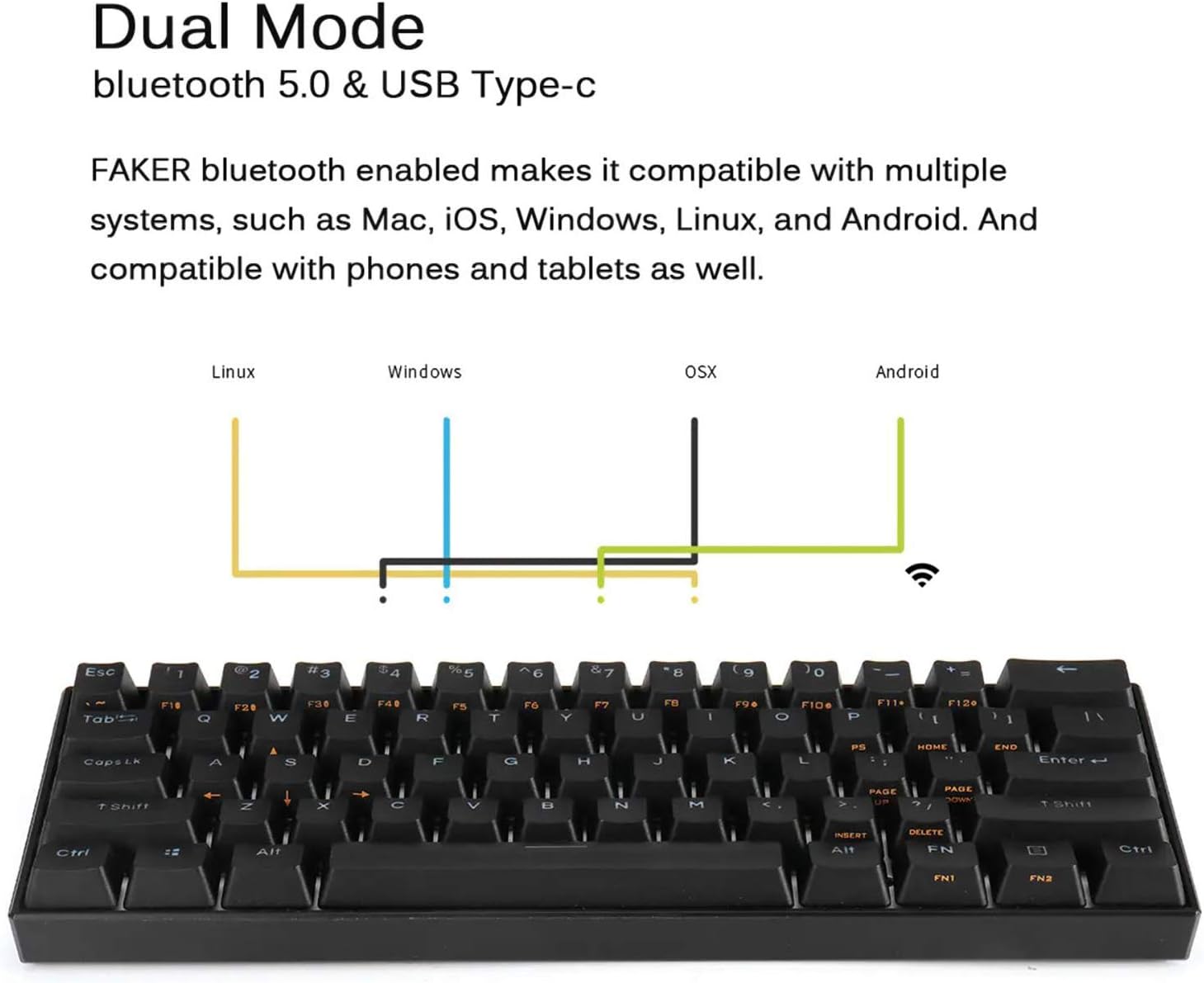
Image: A diagram showing the dual mode connection capabilities (Bluetooth 5.0 & USB Type-C) of the FEKER keyboard, along with its compatibility across Linux, Windows, OSX, and Android operating systems.
વાયર્ડ મોડ (USB-C)
- USB-C કેબલને કીબોર્ડ અને તમારા કમ્પ્યુટર સાથે કનેક્ટ કરો.
- The keyboard will automatically switch to wired mode. This mode supports NKRO.
Bluetooth Mode (Wireless)
- ખાતરી કરો કે કીબોર્ડ ચાર્જ થયેલ છે.
- Turn on the Bluetooth switch located on the bottom of the keyboard.
- તમારા ઉપકરણ (કમ્પ્યુટર, ટેબ્લેટ, ફોન) પર, બ્લૂટૂથ સક્ષમ કરો અને નવા ઉપકરણો શોધો.
- Select "FEKER Keyboard" (or similar name) from the list of available devices to pair.
- જો પૂછવામાં આવે, તો કીબોર્ડનો ઉપયોગ કરીને તમારી સ્ક્રીન પર પ્રદર્શિત થતો પેરિંગ કોડ દાખલ કરો અને Enter દબાવો.
- કીબોર્ડ બહુવિધ બ્લૂટૂથ પ્રો સ્ટોર કરી શકે છેfiles. Refer to the keyboard's specific key combinations (often FN + Q/W/E/R/T) for switching between paired devices.
ઓપરેશન
1. મૂળભૂત કીબોર્ડ કાર્યો
The FEKER 61 Key keyboard features a compact layout. Many functions are accessed via the FN (Function) keys.
FN Key Combinations (Exampલેસ):
- FN + [Key]: Accesses secondary functions printed on keycaps (e.g., F1-F12, multimedia controls, arrow keys).
- FN1 / FN2: The keyboard features two FN keys (FN1 and FN2) which can be programmed to access different layers of functions, offering greater customization. Consult the software section for programming details.
- FN + બેકસ્પેસ: Delete (common for 60% keyboards).
- FN + P: Print Screen (example, check keycap legends).
- FN + ; / ': Home / End (example, check keycap legends).
- FN + , / .: Page Up / Page Down (example, check keycap legends).
2. RGB બેકલાઇટ નિયંત્રણ
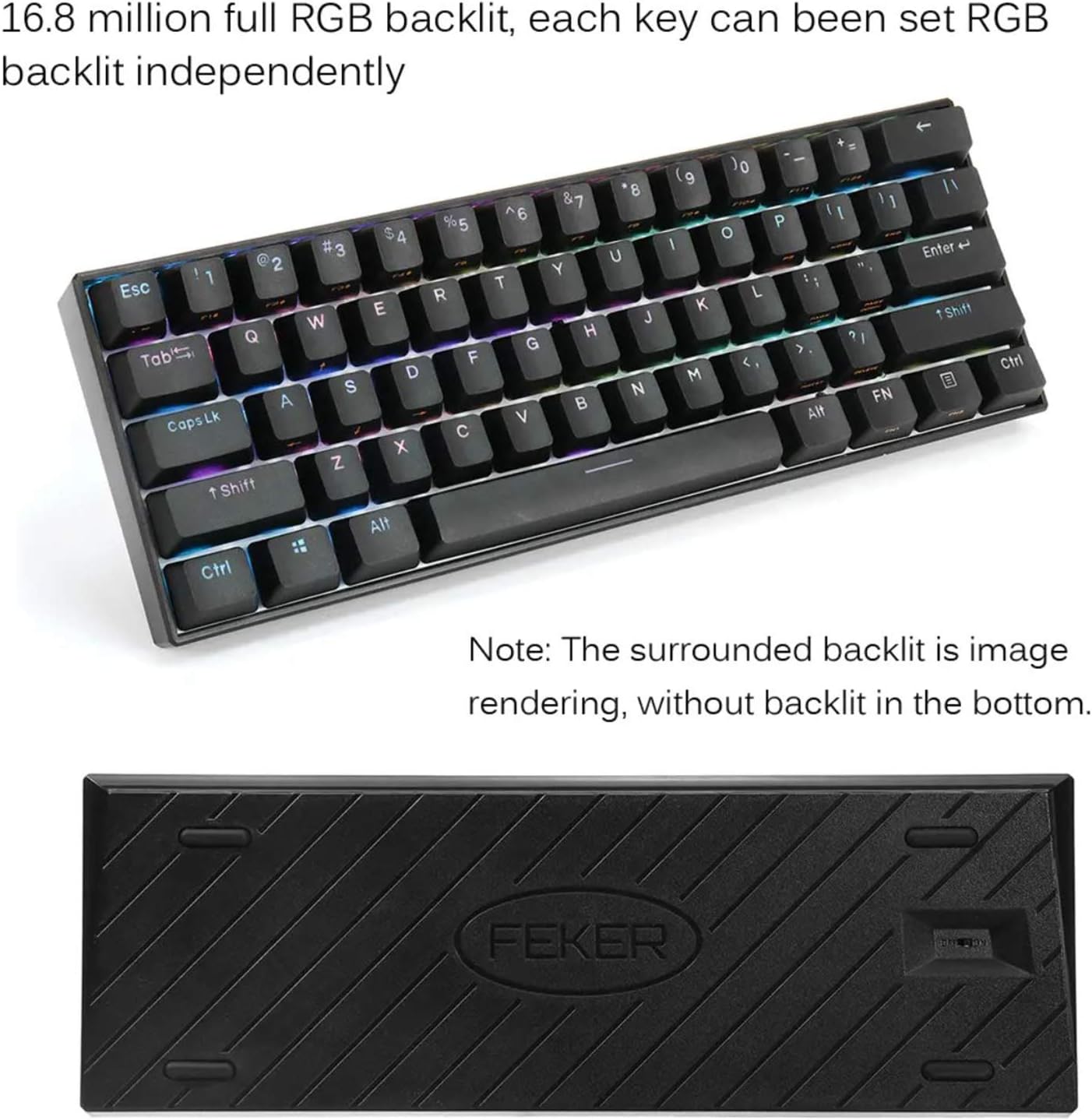
Image: The FEKER 61 Key keyboard displaying its 16.8 million full RGB backlight, with a note clarifying that the surrounding backlight in the image is a rendering and not present on the physical product's bottom.
The keyboard offers extensive RGB backlight customization.
- લાઇટિંગ મોડ્સ બદલવું: Use FN + specific keys (often FN + \| or FN + Right Shift) to cycle through various preset lighting effects.
- તેજને સમાયોજિત કરવી: Use FN + Up/Down Arrow keys (or similar, check keycap legends) to increase or decrease backlight brightness.
- એડજસ્ટિંગ ઝડપ: Use FN + Left/Right Arrow keys (or similar) to change the speed of dynamic lighting effects.
- Customizing Colors: For full color customization and per-key lighting, use the dedicated software.
૫. કસ્ટમાઇઝેશન સોફ્ટવેર

Image: A screenshot of the FEKER keyboard's customization software interface, showing options for profile management, customization, lighting, gaming mode, and macros, emphasizing the ability to customize any color for every single key.
The FEKER keyboard comes with dedicated software for advanced customization of key assignments, macros, and RGB lighting.
- સૉફ્ટવેર ડાઉનલોડ કરી રહ્યું છે: Visit the official PD or FEKER website to download the latest version of the keyboard customization software.
- ઇન્સ્ટોલેશન: Follow the on-screen instructions to install the software on your Windows or macOS computer.
- Key Reassignment: Remap any key to a different function, macro, or multimedia control.
- મેક્રો રેકોર્ડિંગ: Create and assign complex macro sequences to any key.
- લાઇટિંગ કસ્ટમાઇઝેશન:

Image: A screenshot of the "CUSTOMIZE" tab within the FEKER keyboard software, illustrating options for remapping keys and setting up profiles.

Image: A screenshot of the "LIGHTING" tab in the FEKER keyboard software, showing controls for color, direction, speed, and brightness of the RGB backlight, including various lighting effects like "Rolling".
- Choose from a wide array of preset effects.
- Create custom per-key lighting profiles.
- Adjust color, speed, and brightness for each effect.
- પ્રોfile સંચાલન: Save and load different profileવિવિધ એપ્લિકેશનો અથવા રમતો માટે.
જાળવણી
- સફાઈ:
- Disconnect the keyboard before cleaning.
- નરમ, લિન્ટ-ફ્રી કાપડનો ઉપયોગ કરોampened with water or a mild cleaning solution to wipe the keycaps and frame.
- ચાવીઓ વચ્ચે ધૂળ અને કચરો હોય તો, કોમ્પ્રેસ્ડ એર અથવા નાના બ્રશનો ઉપયોગ કરો.
- The included keycap puller can be used to remove keycaps for deeper cleaning.
- બેટરી સંભાળ:
- વારંવાર બેટરી સંપૂર્ણપણે ડિસ્ચાર્જ કરવાનું ટાળો.
- જો લાંબા સમય સુધી ઉપયોગ ન કરવામાં આવે તો કીબોર્ડને ઠંડી, સૂકી જગ્યાએ સંગ્રહિત કરો.
- કીબોર્ડને અતિશય તાપમાનમાં ન મૂકો.
- સંગ્રહ: When not in use, store the keyboard in a clean, dry environment away from direct sunlight and excessive dust.
મુશ્કેલીનિવારણ
- Keyboard Not Responding (Wired Mode):
- ખાતરી કરો કે USB-C કેબલ કીબોર્ડ અને કમ્પ્યુટર બંને સાથે સુરક્ષિત રીતે જોડાયેલ છે.
- તમારા કમ્પ્યુટર પર એક અલગ USB પોર્ટ અજમાવી જુઓ.
- જો ઉપલબ્ધ હોય તો અલગ USB-C કેબલ વડે પરીક્ષણ કરો.
- તમારા કમ્પ્યુટરને ફરીથી પ્રારંભ કરો.
- Keyboard Not Connecting (Bluetooth Mode):
- Ensure the keyboard's Bluetooth switch is ON.
- ખાતરી કરો કે કીબોર્ડ ચાર્જ થયેલ છે.
- ખાતરી કરો કે તમારા ઉપકરણ પર બ્લૂટૂથ સક્ષમ છે અને તે શોધી શકાય તેવું છે.
- તમારા ઉપકરણના બ્લૂટૂથ સેટિંગ્સમાંથી કીબોર્ડને અનપેયર અને ફરીથી જોડી બનાવવાનો પ્રયાસ કરો.
- ખાતરી કરો કે અન્ય કોઈ ઉપકરણો બ્લૂટૂથ સિગ્નલમાં દખલ ન કરી રહ્યા હોય.
- If using multiple Bluetooth profiles, ensure you are on the correct profile (e.g., FN + Q/W/E).
- Keys Not Working / Double Typing:
- Check if there's any debris under the keycap. Use the keycap puller to remove and clean.
- If it's a specific switch issue, and the keyboard is hot-swappable, consider replacing the switch using the switch puller.
- ખાતરી કરો કે કીબોર્ડ ફર્મવેર અપ ટુ ડેટ છે (ઉત્પાદકનું તપાસો) webસાઇટ).
- RGB Backlight Not Working / Flickering:
- Ensure backlight brightness is not set to minimum or off.
- Check lighting settings in the customization software.
- ખાતરી કરો કે કીબોર્ડ પૂરતું ચાર્જ થયેલ છે, કારણ કે ઓછી બેટરી લાઇટિંગને અસર કરી શકે છે.
- Try resetting the keyboard (refer to software or manufacturer's webચોક્કસ રીસેટ સૂચનાઓ માટે સાઇટ).
વોરંટી અને આધાર
For warranty information, technical support, or further assistance, please refer to the warranty card included with your product or visit the official PD/FEKER webસાઇટ
Webસાઇટ: www.example.com/support (Placeholder - please refer to actual product documentation for correct URL)
Ask a question about this manual
Ask about setup, troubleshooting, compatibility, parts, safety, or missing instructions. Manuals+ will review the question and use this page’s manual context to help answer it.