
પરિચય
This manual provides instructions for the Flutesan Portable Bluetooth Item Finder. Please read this manual carefully before using the device to ensure proper operation and to maximize its functionality. This device utilizes Bluetooth technology for proximity tracking, not satellite-based GPS.
ઉત્પાદન ઓવરview
The Flutesan Portable Bluetooth Item Finder is a compact device designed to help locate misplaced items such as keys, wallets, pets, and luggage. It connects to your smartphone via Bluetooth, allowing you to track items within a certain range and trigger an alarm.
મુખ્ય લક્ષણો:
- બ્લૂટૂથ કનેક્ટિવિટી: Connects wirelessly to your smartphone for proximity tracking.
- કોમ્પેક્ટ ડિઝાઇન: Small size (approximately 1.5 x 1.5 x 0.3 inches) with an integrated keychain loop for easy attachment.
- એલાર્મ કાર્ય: Triggers an audible alarm on the device to help locate items.
- Remote Camera Shutter: Can function as a remote button for your smartphone camera.

Image: A collection of eight Flutesan Bluetooth item finders, black in color, with one attached to a gold keychain. These devices are designed to be compact and easily attachable to various items.
પેકેજ સામગ્રી
- Flutesan Portable Bluetooth Item Finder (8 units)
- વપરાશકર્તા માર્ગદર્શિકા (આ દસ્તાવેજ)
વિશિષ્ટતાઓ
| લક્ષણ | વિગત |
|---|---|
| પરિમાણો | આશરે 1.5 x 1.5 x 0.3 ઇંચ (3.8 x 3.8 x 0.76 સેમી) |
| વજન | Approximately 2.89 ounces (82 grams) per unit |
| કનેક્ટિવિટી | બ્લૂટૂથ |
| સુસંગત ઉપકરણો | સ્માર્ટફોન (iOS અને Android) |
| સામગ્રી | રબર |
| પાવર સ્ત્રોત | Button Cell Battery (CR2032, not included) |

Image: A diagram illustrating the dimensions of the item finder (5.2 cm length, 3.1 cm width, 1.1 cm thickness) and a visual guide on how to open the case to replace the CR2032 battery.
સેટઅપ સૂચનાઓ
- બેટરી ઇન્સ્ટોલ કરો: Open the device casing (refer to the diagram in the Specifications section) and insert a CR2032 button cell battery. Ensure correct polarity. Close the casing સુરક્ષિત રીતે.
- એપ ડાઉનલોડ કરો: માટે શોધો the recommended companion application on your smartphone's app store (e.g., "iSearching" or similar, as implied by common Bluetooth trackers). Follow the on-screen instructions to download and install the app.
- બ્લૂટૂથ સક્ષમ કરો: ખાતરી કરો કે તમારા સ્માર્ટફોન પર બ્લૂટૂથ સક્ષમ છે.
- ઉપકરણ જોડો: Open the installed app. Follow the in-app instructions to add a new device. Typically, you will need to press and hold the button on the item finder until it beeps or a light flashes, indicating it's in pairing mode. Select the device from the list in the app to complete pairing.
- સેટિંગ્સ કસ્ટમાઇઝ કરો: Within the app, you can rename your device (e.g., "Keys," "Wallet," "Pet Collar") and adjust alert settings.

Image: A visual guide showing the six main steps for using the item finder: downloading the app, ensuring Bluetooth compatibility, binding the device, clicking the alarm in the app, the device beeping, and finally locating the item.
ઓપરેટિંગ સૂચનાઓ
Locating an Item:
- Ensure your smartphone's Bluetooth is active and the item finder is within range.
- તમારા સ્માર્ટફોન પર સાથી એપ્લિકેશન ખોલો.
- Select the desired item finder from your list of paired devices.
- Tap the "Alarm" or "Find" button within the app. The item finder will emit an audible beep, helping you pinpoint its location.
- To stop the alarm, tap the "Stop" button in the app or press the button on the item finder.
Anti-Loss Alert:
The app can be configured to alert you if the item finder moves out of Bluetooth range from your smartphone. This feature helps prevent items from being left behind.
- Enable the "Anti-Loss" or "Disconnection Alert" feature in the app settings for each device.
- If the connection is lost, both your phone and the item finder may emit an alert.

Image: A small dog with a Flutesan item finder attached to its collar, demonstrating a common use case for pet tracking. The device is discreetly placed on the collar.

Image: A collage showing multiple applications of the item finder: placed inside a wallet, attached to a set of keys, hanging from a handbag, and positioned near a camera, illustrating its versatility.
રિમોટ કેમેરા ફંક્શન
The item finder can also serve as a remote shutter button for your smartphone's camera.
- તમારા સ્માર્ટફોનની કેમેરા એપ ખોલો.
- Ensure the item finder is connected via Bluetooth.
- Press the button on the item finder. This will trigger your phone's camera to take a photo.
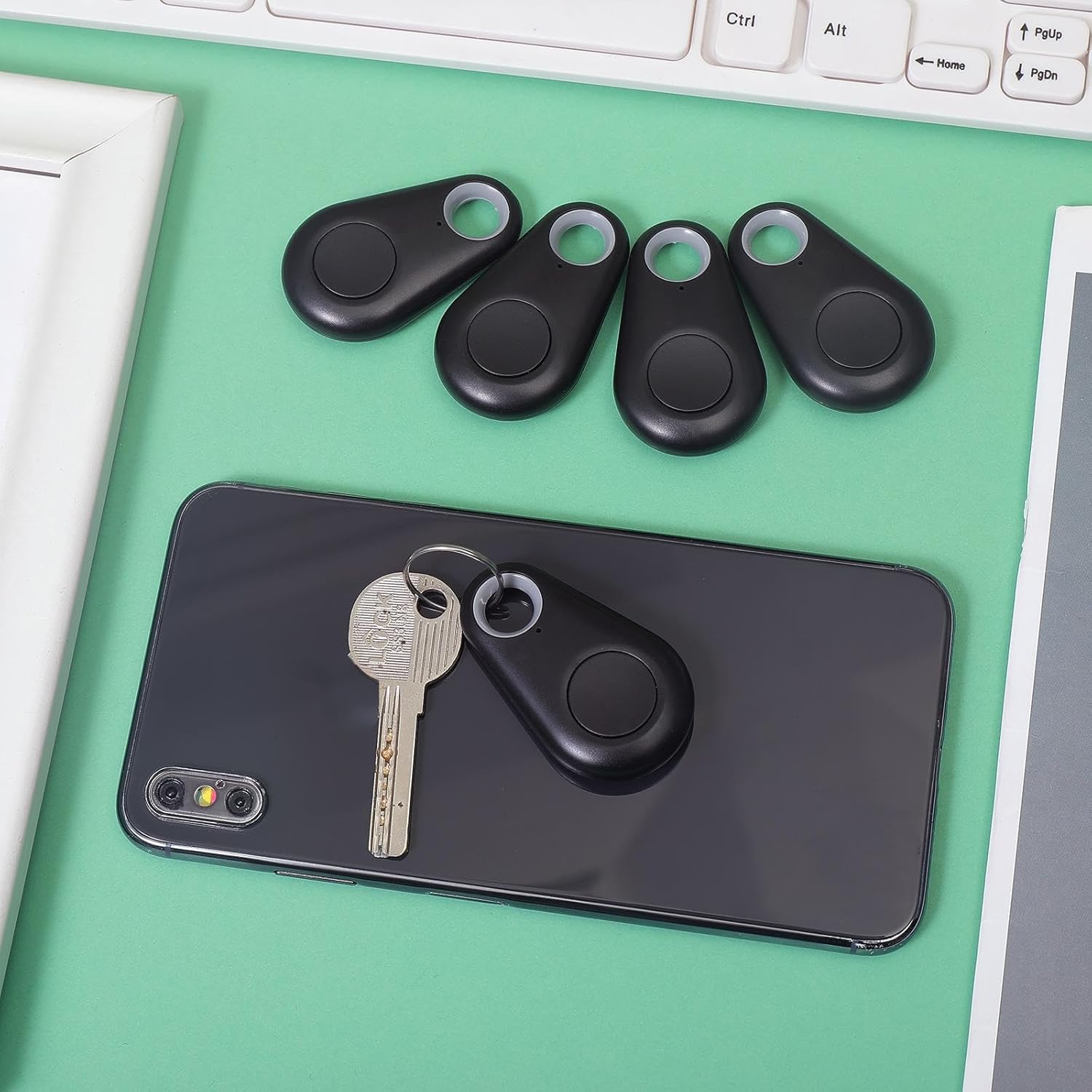
Image: A family enjoying a meal, with a smartphone set up on a tripod, capturing a group photo using the item finder as a remote shutter, highlighting its convenience for selfies and group shots.
જાળવણી
બેટરી રિપ્લેસમેન્ટ:
The device uses a CR2032 button cell battery. When the alarm sound becomes weak or the device fails to connect, it's time to replace the battery.
- ઉપકરણને કાળજીપૂર્વક ખોલો casing. Refer to the diagram in the Specifications section for guidance.
- જૂની CR2032 બેટરી દૂર કરો.
- નવી CR2032 બેટરી દાખલ કરો, ખાતરી કરો કે ધન (+) બાજુ ઉપર તરફ છે.
- સી બંધ કરોasing સુરક્ષિત રીતે.
સફાઈ:
Wipe the device with a soft, dry cloth. Avoid using harsh chemicals or abrasive cleaners.
સંગ્રહ:
ઉપયોગમાં ન હોય ત્યારે ઉપકરણને ઠંડી, સૂકી જગ્યાએ સંગ્રહિત કરો. જો લાંબા સમય સુધી સંગ્રહિત કરવામાં આવે તો લીકેજ અટકાવવા માટે બેટરીઓ દૂર કરો.
મુશ્કેલીનિવારણ
- Device not connecting to smartphone:
- ખાતરી કરો કે તમારા સ્માર્ટફોન પર બ્લૂટૂથ સક્ષમ છે.
- Make sure the item finder has a fresh battery and is powered on.
- Bring the item finder closer to your smartphone.
- એપ્લિકેશન ફરી શરૂ કરો અને ફરીથી જોડી બનાવવાનો પ્રયાસ કરો.
- If issues persist, try restarting your smartphone.
- એલાર્મ ખૂબ શાંત છે અથવા વાગતું નથી:
- Replace the battery in the item finder.
- Check the volume settings within the companion app.
- Device frequently disconnects:
- Ensure the device is within the effective Bluetooth range (typically up to 75 feet/23 meters in open areas, less indoors).
- Minimize obstructions between the device and your smartphone.
- અન્ય વાયરલેસ ઉપકરણોની દખલગીરી માટે તપાસો.
- Ensure your smartphone's operating system and the companion app are up to date.
- Remote camera function not working:
- Ensure the item finder is connected via Bluetooth.
- Some camera apps may not fully support external Bluetooth shutters. Try using your phone's default camera app.
વોરંટી અને આધાર
For warranty information or technical support, please refer to the contact details provided with your purchase or visit the official Flutesan webસાઇટ. વોરંટી દાવાઓ માટે તમારી ખરીદીનો પુરાવો રાખો.