
પરિચય
This manual provides detailed instructions for the setup, operation, maintenance, and troubleshooting of your Keychron V5 Wired Custom Mechanical Keyboard. The Keychron V5 is a 96% layout keyboard featuring QMK/VIA programmability, hot-swappable switches, double-shot PBT keycaps, and compatibility with macOS, Windows, and Linux systems.
પેકેજ સામગ્રી
કૃપા કરીને ચકાસો કે તમારા પેકેજમાં બધી વસ્તુઓ હાજર છે:
- Keychron V5 વાયર્ડ કસ્ટમ મિકેનિકલ કીબોર્ડ
- USB-C થી USB-C કેબલ
- USB-A થી USB-C એડેપ્ટર
- કીકેપ પુલર
- સ્વિચ પુલર
- Additional Keycaps for Windows/macOS
સેટઅપ
કીબોર્ડને કનેક્ટ કરી રહ્યું છે
To connect your Keychron V5 keyboard:
- કીબોર્ડની પાછળ USB-C પોર્ટ શોધો.
- Connect one end of the provided USB-C to USB-C cable to the keyboard.
- Connect the other end of the cable to a USB-C port on your computer. If your computer only has USB-A ports, use the provided USB-A to USB-C adapter.
- કીબોર્ડ તમારી ઓપરેટિંગ સિસ્ટમ દ્વારા આપમેળે ઓળખાઈ જશે.
System Toggle (Mac/Windows)
The Keychron V5 includes a system toggle switch to ensure full compatibility with both macOS and Windows operating systems. This switch is typically located on the back or side of the keyboard.
To switch between operating systems:
- Locate the 'Win/Mac' toggle switch.
- Slide the switch to the 'Mac' position for macOS or 'Win' position for Windows.
- The keyboard will adjust its key mappings accordingly.

છબી: બાજુ view of the Keychron V5 keyboard, highlighting the system toggle switch and USB-C port for system compatibility.
Ergonomic Angle Adjustment
The keyboard features adjustable feet to customize the typing angle for improved ergonomics.
To adjust the typing angle:
- Flip the keyboard over to access the feet on the underside.
- Gently pull out the feet to extend them to your desired angle. There are usually two levels of adjustment.

Image: The Keychron V5 keyboard with its adjustable feet extended, demonstrating the ergonomic angle design.
ઓપરેટિંગ સૂચનાઓ
મુખ્ય કાર્યો અને લેઆઉટ
The Keychron V5 features a 96% layout with 97 keys, efficiently retaining function keys and a num pad while saving desk space. The keyboard comes with pre-installed double-shot PBT keycaps in an OSA profile, designed for a comfortable fingertip feel and excellent oil resistance.
છબી: એક સંપૂર્ણ view of the Keychron V5 keyboard, showcasing its 96% layout and keycap design.
QMK/VIA Customization
The Keychron V5 supports QMK/VIA firmware, allowing for comprehensive customization of key mappings, macros, and backlight effects. VIA is a graphical user interface that simplifies the programming process.
તમારા કીબોર્ડને કસ્ટમાઇઝ કરવા માટે:
- સત્તાવાર કીક્રોન પરથી VIA સોફ્ટવેર ડાઉનલોડ કરો. website or the VIA GitHub repository.
- Connect your keyboard to your computer.
- Launch the VIA software. The software should automatically detect your Keychron V5.
- Use the intuitive interface to remap keys, create macros, and adjust lighting settings across multiple layers.
For detailed instructions on using QMK/VIA, refer to the official Keychron documentation or community guides.

Image: A visual representation of the VIA software interface, demonstrating how users can customize key layouts and macros for the Keychron V5.
Programmable Knob
The Keychron V5 features a programmable rotary knob, which can be customized via QMK/VIA to control various functions such as volume, zoom, or scrolling.
To customize the knob's function:
- Open the VIA software.
- Navigate to the knob customization section.
- Assign desired functions for clockwise rotation, counter-clockwise rotation, and pressing the knob.

છબી: ક્લોઝ-અપ view of the programmable rotary knob on the Keychron V5 keyboard, highlighting its textured surface.
હોટ-સ્વેપેબલ સ્વીચો
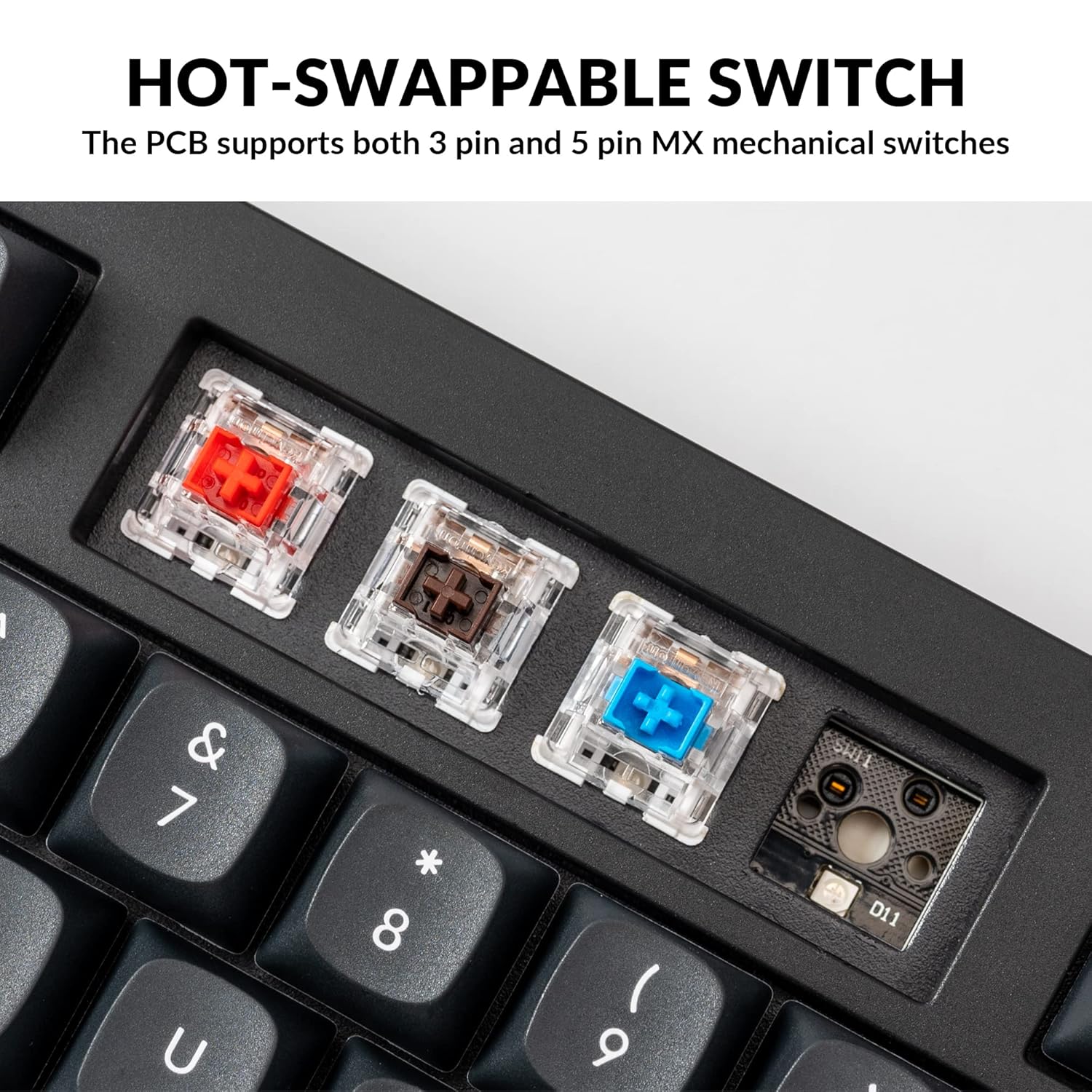
The Keychron V5 is equipped with hot-swappable sockets, allowing you to change mechanical switches without soldering. It supports most 3-pin and 5-pin MX mechanical switches (e.g., Cherry, Gateron, Kailh, Panda).
The keyboard comes with pre-lubed K Pro Red linear switches, offering a smooth and responsive typing experience with a lifespan of up to 50 million keystrokes.
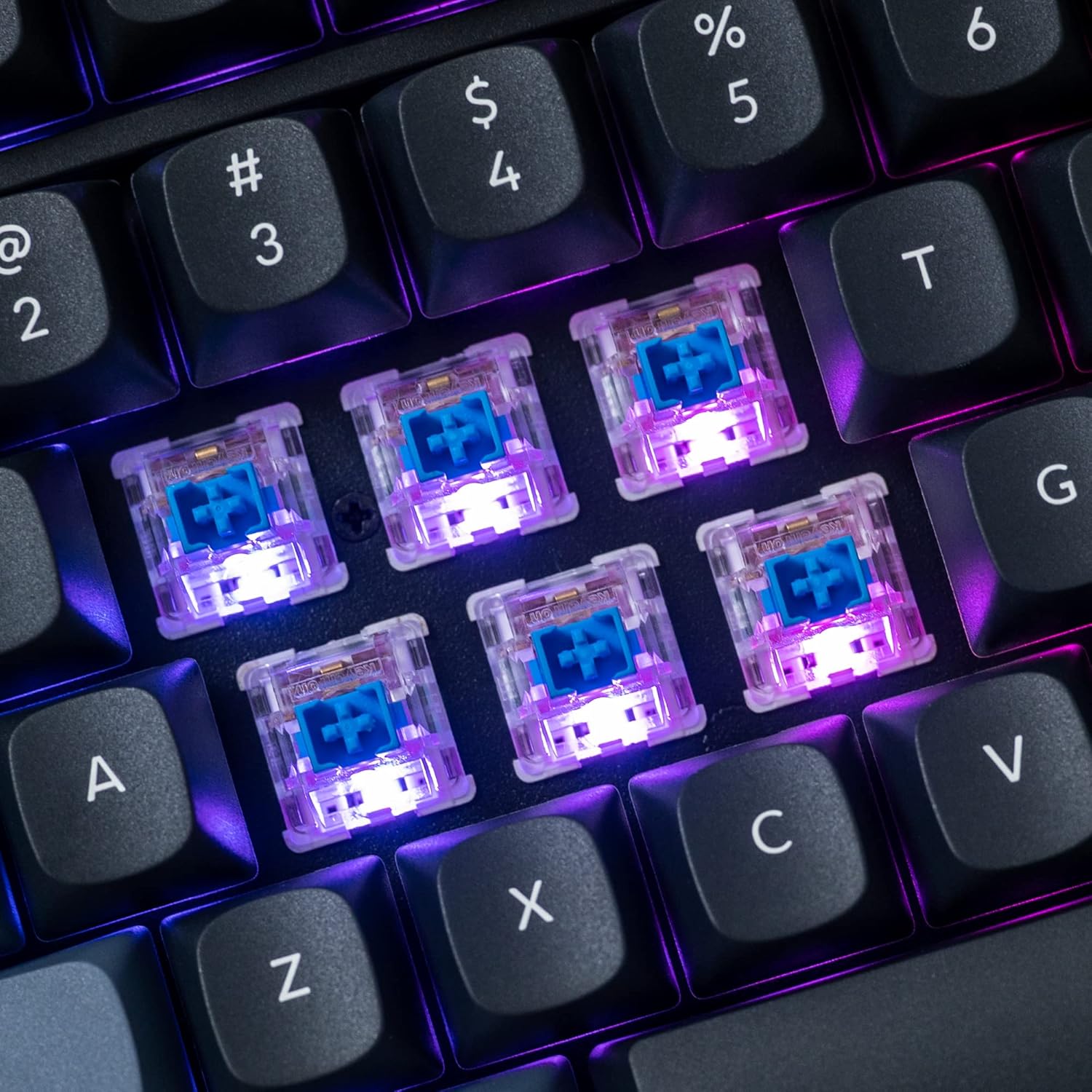
છબી: વિગતવાર view of the hot-swappable mechanical switches on the Keychron V5 keyboard, illuminated by RGB backlighting.
બેકલાઇટિંગ
The V5 features south-facing RGB backlighting, designed to better illuminate the keyboard from the typist's angle and prevent interference when using Cherry-profile keycaps. You can customize the backlight effects and colors using the VIA software.

Image: A close-up of the double-shot PBT keycaps on the Keychron V5 keyboard, showcasing their texture and legends.
જાળવણી
સફાઈ
તમારા કીબોર્ડની સ્વચ્છતા અને ટકાઉપણું જાળવવા માટે:
- કીકેપ્સ: કીકેપ્સ કાઢવા માટે કીકેપ ખેંચનારનો ઉપયોગ કરો. તેમને હળવા સાબુના દ્રાવણ અને નરમ કપડાથી સાફ કરો, પછી ફરીથી જોડતા પહેલા સારી રીતે ધોઈ લો અને સૂકવી દો.
- કીબોર્ડ બોડી: Wipe the keyboard body with a soft, damp કાપડ કઠોર રસાયણો અથવા ઘર્ષક સામગ્રીનો ઉપયોગ કરવાનું ટાળો.
- ધૂળ: કીકેપ્સ અને સ્વીચો વચ્ચેથી ધૂળ અને કચરો દૂર કરવા માટે સંકુચિત હવાનો ઉપયોગ કરો.
સ્વિચ રિપ્લેસમેન્ટ
સ્વીચ બદલવા માટે:
- આપેલા કીકેપ પુલરનો ઉપયોગ કરીને, તમે જે સ્વીચ બદલવા માંગો છો તેમાંથી કીકેપ કાળજીપૂર્વક દૂર કરો.
- Insert the switch puller tool around the top and bottom clips of the switch.
- Gently squeeze the clips and pull the switch straight up to remove it from the PCB.
- નવા સ્વીચના પિનને PCB પરના છિદ્રો સાથે સંરેખિત કરો. ખાતરી કરો કે પિન સીધા છે.
- Press the new switch firmly into place until it clicks. Ensure it is seated properly and not bent.
- કીકેપ ફરીથી જોડો.
કીકેપ રિપ્લેસમેન્ટ
To replace keycaps:
- Use the keycap puller to gently remove the existing keycap by hooking it onto the keycap and pulling upwards.
- Align the new keycap with the cross-shaped stem of the switch.
- Press the new keycap firmly down until it is fully seated.
મુશ્કેલીનિવારણ
- કીબોર્ડ જવાબ આપી રહ્યું નથી:
Ensure the USB cable is securely connected to both the keyboard and the computer. Try a different USB port or cable. Verify the system toggle switch is set correctly for your operating system. - નોંધણી ન થતી ચાવીઓ:
If specific keys are not working, the switch might be faulty or not fully seated. Try removing and re-inserting the switch. If the issue persists, replace the switch. - Backlighting Issues:
Check VIA software settings to ensure backlighting is enabled and configured correctly. If only certain LEDs are not working, it might indicate a faulty LED or switch. - QMK/VIA સોફ્ટવેર કીબોર્ડ શોધી રહ્યું નથી:
Ensure the keyboard is connected via USB. Close and reopen the VIA software. Make sure you have the correct firmware loaded if you have flashed custom firmware. - Keycaps Feel Loose:
Ensure keycaps are fully pressed onto the switch stems. If a keycap consistently feels loose, the switch stem might be damaged, or the keycap's cross-mount might be worn.
વિશિષ્ટતાઓ
| લક્ષણ | સ્પષ્ટીકરણ |
|---|---|
| બ્રાન્ડ | કીક્રોન |
| મોડલ | V5 |
| કીબોર્ડ વર્ણન | યાંત્રિક |
| કીબોર્ડ લેઆઉટ | QWERTY, 96% Layout (97 Keys) |
| કનેક્ટિવિટી ટેકનોલોજી | વાયર્ડ (USB-C) |
| સુસંગત ઉપકરણો | PC (macOS, Windows, Linux) |
| સ્વિચ પ્રકાર | Linear (K Pro Red) |
| Hot-swappable Support | Yes (3-pin and 5-pin MX mechanical switches) |
| કીકapપ્સ | Double-shot PBT, OSA Profile |
| બેકલાઇટ | દક્ષિણ-મુખી RGB |
| બિડાણ સામગ્રી | Polybutylene Terephthalate, Silicone |
| વધારાની સુવિધાઓ | QMK/VIA Programmable, Programmable Knob, Screw-in Stabilizers |
વોરંટી અને આધાર
Keychron products are typically covered by a limited warranty. For specific warranty terms, duration, and conditions, please refer to the warranty information provided with your product packaging or visit the official Keychron webસાઇટ
For technical support, troubleshooting assistance, or to inquire about replacement parts, please contact Keychron customer service through their official website's support portal. When contacting support, please have your product model (Keychron V5) and purchase details ready.