
1. પરિચય
Thank you for choosing the DELTACO Gaming PM80 Wireless Optical Gaming Mouse. This manual provides essential information for setting up, operating, and maintaining your new gaming mouse. Please read these instructions carefully before use to ensure optimal performance and longevity of your device.
2. પેકેજ સામગ્રી
- DELTACO Gaming PM80 Wireless Optical Gaming Mouse
- યુએસબી વાયરલેસ રીસીવર
- યુએસબી ચાર્જિંગ કેબલ
- વપરાશકર્તા માર્ગદર્શિકા
3. ઉત્પાદન ઓવરview
The DELTACO Gaming PM80 is a high-performance wireless optical gaming mouse designed for precision and comfort. It features 7 programmable buttons, adjustable DPI up to 4800, and customizable illumination. The mouse is rechargeable, ensuring uninterrupted gaming sessions.
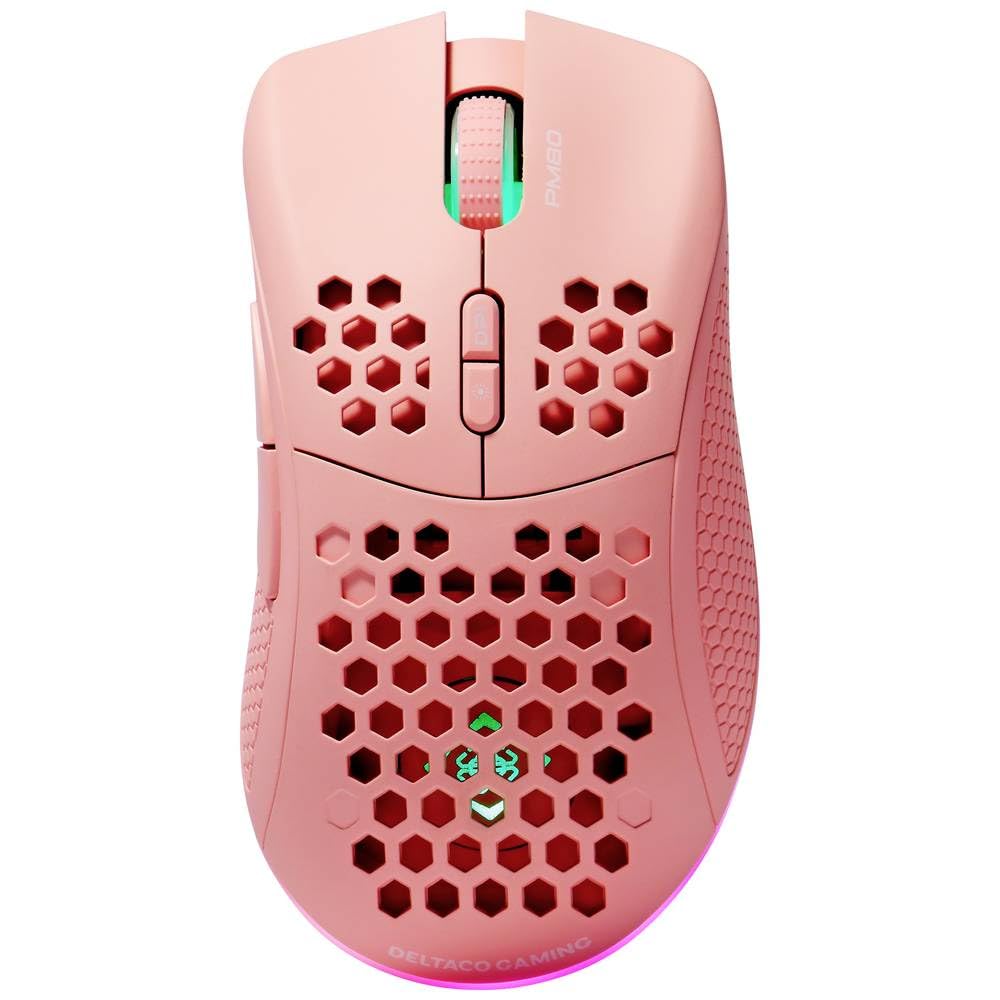
Image: DELTACO Gaming PM80 Wireless Optical Gaming Mouse. This image displays the mouse from a top-down perspective, highlighting its ergonomic design, the central scroll wheel, and the arrangement of its seven buttons.
બટન કાર્યો:
- ડાબું બટન ક્લિક કરો: માનક પ્રાથમિક ક્લિક કાર્ય.
- જમણું ક્લિક બટન: માનક ગૌણ ક્લિક કાર્ય.
- સ્ક્રોલ વ્હીલ: ઉપર/નીચે સ્ક્રોલ કરે છે, અને મધ્યમ ક્લિક બટન તરીકે કાર્ય કરે છે.
- DPI સાયકલ બટન: Changes the mouse's sensitivity (DPI).
- ફોરવર્ડ બટન: આગળ નેવિગેટ કરે છે web બ્રાઉઝર્સ અથવા file સંશોધકો
- પાછળનું બટન: પાછળ નેવિગેટ કરે છે web બ્રાઉઝર્સ અથવા file સંશોધકો
- Illumination Mode Button: Cycles through different lighting effects or turns illumination on/off.
4. સેટઅપ
૩.૧. માઉસ ચાર્જ કરવું
- Connect the small end of the USB charging cable to the charging port on the front of the mouse.
- Connect the larger end of the USB charging cable to an available USB port on your computer or a USB wall adapter.
- The mouse's illumination will indicate charging status (e.g., breathing effect, specific color). A full charge typically takes 2-3 hours.
- Once fully charged, the illumination may change or turn off. Disconnect the charging cable.
4.2. USB વાયરલેસ રીસીવરને કનેક્ટ કરવું
- Locate the USB wireless receiver, usually stored in a compartment on the underside of the mouse.
- રીસીવરને તેના સ્ટોરેજ સ્લોટમાંથી દૂર કરો.
- તમારા કમ્પ્યુટર પર ઉપલબ્ધ USB પોર્ટમાં USB વાયરલેસ રીસીવર પ્લગ કરો.
- તમારા કમ્પ્યુટરે આપમેળે જરૂરી ડ્રાઇવરો શોધી કાઢવા જોઈએ અને ઇન્સ્ટોલ કરવા જોઈએ. આમાં થોડો સમય લાગી શકે છે.
4.3. પાવર ચાલુ/બંધ
- માઉસની નીચેની બાજુએ પાવર સ્વીચ શોધો.
- Slide the switch to the 'ON' position to power on the mouse. The illumination will light up.
- To conserve battery life, slide the switch to the 'OFF' position when the mouse is not in use for extended periods.
5. ઓપરેટિંગ સૂચનાઓ
5.1. મૂળભૂત ઉપયોગ
Once connected and powered on, the mouse is ready for use. Move the mouse on a flat surface to control the cursor on your screen. Use the left and right click buttons for primary and secondary actions, and the scroll wheel for navigation.
૪.૪. DPI ગોઠવણ
The DPI (Dots Per Inch) setting determines the sensitivity of your mouse. The DELTACO Gaming PM80 offers multiple DPI levels up to 4800 DPI. To adjust the DPI:
- દબાવો DPI સાયકલ બટન (typically located behind the scroll wheel).
- Each press will cycle through the available DPI settings. The mouse's illumination may change color or flash to indicate the current DPI level.
- Select the DPI setting that best suits your preference for gaming or general use.
5.3. Illumination Control
The DELTACO Gaming PM80 features customizable illumination. To change the lighting effects:
- દબાવો Illumination Mode Button (refer to Product Overview સ્થાન માટે).
- Each press will cycle through different lighting modes, such as static colors, breathing effects, or off.
6. જાળવણી
6.1. સફાઈ
- સફાઈ કરતા પહેલા ખાતરી કરો કે માઉસ બંધ છે.
- માઉસની સપાટી સાફ કરવા માટે નરમ, સૂકા, લિન્ટ-ફ્રી કાપડનો ઉપયોગ કરો.
- હઠીલા ગંદકી માટે, સહેજ ડીampપાણી અથવા હળવા, ઘર્ષક ન હોય તેવા ક્લીનરથી કપડાને સાફ કરો. વધુ પડતો ભેજ ટાળો.
- કઠોર રસાયણો, દ્રાવકો અથવા ઘર્ષક પદાર્થોનો ઉપયોગ કરશો નહીં, કારણ કે આ ઉંદરના ફિનિશને નુકસાન પહોંચાડી શકે છે.
- સ્ક્રોલ વ્હીલ અને બટનની તિરાડોની આસપાસ સાફ કરવા માટે કપાસના સ્વેબ અથવા સંકુચિત હવાનો ઉપયોગ કરો.
6.2. સંગ્રહ
When not in use for extended periods, store the mouse in a cool, dry place away from direct sunlight and extreme temperatures. Ensure the power switch is in the 'OFF' position to preserve battery life.
7. મુશ્કેલીનિવારણ
- માઉસ જવાબ આપતો નથી:
- ખાતરી કરો કે માઉસ ચાલુ છે.
- USB વાયરલેસ રીસીવર કાર્યરત USB પોર્ટમાં સુરક્ષિત રીતે પ્લગ થયેલ છે કે નહીં તે તપાસો.
- Verify the mouse battery is charged. Connect the charging cable and try again.
- રીસીવરને બીજા USB પોર્ટમાં પ્લગ કરવાનો પ્રયાસ કરો.
- તમારા કમ્પ્યુટરને ફરીથી પ્રારંભ કરો.
- વિલંબ અથવા તૂટક તૂટક જોડાણ:
- Ensure the mouse is within close proximity to the USB receiver (ideally within 10 meters).
- રીસીવરને અન્ય વાયરલેસ ઉપકરણો અથવા દખલગીરીના સ્ત્રોતો (દા.ત., વાઇ-ફાઇ રાઉટર્સ, કોર્ડલેસ ફોન) ની નજીક રાખવાનું ટાળો.
- ખાતરી કરો કે માઉસ સંપૂર્ણપણે ચાર્જ થયેલ છે.
- Cursor movement is erratic or imprecise:
- માઉસની નીચેની બાજુએ આવેલા ઓપ્ટિકલ સેન્સરને નરમ, સૂકા કપડાથી સાફ કરો.
- ખાતરી કરો કે તમે માઉસનો ઉપયોગ યોગ્ય સપાટી પર કરી રહ્યા છો (દા.ત., માઉસ પેડ). ખૂબ પ્રતિબિંબિત અથવા પારદર્શક સપાટીઓ ટાળો.
- Adjust the DPI setting to a lower sensitivity if the cursor is too fast.
- Illumination not working:
- ખાતરી કરો કે માઉસ ચાલુ છે.
- Press the Illumination Mode Button to cycle through modes, ensuring it's not set to 'off'.
- Check battery level; low battery might disable illumination.
8. સ્પષ્ટીકરણો
| લક્ષણ | વિગત |
|---|---|
| બ્રાન્ડ | DELTACO ગેમિંગ |
| મોડલ નંબર | GAM-120-P |
| કનેક્ટિવિટી | વાયરલેસ (USB રીસીવર) |
| સેન્સર પ્રકાર | ઓપ્ટિકલ |
| ડીપીઆઈ | ૧૦૦૦ DPI સુધી (એડજસ્ટેબલ) |
| બટનોની સંખ્યા | 7 |
| હેન્ડ ઓરિએન્ટેશન | અધિકાર |
| રોશની | હા |
| રિચાર્જેબલ | હા |
| બેટરી જરૂરી છે | No (Internal Rechargeable) |
9. વોરંટી અને સપોર્ટ
For warranty information and technical support, please refer to the warranty card included with your product or visit the official DELTACO Gaming webસાઇટ. કોઈપણ વોરંટી દાવા માટે તમારી ખરીદીનો પુરાવો રાખો.