
1. ઉત્પાદન ઓવરview
The POLONO P31S is a compact and portable thermal label printer designed for various labeling needs in home, office, and school environments. It connects wirelessly via Bluetooth to your smartphone or tablet, allowing you to design and print labels using the dedicated mobile application. This device features a built-in cutter and operates without ink, utilizing thermal printing technology for clear, durable labels.
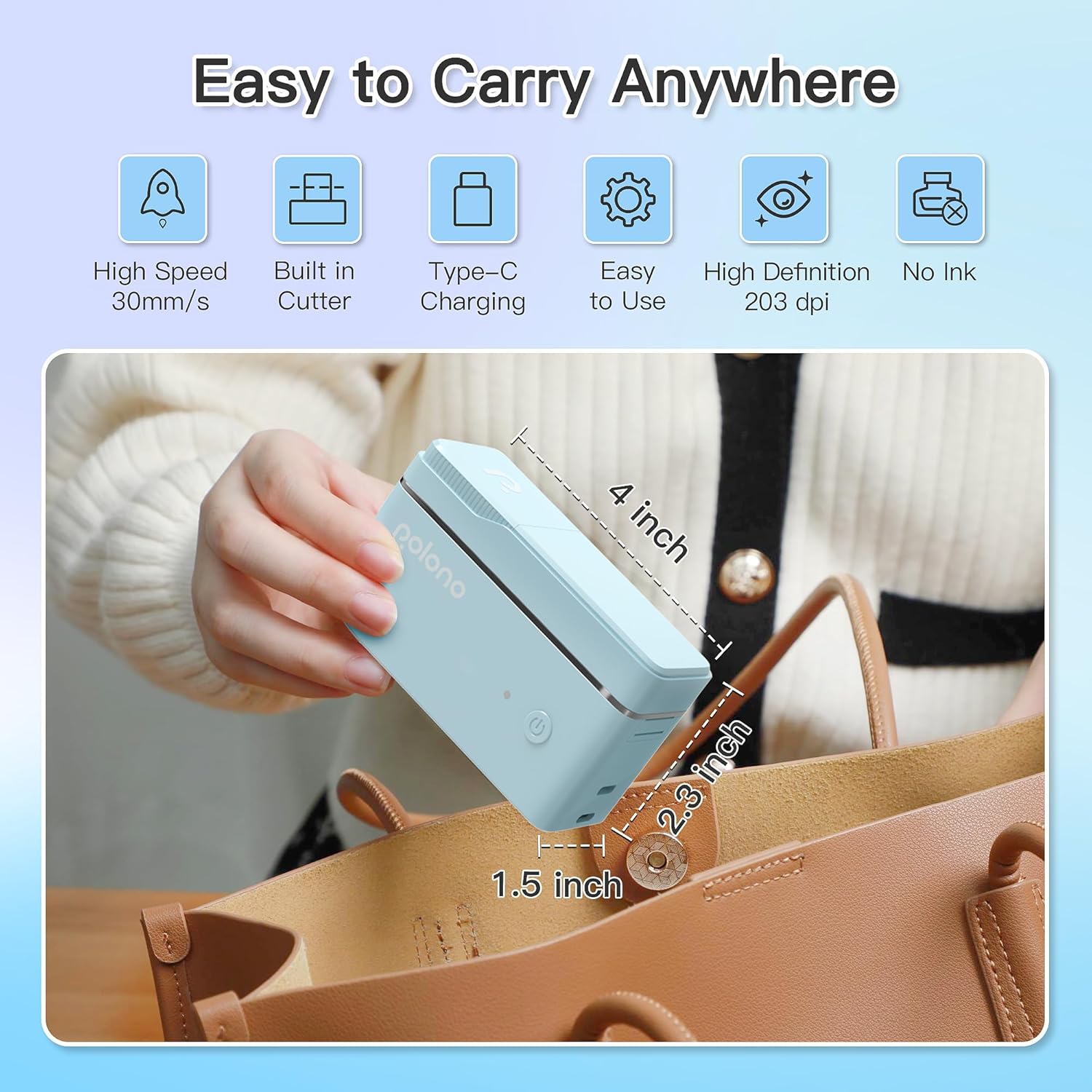
આકૃતિ 1: POLONO P31S Label Printer highlighting its compact design and dimensions (approximately 4 inches long, 2.3 inches high, 1.5 inches wide).
મુખ્ય લક્ષણો:
- પોર્ટેબલ અને લાઇટવેઇટ ડિઝાઇન.
- Bluetooth connectivity for wireless printing.
- Thermal printing technology (no ink required).
- Built-in label cutter.
- Supports various label types including text, QR codes, barcodes, and images.
- રિચાર્જ બેટરી.
2. સલામતી માહિતી
Please read and understand all safety instructions before using the POLONO P31S label printer to prevent injury or damage to the device.
- ઉપકરણને ડિસએસેમ્બલ, સમારકામ અથવા સંશોધિત કરશો નહીં.
- ઉપકરણને પાણી, ભેજ અને અતિશય તાપમાનથી દૂર રાખો.
- Use only POLONO-approved label tapes to ensure optimal performance and prevent damage.
- પ્રિન્ટિંગ પછી તરત જ પ્રિન્ટ હેડને સ્પર્શ કરવાનું ટાળો, કારણ કે તે ગરમ હોઈ શકે છે.
- બાળકોની પહોંચથી દૂર રાખો.
- Use the provided charging cable or a certified equivalent.
3. પેકેજ સામગ્રી
ખાતરી કરો કે બધી વસ્તુઓ પેકેજમાં હાજર છે:
- POLONO P31S Label Printer
- Label Tape Roll (starter roll)
- યુએસબી ચાર્જિંગ કેબલ
- વપરાશકર્તા માર્ગદર્શિકા (આ દસ્તાવેજ)
4. સેટઅપ
4.1 ઉપકરણને ચાર્જ કરવું
Before first use, fully charge the label printer. Connect the provided USB charging cable to the printer's charging port and to a USB power adapter (not included) or a computer's USB port. The indicator light will show charging status.
૫.૨ લેબલ ટેપ ઇન્સ્ટોલ કરવું
- લેબલ કમ્પાર્ટમેન્ટ કવર ખોલો.
- Insert the label tape roll with the printing surface facing up, ensuring it is properly seated.
- Pull a small portion of the label tape out, extending it past the cutter blade.
- લેબલ કમ્પાર્ટમેન્ટ કવર સુરક્ષિત રીતે બંધ કરો.

આકૃતિ 2: Proper installation of POLONO P31S label tape. Ensure the green sticker on the tape is not removed or damaged, as it contains chip technology for optimal performance. Do not pull the label out directly; use the cutting blade.
4.3 App Download and Bluetooth Connection
- Download the "Labelnize" app from the Apple App Store or Google Play Store.
- Turn on the POLONO P31S label printer by pressing and holding the power button.
- તમારા સ્માર્ટફોન અથવા ટેબ્લેટ પર બ્લૂટૂથ સક્ષમ કરો.
- Open the "Labelnize" app. The app will prompt you to allow Bluetooth access. Grant permission.
- Within the app, search for available devices and select "P31S" to connect.
- Once connected, the app will indicate a successful connection, and you are ready to create labels.
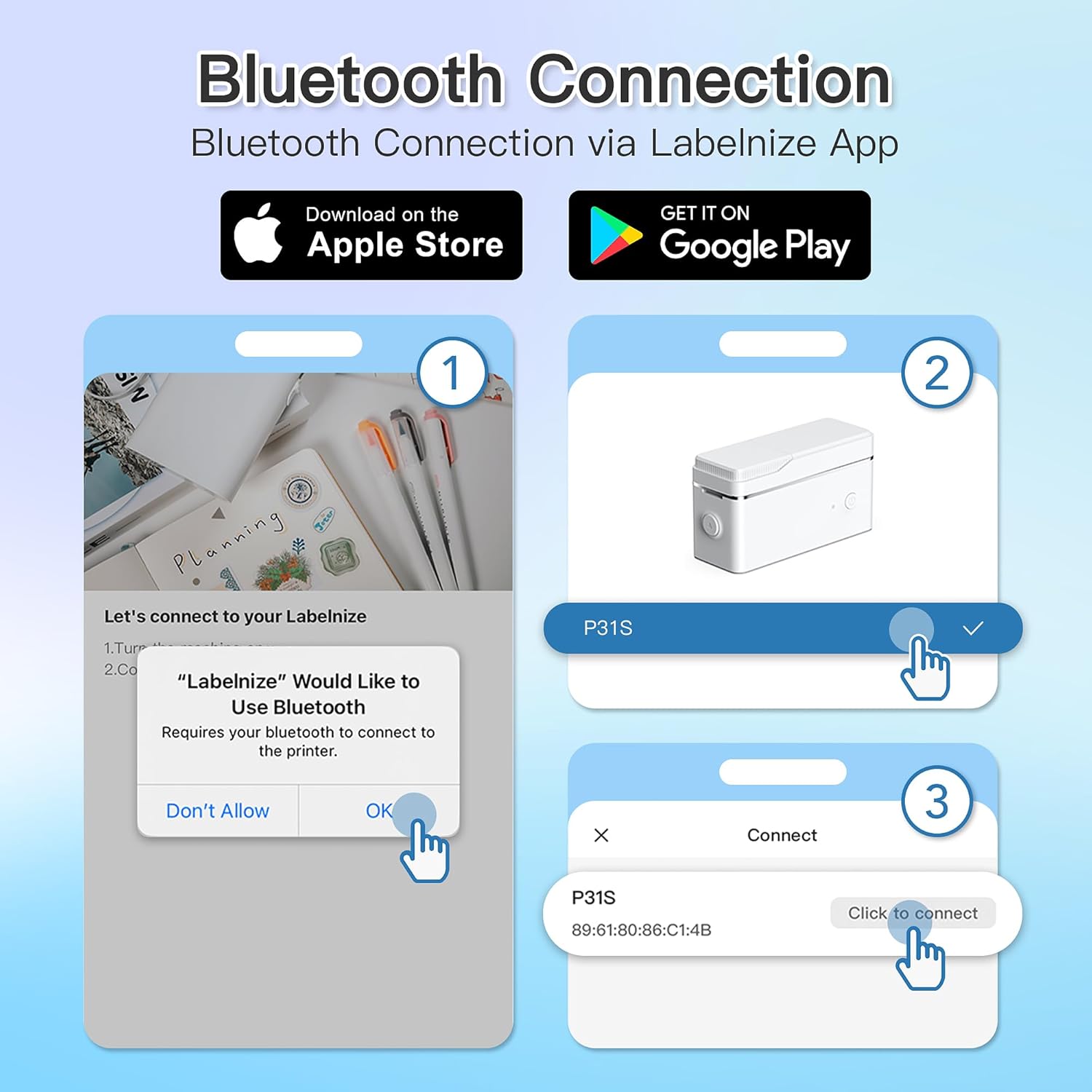
આકૃતિ 3: Steps for Bluetooth connection via the Labelnize App. Download the app, allow Bluetooth access, select "P31S" from the device list, and click "Connect".
5. ઓપરેટિંગ સૂચનાઓ
5.1 Creating Labels with the Labelnize App
The Labelnize app offers a variety of tools to design your labels:
- ટેક્સ્ટ: Enter custom text, choose from over 90 fonts, adjust size, style (bold, italic), and alignment.
- સરહદો: Select from over 95 border designs to frame your labels.
- Icons/Graphics: Access a library of over 670 tab icons and other graphics to enhance your labels.
- QR Code/Barcode: Generate QR codes or barcodes for various applications.
- છબીઓ: Insert images from your device's gallery.
- નમૂનાઓ: Utilize pre-designed templates for common labeling tasks.

આકૃતિ 4: The Labelnize app interface for creating labels, offering extensive customization options including borders, fonts, and icons. The app supports multiple languages.
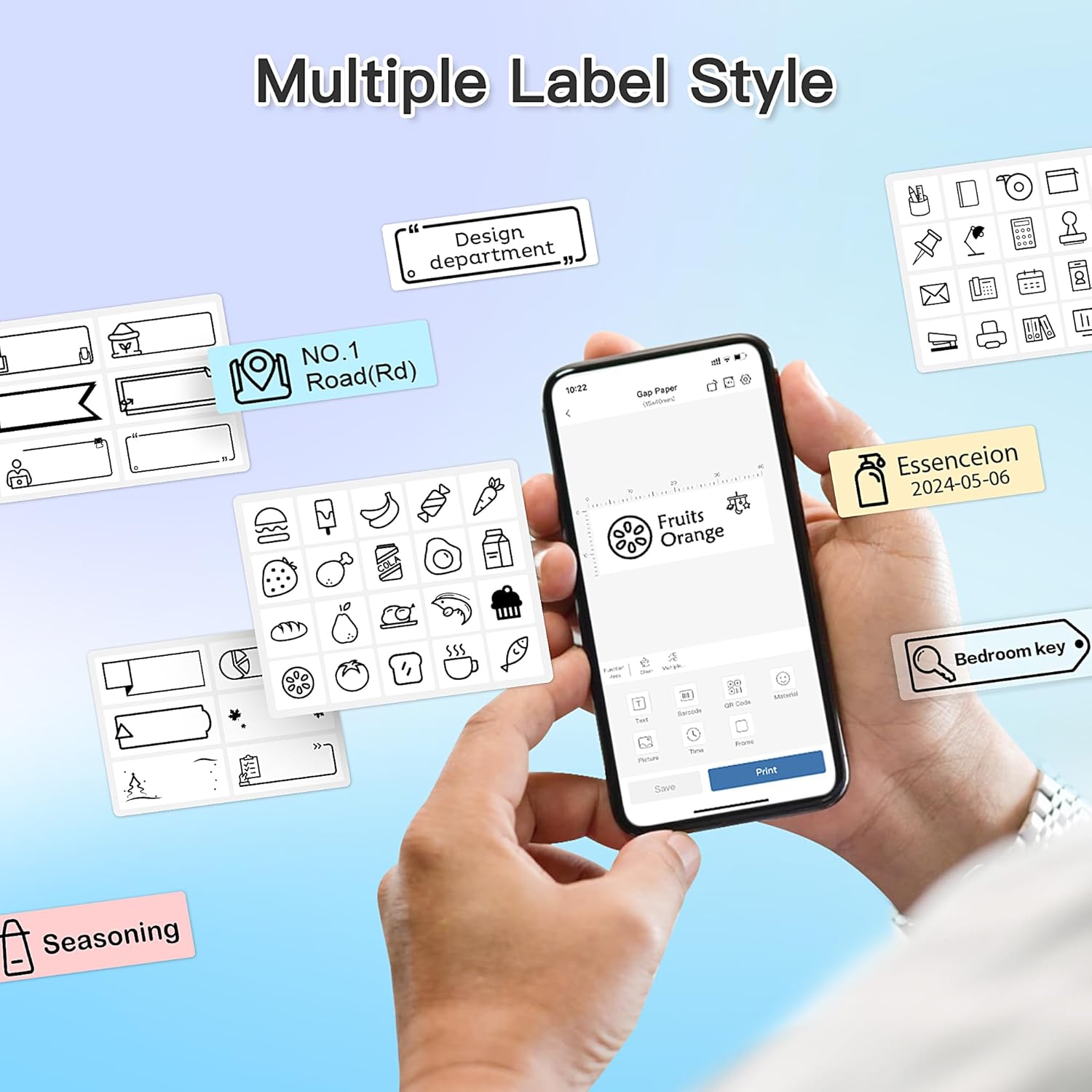
આકૃતિ 5: Examples of diverse label styles achievable with the POLONO P31S, demonstrating the flexibility in design for different organizational needs.
૨.૨ લેબલ્સ છાપવા
After designing your label in the Labelnize app:
- Review your label design on the app screen.
- Tap the "Print" button within the app.
- Confirm print settings (e.g., number of copies) if prompted.
- The printer will automatically feed and print the label.
5.3 Using the Built-in Cutter
The POLONO P31S features a built-in cutter for clean and precise label separation. After printing, gently press the cutter button or lever (depending on model variation) to cut the label. Do not pull the label manually to tear it, as this may damage the printer or result in uneven cuts.
6. જાળવણી
૫.૧ પ્રિન્ટ હેડ સાફ કરવું
પ્રિન્ટ ગુણવત્તા જાળવવા માટે, પ્રિન્ટ હેડને સમયાંતરે સાફ કરો:
- પ્રિન્ટર બંધ કરો અને પાવર કેબલ ડિસ્કનેક્ટ કરો.
- લેબલ કમ્પાર્ટમેન્ટ કવર ખોલો.
- પ્રિન્ટ હેડને કપાસના સ્વેબથી હળવા હાથે સાફ કરો.ampઆઇસોપ્રોપીલ આલ્કોહોલ સાથે સમાપ્ત.
- કવર બંધ કરીને પ્રિન્ટર ચાલુ કરતા પહેલા પ્રિન્ટ હેડને સંપૂર્ણપણે સુકાવા દો.
6.2 બેટરી કેર
- Charge the battery regularly, even if the printer is not used frequently, to prolong its lifespan.
- લાંબા સમય સુધી બેટરીને સંપૂર્ણપણે ડિસ્ચાર્જ કરવાનું ટાળો.
- જ્યારે ઉપયોગમાં ન હોય ત્યારે પ્રિન્ટરને ઠંડી, સૂકી જગ્યાએ સંગ્રહિત કરો.
7. મુશ્કેલીનિવારણ
| સમસ્યા | સંભવિત કારણ | ઉકેલ |
|---|---|---|
| પ્રિન્ટર ચાલુ થતું નથી. | ઓછી બેટરી અથવા પાવર નથી. | પ્રદાન કરેલ USB કેબલનો ઉપયોગ કરીને પ્રિન્ટરને ચાર્જ કરો. |
| બ્લૂટૂથ દ્વારા કનેક્ટ થઈ શકતું નથી. | Bluetooth is off, printer is off, or app issue. | Ensure printer is on, Bluetooth is enabled on your device, and restart the Labelnize app. Try re-pairing. |
| નબળી પ્રિન્ટ ગુણવત્તા. | Dirty print head, incorrect label tape, or low battery. | Clean the print head (Section 6.1). Ensure you are using POLONO P31S compatible label tape. Charge the printer. |
| Label jam. | Improper tape installation or foreign object. | Turn off the printer, open the cover, carefully remove any jammed tape. Reinstall tape correctly. |
| Printer not responding. | કામચલાઉ સોફ્ટવેર ખામી. | Restart the printer and the Labelnize app. |
8. સ્પષ્ટીકરણો
| લક્ષણ | વિગત |
|---|---|
| મોડલ | P31S |
| પ્રિન્ટીંગ ટેકનોલોજી | થર્મલ |
| કનેક્ટિવિટી | બ્લૂટૂથ |
| પ્રિન્ટ રિઝોલ્યુશન | 203 x 203 ડીપીઆઇ |
| મહત્તમ પ્રિન્ટ ઝડપ (મોનોક્રોમ) | 15 પીપીએમ |
| મહત્તમ મીડિયા કદ | Label rolls (2 inches / 24 millimeters) |
| શાહીનો રંગ | કાળો (થર્મલ પ્રિન્ટ) |
| પાવર સ્ત્રોત | 1 લિથિયમ પોલિમર બેટરી (શામેલ) |
| ઉત્પાદન પરિમાણો | 7.2 x 7.4 x 12.7 સેમી; 260 જી |
| સમાવાયેલ ઘટકો | લેબલ્સ |
9. વોરંટી અને સપોર્ટ
For warranty information and technical support, please refer to the official POLONO webસાઇટ પર જાઓ અથવા તેમની ગ્રાહક સેવાનો સંપર્ક કરો. વોરંટી દાવાઓ માટે ખરીદીના પુરાવા તરીકે તમારી ખરીદી રસીદ રાખો.
સત્તાવાર Webસાઇટ: www.polono.com (નોંધ: આ એક પ્લેસહોલ્ડર છે URL, કૃપા કરીને વાસ્તવિક અધિકારીની ચકાસણી કરો website for POLONO products.)