
1. પરિચય
This manual provides detailed instructions for the setup, operation, and maintenance of your LEMOKEY X2 QMK/VIA Mechanical Gaming Keyboard and M551 Mouse Combo. Please read this manual thoroughly before use to ensure proper functionality and to maximize your product experience.

Image 1.1: The LEMOKEY X2 QMK/VIA Mechanical Gaming Keyboard and M551 Mouse Combo.
2. ઉત્પાદન ઓવરview
2.1 મુખ્ય લક્ષણો
- QMK/VIA Software Support: Open-source software for easy key remapping, macro creation, and backlight customization.
- Gasket Mount Design: Reduces sound resonance and enhances typing flexibility for a quieter and smoother experience.
- 1000Hz Polling Rate & NKRO: High-performance ARM architecture MCU with 256KB flash memory ensures fast and responsive input. N-Key Rollover (NKRO) supports simultaneous key presses.
- ઓએસ સુસંગતતા: Easily switch between macOS and Windows operating systems.
- ટકાઉ કીકેપ્સ: ABS double-shot keycaps provide durability and wear resistance.
- Red Backlighting: North-facing LEDs illuminate legends with over 14 switchable red backlight effects.
2.2 પેકેજ સામગ્રી
- LEMOKEY X2 QMK/VIA Mechanical Gaming Keyboard
- LEMOKEY M551 Gaming Mouse
- USB-C to USB-A Cable (for keyboard)
- USB-A Cable (for mouse)
- વપરાશકર્તા માર્ગદર્શિકા
3. સેટઅપ
૫.૧ કીબોર્ડને જોડવું
- Locate the USB-C port on the keyboard and the USB-A port on your computer.
- આપેલા કેબલના USB-C છેડાને કીબોર્ડ સાથે જોડો.
- કેબલના USB-A છેડાને તમારા કમ્પ્યુટર પર ઉપલબ્ધ USB પોર્ટ સાથે કનેક્ટ કરો.
- The keyboard will be automatically detected by your operating system.
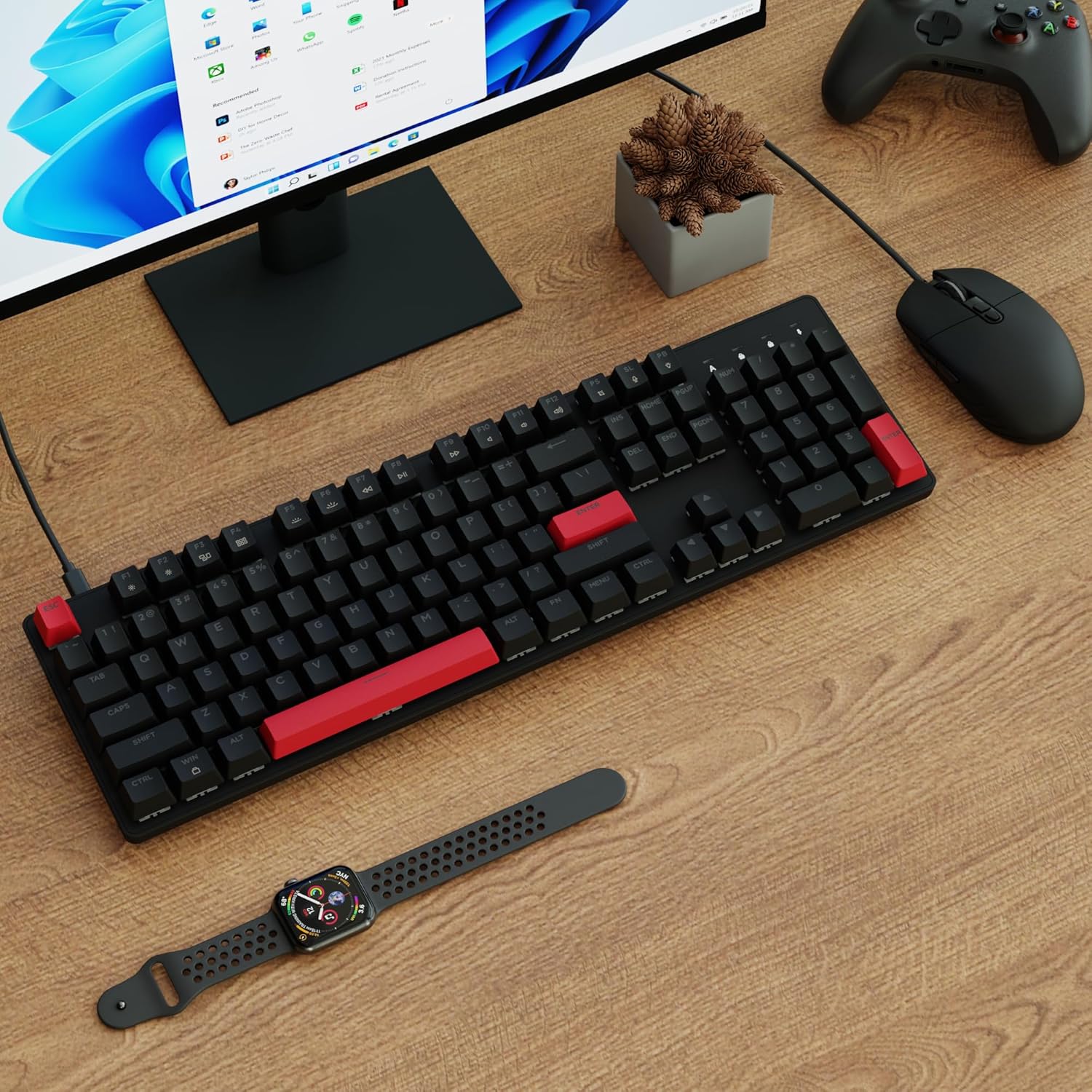
Image 3.1: The keyboard and mouse connected to a computer setup.
૩.૨ માઉસને જોડવું
- Locate the USB-A cable attached to the M551 mouse.
- Connect the USB-A end of the mouse cable to an available USB port on your computer.
- તમારી ઓપરેટિંગ સિસ્ટમ દ્વારા માઉસ આપમેળે શોધી કાઢવામાં આવશે.

Image 3.2: The M551 gaming mouse featuring red lighting.
4. ઓપરેટિંગ સૂચનાઓ
૫.૪ ઓપરેટિંગ સિસ્ટમ સ્વિચિંગ
To switch the keyboard's operating system mode between Mac and Windows, press the Fn + Caps Lock keys simultaneously. The keyboard will adjust its key mapping to suit the selected OS.
4.2 QMK/VIA Software Customization
The LEMOKEY X2 keyboard supports QMK/VIA software for advanced customization. This allows you to:
- Remap individual keys.
- Create custom macros.
- Adjust backlight effects and brightness.
- Configure multiple layers for different functions.
To use QMK/VIA, download the software from the official website (refer to the product page for the specific link). Connect your keyboard, launch the VIA application, and begin customizing.
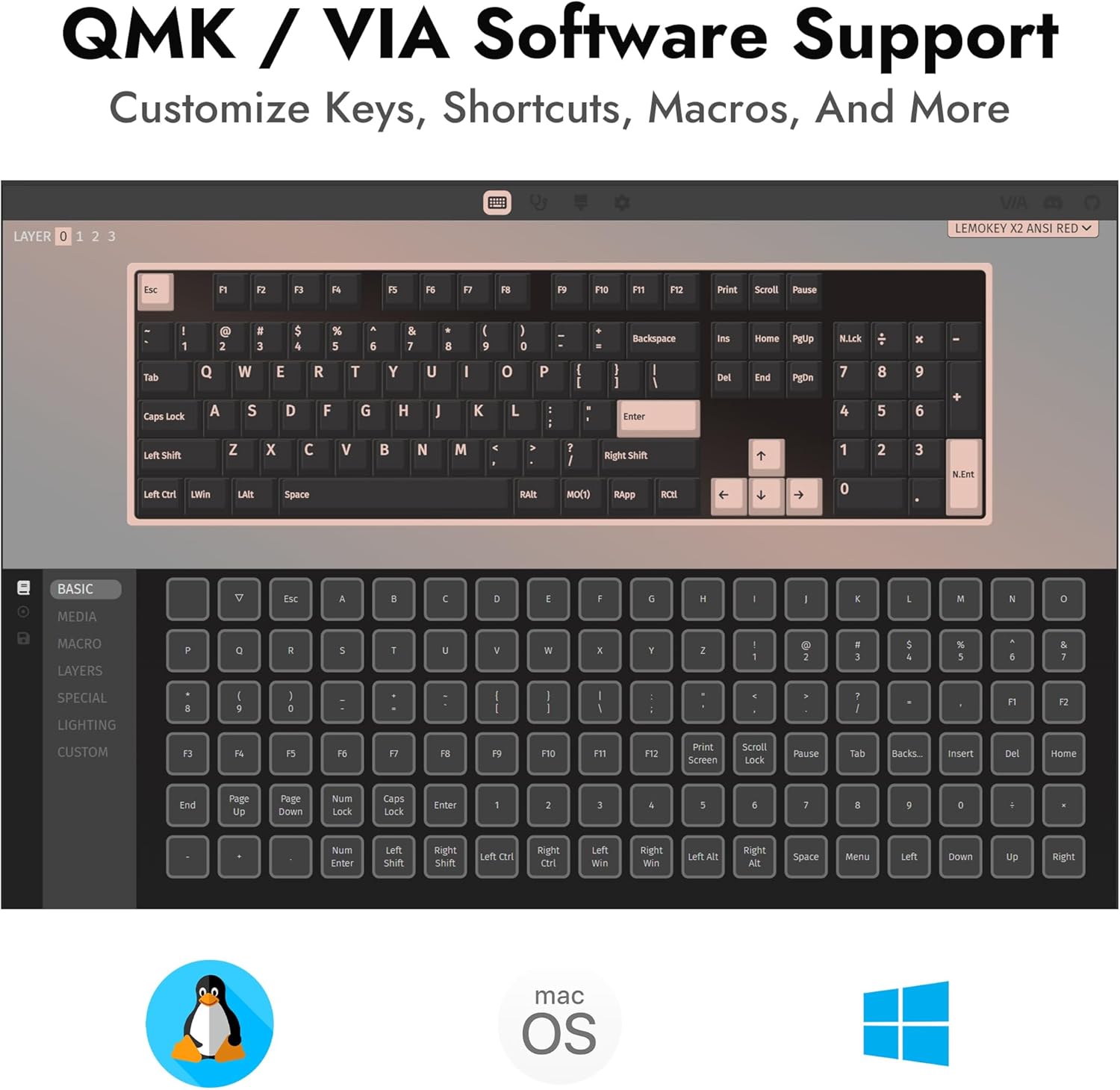
Image 4.1: The QMK/VIA software interface for customizing keyboard functions and lighting.
4.3 બેકલાઇટ નિયંત્રણ
The keyboard features red backlighting with over 14 switchable effects. Use the dedicated function keys (often combined with the Fn key) to cycle through different lighting modes, adjust brightness, and control animation speed. Refer to the keyboard's keycap legends for specific backlight control shortcuts.
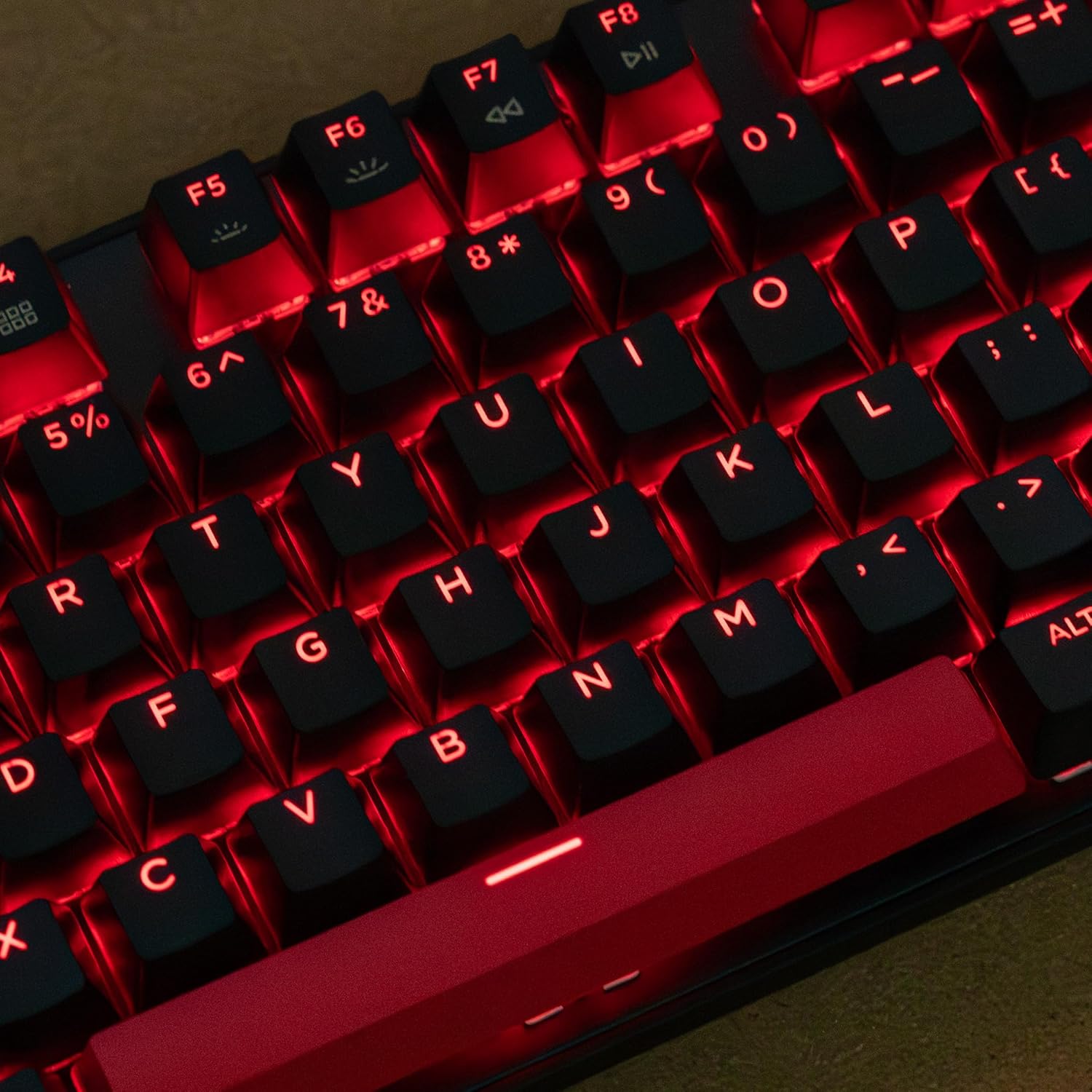
છબી ૫.૧: નજીકથી નજર view of the red backlit keys on the LEMOKEY X2 keyboard.
૩.૩ એન-કી રોલઓવર (NKRO)
The keyboard supports N-Key Rollover (NKRO), which means every key press is registered independently, regardless of how many keys are pressed simultaneously. This feature is particularly beneficial for fast typists and gamers, preventing ghosting or missed inputs.
5. જાળવણી
5.1 Cleaning the Keyboard and Mouse
- Disconnect the keyboard and mouse from your computer before cleaning.
- હળવાશથી નરમ, લિન્ટ-ફ્રી કાપડનો ઉપયોગ કરો ડીampસપાટીઓ સાફ કરવા માટે પાણી અથવા હળવા સફાઈ દ્રાવણથી ભેજયુક્ત.
- કીકેપ્સ વચ્ચે ધૂળ અને કચરો જતો રહે તો, કોમ્પ્રેસ્ડ એર અથવા નાના બ્રશનો ઉપયોગ કરો.
- Avoid using harsh chemicals, abrasive cleaners, or excessive moisture, as these can damage the product.
5.2 Keycap Removal and Switch Replacement (Keyboard)
The LEMOKEY X2 keyboard features hot-swappable switches, allowing for easy replacement without soldering. To remove keycaps and switches:
- Gently pull the keycap upwards using a keycap puller until it detaches from the switch stem.
- Use a switch puller to carefully grip the top and bottom clips of the switch.
- Pull the switch straight up until it detaches from the PCB.
- To install a new switch, align its pins with the holes on the PCB and press down firmly until it clicks into place. Ensure pins are not bent.
- Reattach the keycap by aligning it with the switch stem and pressing down.
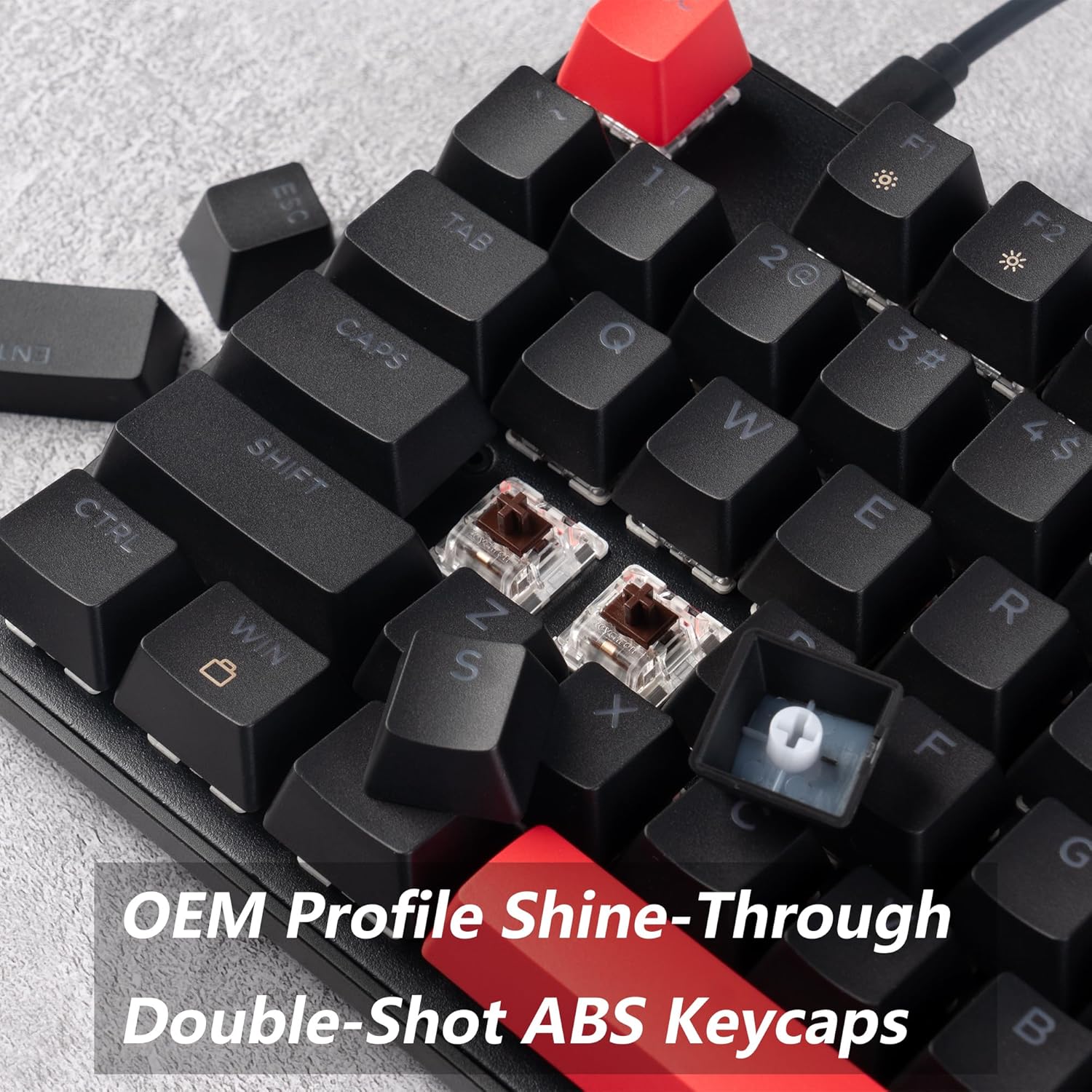
Image 5.1: A close-up showing a removed keycap and the underlying brown switch, highlighting the double-shot ABS keycap construction.
6. મુશ્કેલીનિવારણ
૫.૧ કીબોર્ડ જવાબ આપી રહ્યું નથી
- ખાતરી કરો કે USB કેબલ કીબોર્ડ અને કમ્પ્યુટર બંને સાથે સુરક્ષિત રીતે જોડાયેલ છે.
- તમારા કમ્પ્યુટર પર કીબોર્ડને બીજા USB પોર્ટ સાથે કનેક્ટ કરવાનો પ્રયાસ કરો.
- સિસ્ટમ-વિશિષ્ટ સમસ્યાઓને નકારી કાઢવા માટે બીજા કમ્પ્યુટર પર કીબોર્ડનું પરીક્ષણ કરો.
- જો તમે USB હબનો ઉપયોગ કરી રહ્યા છો, તો સીધા કમ્પ્યુટર સાથે કનેક્ટ કરવાનો પ્રયાસ કરો.
6.2 Mouse Not Responding or Disconnecting
- Check the mouse's USB cable connection to the computer.
- એક અલગ USB પોર્ટ અજમાવી જુઓ.
- Ensure the mouse sensor is clean and free of obstructions.
- બીજા કમ્પ્યુટર પર માઉસનું પરીક્ષણ કરો.
૬.૨ બેકલાઇટ કામ કરતી નથી અથવા ખોટી છે
- Ensure the backlight is not turned off or set to the lowest brightness level. Use the backlight control shortcuts (e.g., Fn + arrow keys or specific function keys).
- If using QMK/VIA, check your lighting settings within the software.
6.4 Keys Not Registering Correctly
- Check if the keycap or switch is properly seated. Refer to Section 5.2 for switch replacement.
- If using QMK/VIA, verify that the key has not been accidentally remapped.
7. સ્પષ્ટીકરણો
| લક્ષણ | વિગત |
|---|---|
| બ્રાન્ડ | LEMOKEY |
| મોડલ | X2 QMK/VIA Keyboard and M551 Mouse Combo |
| કીબોર્ડ લેઆઉટ | 104-Key Full-Size |
| સ્વિચ પ્રકાર | Mechanical (Brown Switches) |
| કીકેપ સામગ્રી | ABS ડબલ-શોટ |
| બેકલાઇટ | Red (Single Color) |
| કનેક્ટિવિટી | વાયર્ડ (યુએસબી) |
| મતદાન દર | 1000Hz |
| OS સુસંગતતા | Mac OS, Windows, Linux |
| કીબોર્ડ પરિમાણો | 45 x 13 x 4 સેમી |
| કીબોર્ડ વજન | 1 કિગ્રા |
| Mouse Included | Yes (M551 Gaming Mouse) |

Image 7.1: Dimensional diagram of the LEMOKEY X2 keyboard and M551 mouse.
8. વોરંટી અને સપોર્ટ
For warranty information and technical support, please refer to the official LEMOKEY webસાઇટ પર જાઓ અથવા તમારા રિટેલરનો સંપર્ક કરો. વોરંટી દાવાઓ માટે ખરીદીના પુરાવા તરીકે તમારી ખરીદી રસીદ રાખો.