
પરિચય
This manual provides detailed instructions for the installation, operation, maintenance, and troubleshooting of your Galax NVIDIA GeForce RTX 3050 EX 6GB GDDR6 Graphics Card. Please read this manual thoroughly before using the product to ensure proper functionality and longevity.
સેટઅપ અને ઇન્સ્ટોલેશન
1. ભૌતિક સ્થાપન
Before beginning, ensure your computer is powered off and unplugged from the wall outlet. Open your computer case to access the motherboard's PCI-Express x16 slot.
- મધરબોર્ડ તૈયાર કરો: Locate an available PCI-Express x16 slot on your motherboard. Remove any expansion slot covers from your computer case that correspond to the slot.
- Insert the Graphics Card: Carefully align the graphics card with the PCI-Express x16 slot. Apply even pressure to both ends of the card until it is fully seated in the slot. You should hear a click as the retention clip engages.
- કાર્ડ સુરક્ષિત કરો: ગ્રાફિક્સ કાર્ડને કમ્પ્યુટર કેસના વિસ્તરણ સ્લોટ બ્રેકેટમાં સુરક્ષિત કરવા માટે સ્ક્રૂનો ઉપયોગ કરો.
- પાવર કનેક્શન: This model of the GeForce RTX 3050 EX typically draws power directly from the PCI-Express slot and may not require an additional PCIe power connector from your power supply. Verify your specific model's requirements.
- કેસ બંધ કરો: Once the card is securely installed, close your computer case and reconnect all cables.
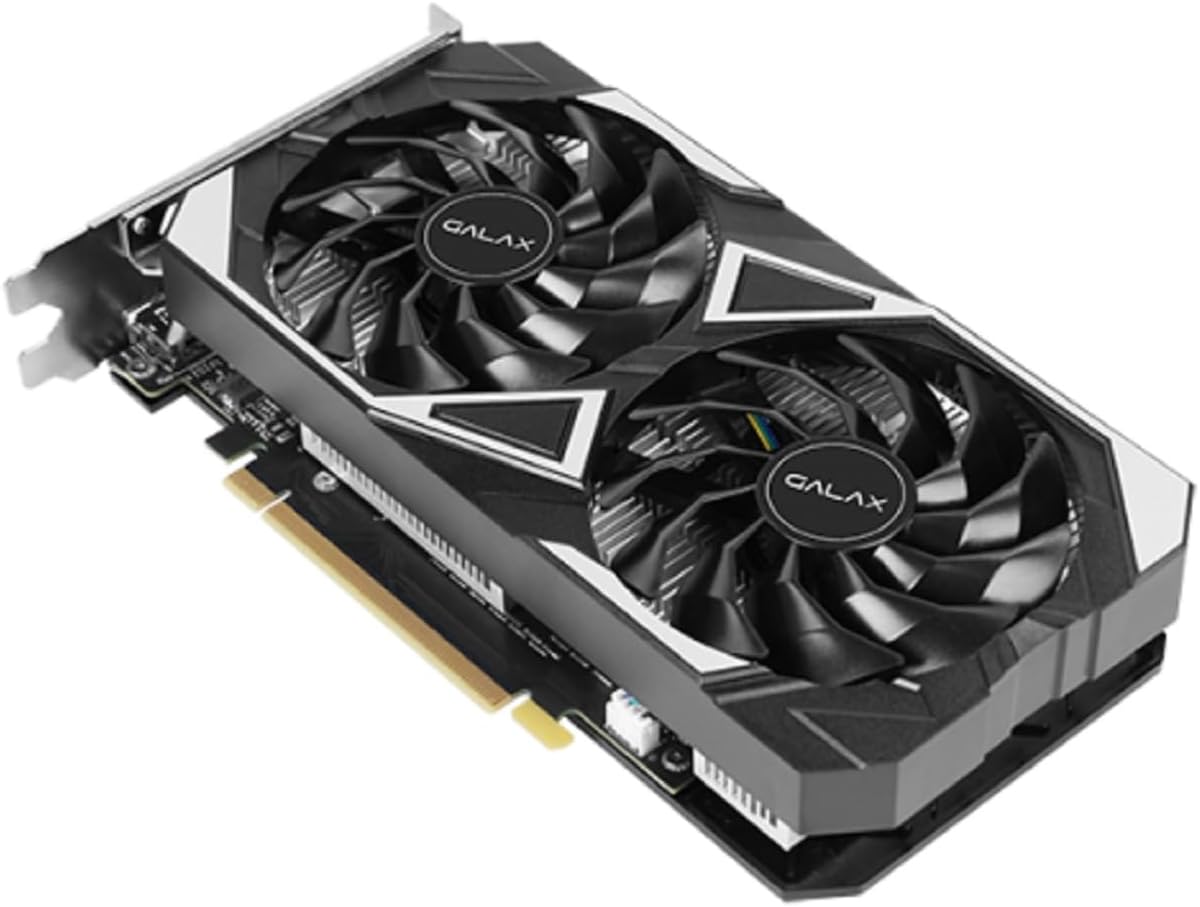
Image: The Galax RTX 3050 EX graphics card, illustrating its dual-fan design and PCI-Express interface for installation.
2. ડ્રાઇવર ઇન્સ્ટોલેશન
After physical installation, you must install the latest NVIDIA drivers for optimal performance and stability.
- પાવર ચાલુ: Connect your monitor to one of the graphics card's display outputs (DisplayPort or HDMI) and power on your computer.
- ડ્રાઇવર્સ ડાઉનલોડ કરો: સત્તાવાર NVIDIA ની મુલાકાત લો webસાઇટ (www.nvidia.com/drivers) and download the latest drivers for the GeForce RTX 3050. Ensure you select the correct operating system (Windows 10/11 64-bit).
- ડ્રાઇવરો ઇન્સ્ટોલ કરો: ડાઉનલોડ કરેલ ડ્રાઇવર ઇન્સ્ટોલર ચલાવો અને ઓન-સ્ક્રીન પ્રોમ્પ્ટ્સને અનુસરો. ઇન્સ્ટોલેશન પછી સિસ્ટમ રીસ્ટાર્ટ કરવાની જરૂર પડી શકે છે.
૩.૩. સોફ્ટવેર ઇન્સ્ટોલેશન (વૈકલ્પિક)
For enhanced control and performance tuning, consider installing the Xtreme Tuner Plus software.
- Xtreme Tuner Plus: This software allows for 1-Click OC (Overclocking) and monitoring of your graphics card. Download it from the official Galax webસાઇટ
ઓપરેટિંગ સૂચનાઓ
મુખ્ય લક્ષણો
- NVIDIA DLSS: Deep Learning Super Sampling (DLSS) uses AI to boost frame rates while generating sharp, high-quality images. Enable this feature in compatible games for improved performance.
- Ray Tracing: Experience realistic lighting, shadows, and reflections in supported games with dedicated 2nd Generation Ray Tracing Cores.
- NVIDIA GeForce અનુભવ: Optimize game settings, update drivers, and capture gameplay videos and screenshots with this companion application.
- NVIDIA G-SYNC: Connect to a G-SYNC compatible monitor for a smooth, tear-free gaming experience.
- 1-Click OC: Utilize the Xtreme Tuner Plus software to apply a quick overclock profile, boosting the card's performance with a single click. The 1-Click OC Clock can reach 1485 MHz.
Display Output Configuration
The graphics card supports multiple display outputs:
- DisplayPort 1.4a: Three ports are available for high-resolution and high-refresh-rate monitors.
- HDMI 2.1: One port for connecting to TVs or monitors, supporting up to 8K resolution.
You can connect multiple monitors simultaneously. Refer to your operating system's display settings for configuration options.

છબી: પાછળનો ભાગ view of the graphics card, highlighting the DisplayPort and HDMI output connectors.
જાળવણી
Fan Stop Feature
The graphics card features a fan stop function, where all fans will cease operation when the GPU temperature is below a certain threshold (e.g., during idle or light load). This reduces noise and power consumption. The fans will automatically spin up when the temperature rises.
સફાઈ
નિયમિત સફાઈ શ્રેષ્ઠ કામગીરી જાળવવામાં મદદ કરે છે અને તમારા ગ્રાફિક્સ કાર્ડનું આયુષ્ય લંબાવે છે.
- પાવર બંધ: Always power off your computer and unplug it before cleaning.
- ધૂળ દૂર કરવી: Use compressed air to gently remove dust from the fans, heatsink fins, and other components of the graphics card. Hold the fans in place while blowing air to prevent over-spinning.
- પ્રવાહી ટાળો: ગ્રાફિક્સ કાર્ડ પર સીધા લિક્વિડ ક્લીનર્સનો ઉપયોગ કરશો નહીં.
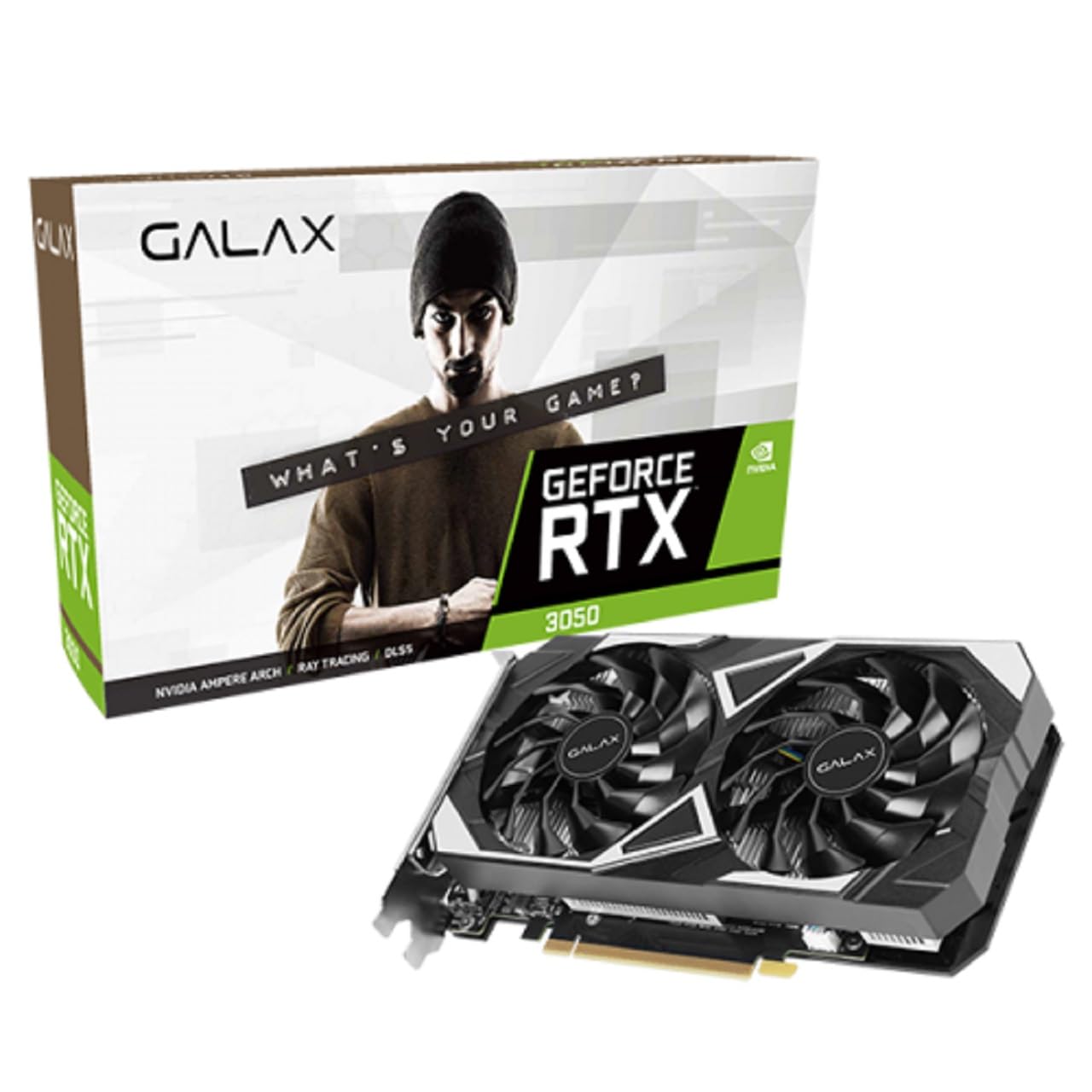
છબી: ટોચ view of the graphics card, emphasizing the dual-fan cooling system.
મુશ્કેલીનિવારણ
જો તમને તમારા ગ્રાફિક્સ કાર્ડમાં સમસ્યાઓ આવે, તો નીચેના સામાન્ય મુશ્કેલીનિવારણ પગલાંઓ ધ્યાનમાં લો:
- કોઈ ડિસ્પ્લે આઉટપુટ નથી:
- ખાતરી કરો કે મોનિટર કેબલ ગ્રાફિક્સ કાર્ડ અને મોનિટર બંને સાથે સુરક્ષિત રીતે જોડાયેલ છે.
- Verify the graphics card is fully seated in the PCI-Express slot.
- તપાસો કે તમારું મોનિટર યોગ્ય ઇનપુટ સ્ત્રોત પર સેટ કરેલું છે કે નહીં.
- કોઈ અલગ ડિસ્પ્લે આઉટપુટ પોર્ટ અથવા કેબલ અજમાવી જુઓ.
- ડ્રાઇવરની સમસ્યાઓ:
- Perform a clean installation of the latest NVIDIA drivers. Use Display Driver Uninstaller (DDU) in Safe Mode to remove old drivers before installing new ones.
- કામગીરી સમસ્યાઓ:
- Ensure your system meets the minimum requirements for the applications or games you are running.
- Monitor GPU temperatures to prevent thermal throttling. Ensure adequate case airflow.
- Disable any overclocking (including 1-Click OC) to see if it resolves stability issues.
- સિસ્ટમ અસ્થિરતા/ક્રેશ:
- Check your power supply unit (PSU) to ensure it provides sufficient and stable power to your system.
- Verify that all components are properly seated and connected.
For further assistance, refer to the official Galax support website or NVIDIA's support resources.
વિશિષ્ટતાઓ
| લક્ષણ | વિગત |
|---|---|
| મોડેલનું નામ | GeForce RTX 3050 EX |
| ગ્રાફિક્સ પ્રોસેસર | NVIDIA GeForce RTX 3050 |
| CUDA કોરો | 2304 |
| બુસ્ટ ઘડિયાળ | 1470 MHz |
| 1-Click OC Clock | 1485 MHz (with Xtreme Tuner Plus) |
| મેમરી માપ | 6 જીબી |
| મેમરી પ્રકાર | GDDR6 |
| મેમરી સ્પીડ | 14 જીબીપીએસ |
| Memory Interface Width | 96-બીટ |
| મેમરી બેન્ડવિડ્થ | 168 જીબી/સેકન્ડ |
| ઈન્ટરફેસ | પીસીઆઈ-એક્સપ્રેસ 4.0 x16 |
| ડિસ્પ્લે આઉટપુટ | 3x ડિસ્પ્લેપોર્ટ 1.4a, 1x HDMI 2.1 |
| Maximum Digital Resolution | 7680 x 4320 |
| ચાહકોની સંખ્યા | 2 (92 મીમી) |
| પરિમાણો (કૌંસ સાથે) | 224 x 133 x 44 મીમી |
| સપોર્ટેડ OS | વિન્ડોઝ 10/11 64-બીટ |
| ભાગ નંબર | 35NRLDMD9OEX |
| ASIN | B0CW7D71T3 |
વોરંટી અને આધાર
વોરંટી માહિતી
This Galax graphics card comes with a ૧૨ મહિનાની ઉત્પાદકની વોરંટી. વોરંટી દાવાઓ માટે કૃપા કરીને ખરીદીનો પુરાવો રાખો. વોરંટી સામાન્ય ઉપયોગ હેઠળ સામગ્રી અને કારીગરીમાં ખામીઓને આવરી લે છે.
ટેકનિકલ સપોર્ટ
For technical assistance, driver updates, or further product information, please visit the official Galax website or contact their customer support. You can also find extensive resources on the NVIDIA support portal for driver-related issues and feature guides.
- Galax Official Webસાઇટ: www.galax.com
- NVIDIA Support: www.nvidia.com/support