
1. પરિચય
Thank you for choosing the InUnion Magic Keyboard. This magnetic keyboard case is designed to enhance your iPad experience, transforming it into a versatile laptop-like device. It features a multi-touch trackpad, backlit keys, and a magnetic floating cantilever design for optimal viewing અને ઉત્પાદકતા.
1.1 સુસંગતતા
This keyboard case is specifically designed for the following iPad models:
- iPad Air 13-inch (M4 2026, M3 2025, M2 2024)
- iPad Pro 12.9-inch (6th, 5th, 4th, and 3rd generation)
Please verify your iPad model before use. You can find your model number on the back of your iPad or by navigating to Settings > General > About > Model Number on your iPad.
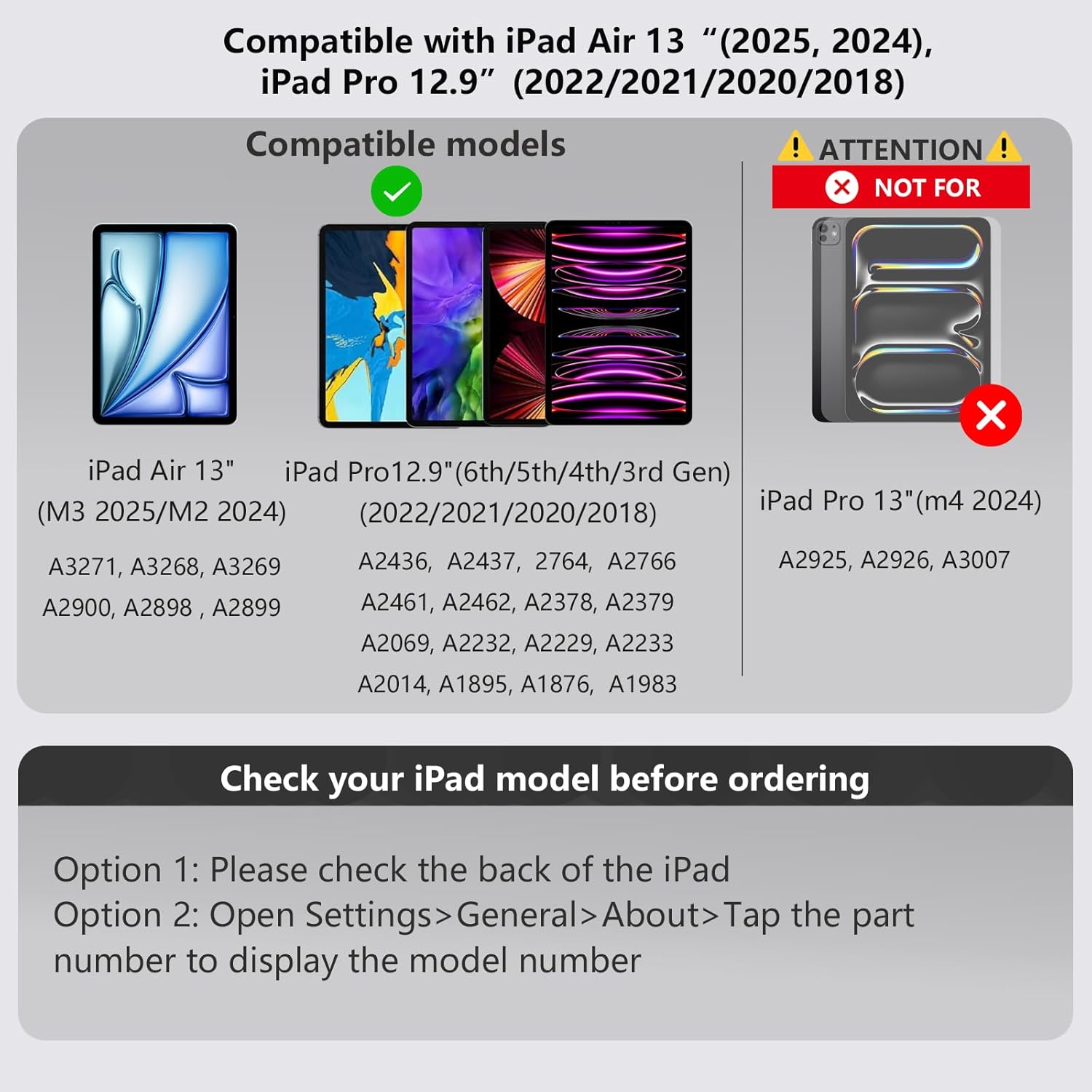
Image: Compatibility chart for InUnion Magic Keyboard showing supported iPad Air 13 and iPad Pro 12.9 models. This image displays the compatible iPad models for the InUnion Magic Keyboard, including iPad Air 13-inch (M3 2025/M2 2024) and iPad Pro 12.9-inch (6th/5th/4th/3rd Gen). It also explicitly states that iPad Pro 13-inch (M4 2024) is NOT compatible. Instructions are provided to check your iPad model.
1.2 પેકેજ સામગ્રી
પેકેજમાં શામેલ છે:
- InUnion Magic Keyboard Case
- USB-C ચાર્જિંગ કેબલ
- વપરાશકર્તા માર્ગદર્શિકા
2. સેટઅપ સૂચનાઓ
૩.૧ તમારા આઈપેડને જોડવું
- Open the InUnion Magic Keyboard case.
- Align your compatible iPad with the magnetic back cover of the case.
- The iPad will magnetically snap into place, securing it firmly.
- Adjust the iPad to your desired viewing angle using the floating cantilever stand.

Image: Hands attaching an iPad to the InUnion Magic Keyboard case using its magnetic snap-on system. This image demonstrates the quick magnetic snap-on system, showing an iPad being easily attached to the keyboard case, highlighting the strong magnetic connection.

છબી: બહુવિધ views of the InUnion Magic Keyboard's floating cantilever stand, showing the iPad at a 130-degree viewing angle. This image demonstrates the flexible floating cantilever stand design, allowing for a comfortable 130-degree adjustable viewing angle for the iPad.
2.2 બ્લૂટૂથ કનેક્શન
To connect your InUnion Magic Keyboard to your iPad via Bluetooth:
- ખાતરી કરો કે કીબોર્ડ ચાર્જ થયેલ છે.
- કીબોર્ડ પર પાવર સ્વીચ શોધો અને તેને 'ચાલુ' સ્થિતિમાં સ્લાઇડ કરો.
- Press the 'Connect' button (usually indicated by a Bluetooth icon) on the keyboard. The Bluetooth indicator light will start blinking.
- તમારા iPad પર, અહીં જાઓ સેટિંગ્સ > બ્લૂટૂથ.
- Toggle Bluetooth 'On' if it's not already enabled.
- In the 'Other Devices' list, select 'Bluetooth keyboard' (or a similar name) to pair.
- Once paired, the Bluetooth indicator light on the keyboard will stop blinking.
Video: How to connect the InUnion Magic Keyboard to Bluetooth. This video guides users through the process of connecting the InUnion Magic Keyboard to an iPad via Bluetooth 5.0, showing how to power on the keyboard, activate Bluetooth, and pair the devices.
3. ઓપરેટિંગ સૂચનાઓ
3.1 Multi-Touch Trackpad
The integrated multi-touch trackpad supports various iPadOS gestures, allowing for precise navigation and control. Common gestures include:
- સ્ક્રોલિંગ: Use two fingers to scroll up, down, left, or right.
- સ્વાઇપિંગ: Use three or four fingers to swipe between apps or access the App Switcher.
- પિંચિંગ: ઝૂમ ઇન અથવા આઉટ કરવા માટે બે આંગળીઓનો ઉપયોગ કરો.
- જમણું-ક્લિક કરો: Tap with two fingers for contextual menus.
The trackpad also features shortcuts for quick access to functions like adjusting brightness, volume, or music playback.

Image: A finger interacting with the multi-touch trackpad of the InUnion Magic Keyboard, showing blue circles indicating touch points. This image illustrates the multi-touch trackpad in action, emphasizing the 'Real laptop experience' with features like iOS/iPadOS shortcuts, multi-touch gestures, and 3-level brightness adjustment.
૫.૧ બેકલાઇટ ફંક્શન
The keyboard features a backlight with 3 adjustable brightness levels. This allows you to type comfortably in various lighting conditions, day or night. Use the dedicated backlight keys (usually indicated by sun icons) to cycle through brightness levels or turn the backlight off.

Image: A close-up of the InUnion Magic Keyboard being charged via a USB-C cable, with icons indicating battery life and charging speed. This image highlights the keyboard's long-lasting battery and USB-C charging port, with details on its 400mAh lithium battery, 2 weeks of work time, and 2.5 hours quick charge.
3.3 iPad Pen Charging Compatibility
The InUnion Magic Keyboard case is designed to allow for convenient charging of your Apple Pencil (2nd generation) while it is magnetically attached to your iPad. Simply place your Apple Pencil on the designated magnetic charging area on your iPad's side, and the case will not interfere with the charging process.
વિડિઓ: ઓવરview of the InUnion Magic Keyboard. This video provides an overview of the InUnion Magic Keyboard, demonstrating its magnetic attachment, multi-touch trackpad, adjustable stand, and compatibility with Apple Pencil charging.
4. જાળવણી
To ensure the longevity and optimal performance of your InUnion Magic Keyboard, follow these maintenance guidelines:
- સફાઈ: સોફ્ટનો ઉપયોગ કરો, ડીamp, lint-free cloth to wipe the exterior of the keyboard case. Avoid using harsh chemicals, abrasive cleaners, or excessive moisture.
- સંગ્રહ: When not in use, keep the keyboard case closed to protect both the keyboard and your iPad from dust and scratches. Store in a cool, dry place away from direct sunlight.
- ચાર્જિંગ: Always use the provided USB-C cable or a certified equivalent for charging. Avoid overcharging or completely draining the battery frequently.
- હેન્ડલિંગ: Avoid dropping the keyboard or exposing it to extreme temperatures or liquids.
5. મુશ્કેલીનિવારણ
If you encounter issues with your InUnion Magic Keyboard, refer to the following common solutions:
- કીબોર્ડ બ્લૂટૂથ દ્વારા કનેક્ટ થઈ રહ્યું નથી:
- Ensure the keyboard is powered on and charged.
- Press the 'Connect' button on the keyboard to activate pairing mode.
- On your iPad, turn Bluetooth off and then on again.
- Forget the device in iPad's Bluetooth settings and attempt to re-pair.
- તમારા આઈપેડ અને કીબોર્ડ બંનેને રીસ્ટાર્ટ કરો.
- ટ્રેકપેડ જવાબ આપી રહ્યું નથી:
- ખાતરી કરો કે કીબોર્ડ બ્લૂટૂથ દ્વારા યોગ્ય રીતે જોડાયેલ છે.
- ટ્રેકપેડ કાર્યક્ષમતા માટે iPadOS સેટિંગ્સ તપાસો.
- Clean the trackpad surface to remove any debris.
- બેકલાઇટ કામ કરતી નથી:
- ખાતરી કરો કે કીબોર્ડ ચાલુ છે.
- Press the backlight adjustment keys to cycle through brightness levels.
- Check battery level; low battery might disable backlight.
- કીઝ જવાબ આપી રહી નથી:
- બ્લૂટૂથ કનેક્શન ચકાસો.
- ખાતરી કરો કે કીબોર્ડ ચાર્જ થયેલ છે.
- કીબોર્ડ અને આઈપેડ ફરીથી શરૂ કરો.
If these steps do not resolve the issue, please contact InUnion customer support for further assistance.
6. સ્પષ્ટીકરણો
| લક્ષણ | વિગત |
|---|---|
| બ્રાન્ડ | InUnion |
| સુસંગત ઉપકરણો | iPad Pro 12.9 (6th, 5th, 4th, 3rd Gen) and iPad Air 13 (M3 2025 / M2 2024) |
| કનેક્ટિવિટી ટેકનોલોજી | USB-C (ચાર્જિંગ માટે) |
| કીબોર્ડ વર્ણન | મલ્ટિ ફંક્શનલ |
| ભલામણ કરેલ ઉપયોગો | રોજિંદા ઉપયોગ |
| ખાસ લક્ષણ | Trackpad, Backlight |
| રંગ | કાળો |
| કીબોર્ડ બેકલાઇટિંગ કલર સપોર્ટ | સિંગલ કલર |
| શૈલી | સમકાલીન |
| સામગ્રી | પ્લાસ્ટિક |
| પાવર સ્ત્રોત | બેટરી સંચાલિત |
| કીબોર્ડ લેઆઉટ | QWERTY |
| કીની સંખ્યા | 84 |
| Minimum Required Operating System | iPadOS 16 |
7. વોરંટી અને સપોર્ટ
The InUnion Magic Keyboard comes with a 24-month warranty from the date of purchase. This warranty covers manufacturing defects and ensures reliable operation under normal use conditions.
For warranty claims, technical support, or any inquiries, please contact InUnion customer support. Our team is committed to providing friendly support with quick 8-hour response times.
વોરંટી માન્યતા માટે કૃપા કરીને તમારી ખરીદીનો પુરાવો રાખો.