
1. ઉત્પાદન ઓવરview
The KOORUI G2722P is a 27-inch QHD (2560x1440) gaming monitor designed for an immersive visual experience. It features a Fast IPS panel with a 200Hz refresh rate and a 1ms response time, ensuring smooth and responsive gameplay. The monitor supports HDR 400 for enhanced contrast and color depth, and Adaptive Sync technology to minimize screen tearing and stuttering. Its ergonomic stand allows for height, tilt, and pivot adjustments, and it is VESA 75x75mm compatible for flexible mounting options.

The KOORUI G2722P monitor integrated into a typical gaming environment.
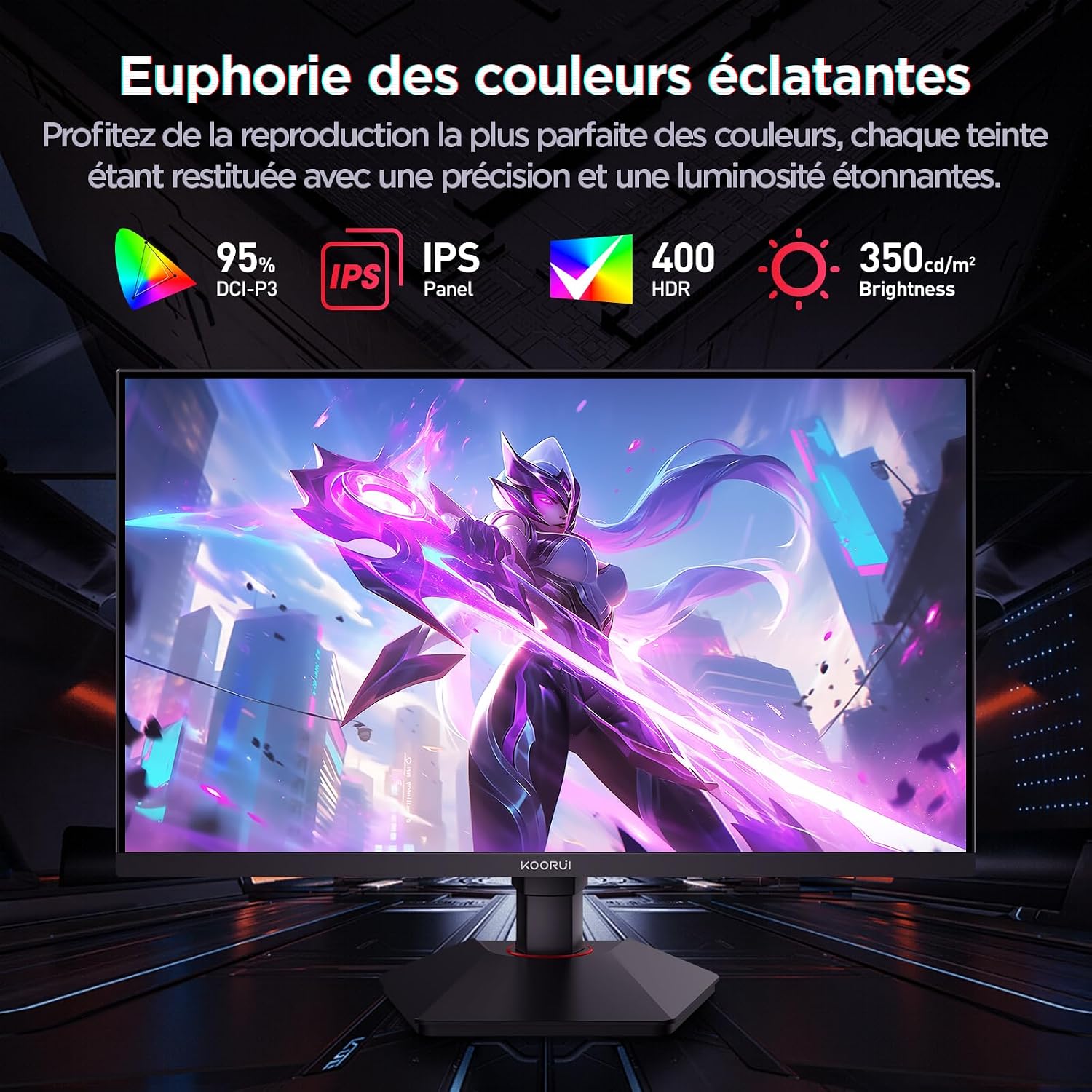
This image highlights the monitor's color capabilities, including 95% DCI-P3 color gamut, IPS panel technology, HDR 400 support, and 350 cd/m² brightness.
2. સલામતી માહિતી
- Read all instructions carefully before using the monitor.
- આગ કે આંચકાના જોખમોને રોકવા માટે મોનિટરને વરસાદ કે ભેજના સંપર્કમાં ન લાવો.
- મોનિટર ખોલશો નહીં casing. અંદર કોઈ ઉપયોગ કરી શકાય તેવા ભાગો નથી. બધી સર્વિસિંગ લાયક કર્મચારીઓને સોંપો.
- મોનિટરને પડવાથી બચાવવા માટે તેને સ્થિર, સપાટ સપાટી પર મૂકો.
- Keep the monitor away from direct sunlight, heat sources, and extreme temperatures.
- મોનિટરની આસપાસ યોગ્ય વેન્ટિલેશનની ખાતરી કરો. વેન્ટિલેશનના છિદ્રોને અવરોધશો નહીં.
- Use only the power adapter and cables provided or recommended by the manufacturer.
- વીજળીના તોફાન દરમિયાન અથવા લાંબા સમય સુધી ઉપયોગ ન કરવામાં આવે ત્યારે મોનિટરને પાવર આઉટલેટમાંથી અનપ્લગ કરો.
3. પેકેજ સામગ્રી
ખાતરી કરો કે બધી વસ્તુઓ પેકેજમાં હાજર છે:
- KOORUI G2722P Monitor
- મોનિટર સ્ટેન્ડ (બેઝ અને નેક)
- પાવર એડેપ્ટર અને પાવર કેબલ
- ડિસ્પ્લેપોર્ટ (DP) કેબલ
- વપરાશકર્તા માર્ગદર્શિકા (આ દસ્તાવેજ)
- સ્ટેન્ડ એસેમ્બલી માટે સ્ક્રૂ
4. મોનિટર એસેમ્બલી
૨.૧ સ્ટેન્ડ જોડવું
- સ્ક્રેચમુદ્દે બચવા માટે મોનિટરનો ચહેરો નરમ, સ્વચ્છ કપડા પર કાળજીપૂર્વક નીચે રાખો.
- Attach the stand neck to the back of the monitor until it clicks into place or is secured with screws (refer to specific instructions in the included quick start guide).
- સ્ટેન્ડ બેઝને સ્ટેન્ડ નેક સાથે જોડો અને આપેલા સ્ક્રૂથી તેને સુરક્ષિત કરો.
- Carefully lift the monitor and place it on a stable desk.
4.2 VESA માઉન્ટ કરવાનું
The monitor supports VESA 75x75mm mounting. To use a VESA mount:
- Remove the stand if it is already attached.
- Attach your VESA-compatible mount (sold separately) to the 75x75mm screw holes on the back of the monitor using appropriate screws.
- Ensure the mount is securely fastened before releasinમોનિટરને g.

This image demonstrates the monitor's ergonomic adjustments (height, tilt, pivot) and provides a visual reference for stand attachment points.
5. મોનિટરને કનેક્ટ કરી રહ્યું છે
Connect the monitor to your computer or other devices using the available ports.
- પાવર કનેક્શન: Connect the power cable to the power adapter, then connect the adapter to the monitor's power input and a wall outlet.
- વિડિઓ કનેક્શન:
- For optimal performance (QHD @ 200Hz), use the provided DisplayPort (DP 1.4) cable to connect the monitor to your graphics card.
- Alternatively, use an HDMI 2.0 cable to connect to an HDMI port on your device.
- ઓડિયો આઉટપુટ: Connect external speakers or headphones to the 3.5mm audio output jack on the monitor if you wish to use the monitor's audio passthrough.

This image displays the rear of the monitor, highlighting the available connectivity options: two HDMI 2.0 ports, one DisplayPort 1.4, an audio output jack, and the VESA 75x75mm mounting pattern.
6. મોનિટરનું સંચાલન
6.1 પાવર ચાલુ/બંધ
- મોનિટર ચાલુ અથવા બંધ કરવા માટે તેના પર સ્થિત પાવર બટન દબાવો.
- The power indicator light will illuminate when the monitor is on.
૪.૧ ઓન-સ્ક્રીન ડિસ્પ્લે (OSD) મેનુ
The OSD menu allows you to adjust various monitor settings. Typically, buttons are located on the back or bottom right of the monitor.
- Press one of the OSD buttons to activate the menu.
- Use the navigation buttons (usually directional or a joystick) to browse through menu options.
- Press the select button to enter a sub-menu or confirm a setting.
- OSD મેનુ બંધ કરવા માટે એક્ઝિટ બટન દબાવો.
7. ડિસ્પ્લે સેટિંગ્સ
7.1 Resolution and Refresh Rate
The monitor supports a native resolution of 2560x1440 (QHD) and a maximum refresh rate of 200Hz. Ensure your graphics card and operating system are configured to use these settings for the best experience.

This image illustrates the difference in motion clarity between a 75Hz and a 200Hz refresh rate, emphasizing the 1ms response time for reduced blur and ghosting.
7.2 Adaptive Sync (FreeSync)
This monitor supports Adaptive Sync technology (compatible with AMD FreeSync) to synchronize the monitor's refresh rate with your graphics card's frame rate, eliminating screen tearing and reducing stuttering.
- Enable Adaptive Sync in the monitor's OSD menu.
- Ensure Adaptive Sync (or FreeSync) is enabled in your graphics card control panel.

This image visually compares the display with Adaptive Sync enabled versus disabled, demonstrating how Adaptive Sync eliminates screen tearing for a smoother visual experience.
7.3 HDR 400
The monitor supports HDR 400, providing a wider dynamic range for brighter whites and deeper blacks, resulting in more vibrant and realistic images.
- Enable HDR in your operating system's display settings and in the monitor's OSD menu if available.
7.4 રંગ સેટિંગ્સ
The Fast IPS panel offers excellent color reproduction and wide viewખૂણો
- Adjust color temperature, gamma, and saturation through the OSD menu to suit your preferences.
- The monitor features a 178-degree wide viewing angle, ensuring consistent color and image quality from various perspectives.
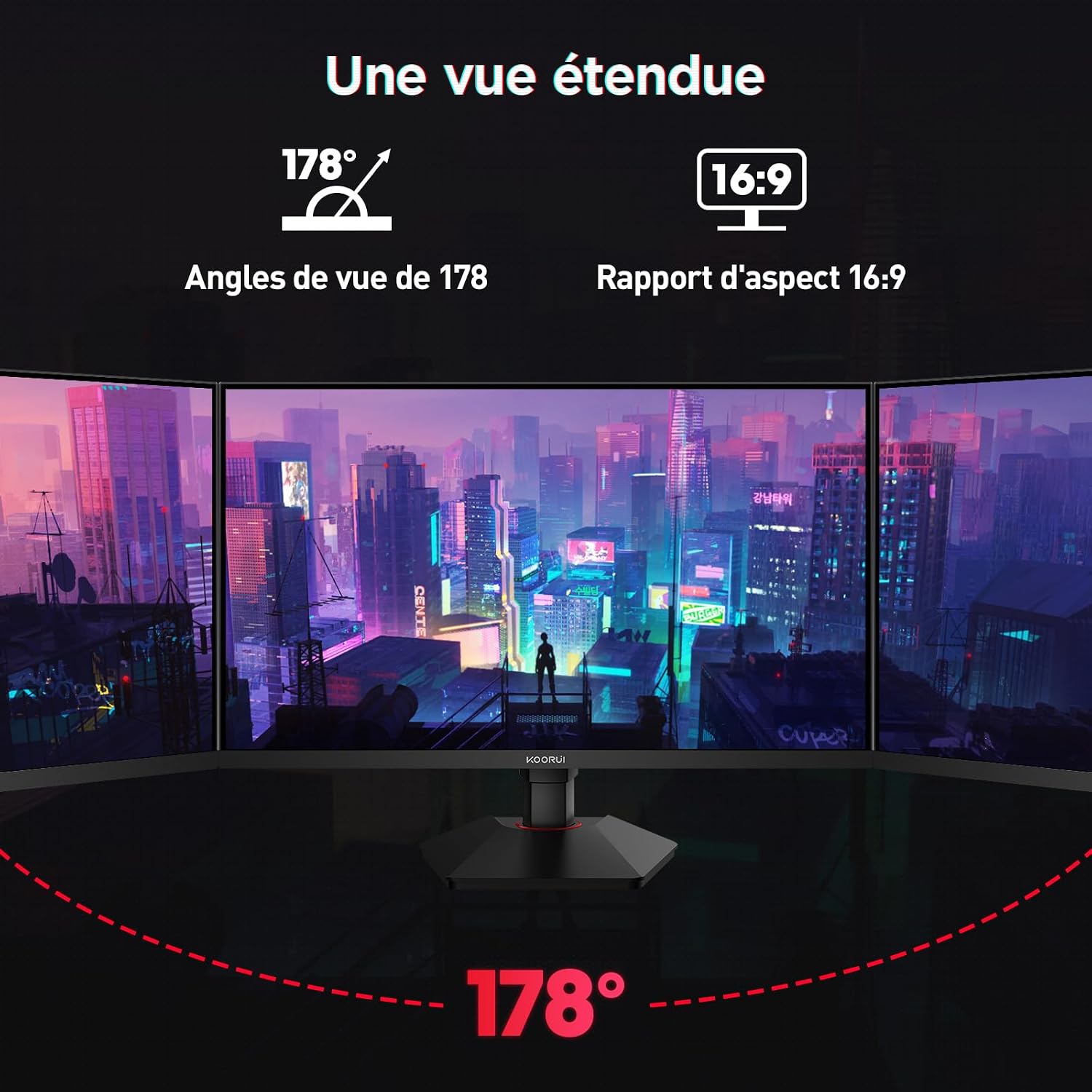
This image demonstrates the monitor's wide 178-degree viewing angle, illustrating how the display maintains clarity and color consistency even when viewed from extreme angles, ideal for multi-monitor setups.
8. અર્ગનોમિક ગોઠવણો
મોનિટર સ્ટેન્ડ તમારા ઑપ્ટિમાઇઝ કરવા માટે વિવિધ ગોઠવણો કરવાની મંજૂરી આપે છે viewઆરામ:
- ઊંચાઈ ગોઠવણ: Adjust the monitor height by up to 100mm by gently pushing or pulling the monitor up or down.
- ટિલ્ટ ગોઠવણ: Tilt the screen from -5° (forward) to +20° (backward) to find your preferred viewકોણ કોણ.
- પીવોટ (પરિભ્રમણ): Rotate the screen 90° to switch between landscape and portrait orientations.
This image illustrates the full range of ergonomic adjustments available: 100mm height adjustment, -5° to +20° tilt, and 90° pivot rotation for optimal viewઆરામ.
૫.૨.૮. આંખની સંભાળની સુવિધાઓ
The KOORUI G2722P monitor incorporates features designed to reduce eye strain during prolonged use:
- ફ્લિકર-ફ્રી ટેકનોલોજી: Reduces screen flickering, which can cause eye fatigue.
- લો બ્લુ લાઇટ ફિલ્ટર: Minimizes harmful blue light emissions to protect your eyes. This feature can usually be adjusted or enabled/disabled in the OSD menu.
10. જાળવણી
યોગ્ય જાળવણી તમારા મોનિટરની આયુષ્ય અને શ્રેષ્ઠ કામગીરીની ખાતરી આપે છે.
- સ્ક્રીનની સફાઈ: નરમ, લિન્ટ-ફ્રી કાપડથી સ્ક્રીનને હળવેથી સાફ કરો. હઠીલા નિશાનો માટે, સીધા સ્ક્રીન પર નહીં, પણ કાપડ પર લગાવેલા મોનિટર-વિશિષ્ટ સફાઈ દ્રાવણનો ઉપયોગ કરો.
- સી સાફ કરવુંasing: મોનિટર સાફ કરવા માટે નરમ, સૂકા કપડાનો ઉપયોગ કરો casing. ઘર્ષક ક્લીનર્સ અથવા સોલવન્ટ્સનો ઉપયોગ કરવાનું ટાળો.
- હેન્ડલિંગ: Avoid touching the screen directly with your fingers or sharp objects. Do not place heavy objects on the monitor.
11. મુશ્કેલીનિવારણ
જો તમને તમારા મોનિટરમાં સમસ્યાઓ આવે, તો નીચેની સામાન્ય સમસ્યાઓ અને ઉકેલોનો સંદર્ભ લો:
| સમસ્યા | શક્ય ઉકેલ |
|---|---|
| સ્ક્રીન પર કોઈ છબી નથી |
|
| છબી ઝબકતી કે ફાટી જતી |
|
| ઑડિઓ આઉટપુટમાંથી કોઈ અવાજ નથી |
|
| Monitor not reaching 200Hz |
|
12. સ્પષ્ટીકરણો
Key technical specifications for the KOORUI G2722P monitor:
| લક્ષણ | સ્પષ્ટીકરણ |
|---|---|
| સ્ક્રીન માપ | 27 ઇંચ |
| પેનલ પ્રકાર | ઝડપી IPS |
| ઠરાવ | QHD (2560 x 1440) |
| તાજું દર | 200Hz |
| પ્રતિભાવ સમય | 1ms |
| HDR સપોર્ટ | HDR 400 |
| અનુકૂલનશીલ સમન્વયન | ફ્રી સિંક |
| કોન્ટ્રાસ્ટ રેશિયો | 1000:1 (સ્થિર) |
| તેજ | 350 cd/m² |
| Viewએન્ગલ | 178° (H/V) |
| રંગ ગામટ | 95% DCI-P3 |
| વિડિઓ ઇનપુટ્સ | ૧x HDMI ૧.૪, ૧x ડિસ્પ્લેપોર્ટ ૧.૨ |
| ઓડિયો આઉટપુટ | 1x 3.5mm Audio Out |
| VESA સુસંગતતા | 75x75 મીમી |
| પાવર વપરાશ | 19 Watts (Typical) |
| અર્ગનોમિક્સ | Height, Tilt, Pivot Adjustment |

This diagram provides the physical dimensions of the monitor, including width, height, and depth.
For detailed energy information, please refer to the EPREL database: https://eprel.ec.europa.eu/qr/2216313
13. વોરંટી અને સપોર્ટ
The KOORUI G2722P monitor comes with a ૧ વર્ષની ઉત્પાદકની વોરંટી. આ વોરંટી સામાન્ય ઉપયોગ હેઠળ સામગ્રી અને કારીગરીમાં ખામીઓને આવરી લે છે.
For technical support, warranty claims, or further assistance, please contact KOORUI customer service through their official webસાઇટ અથવા રિટેલર જ્યાંથી ઉત્પાદન ખરીદવામાં આવ્યું હતું.