
પરિચય
This manual provides essential information for setting up, operating, maintaining, and troubleshooting your HP 14-cf2733wm laptop. Please read this manual thoroughly before using your device to ensure proper function and longevity.
The HP 14-cf2733wm is a 14-inch laptop designed for portability and everyday productivity. It features an Intel Celeron N4120 processor, 4GB of RAM, and 64GB eMMC storage, running on Windows 11 Home in S mode.
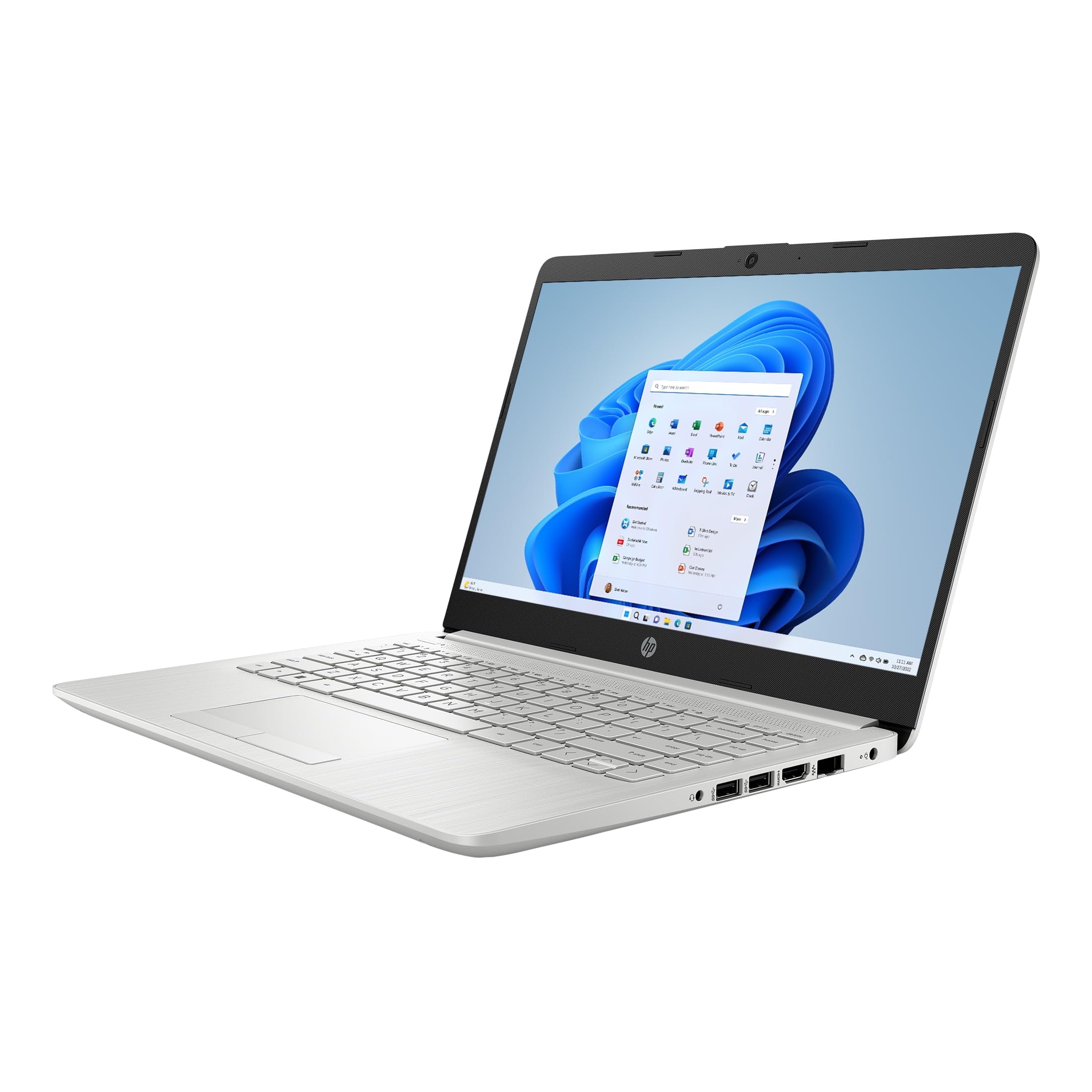
Figure 1: HP 14-cf2733wm Laptop. This image shows the silver HP laptop in a closed position, highlighting its slim design.
1. સેટઅપ
1.1 Unpacking the Laptop
પેકેજિંગમાંથી બધા ઘટકો કાળજીપૂર્વક દૂર કરો. ખાતરી કરો કે નીચેની વસ્તુઓ હાજર છે:
- HP 14-cf2733wm Laptop
- પાવર એડેપ્ટર અને કેબલ
- દસ્તાવેજીકરણ (ક્વિક સ્ટાર્ટ ગાઇડ, સલામતી માહિતી)
૩.૧ પાવર એડેપ્ટરને કનેક્ટ કરવું
- પાવર કેબલને પાવર એડેપ્ટર સાથે કનેક્ટ કરો.
- પાવર એડેપ્ટરને વોલ આઉટલેટમાં પ્લગ કરો.
- Insert the adapter's connector into the power port on the side of your HP laptop.
શરૂઆતના ઉપયોગ પહેલાં લેપટોપને સંપૂર્ણપણે ચાર્જ કરવાની ભલામણ કરવામાં આવે છે.
૩.૨ પ્રારંભિક પાવર ઓન અને વિન્ડોઝ સેટઅપ
- લેપટોપનું ઢાંકણું ખોલો.
- પાવર બટન દબાવો, જે સામાન્ય રીતે કીબોર્ડ ડેક પર હોય છે.
- Follow the on-screen instructions to complete the Windows 11 Home in S mode setup. This includes selecting your region, language, connecting to a Wi-Fi network, and creating a user account.
- Activate the included 12-month Microsoft 365 Personal subscription as prompted during setup or later via the Microsoft Store.
૩. લેપટોપ ચલાવવું
૪.૨ ટચપેડનો ઉપયોગ કરવો
The precision touchpad supports multi-touch gestures for navigation. Common gestures include:
- ટૅપ કરો: ક્લિક કરવા માટે એક જ ટેપ, ખોલવા માટે બે વાર ટેપ.
- બે આંગળીની સ્ક્રોલ: સ્ક્રોલ કરવા માટે બે આંગળીઓ ઉપર અથવા નીચે ખેંચો.
- ઝૂમ કરવા માટે પિંચ કરો: ઝૂમ ઇન અથવા આઉટ કરવા માટે બે આંગળીઓને એકસાથે પિંચ કરો અથવા તેમને ફેલાવો.
- બે આંગળીથી ટેપ કરો: Acts as a right-click.
૫.૩ બાહ્ય ઉપકરણોને જોડવા
Your laptop features various ports for connecting peripherals:
- યુએસબી પોર્ટ્સ: Connect USB drives, external mice, keyboards, or other compatible USB devices.
- HDMI પોર્ટ: વિસ્તૃત ડિસ્પ્લે માટે બાહ્ય મોનિટર અથવા ટીવી કનેક્ટ કરો.
- ઓડિયો જેક: હેડફોન અથવા બાહ્ય સ્પીકર્સને કનેક્ટ કરો.
૨.૫ વાઇ-ફાઇ અને બ્લૂટૂથ કનેક્ટિવિટી
Wi-Fi નેટવર્કથી કનેક્ટ કરવા માટે:
- ટાસ્કબારમાં Wi-Fi આઇકોન પર ક્લિક કરો.
- યાદીમાંથી તમારું ઇચ્છિત નેટવર્ક પસંદ કરો.
- જો પૂછવામાં આવે તો નેટવર્ક પાસવર્ડ દાખલ કરો અને "કનેક્ટ કરો" પર ક્લિક કરો.
To enable or disable Bluetooth:
- પર જાઓ સેટિંગ્સ > બ્લૂટૂથ અને ઉપકરણો.
- Toggle the Bluetooth switch On or Off.
2.4 Windows 11 Home in S mode
Windows 11 Home in S mode is a version of Windows optimized for security and performance. It exclusively runs apps from the Microsoft Store and uses Microsoft Edge for safe browsing. If you need to install apps outside the Microsoft Store, you can switch out of S mode. This is a one-way switch.
S મોડમાંથી બહાર નીકળવા માટે:
- On your PC running Windows 11 in S mode, open સેટિંગ્સ > સિસ્ટમ > સક્રિયકરણ.
- In the "Switch to Windows 11 Home" section, select સ્ટોર પર જાઓ.
- માઈક્રોસોફ્ટ સ્ટોરમાં દેખાતા "સ્વિચ આઉટ ઓફ એસ મોડ" (અથવા સમાન) પેજ પર, ક્લિક કરો મેળવો બટન
- After you see a confirmation message on the page, you'll be able to install apps from outside the Microsoft Store.
3. જાળવણી
૩.૧ લેપટોપ સાફ કરવું
- સ્ક્રીન: હળવાશથી નરમ, લિન્ટ-ફ્રી કાપડનો ઉપયોગ કરો ડીampપાણી અથવા સ્ક્રીન ક્લીનરથી સાફ કરો. કઠોર રસાયણો ટાળો.
- કીબોર્ડ અને ચેસિસ: નરમ, સૂકા કપડાનો ઉપયોગ કરો. હઠીલા ગંદકી માટે, થોડો ડીamp cloth can be used. Avoid getting moisture into openings.
- બંદરો: બંદરોમાંથી ધૂળને હળવેથી સાફ કરવા માટે સંકુચિત હવાનો ઉપયોગ કરો.
સફાઈ કરતા પહેલા હંમેશા લેપટોપનો પાવર બંધ કરો અને અનપ્લગ કરો.
3.2 બેટરી કેર
- અતિશય તાપમાન ટાળો.
- બેટરી નિયમિતપણે સંપૂર્ણપણે ડિસ્ચાર્જ કરશો નહીં.
- જો લેપટોપને લાંબા સમય સુધી સ્ટોર કરી રહ્યા છો, તો બેટરીને લગભગ 50-70% ચાર્જ કરો.
3.3 સોફ્ટવેર અપડેટ્સ
Regularly check for and install Windows updates to ensure system stability, security, and performance. Go to સેટિંગ્સ > વિન્ડોઝ અપડેટ.
4. મુશ્કેલીનિવારણ
૫.૧ લેપટોપ ચાલુ થતું નથી
- ખાતરી કરો કે પાવર એડેપ્ટર લેપટોપ અને વર્કિંગ વોલ આઉટલેટ બંને સાથે સુરક્ષિત રીતે જોડાયેલ છે.
- બીજા ઉપકરણને પ્લગ ઇન કરીને ખાતરી કરો કે વોલ આઉટલેટ કાર્યરત છે.
- હાર્ડ રીસેટ કરવા માટે પાવર બટનને 15-20 સેકન્ડ માટે પકડી રાખવાનો પ્રયાસ કરો.
૭.૩ ધીમું પ્રદર્શન
- બેકગ્રાઉન્ડમાં ચાલતી બિનજરૂરી એપ્લિકેશનો બંધ કરો.
- કોઈપણ બાકી Windows અપડેટ્સ માટે તપાસો અને ઇન્સ્ટોલ કરો.
- Ensure you have sufficient free storage space on the 64GB eMMC drive.
- Run a system scan for malware or viruses.
૫.૩ વાઇ-ફાઇ કનેક્ટિવિટી સમસ્યાઓ
- Restart your laptop and your Wi-Fi router.
- ખાતરી કરો કે Windows સેટિંગ્સમાં Wi-Fi સક્ષમ છે.
- નેટવર્ક ભૂલી જાઓ અને ફરીથી પાસવર્ડ દાખલ કરીને ફરીથી કનેક્ટ કરો.
- અન્ય ઉપકરણો સમાન Wi-Fi નેટવર્કથી કનેક્ટ થઈ શકે છે કે કેમ તે તપાસો.
5. સ્પષ્ટીકરણો
| લક્ષણ | વિગત |
|---|---|
| મોડેલનું નામ | HP 14-cf2733wm |
| પ્રોસેસર | Intel Celeron N4120 (up to 2.6 GHz burst frequency) |
| ઓપરેટિંગ સિસ્ટમ | S મોડમાં Windows 11 હોમ |
| ડિસ્પ્લે | 14-inch HD (1366 x 768) micro-edge anti-glare LED display |
| ગ્રાફિક્સ | ઇન્ટિગ્રેટેડ ઇન્ટેલ UHD ગ્રાફિક્સ 600 |
| રેમ | 4 GB DDR4 |
| સંગ્રહ | 64 જીબી eMMC |
| વાયરલેસ કનેક્ટિવિટી | 802.11n Wi-Fi, Bluetooth |
| બંદરો | 2x USB, 1x HDMI, 1x Headphone/Microphone combo |
| બેટરી | Lithium Ion, 45 Watt Hours |
| પરિમાણો (L x W x H) | ૧૧.૮૧" x ૩૫.૦૪" x ૧૫.૫૫" (૩૦ x ૮૯ x ૩૯.૫ સે.મી.) |
| વજન | 3.5 lbs (1.59 કિગ્રા) |
| રંગ | ચાંદી |
| Webકૅમ | સંકલિત Webકૅમ |
6. વોરંટી અને સપોર્ટ
6.1 મર્યાદિત વોરંટી
Your HP 14-cf2733wm laptop comes with a 1-year limited hardware warranty. This warranty covers defects in materials and workmanship under normal use. For full terms and conditions, please refer to the warranty documentation included with your product or visit the official HP support webસાઇટ
The warranty does not cover damage caused by accidents, misuse, unauthorized modifications, or external causes such as power fluctuations.
6.2 ટેકનિકલ સપોર્ટ
ટેકનિકલ સહાય, ડ્રાઇવર ડાઉનલોડ્સ અથવા વધુ સપોર્ટ માટે, કૃપા કરીને સત્તાવાર HP સપોર્ટની મુલાકાત લો. website. You will need your product's model number (14-cf2733wm) and serial number (found on the product label) when contacting support.
એચપી સપોર્ટ Webસાઇટ: https://support.hp.com