
Epico Epico Keyboard Case
Epico iPad Keyboard Case User Manual
Model: Epico Keyboard Case
પરિચય
Transform your iPad into a versatile workstation with the Epico iPad Keyboard Case. This innovative accessory features a detachable keyboard with seven-colour backlighting, a multi-finger gesture touchpad, and comprehensive iPadOS shortcuts. Designed for both functionality and protection, it enhances your iPad experience for typing, watching, and browsing.

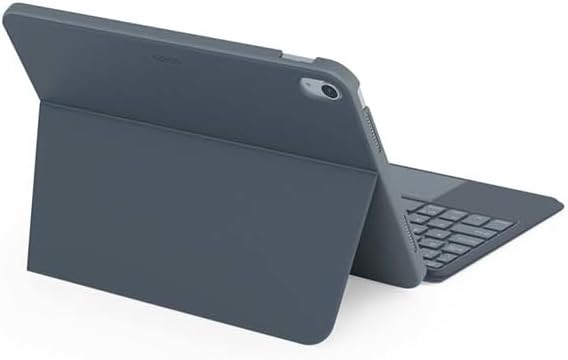
Image: The Epico iPad Keyboard Case with an iPad inserted, shown in a tilted typing position.
લક્ષણો
- બેકલાઇટ કીબોર્ડ: Seven distinct backlight colours with adjustable brightness levels for comfortable typing in any lighting condition.
- Touchpad Functionality: Multi-finger gesture touchpad provides precise control and enhanced navigation capabilities.
- Shortcut Integration: Comprehensive range of iPadOS shortcuts built into the keyboard for efficient device control and workflow optimisation.
- બહુમુખી ડિઝાઇન: Includes detachable keyboard and tilted backside stand for multiple viewing angles and usage modes.
- Power Solution: Equipped with Li-ion battery and USB-C charging capability, operating independently from iPad's power source.
પેકેજ સામગ્રી
- Epico iPad Keyboard Case
- યુએસબી-સી થી યુએસબી-સી ચાર્જિંગ કેબલ
- વપરાશકર્તા માર્ગદર્શિકા (આ દસ્તાવેજ)
સેટઅપ
૩.૧. કીબોર્ડ ચાર્જ કરવું
Before first use, fully charge the keyboard. Connect the provided USB-C to USB-C charging cable to the keyboard's USB-C port and the other end to a compatible USB-C power adapter (not included).
છબી: બાજુ view of the keyboard case, highlighting the USB-C charging port.
2. તમારું આઈપેડ દાખલ કરવું
- Gently align your iPad with the case's frame.
- Press firmly but carefully to secure the iPad into the protective shell. Ensure all edges are properly seated.

છબી: પાછળનો ભાગ view of the Epico iPad Keyboard Case, demonstrating the secure fit of the iPad.
3. Pairing with iPad
- Turn on the keyboard by sliding the power switch (usually located on the side or back of the keyboard).
- તમારા iPad પર, અહીં જાઓ સેટિંગ્સ > બ્લૂટૂથ.
- Enable Bluetooth. The keyboard should appear in the "Other Devices" list as "Epico Keyboard" or similar.
- Tap on the keyboard name to pair. Follow any on-screen prompts.
- Once paired, the keyboard's indicator light will change, and it will be ready for use.
ઓપરેટિંગ સૂચનાઓ
કીબોર્ડ ઉપયોગ
The keyboard functions like a standard QWERTY keyboard. Ensure the keyboard is paired with your iPad before typing.

છબી: આગળ view of the Epico iPad Keyboard Case, displaying the full keyboard layout and touchpad.
બેકલાઇટ નિયંત્રણ
- દબાવો લાઇટ બલ્બ key (often near the function keys) to cycle through backlight colours.
- દબાવો Fn + Light Bulb key to adjust backlight brightness levels.
ટચપેડ હાવભાવ
The integrated touchpad supports multi-finger gestures for enhanced navigation:
- સિંગલ ફિંગર ટેપ: ડાબું-ક્લિક કરો.
- બે આંગળીઓનો ટેપ: રાઇટ-ક્લિક કરો (સંદર્ભ મેનૂ).
- બે આંગળીઓથી સ્ક્રોલ: ઉપર/નીચે અથવા ડાબે/જમણે સ્ક્રોલ કરો.
- ઝૂમ કરવા માટે પિંચ કરો: સામગ્રી પર ઝૂમ ઇન/આઉટ કરો.
- Refer to iPadOS settings for additional gesture customization.
iPadOS Shortcuts
The keyboard includes dedicated function keys for common iPadOS shortcuts. These may vary slightly by iPadOS version, but typically include:
- ઘર: હોમ સ્ક્રીન પર પાછા ફરો.
- શોધો: Activate Spotlight search.
- તેજ નિયંત્રણ: સ્ક્રીનની તેજને સમાયોજિત કરો.
- મીડિયા નિયંત્રણ: Play/Pause, Previous/Next track.
- વોલ્યુમ નિયંત્રણ: સિસ્ટમ વોલ્યુમ સમાયોજિત કરો.
- સ્ક્રિન લોક: Lock your iPad.
જાળવણી
સફાઈ
- Use a soft, lint-free cloth to wipe the exterior of the case and keyboard.
- હઠીલા ગુણ માટે, સહેજ ડીampen પાણી સાથેનું કપડું અથવા હળવા, બિન-ઘર્ષક ક્લીનર.
- Avoid getting moisture into the keyboard keys or ports.
- કઠોર રસાયણો, દ્રાવકો અથવા ઘર્ષક સામગ્રીનો ઉપયોગ કરશો નહીં.
સંગ્રહ
When not in use for extended periods, store the keyboard case in a cool, dry place. Ensure the keyboard is turned off to preserve battery life.
મુશ્કેલીનિવારણ
- કીબોર્ડ કનેક્ટ થઈ રહ્યું નથી:
Ensure the keyboard is charged and turned on. Check iPad's Bluetooth settings to confirm it's enabled and the keyboard is paired. Try unpairing and re-pairing the keyboard.
- કીઝ જવાબ આપી રહી નથી:
Check battery level. Restart both the keyboard and your iPad. Ensure no debris is lodged under the keys.
- બેકલાઇટ કામ કરતી નથી:
Ensure the keyboard is on and charged. Cycle through backlight settings using the dedicated key.
- Touchpad not responding:
Ensure the touchpad is enabled (some keyboards have a function key to toggle it). Check iPadOS settings for touchpad functionality.
વિશિષ્ટતાઓ
| બ્રાન્ડ | એપીકો |
| મોડેલનું નામ | Epico Keyboard Case |
| સુસંગત ઉપકરણો | એપલ આઈપેડ |
| કનેક્ટિવિટી | બ્લૂટૂથ |
| બેકલાઇટ | 7-Colour, Adjustable Brightness |
| ટચપેડ | Multi-finger Gesture Support |
| ચાર્જિંગ પોર્ટ | યુએસબી-સી |
| પાવર સ્ત્રોત | બિલ્ટ-ઇન લિ-આયન બેટરી |
| વસ્તુનું વજન | ૮.૪૭ ઔંસ (આશરે ૨૪૦ ગ્રામ) |
| ઉત્પાદનના પરિમાણો (LxWxH) | ૪૩.૫ x ૨૦.૫ x ૪૩ ઇંચ (આશરે ૧૧૦.૫ x ૫૨ x ૧૦૯ સે.મી.) |
| સામગ્રી | પ્લાસ્ટિક, મેટલ |
વોરંટી અને આધાર
This Epico product is covered by a manufacturer's warranty. Please refer to the warranty card included with your purchase or visit the official Epico webવિગતવાર વોરંટી નિયમો અને શરતો માટે સાઇટ.
For technical support, troubleshooting assistance, or inquiries about your product, please contact Epico customer service through their official webસાઇટ અથવા તમારી ખરીદી રસીદ પર આપેલી સંપર્ક માહિતી.
Ask a question about this manual
Ask about setup, troubleshooting, compatibility, parts, safety, or missing instructions. Manuals+ will review the question and use this page’s manual context to help answer it.