
1. પરિચય
This manual provides instructions for the setup, operation, maintenance, and troubleshooting of your CRUA 27-inch 240Hz QHD IPS Gaming Monitor. This monitor features a 2560x1440 QHD resolution, a 240Hz refresh rate, an IPS panel for wide viewing angles, AMD FreeSync support, a blue light filter for eye protection, and built-in speakers. Please read this manual thoroughly before using the product.
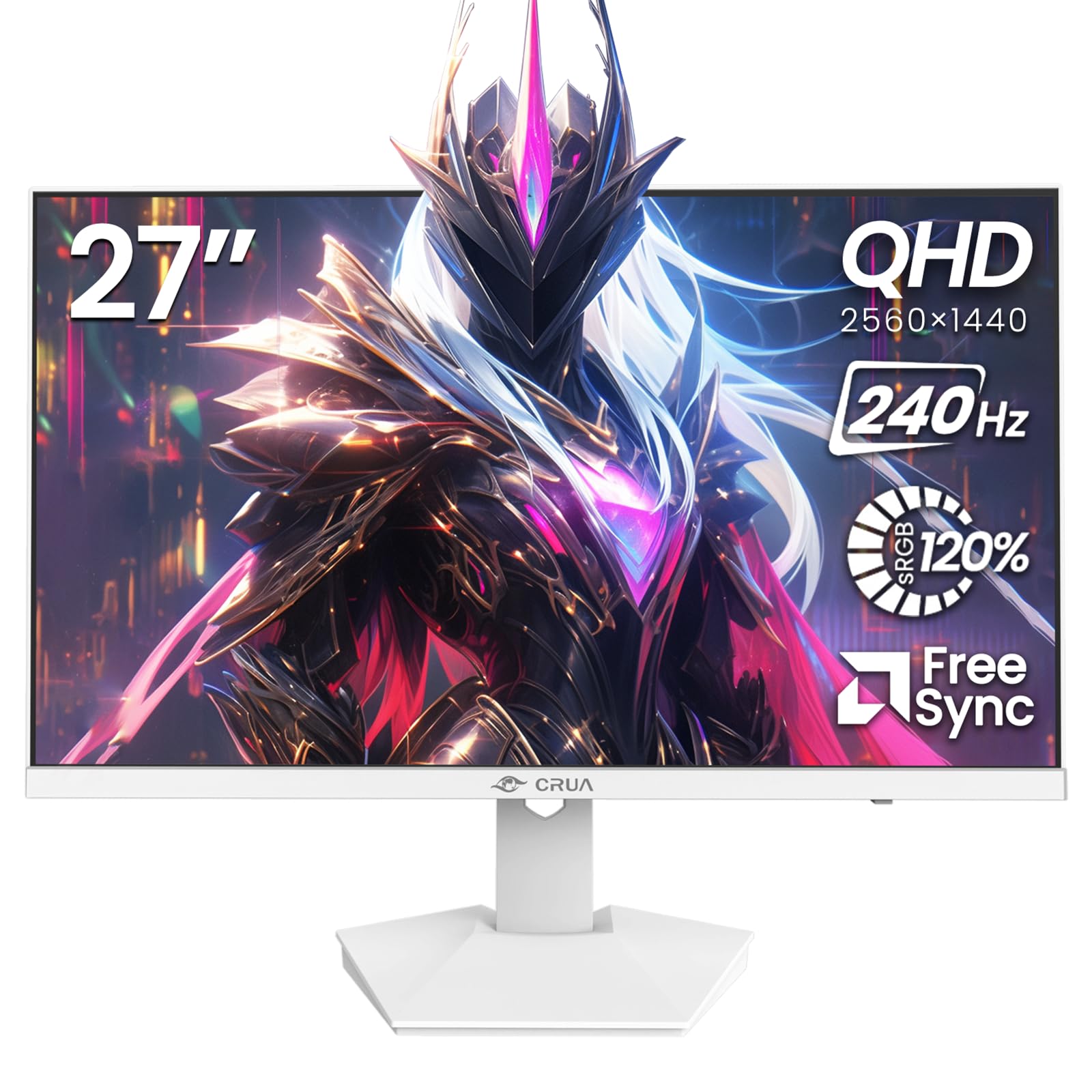
છબી: આગળ view of the CRUA 27-inch 240Hz QHD IPS Gaming Monitor.
2. પેકેજ સામગ્રી
ખાતરી કરો કે બધી વસ્તુઓ પેકેજમાં હાજર છે:
- CRUA 27-inch 240Hz QHD IPS Gaming Monitor
- મોનિટર સ્ટેન્ડ (બેઝ અને નેક)
- પાવર એડેપ્ટર અને કેબલ
- HDMI કેબલ
- ડિસ્પ્લેપોર્ટ (DP) કેબલ
- વપરાશકર્તા માર્ગદર્શિકા (આ દસ્તાવેજ)
3. સેટઅપ
૪.૧ સ્ટેન્ડ એસેમ્બલી
- મોનિટરને તેના પેકેજિંગમાંથી કાળજીપૂર્વક દૂર કરો, તેને નરમ, સ્વચ્છ સપાટી પર મોઢું નીચે રાખો જેથી સ્ક્રેચ ન પડે.
- સ્ટેન્ડ નેકને મોનિટર પેનલ સાથે જોડો. ખાતરી કરો કે તે સુરક્ષિત રીતે જગ્યાએ ક્લિક કરે છે.
- Attach the stand base to the stand neck. Tighten any screws if provided.
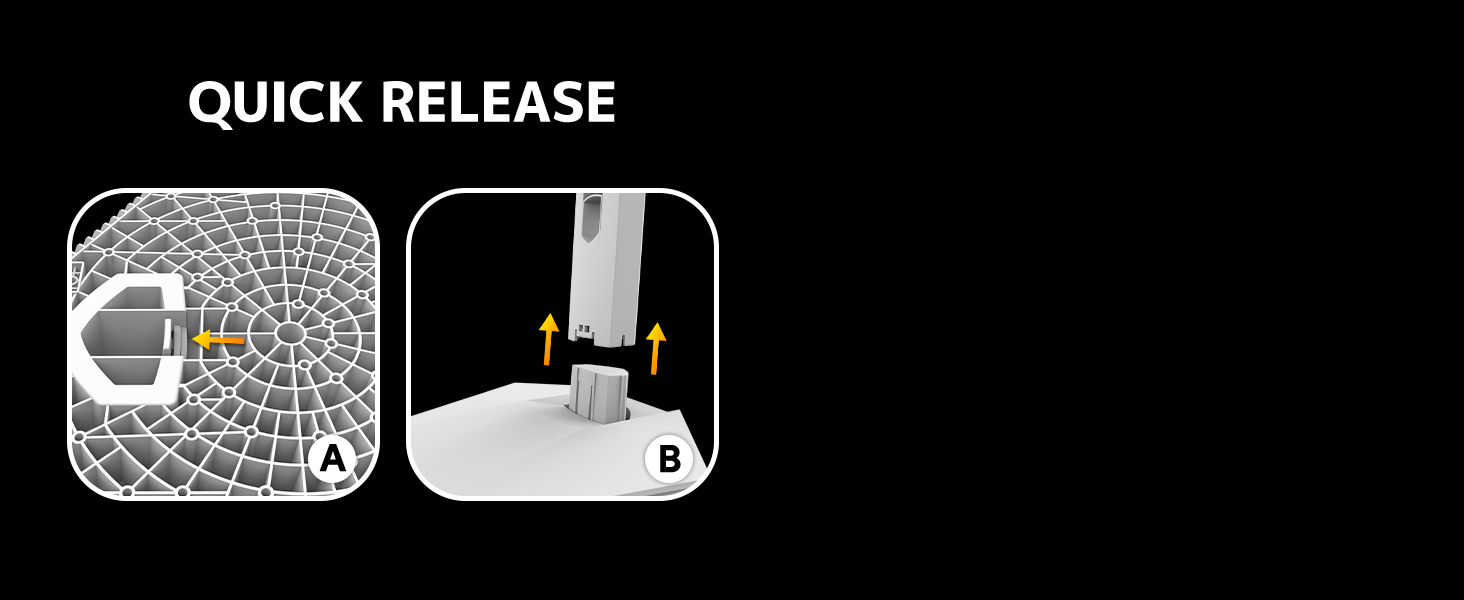
Image: Diagram illustrating the quick release stand assembly.
૩.૩ વોલ માઉન્ટિંગ (વૈકલ્પિક)
The monitor supports VESA wall mounting (75mm x 75mm). To wall mount:
- જો મોનિટર પહેલાથી જ જોડાયેલ હોય તો સ્ટેન્ડને તેમાંથી દૂર કરો.
- Attach a VESA-compatible wall mount bracket (not included) to the monitor using appropriate screws.
- Follow the instructions provided with your wall mount for secure installation.

છબી: પાછળનો ભાગ view of the monitor showing VESA mount points (75x75mm) and built-in speakers.
3.3 કમ્પ્યુટર સાથે જોડાણ
નીચેની પદ્ધતિઓમાંથી એકનો ઉપયોગ કરીને મોનિટરને તમારા કમ્પ્યુટર સાથે કનેક્ટ કરો:
- ડિસ્પ્લેપોર્ટ (DP 1.4): For optimal performance, especially at 240Hz QHD resolution, use the included DisplayPort cable.
- HDMI (HDMI 2.0): Use an HDMI cable for QHD resolution at up to 144Hz.
Connect the power adapter to the monitor's power input and then plug it into a power outlet.

છબી: પાછળનો ભાગ view of the monitor displaying the input ports, including HDMI and DisplayPort.
4. ઓપરેટિંગ સૂચનાઓ
4.1 પાવર ચાલુ/બંધ
Press the power button located on the back of the monitor to turn it on or off. The power button may resemble a joystick for OSD navigation.
૪.૧ ઓન-સ્ક્રીન ડિસ્પ્લે (OSD) મેનુ
The OSD menu allows you to adjust various monitor settings. Use the joystick-like button on the back of the monitor to navigate the menu:
- બટન દબાવો: OSD મેનૂ ખોલે છે.
- ઉપર/નીચે ખસેડો: મેનુ વિકલ્પો દ્વારા નેવિગેટ કરે છે.
- ડાબે/જમણે ખસેડો: Adjusts selected settings or enters sub-menus.
- ફરીથી દબાવો: Confirms selection or exits a sub-menu.
4.3 ડિસ્પ્લે સેટિંગ્સ
Within the OSD menu, you can adjust:
- બ્રાઇટનેસ/કોન્ટ્રાસ્ટ: Adjust the overall luminance and contrast ratio.
- રંગ સેટિંગ્સ: Fine-tune color temperature, hue, and saturation. The monitor offers 120% sRGB color coverage for accurate and vibrant visuals.
- ઇનપુટ સ્ત્રોત: HDMI અને ડિસ્પ્લેપોર્ટ ઇનપુટ્સ વચ્ચે મેન્યુઅલી પસંદ કરો.

Image: Details on true color accuracy, including 120% sRGB, 8-bit color depth, and 16.7 million colors.
૬.૨ ગેમિંગ સુવિધાઓ
- તાજું દર: The monitor supports up to 240Hz refresh rate for smooth motion. Ensure your graphics card and cable support this rate.
- AMD ફ્રીસિંક: Enable FreeSync in the OSD menu and on your AMD graphics card settings to eliminate screen tearing and stuttering.

છબી: 60Hz ની સરખામણીમાં 240Hz રિફ્રેશ રેટની સરળતા દર્શાવતી વિઝ્યુઅલ સરખામણી.

Image: Illustrates the effect of Adaptive Sync (FreeSync) on reducing screen tearing and stuttering.
૫.૬ આંખનું રક્ષણ
The monitor includes a built-in blue light filter to reduce eye strain during extended use. This feature can be enabled or adjusted through the OSD menu.
5. જાળવણી
તમારા મોનિટરનું પ્રદર્શન અને દેખાવ જાળવવા માટે:
- સ્ક્રીનની સફાઈ: નરમ, લિન્ટ-ફ્રી કાપડથી સ્ક્રીનને હળવેથી સાફ કરો. હઠીલા નિશાનો માટે, સીધા સ્ક્રીન પર નહીં, પણ કાપડ પર લગાવેલા મોનિટર-વિશિષ્ટ સફાઈ દ્રાવણનો ઉપયોગ કરો.
- સી સાફ કરવુંasing: મોનિટર સાફ કરવા માટે નરમ, સૂકા કપડાનો ઉપયોગ કરો casing. ઘર્ષક ક્લીનર્સ અથવા સોલવન્ટ્સ ટાળો.
- પાવર બંધ: સફાઈ કરતા પહેલા હંમેશા મોનિટર બંધ કરો અને તેને પાવર આઉટલેટમાંથી અનપ્લગ કરો.
6. મુશ્કેલીનિવારણ
| સમસ્યા | સંભવિત કારણ | ઉકેલ |
|---|---|---|
| સ્ક્રીન પર કોઈ છબી નથી | Monitor is off or not receiving signal. | Ensure power cable is connected and monitor is on. Check video cable connection (HDMI/DP) to both monitor and computer. Select correct input source via OSD. |
| છબી ઝબકતી કે ફાટી જતી | FreeSync not enabled or incompatible settings. | Enable FreeSync in the monitor OSD and your graphics card control panel. Ensure your graphics card drivers are up to date. |
| Poor picture quality (blurry, incorrect colors) | Incorrect resolution, color settings, or faulty cable. | Set display resolution to 2560x1440. Adjust brightness, contrast, and color settings in the OSD. Try a different video cable. |
| બિલ્ટ-ઇન સ્પીકર્સમાંથી કોઈ અવાજ નથી | Volume too low, incorrect audio output selected. | Increase monitor volume via OSD. Ensure the monitor is selected as the audio output device in your computer's sound settings. |
| ડેડ પિક્સેલ્સ | ઉત્પાદન ખામી. | Refer to warranty information for pixel policy. Contact customer support if within warranty. |
7. સ્પષ્ટીકરણો
| લક્ષણ | સ્પષ્ટીકરણ |
|---|---|
| મોડલ નંબર | CR270I |
| સ્ક્રીન માપ | 27 ઇંચ |
| પેનલ પ્રકાર | આઈપીએસ |
| ઠરાવ | 2560 x 1440 (QHD) |
| તાજું દર | 240Hz |
| પાસા રેશિયો | 16:9 |
| રંગ ગામટ | 120% sRGB |
| તેજ | 300 cd/m² |
| કોન્ટ્રાસ્ટ રેશિયો | 1000:1 |
| Viewએન્ગલ | ૧૭૮° (આડી/ઊભી) |
| વિડિઓ ઇનપુટ્સ | HDMI 2.0, ડિસ્પ્લેપોર્ટ 1.4 |
| ઓડિયો | બિલ્ટ-ઇન સ્પીકર્સ |
| વેસા માઉન્ટ | 75mm x 75mm |
| ઉત્પાદન પરિમાણો | 1.78 x 24 x 14 ઇંચ |
| વસ્તુનું વજન | 12.62 પાઉન્ડ |
8. વોરંટી અને સપોર્ટ
CRUA provides high-quality computer monitors and premium services. If you have any questions or require assistance, please contact CRUA customer support. Refer to your purchase documentation for specific warranty terms and contact information.