
પરિચય
Thank you for choosing the GEEZER AK96 Mechanical Gaming Keyboard. This keyboard features a compact 96-key layout, pre-lubed red mechanical switches, and vibrant LED backlighting. Designed for both gaming and productivity, it offers a responsive typing experience and multi-system compatibility. This manual provides detailed instructions for setup, operation, maintenance, and troubleshooting to ensure optimal performance.
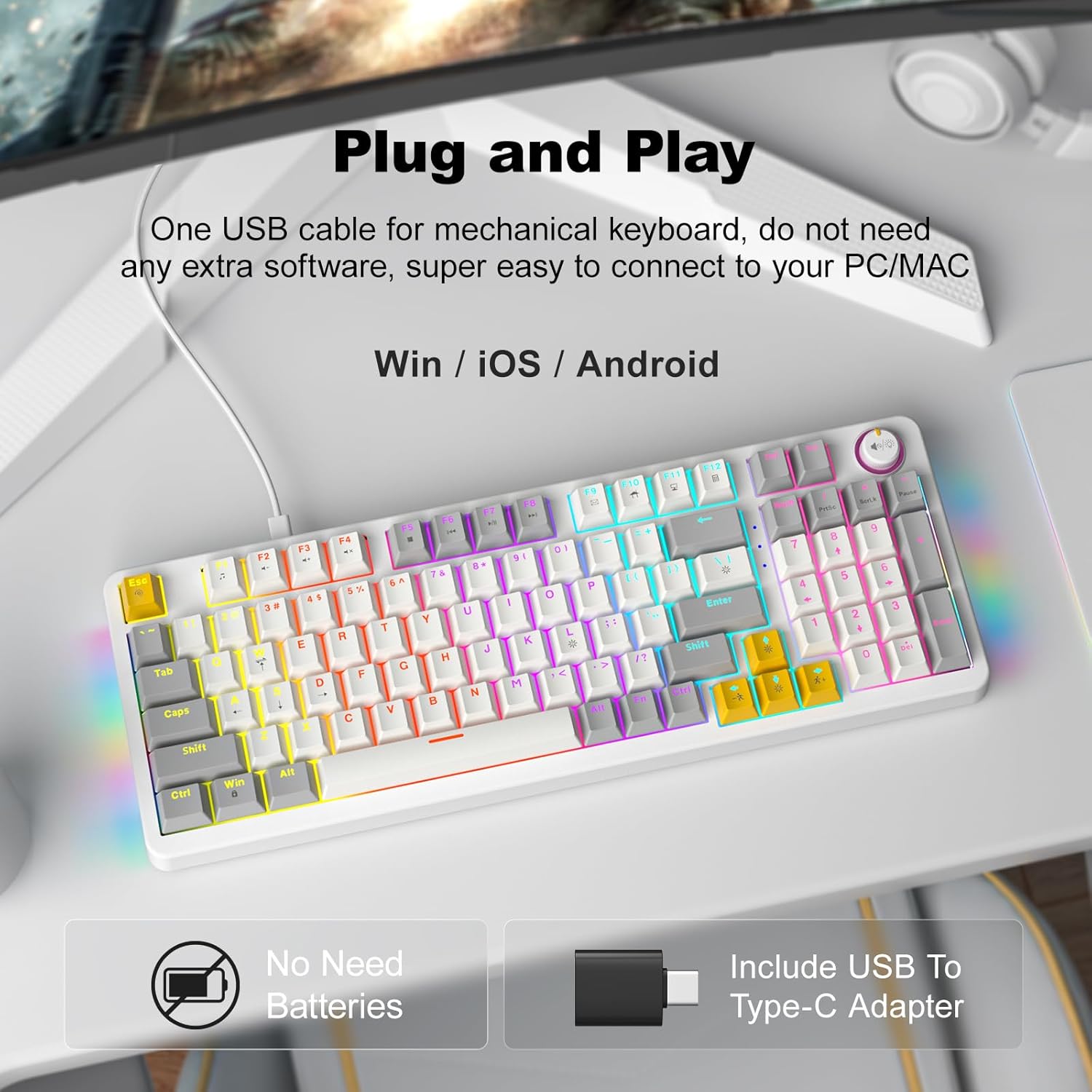
Image: The GEEZER AK96 Mechanical Gaming Keyboard, showcasing its compact layout and colorful backlighting.
સેટઅપ સૂચનાઓ
પેકેજ સામગ્રી:
- GEEZER AK96 Mechanical Gaming Keyboard
- USB કેબલ (ટાઈપ-C થી USB-A)
- USB થી Type-C એડેપ્ટર
- વપરાશકર્તા માર્ગદર્શિકા (આ દસ્તાવેજ)
કીબોર્ડને કનેક્ટ કરી રહ્યું છે:
- Locate the USB Type-C port on the keyboard, typically on the top edge.
- Connect the USB Type-C end of the provided cable to the keyboard.
- Connect the USB-A end of the cable to an available USB port on your PC or Mac. If your device only has Type-C ports, use the included USB to Type-C adapter.
- The keyboard is plug-and-play and should be recognized automatically by your operating system (Windows or Mac) without requiring additional drivers.

Image: Diagram showing the GEEZER AK96 keyboard connected to a PC, Laptop, and Mac using the USB cable and Type-C adapter.
વિડિઓ: એક ઓવરview of the GEEZER AK96 Mechanical Gaming Keyboard, demonstrating its features and backlighting.
ઓપરેટિંગ સૂચનાઓ
બેકલાઇટ નિયંત્રણ:
The AK96 keyboard features 17 built-in lighting modes and multi-color options, along with side lights for enhanced visual effects. Use the following key combinations to control the backlighting:
- Fn + |: Switch between 17 different backlight modes.
- Fn + Enter: Turn the backlight On/Off.
- એફએન + ↑ / ↓: બેકલાઇટની તેજ સમાયોજિત કરો.
- Fn + ← / →: Change backlight speed.
- Fn + L: Control side atmosphere lights.

Image: The GEEZER AK96 keyboard displaying various LED backlight effects and key combinations for control.
Video: A demonstration of the GEEZER AK96 Mechanical Gaming Keyboard's various LED lighting modes and effects.
Media Control and Volume Knob:
The keyboard is equipped with a dedicated volume knob and quick-access media keys for convenient control over your audio and media playback.
- વોલ્યુમ નોબ: Rotate to adjust volume. Press to mute/unmute audio.
- Fn + F1: મીડિયા પ્લેયર
- Fn + F2: અવાજ ધીમો
- Fn + F3: અવાજ વધારો
- Fn + F4: મ્યૂટ
- Fn + F5: Play to Suspend
- Fn + F6: પાછલો ટ્રેક
- Fn + F7: રમો / થોભાવો
- Fn + F8: નેક્સ્ટ ટ્રેક
- Fn + F9: ઇમેઇલ
- Fn + F10: Web ઘર
- Fn + F11: મારું કમ્પ્યુટર
- Fn + F12: કેલ્ક્યુલેટર
- Fn + PrtSc: PrtSc (Print Screen)
- Fn + SCRLK: SCRLK (Scroll Lock)
- Fn + થોભો: થોભો
- Fn + W: Swap W, A, S, D and ↑, ↓, ←, → keys.
- Fn+વિન: વિન્ડોઝ કી લોક/અનલોક કરો.
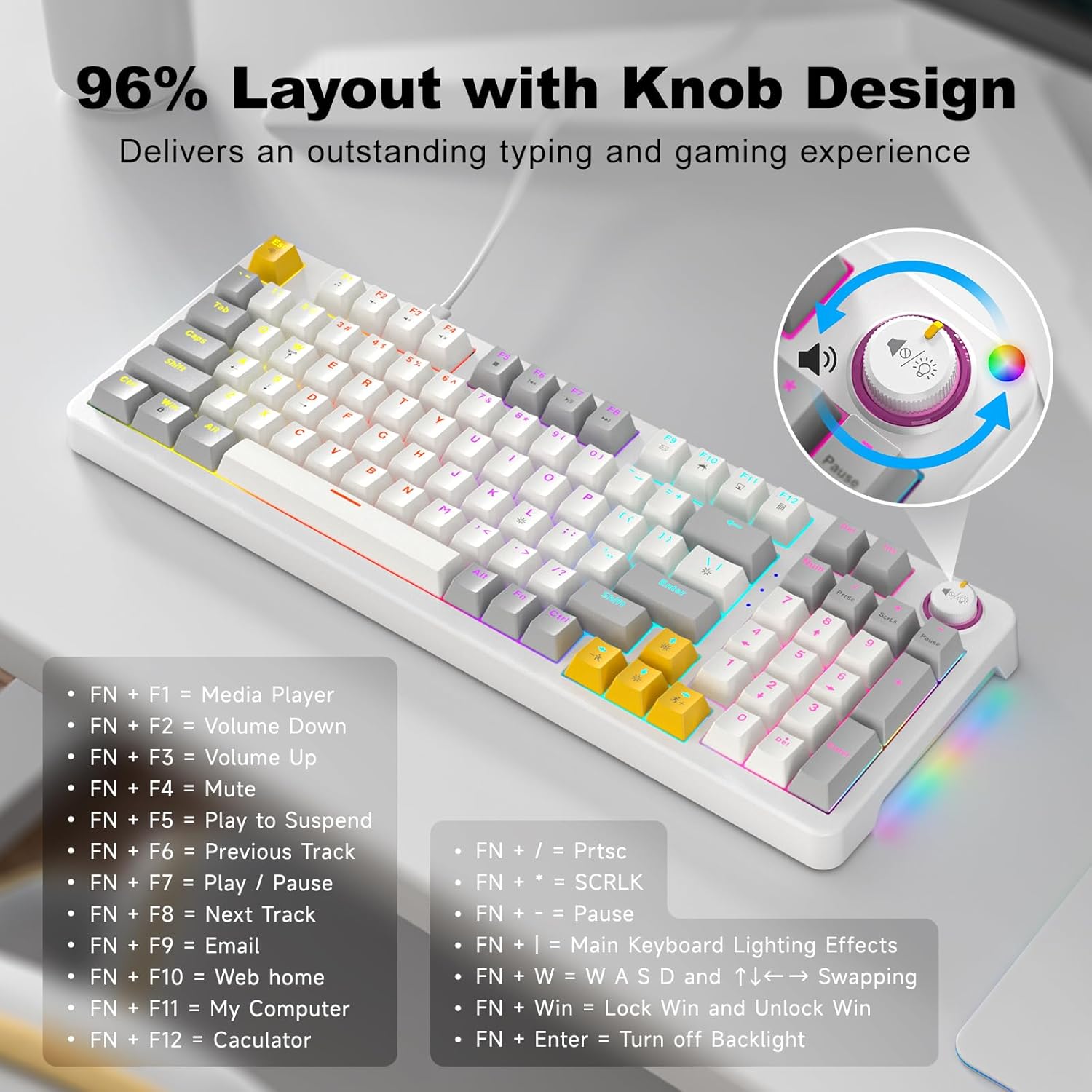
Image: The GEEZER AK96 keyboard highlighting the volume knob and a list of shortcut key functions.
અર્ગનોમિક એડજસ્ટમેન્ટ્સ:
The keyboard features two adjustable-height kickstands on the underside. Flip these kickstands out to adjust the typing angle for maximum comfort during extended use. The non-slip rubber pads ensure stability.
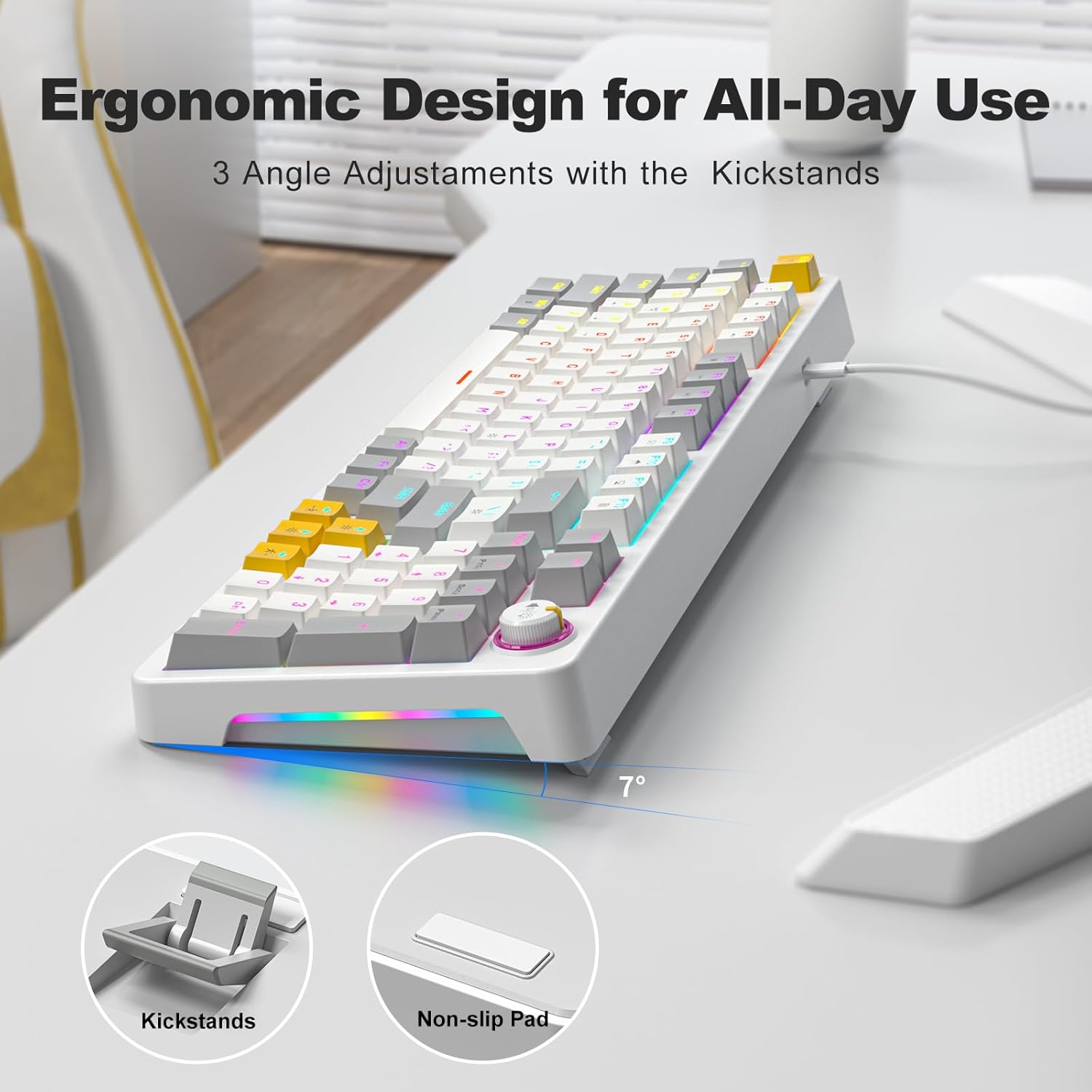
Image: The underside of the GEEZER AK96 keyboard, illustrating the adjustable kickstands and non-slip rubber pads.
જાળવણી
To ensure the longevity and optimal performance of your GEEZER AK96 Mechanical Gaming Keyboard, follow these maintenance guidelines:
- Cleaning Keycaps: સોફ્ટ વાપરો, ડીamp cloth to wipe down the keycaps. For deeper cleaning, you may carefully remove keycaps (using a keycap puller, if available) and clean them with mild soap and water. Ensure they are completely dry before reattaching.
- Cleaning Switches: Use compressed air to remove dust and debris from between the keycaps and around the switches. Avoid spraying liquids directly into the switches.
- કેબલ કેર: Avoid sharp bends or kinks in the USB cable. Store the cable neatly when not in use to prevent damage.
- સામાન્ય સંભાળ: Keep the keyboard away from excessive moisture, extreme temperatures, and direct sunlight. Avoid dropping the keyboard or subjecting it to strong impacts.
મુશ્કેલીનિવારણ
If you encounter any issues with your GEEZER AK96 Mechanical Gaming Keyboard, please refer to the following common troubleshooting steps:
- કીબોર્ડ પ્રતિસાદ આપતું નથી:
- ખાતરી કરો કે USB કેબલ કીબોર્ડ અને તમારા કમ્પ્યુટર બંને સાથે સુરક્ષિત રીતે જોડાયેલ છે.
- તમારા કમ્પ્યુટર પર કીબોર્ડને બીજા USB પોર્ટ સાથે કનેક્ટ કરવાનો પ્રયાસ કરો.
- If using the USB to Type-C adapter, ensure it is properly connected and try a different adapter if possible.
- તમારા કમ્પ્યુટરને ફરીથી પ્રારંભ કરો.
- Backlight Not Working or Incorrect:
- દબાવો Fn + Enter to toggle the backlight On/Off.
- દબાવો Fn + | વિવિધ લાઇટિંગ મોડ્સમાંથી પસાર થવા માટે.
- આનો ઉપયોગ કરીને તેજ સમાયોજિત કરો એફએન + ↑ / ↓.
- ખાતરી કરો કે તમારા કમ્પ્યુટરનો USB પોર્ટ પૂરતો પાવર પૂરો પાડી રહ્યો છે.
- કી રજીસ્ટર થતી નથી અથવા બે વાર ટાઇપ થતી નથી:
- Clean the affected key switch with compressed air to remove any debris.
- ખાતરી કરો કે કીકેપ સ્વીચ પર યોગ્ય રીતે બેઠેલી છે.
- Test the keyboard on another computer to rule out software or driver issues.
- Volume Knob Not Functioning:
- ખાતરી કરો કે કીબોર્ડ યોગ્ય રીતે જોડાયેલ છે.
- Check your computer's audio settings to ensure the volume is not controlled by another device or software.
If the issue persists after trying these steps, please contact GEEZER customer support for further assistance.
વિશિષ્ટતાઓ
| લક્ષણ | વિગત |
|---|---|
| મોડલ નંબર | એકે-96 |
| લેઆઉટ | 96-Key (96% layout) |
| સ્વિચ પ્રકાર | Red Mechanical Switches (Pre-lubed) |
| કીકેપ સામગ્રી | પીબીટી |
| બેકલાઇટિંગ | LED Colorful Backlit (17 modes) & 2-Side LED |
| કનેક્ટિવિટી | USB Wired (USB-A to Type-C) |
| સુસંગતતા | PC, Mac, Windows, Laptop, Smart TV, Tablet |
| ખાસ લક્ષણો | Volume Knob, Full Key Rollover, Ergonomic Design, Adjustable-height Kickstands, Hotkeys and Media Keys |
| ઉત્પાદન પરિમાણો | 15.35 x 5.51 x 1.18 ઇંચ |
| વસ્તુનું વજન | 1.9 પાઉન્ડ |
| રંગ | સફેદ |
| સામગ્રી | પ્લાસ્ટિક |
વોરંટી અને આધાર
The GEEZER AK96 Mechanical Gaming Keyboard comes with a standard manufacturer's warranty. For detailed information regarding warranty coverage, terms, and conditions, please refer to the product packaging or contact GEEZER customer support directly.
For technical support, troubleshooting assistance, or any product-related inquiries, please visit the official GEEZER website or contact their customer service team. Contact information can typically be found on the product packaging or on the brand's official online store.