
1. પરિચય
Thank you for choosing the Pisichen 24 inch Touch Screen Gaming Monitor. This manual provides essential information for setting up, operating, and maintaining your monitor. Please read it thoroughly before use to ensure optimal performance and safety.
This monitor features a 24-inch QHD (2560x1440P) display with a 165Hz refresh rate, 2ms response time, and 10-point projected capacitive touchscreen functionality. It supports FreeSync and HDR, offering a vibrant and responsive visual experience for both gaming and professional applications.

Image: The Pisichen 24-inch 2K 165Hz Touch Screen Monitor highlighting its key features like HDR, IPS Panel, and 10-point Touch.
2. પેકેજ સામગ્રી
Before proceeding with the setup, please verify that all components are present in the package:
- Pisichen 24 inch Touch Screen Monitor
- મોનિટર સ્ટેન્ડ (બેઝ અને નેક)
- ડીપી કેબલ
- HDMI કેબલ
- USB B Touch Cable
- યુએસબી સીસી કેબલ
- ડીસી પાવર એડેપ્ટર
- વપરાશકર્તા માર્ગદર્શિકા (આ દસ્તાવેજ)
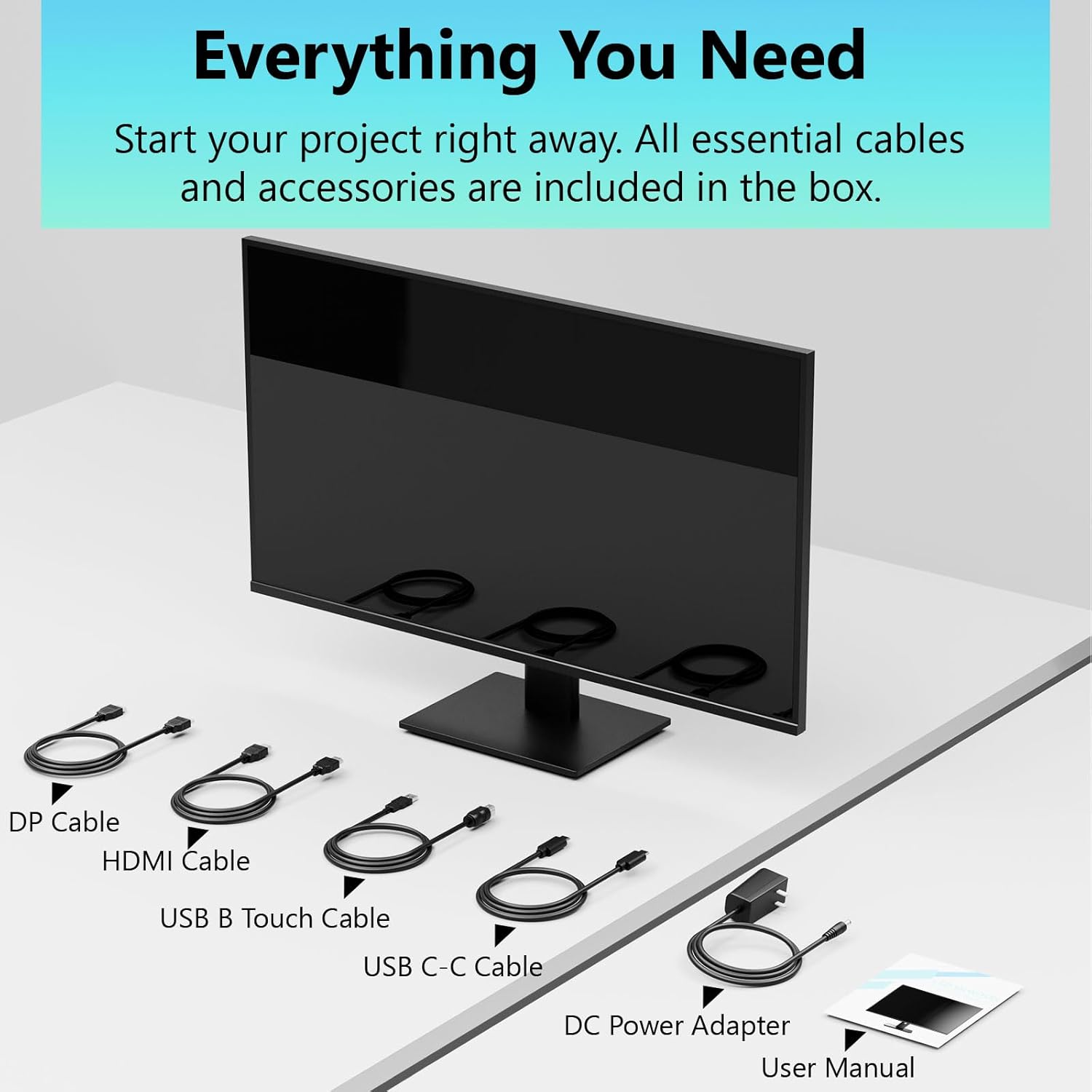
Image: All essential cables and accessories included in the box for the monitor setup.
3. સેટઅપ સૂચનાઓ
૧.૨ સ્ટેન્ડ એસેમ્બલ કરવું
- મોનિટરને તેના પેકેજિંગમાંથી કાળજીપૂર્વક દૂર કરો, તેને નરમ, સ્વચ્છ સપાટી પર મોઢું નીચે રાખો જેથી સ્ક્રેચ ન પડે.
- Attach the stand neck to the monitor's rear panel.
- આપેલા સ્ક્રૂનો ઉપયોગ કરીને સ્ટેન્ડ બેઝને સ્ટેન્ડ નેક સુધી સુરક્ષિત કરો.
- Ensure all connections are firm before placing the monitor upright.
૨.૩ VESA માઉન્ટ ઇન્સ્ટોલેશન (વૈકલ્પિક)
This monitor supports VESA mounting. If you plan to use a VESA-compatible arm or wall mount, remove the stand and attach the VESA mount according to the mount's instructions. The VESA pattern is typically 75x75mm or 100x100mm (refer to specifications for exact details).
3.3 ઉપકરણ સાથે કનેક્ટ કરી રહ્યું છે
મોનિટર બહુવિધ કનેક્ટિવિટી વિકલ્પો પ્રદાન કરે છે:
- એચડીએમઆઈ: Connect one end of the HDMI cable to the monitor's HDMI port and the other end to your computer's HDMI output.
- ડિસ્પ્લેપોર્ટ (DP): Connect one end of the DP cable to the monitor's DP port and the other end to your computer's DP output.
- USB પ્રકાર-C: For compatible devices, connect the USB C-C cable to the monitor's USB Type-C port and your device's USB Type-C port. This single cable can transmit video, data, and power (charging).
- USB Type-B (for Touch Functionality): To enable the touch screen feature, connect the USB B Touch Cable from the monitor's USB Type-B port to an available USB Type-A port on your computer.

Image: The monitor's rear panel with various connectivity options, including HDMI, DisplayPort, and USB-C ports.
3.4 પાવર કનેક્શન
Connect the DC Power Adapter to the monitor's power input port, then plug the adapter into a power outlet.
3.5 Initial Power On and Touch Compatibility
Press the power button on the monitor. The display should light up. If no image appears, ensure all cables are securely connected and the correct input source is selected on the monitor (via the OSD menu).
For touch functionality, ensure the USB B Touch Cable is connected to your computer. Touch compatibility may vary by operating system and device. Most Windows PCs support multi-touch. For Mac devices, single-touch click is generally supported, but multi-touch may require specific drivers or configurations. Game consoles (PS3/4/5, Xbox, Steam Deck) and some other devices (Fire TV, Apple products like iPhone/iPad) typically do not support touch functionality.

Image: A compatibility chart illustrating which devices support multi-touch or single-touch, and which devices do not support touch functionality with the monitor.
4. ઓપરેટિંગ સૂચનાઓ
4.1 પાવર ચાલુ/બંધ
મોનિટર ચાલુ કે બંધ કરવા માટે તેના પર સ્થિત પાવર બટન દબાવો. પાવર સૂચક લાઇટ મોનિટરની સ્થિતિ બતાવશે.
૪.૧ ઓન-સ્ક્રીન ડિસ્પ્લે (OSD) મેનુ
The OSD menu allows you to adjust various monitor settings. Use the control buttons (usually located on the back or bottom of the monitor) to navigate the menu. Common menu options include:
- ચિત્ર સેટિંગ્સ: Brightness, Contrast, Sharpness, Color Temperature, HDR mode.
- ડિસ્પ્લે સેટિંગ્સ: Aspect Ratio, Input Source selection (HDMI, DP, USB-C).
- ગેમિંગ સેટિંગ્સ: FreeSync, Response Time (Overdrive), Crosshair.
- ઑડિઓ સેટિંગ્સ: Volume (if internal speakers or audio output are present).
- સિસ્ટમ સેટિંગ્સ: Language, OSD Transparency, Reset to Factory Defaults.
૩.૩ ટચ સ્ક્રીન કાર્યક્ષમતા
The monitor supports 10-point multi-touch, allowing for intuitive interaction directly on the screen. Ensure the USB B Touch Cable is connected to your computer for this feature to work.
- એક નળ: Equivalent to a left-click.
- ટેપ અને હોલ્ડ કરો: રાઇટ-ક્લિક કરવા સમાન.
- ઝૂમ કરવા માટે પિંચ કરો: ઝૂમ ઇન અથવા આઉટ કરવા માટે બે આંગળીઓનો ઉપયોગ કરો.
- સ્વાઇપ કરો: Navigate through content or scroll.

Image: A user interacting with the monitor's touch screen, highlighting its precision and responsiveness for creative tasks.
૪.૩ એર્ગોનોમિક ગોઠવણો
The monitor stand allows for tilt adjustments to achieve the most comfortable viewing and touch angle. Gently adjust the screen to your preferred position.
૩.૪ આંખની સંભાળની સુવિધાઓ
The monitor includes advanced eye-comfort features such as Flicker-Free technology and Low Bluelight mode to reduce eye strain during prolonged use. These settings can typically be adjusted within the OSD menu.

Image: Visual representation of the monitor's advanced eye-comfort features, including Flicker-Free and Low Bluelight technologies.
5. જાળવણી
5.1 મોનિટરની સફાઈ
- સફાઈ કરતા પહેલા હંમેશા મોનિટર બંધ કરો અને પાવર કોર્ડને અનપ્લગ કરો.
- હળવાશથી નરમ, લિન્ટ-ફ્રી કાપડનો ઉપયોગ કરો ડીampપાણી અથવા હળવા, ઘર્ષણ વિનાના સ્ક્રીન ક્લીનરથી ધોઈ લો.
- સ્ક્રીન પર સીધું ક્લીનર સ્પ્રે ન કરો. પહેલા તેને કપડા પર લગાવો.
- Avoid using benzene, thinner, ammonia-based cleaners, or abrasive materials, as these can damage the screen surface.
5.2 સંગ્રહ
મોનિટરને લાંબા સમય સુધી સંગ્રહિત કરતી વખતે, ખાતરી કરો કે તે પાવર બંધ છે, અનપ્લગ થયેલ છે અને સીધા સૂર્યપ્રકાશ અને અતિશય તાપમાનથી દૂર ઠંડી, સૂકી જગ્યાએ સંગ્રહિત છે. શ્રેષ્ઠ સુરક્ષા માટે જો ઉપલબ્ધ હોય તો મૂળ પેકેજિંગનો ઉપયોગ કરો.
6. મુશ્કેલીનિવારણ
જો તમને તમારા મોનિટરમાં સમસ્યાઓ આવે, તો નીચેના સામાન્ય મુશ્કેલીનિવારણ પગલાંઓનો સંદર્ભ લો:
- કોઈ શક્તિ નથી: ખાતરી કરો કે પાવર એડેપ્ટર મોનિટર અને કાર્યરત પાવર આઉટલેટ બંને સાથે સુરક્ષિત રીતે જોડાયેલ છે. પાવર સૂચક લાઇટ ચાલુ છે કે નહીં તે તપાસો.
- કોઈ છબી/સિગ્નલ નથી:
- Verify that the video cable (HDMI, DP, or USB-C) is securely connected to both the monitor and your computer.
- ખાતરી કરો કે મોનિટરના OSD મેનુમાં યોગ્ય ઇનપુટ સ્ત્રોત પસંદ થયેલ છે.
- મોનિટર શોધાયેલ અને સક્ષમ થયેલ છે તેની ખાતરી કરવા માટે તમારા કમ્પ્યુટરની ડિસ્પ્લે સેટિંગ્સ તપાસો.
- No Touch Functionality:
- Confirm the USB B Touch Cable is connected from the monitor to your computer.
- Check your computer's device manager to see if the touch screen driver is installed and functioning correctly.
- Refer to the "Initial Power On and Touch Compatibility" section for device-specific limitations.
- ટમટમતી કે વિકૃત છબી:
- નુકસાન અથવા છૂટા કનેક્શન માટે વિડિઓ કેબલ તપાસો.
- કોઈ અલગ વિડિયો કેબલ અથવા પોર્ટ અજમાવી જુઓ.
- તમારા કમ્પ્યુટરના ડિસ્પ્લે સેટિંગ્સમાં રિફ્રેશ રેટને સમાયોજિત કરો.
- ડેડ પિક્સેલ્સ: LCD/LED ટેક્નોલોજીમાં થોડી સંખ્યામાં તેજસ્વી અથવા ઘેરા પિક્સેલ સામાન્ય છે અને જ્યાં સુધી તે ઉત્પાદકના સ્પષ્ટીકરણો કરતાં વધુ ન હોય ત્યાં સુધી તેને ખામી ગણવામાં આવતી નથી.
જો આ પગલાંઓ અજમાવવા પછી પણ સમસ્યા ચાલુ રહે, તો કૃપા કરીને ગ્રાહક સપોર્ટનો સંપર્ક કરો.
7. સ્પષ્ટીકરણો
| લક્ષણ | સ્પષ્ટીકરણ |
|---|---|
| બ્રાન્ડ | પિસિચેન |
| મોડલ નંબર | 24IN165HZ-QHD |
| સ્ક્રીન માપ | 23.8 ઇંચ |
| ઠરાવ | QHD પહોળાઈ 1440p (2560 x 1440) |
| પાસા રેશિયો | 16:9 |
| તાજું દર | 165 હર્ટ્ઝ |
| પ્રતિભાવ સમય | 2 મિલિસેકંડ |
| ડિસ્પ્લે પ્રકાર | LED IPS |
| તેજ | ૪૦૦ કેન્ડેલા (સીડી/ચોરસ મીટર) |
| કોન્ટ્રાસ્ટ રેશિયો | 3000:1 |
| Viewએન્ગલ | 178 ડિગ્રી |
| રંગ ગામટ | 99% |
| Picture Quality Enhancement | એચડીઆર |
| અનુકૂલનશીલ સમન્વયન | ફ્રી સિંક |
| કનેક્ટિવિટી ટેકનોલોજી | DisplayPort, HDMI, USB Type-C, USB Type-B |
| વધારાની સુવિધાઓ | Tilt Adjustment, 10-Point Touchscreen |
| આઇટમના પરિમાણો (D x W x H) | 0.75"D x 21.5"W x 12.7"H |
| વસ્તુનું વજન | 5.38 કિલોગ્રામ |
| રંગ | કાળો |
8. વોરંટી માહિતી
This product comes with a 1-year limited warranty from the date of purchase. The warranty covers manufacturing defects and workmanship under normal use. It does not cover damage caused by misuse, accidents, unauthorized modifications, or external factors. Please retain your proof of purchase for warranty claims.
9. ગ્રાહક આધાર
For technical assistance, warranty claims, or further inquiries, please contact Pisichen customer support. You may find contact information on the official Pisichen webસાઇટ પર અથવા તમારા રિટેલર દ્વારા.
વધારાના સંસાધનો અને ઉત્પાદન માહિતી માટે, મુલાકાત લો Pisichen Store on Amazon.