
પરિચય અને ઓવરview
The Trueque KM22 Ultra Wireless Keyboard and Mouse Combo offers a full-size, backlit typing experience with a comfortable wrist rest and convenient phone holder. Designed for versatility, it connects wirelessly via a 2.4G USB-A/Type-C receiver, making it compatible with various devices including PCs, laptops, Windows, and Chrome OS. Its quiet keys and long-lasting rechargeable battery ensure an efficient and undisturbed work or gaming environment.

Image: Trueque KM22 Ultra Wireless Keyboard and Mouse Combo, showcasing its full-size design and integrated wrist rest.
પેકેજ સામગ્રી
ખાતરી કરો કે બધી વસ્તુઓ તમારા પેકેજમાં હાજર છે:
- Trueque KM22 Ultra Wireless Keyboard
- Trueque Wireless Mouse
- 2-in-1 USB-A/Type-C Receiver
- યુએસબી ચાર્જિંગ કેબલ
- વપરાશકર્તા માર્ગદર્શિકા
Video: Unboxing the Trueque Wireless Keyboard and Mouse Combo, showing all included components.
સેટઅપ
- USB રીસીવર શોધો: The 2-in-1 USB-A/Type-C receiver is stored in a compartment on the underside of the mouse. Gently remove it.
- રીસીવરને જોડો: Plug the USB receiver into an available USB-A or USB-C port on your computer or laptop. The system should automatically detect the devices.
- પાવર ચાલુ: Ensure both the keyboard and mouse are switched to the 'ON' position. The power switch for the mouse is located on its underside. The keyboard has a power switch near the top right.
- પ્રારંભિક ચાર્જ: For optimal performance, it is recommended to fully charge both the keyboard and mouse before first use. Use the provided USB charging cable.
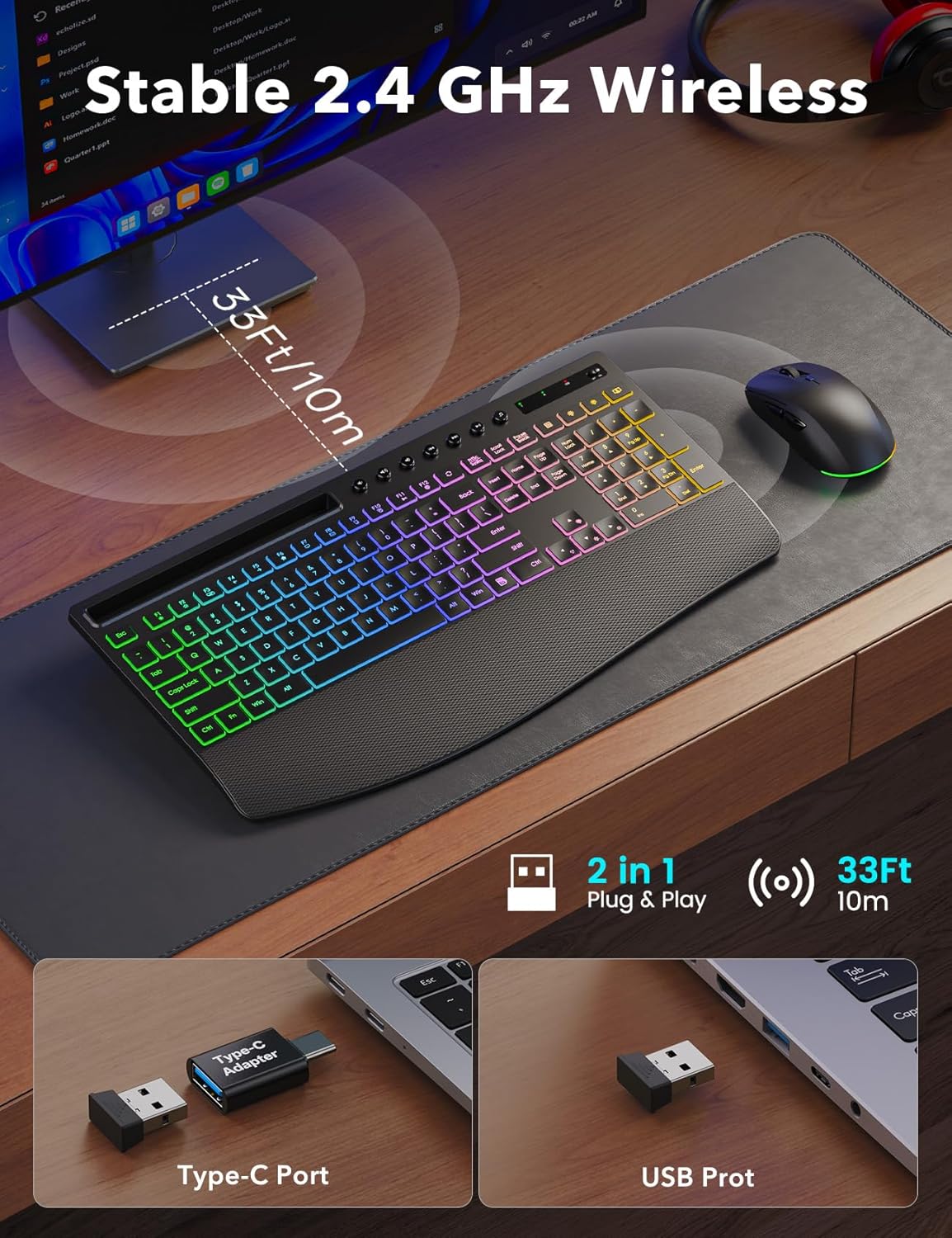
Image: The 2.4G wireless receiver with both USB-A and Type-C adapter options for versatile connectivity.
ઓપરેટિંગ સૂચનાઓ
કીબોર્ડ કાર્યો
- બેકલાઇટ નિયંત્રણ: The keyboard features 5 lighting effects and 10 backlight colors. Use the dedicated backlight keys (often marked with a lightbulb icon) to cycle through modes and colors. Adjust brightness levels using the Fn key combined with specific arrow keys (refer to the keyboard's keycap legends for exact combinations).
- મલ્ટીમીડિયા કી: Dedicated multimedia keys are located at the top of the keyboard for quick access to volume control, play/pause, and other media functions.
- Wrist Rest & Tilt: The integrated wide wrist support is designed for comfort during long typing sessions. Foldable 7° tilt legs on the underside of the keyboard can be extended for a more ergonomic typing angle.
- ફોન ધારક સ્લોટ: A built-in slot at the top of the keyboard accommodates mobile devices, allowing for easy viewing during multitasking or video calls.
Video: Demonstration of keyboard backlight control, showing various modes and brightness adjustments.
માઉસ કાર્યો
- DPI ગોઠવણ: The mouse supports multiple DPI settings (800, 1200, 1600 DPI) for adjustable cursor sensitivity. Use the dedicated DPI button, usually located near the scroll wheel, to cycle through settings.
- બાજુના બટનો: The mouse includes side buttons for convenient forward and backward navigation in web બ્રાઉઝર્સ અથવા અન્ય એપ્લિકેશનો.
- બેકલાઇટ નિયંત્રણ: To turn the mouse backlight on or off, press and hold the scroll wheel for approximately 5 seconds.

Image: The Trueque wireless mouse, highlighting its backlit feature, DPI settings, and quiet click design.
જાળવણી
- સફાઈ: Use a soft, dry cloth to clean the surfaces of the keyboard and mouse. For deeper cleaning, a slightly damp હળવા સાબુવાળા કપડાનો ઉપયોગ કરી શકાય છે, ખાતરી કરો કે કોઈ પ્રવાહી ઉપકરણમાં પ્રવેશે નહીં.
- બેટરી સંભાળ: To prolong battery life, avoid fully discharging the devices frequently. Recharge when the low battery indicator appears. Store in a cool, dry place when not in use for extended periods.
- સંગ્રહ: When transporting or storing, ensure the USB receiver is securely placed in its compartment within the mouse to prevent loss.
મુશ્કેલીનિવારણ
- કોઈ કનેક્શન નથી: Ensure the USB receiver is firmly plugged into a working USB port. Check that both the keyboard and mouse are powered on. Try plugging the receiver into a different USB port.
- બેકલાઇટ કામ કરતી નથી: Verify that the backlight is enabled using the dedicated keys. Adjust brightness levels. Ensure the device has sufficient battery charge.
- માઉસ જવાબ આપતો નથી: Check the mouse's power switch. Ensure the USB receiver is connected. If the mouse has a backlight, check if it's on, indicating power.
- Mouse Scrolling Issues: If the mouse scroll wheel is unresponsive, try turning the mouse off and on again. Ensure the mouse is fully charged.
- લેગ અથવા ઇન્ટરમિટન્ટ કનેક્શન: Move the keyboard and mouse closer to the USB receiver. Avoid placing the receiver near other wireless devices that might cause interference.
વિશિષ્ટતાઓ
| ઉત્પાદન પરિમાણો | 16.8 x 9 x 0.9 ઇંચ |
| વસ્તુનું વજન | 2.59 પાઉન્ડ |
| Keyboard Battery Capacity | ૪૦૦mAh (રિચાર્જેબલ) |
| માઉસ બેટરી ક્ષમતા | ૪૦૦mAh (રિચાર્જેબલ) |
| કનેક્ટિવિટી ટેકનોલોજી | 2.4Ghz વાયરલેસ કનેક્શન |
| વાયરલેસ રેંજ | 33 ફૂટ (10 મીટર) સુધી |
| બેકલાઇટ | 5 Lighting Effects, 10 Backlight Colors, 5 Brightness Levels |
| માઉસ DPI | ૧૦૦૦ DPI સુધી (એડજસ્ટેબલ) |
| ખાસ લક્ષણો | Backlit, Light Up Keys, Ergonomic, Rechargeable, Spillproof, Wrist Rest, Phone Holder |
| સુસંગત ઉપકરણો | Chromebook, Laptop, Notebook, MacBook Air, MacBook Pro, iMac, Tablet, Smartphone, Personal Computer, Television (Some shortcut keys may have limited function on macOS) |

Image: Detailed dimensions of the Trueque KM22 Ultra Keyboard and Mouse.
વોરંટી અને આધાર
Trueque offers a 12-month warranty and 360 days of brand care for this product. For any inquiries, technical support, or warranty claims, please contact our customer service team.
ગ્રાહક સપોર્ટ ઇમેઇલ: truequeservice@outlook.com

Image: Trueque customer support details, including contact information and warranty period.