
પરિચય
Thank you for choosing the CRUA 34-inch Curved Gaming Monitor. This manual provides essential information for setting up, operating, maintaining, and troubleshooting your new monitor. Please read this manual thoroughly before use to ensure optimal performance and to prevent damage.

છબી: આગળ view of the CRUA 34-inch Curved Gaming Monitor.
પેકેજ સામગ્રી
ખાતરી કરો કે નીચે સૂચિબદ્ધ બધી વસ્તુઓ તમારા પેકેજમાં હાજર છે:
- CRUA 34-inch Curved Gaming Monitor
- મોનિટર સ્ટેન્ડ (બેઝ અને નેક)
- પાવર એડેપ્ટર અને કેબલ
- HDMI કેબલ
- ડિસ્પ્લેપોર્ટ (DP) કેબલ
- વપરાશકર્તા માર્ગદર્શિકા
- Mounting Screws (for stand assembly)
સેટઅપ
1. સ્ટેન્ડ એસેમ્બલીંગ
- મોનિટરને તેના પેકેજિંગમાંથી કાળજીપૂર્વક દૂર કરો, તેને નરમ સપાટી પર સુરક્ષિત રાખો.
- આપેલા સ્ક્રૂનો ઉપયોગ કરીને સ્ટેન્ડ નેકને મોનિટર પેનલ સાથે જોડો.
- સ્ટેન્ડ બેઝને સ્ટેન્ડ નેક સુધી સુરક્ષિત કરો.
- એસેમ્બલ કરેલા મોનિટરને સ્થિર, સપાટ સપાટી પર મૂકો.
2. કનેક્ટિંગ કેબલ્સ
મોનિટરના પાછળના પોર્ટ સાથે જરૂરી કેબલ જોડો:
- પાવર વાયર: પાવર એડેપ્ટરને મોનિટરના DC ઇનપુટ સાથે અને પછી પાવર આઉટલેટ સાથે કનેક્ટ કરો.
- વિડિઓ ઇનપુટ: Connect either an HDMI cable (HDMI 2.0) or a DisplayPort cable (DP 1.4) from your computer's graphics card to the corresponding port on the monitor.
- ઓડિયો આઉટપુટ: If using external speakers, connect them to the 3.5mm audio output jack.
3. વોલ માઉન્ટિંગ (વૈકલ્પિક)
The monitor supports VESA 100x100mm wall mounts. Remove the stand before attaching a compatible wall mount bracket (not included).

છબી: પાછળનો ભાગ view of the monitor detailing HDMI, DP, Audio, DC ports, and the 100x100mm VESA wall bracket area.
ઓપરેટિંગ સૂચનાઓ
1. પાવર ચાલુ/બંધ
Press the power button, usually located on the bottom or back of the monitor, to turn it on or off. The power indicator light will illuminate when the monitor is on.
2. ઓન-સ્ક્રીન ડિસ્પ્લે (OSD) મેનુ
Use the control buttons (joystick or individual buttons) located on the monitor to navigate the OSD menu. This menu allows you to adjust various display settings.
3. ડિસ્પ્લે સેટિંગ્સને સમાયોજિત કરવી
Within the OSD menu, you can modify settings such as:
- બ્રાઇટનેસ/કોન્ટ્રાસ્ટ: એકંદર લ્યુમિનન્સ અને કોન્ટ્રાસ્ટ સ્તરને સમાયોજિત કરો.
- રંગ સેટિંગ્સ: રંગ તાપમાન, ગામા અને વ્યક્તિગત RGB મૂલ્યોને ફાઇન-ટ્યુન કરો.
- ઇનપુટ સ્ત્રોત: HDMI અને ડિસ્પ્લેપોર્ટ ઇનપુટ્સ વચ્ચે મેન્યુઅલી પસંદ કરો.
- તાજું દર: Ensure your system is configured to utilize the monitor's 165Hz refresh rate for smooth visuals.
- AMD ફ્રીસિંક: Enable or disable FreeSync to synchronize the monitor's refresh rate with your GPU's frame rate, reducing screen tearing and stuttering.
લક્ષણો
The CRUA 34-inch Curved Gaming Monitor is designed to provide an immersive visual experience with high performance and versatile connectivity.
- 34-inch UltraWide WQHD Display: Experience a vast panoramic view with a 3440x1440 resolution and a 21:9 aspect ratio. This provides ample screen space for multitasking, content creation, and immersive gaming.
- 165Hz Refresh Rate & AMD FreeSync: Enjoy ultra-smooth gameplay and responsive visuals with a high 165Hz refresh rate. AMD FreeSync technology eliminates screen tearing and motion blur by synchronizing the monitor's refresh rate with your graphics card.
- 3800R Ultra-Curved Immersion: The 3800R curvature wraps the screen around your natural field of view, enhancing immersion and providing a more comfortable viewing experience during extended sessions.
- વાઇબ્રન્ટ કલર રિપ્રોડક્શન: The VA panel offers 120% sRGB color gamut coverage, 16.7 million display colors, 355 cd/m² brightness, and a 4000:1 contrast ratio, delivering rich, accurate, and vivid visuals.
- Integrated Speakers & Flexible Connectivity: Built-in speakers provide convenient audio without additional hardware. Multiple connectivity options include HDMI 2.0 and DisplayPort 1.4 inputs, ensuring compatibility with various devices.
- એર્ગોનોમિક ડિઝાઇન: The stand supports tilt adjustment for comfortable viewing angles. VESA 100x100mm compatibility allows for flexible mounting options in home offices, gaming rooms, or studios.

Image: Visual comparison demonstrating the higher detail of UWQHD (3440x1440) resolution versus FHD (1920x1080).

Image: Depiction of 165Hz refresh rate and the visual difference with AMD FreeSync enabled versus disabled, showing reduced tearing.
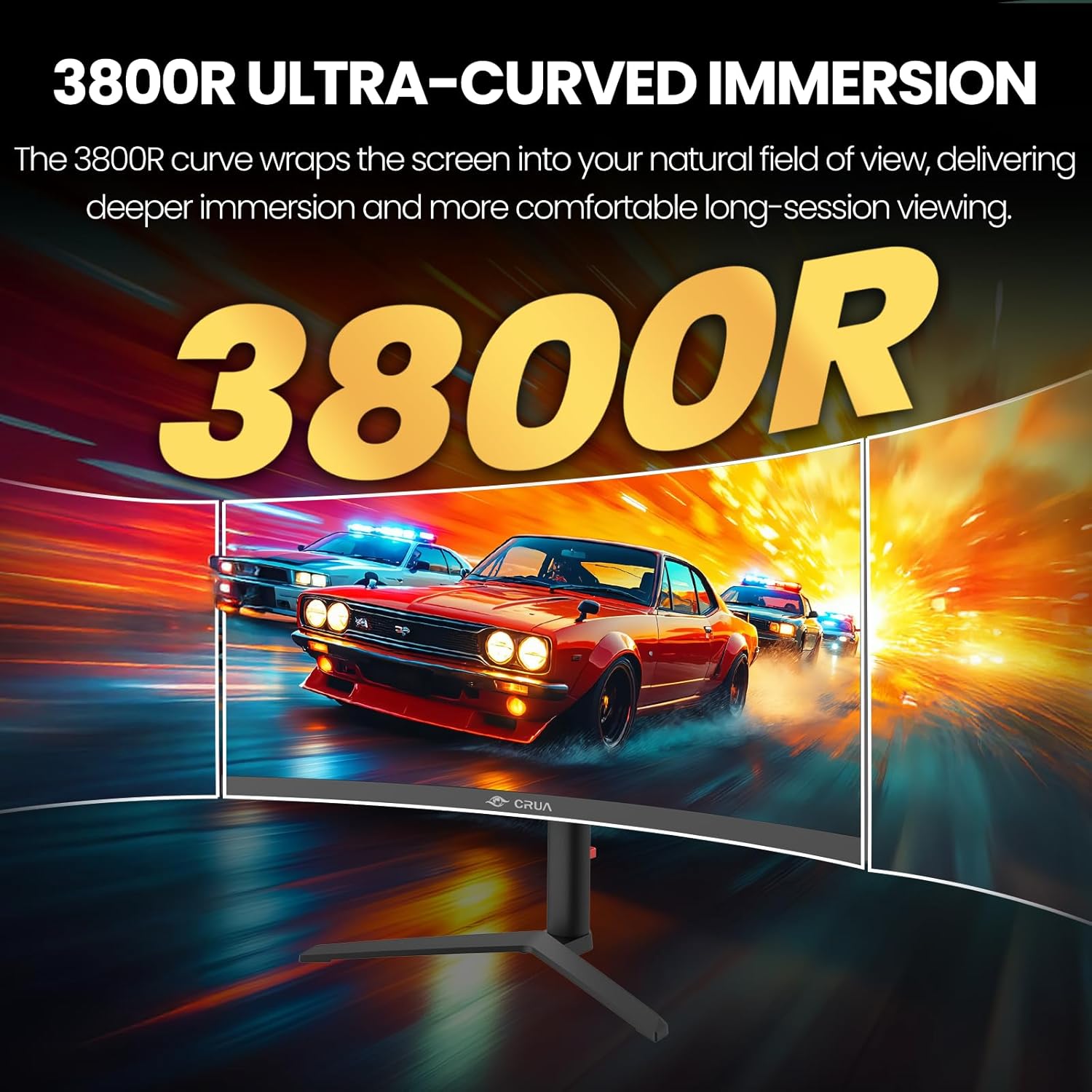
Image: Visual representation of the 3800R ultra-curved screen, demonstrating how it enhances immersion.
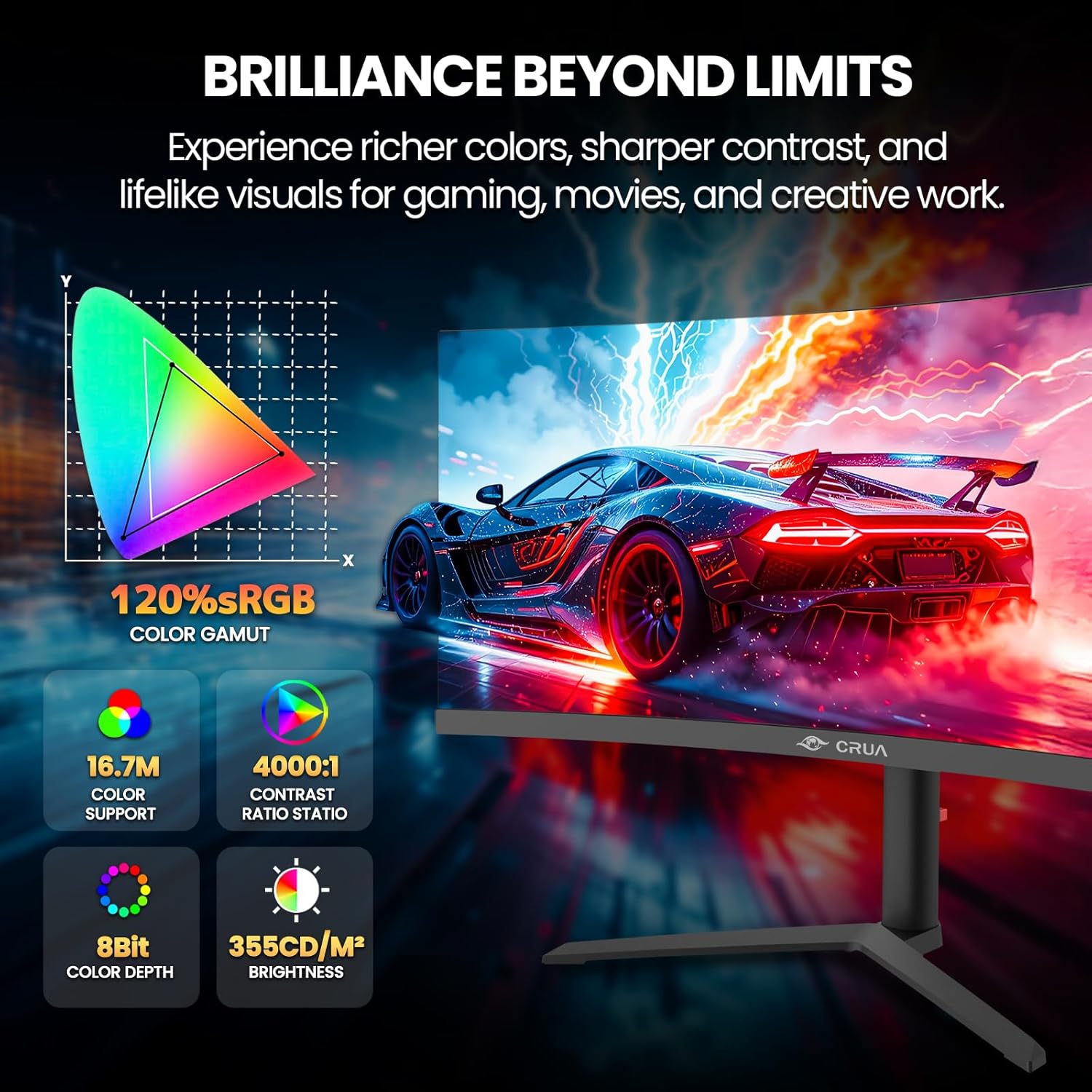
Image: Details on the monitor's color performance, highlighting 120% sRGB, 16.7 million colors, 4000:1 contrast ratio, and 355 cd/m² brightness.
વિશિષ્ટતાઓ
| લક્ષણ | સ્પષ્ટીકરણ |
|---|---|
| બ્રાન્ડ | CRUA |
| મોડલ નંબર | CR340QA |
| સ્ક્રીન માપ | 34 ઇંચ |
| ઠરાવ | 3440 x 1440 (WQHD Ultra Wide) |
| પાસા રેશિયો | 21:9 |
| વક્રતા | 3800 આર |
| પેનલ પ્રકાર | VA |
| તાજું દર | 165 હર્ટ્ઝ |
| પ્રતિભાવ સમય | 1 એમ.એસ |
| તેજ | 355 cd/m² |
| કોન્ટ્રાસ્ટ રેશિયો | 4000:1 |
| રંગ ગામટ | 120% sRGB |
| Viewએન્ગલ | 178° (H) / 178° (V) |
| અનુકૂલનશીલ સમન્વયન ટેકનોલોજી | એએમડી ફ્રીસિંક |
| કનેક્ટિવિટી | 2x HDMI 2.0, 2x DisplayPort 1.4, 1x 3.5mm Audio Out |
| બિલ્ટ-ઇન સ્પીકર્સ | હા |
| VESA માઉન્ટ સુસંગતતા | 100 x 100 મીમી |
| પરિમાણો (D x W x H) | ૨૩ x ૪.૫ x ૧.૨ સેમી (આશરે) |
| વજન | 20 lbs (અંદાજે) |
મુશ્કેલીનિવારણ
જો તમને તમારા મોનિટરમાં સમસ્યાઓ આવે, તો નીચેની સામાન્ય સમસ્યાઓ અને ઉકેલોનો સંદર્ભ લો:
- કોઈ શક્તિ નથી:
- ખાતરી કરો કે પાવર કેબલ મોનિટર અને વર્કિંગ પાવર આઉટલેટ બંને સાથે સુરક્ષિત રીતે જોડાયેલ છે.
- ખાતરી કરો કે પાવર એડેપ્ટર યોગ્ય રીતે કાર્ય કરી રહ્યું છે.
- સિગ્નલ નથી:
- Check that the HDMI or DisplayPort cable is firmly connected to both the monitor and your computer.
- OSD મેનુ દ્વારા યોગ્ય ઇનપુટ સ્ત્રોત પસંદ કરો.
- Ensure your computer's graphics card is properly installed and drivers are up to date.
- ટમટમતી કે વિકૃત છબી:
- Check the video cable for damage or loose connections. Try a different cable if available.
- Adjust the refresh rate settings on your computer.
- Disable or enable AMD FreeSync in the OSD menu to see if it resolves the issue.
- No Audio from Built-in Speakers:
- Ensure the monitor's volume is not muted or set too low in the OSD menu.
- Check your computer's audio output settings to ensure the monitor is selected as the playback device.
જાળવણી
Proper maintenance helps prolong the life of your monitor:
- સ્ક્રીનની સફાઈ: નરમ, લિન્ટ-ફ્રી કાપડથી સ્ક્રીનને હળવેથી સાફ કરો. હઠીલા નિશાનો માટે, સીધા સ્ક્રીન પર નહીં, પણ કાપડ પર લગાવેલા મોનિટર-વિશિષ્ટ સફાઈ દ્રાવણનો ઉપયોગ કરો.
- સી સાફ કરવુંasing: મોનિટર સાફ કરવા માટે નરમ, સૂકા કપડાનો ઉપયોગ કરો casing. ઘર્ષક ક્લીનર્સ અથવા સોલવન્ટ્સ ટાળો.
- વેન્ટિલેશન: ઓવરહિટીંગ અટકાવવા માટે ખાતરી કરો કે મોનિટરના વેન્ટિલેશન ઓપનિંગ્સ બ્લોક ન હોય.
- જ્યારે ઉપયોગમાં ન હોય ત્યારે પાવર બંધ કરો: Turn off the monitor when not in use for extended periods to save energy and extend its lifespan.
વોરંટી અને આધાર
CRUA is committed to providing high-quality computer monitors and premium customer service. If you have any questions, concerns, or require assistance with your product, please do not hesitate to contact our support team. We are dedicated to helping our customers and resolving any issues you may encounter.
Please refer to your purchase documentation or the official CRUA webચોક્કસ વોરંટી શરતો અને સંપર્ક માહિતી માટે સાઇટ.