
પરિચય
The Roku Hiro 32-inch 720p HD Smart TV offers an integrated Roku streaming experience. This television features an HD display for clear picture quality and speakers with enhanced audio. It supports Bluetooth for private listening with headphones and includes Wi-Fi for internet connectivity. The Roku operating system provides a customizable home screen, access to numerous streaming channels, and automatic updates, making it suitable for various living spaces.
બૉક્સમાં શું છે
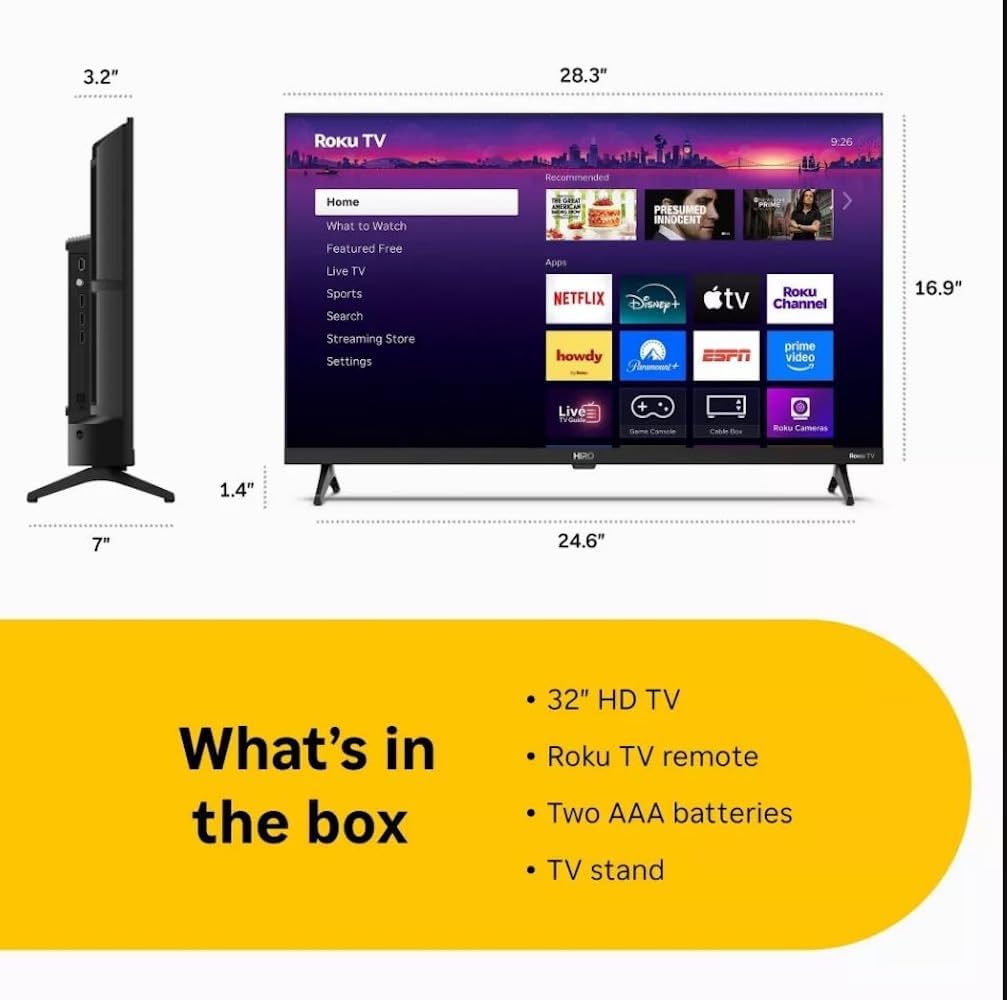
Diagram showing the dimensions of the Roku Hiro 32-inch TV and a list of included accessories: 32-inch HD TV, Roku TV remote, two AAA batteries, and TV stand.
- Hiro 32" 720p HD Smart TV Flat Screen LED Television with Roku TV
- રીમોટ કંટ્રોલ
- ટીવી સ્ટેન્ડ
- પાવર કેબલ
- વપરાશકર્તા માર્ગદર્શિકા
સેટઅપ
1. સ્ટેન્ડ ઇન્સ્ટોલેશન
Carefully place the TV screen-down on a soft, clean surface to prevent damage. Align the TV stand with the designated slots on the bottom of the TV. Secure the stand using the provided screws. Ensure the stand is firmly attached before proceeding.
2. કનેક્ટિંગ ડિવાઇસેસ

પાછળ view of the Roku Hiro TV, showing the input/output ports including USB, HDMI, and antenna connections.
- શક્તિ: પાવર કેબલને ટીવીના પાવર ઇનપુટ સાથે અને પછી દિવાલના આઉટલેટ સાથે જોડો.
- એચડીએમઆઈ: Connect external devices such as Blu-ray players, game consoles, or cable boxes to the HDMI ports. This TV features 3 HDMI ports.
- યુએસબી: USB ડ્રાઇવમાંથી મીડિયા પ્લેબેક માટે USB પોર્ટનો ઉપયોગ કરો.
- ઓપ્ટિકલ ઓડિયો: Connect an external sound system using an optical audio cable for enhanced sound.
- એન્ટેના/કેબલ: Connect an antenna or cable TV feed to the RF input for over-the-air or cable channels.
3. પ્રારંભિક સેટઅપ
After connecting all necessary cables, power on the TV. Follow the on-screen instructions to:
- તમારી ભાષા પસંદ કરો.
- તમારા Wi-Fi નેટવર્કથી કનેક્ટ કરો.
- તમારું Roku એકાઉન્ટ સક્રિય કરો (અથવા નવું બનાવો).
- Scan for available channels if an antenna is connected.
ઓપરેટિંગ સૂચનાઓ
દૂરસ્થ નિયંત્રણ કાર્યો

Close-up of the Roku TV remote control, highlighting buttons for TV power, volume, mute, sleep timer, instant replay, options, and app shortcuts.
- પાવર બટન: ટીવી ચાલુ કે બંધ કરે છે.
- ડાયરેક્શનલ પેડ (ડી-પેડ): મેનુઓ નેવિગેટ કરે છે અને વસ્તુઓ પસંદ કરે છે.
- ઓકે બટન: પસંદગીની પુષ્ટિ કરે છે.
- હોમ બટન: રોકુ હોમ સ્ક્રીન પર પાછા ફરે છે.
- પાછળનું બટન: પાછલી સ્ક્રીન પર પાછા ફરે છે.
- વોલ્યુમ અપ/ડાઉન: ટીવી વોલ્યુમ એડજસ્ટ કરે છે.
- બટન મ્યૂટ કરો: ટીવીના અવાજને મ્યૂટ અથવા અનમ્યૂટ કરે છે.
- એપ શોર્ટકટ બટનો: Direct access to popular streaming services (e.g., Netflix, Disney+, Apple TV+, Prime Video).
- સ્લીપ ટાઇમર: ટીવી આપમેળે બંધ થાય તે માટે ટાઇમર સેટ કરે છે.
- ઇન્સ્ટન્ટ રિપ્લે: Jumps back a few seconds in supported content.
- વિકલ્પો: Accesses additional settings or information for the current content.
રોકુ ઓએસ નેવિગેટ કરવું

The Roku TV home screen interface, showing recommended content and various streaming applications.
The Roku home screen provides access to all your streaming channels, inputs, and settings. Use the D-Pad on your remote to navigate through the menu options on the left and the app grid on the right. You can customize the order of your channels by highlighting an app, pressing the * (Options) button, and selecting 'Move channel'.
સ્ટ્રીમિંગ સામગ્રી
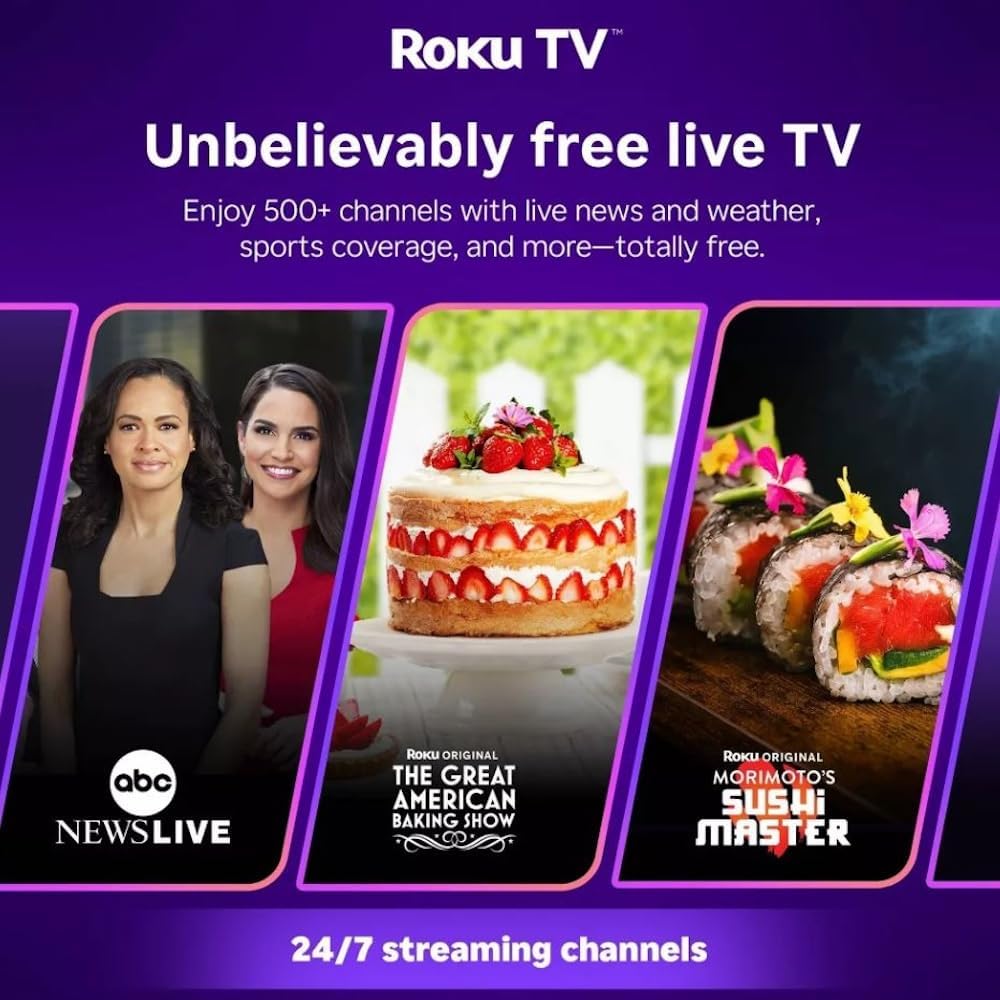
Roku TV interface promoting free live TV channels, featuring examples like ABC News Live, The Great American Baking Show, and Morimoto's Sushi Master.
Access a wide range of streaming services and free content through the Roku Channel Store. The Roku platform offers over 500 free channels, including live television, movies, and news. Use the 'Search' function on the home screen to find specific titles or channels.
ઓડિયો લક્ષણો

Roku Hiro TV displaying the home screen with various streaming apps, emphasizing enhanced audio quality.
The TV features enhanced audio quality. For private listening, you can pair Bluetooth headphones directly with the TV. Navigate to Settings > Remotes & devices > Bluetooth devices > Pair new device to connect your headphones.
જાળવણી
ટીવી સાફ કરવું
- સફાઈ કરતા પહેલા હંમેશા ટીવીને અનપ્લગ કરો.
- સ્ક્રીન અને કેબિનેટને હળવા હાથે સાફ કરવા માટે નરમ, લિન્ટ-ફ્રી કાપડનો ઉપયોગ કરો.
- હઠીલા ગુણ માટે, થોડું ડીampકપડાને પાણી અથવા હળવા, ઘર્ષણ વિનાના સ્ક્રીન ક્લીનરથી ઢાંકી દો. સ્ક્રીન પર સીધું ક્લીનર સ્પ્રે કરશો નહીં.
- કઠોર રસાયણો, ઘર્ષક પેડ્સ અથવા દ્રાવકોનો ઉપયોગ કરવાનું ટાળો.
સૉફ્ટવેર અપડેટ્સ
The Roku TV automatically checks for and installs software updates when connected to the internet. To manually check for updates, go to સેટિંગ્સ > સિસ્ટમ > સોફ્ટવેર અપડેટ.
મુશ્કેલીનિવારણ
| સમસ્યા | ઉકેલ |
|---|---|
| કોઈ શક્તિ નથી | ખાતરી કરો કે પાવર કેબલ ટીવી અને કાર્યરત ઇલેક્ટ્રિકલ આઉટલેટ બંને સાથે સુરક્ષિત રીતે જોડાયેલ છે. એક અલગ આઉટલેટ અજમાવી જુઓ. |
| કોઈ ચિત્ર નથી, પણ અવાજ છે. | ઇનપુટ સ્ત્રોત તપાસો. દબાવો ઘર button on the remote and select the correct input. Ensure all HDMI cables are securely connected. |
| અવાજ નથી, પણ ચિત્ર હાજર છે. | વૉલ્યૂમ લેવલ તપાસો અને ખાતરી કરો કે ટીવી મ્યૂટ નથી. જો બાહ્ય ઑડિઓનો ઉપયોગ કરી રહ્યા છો, તો કનેક્શન અને સેટિંગ્સ ચકાસો. |
| Wi-Fi થી કનેક્ટ કરી શકાતું નથી | Verify your Wi-Fi password. Restart your router and modem. Go to સેટિંગ્સ > નેટવર્ક > કનેક્શન સેટ કરો to reconfigure. |
| રીમોટ કંટ્રોલ કામ કરતું નથી | રિમોટમાં બેટરીઓ બદલો. ખાતરી કરો કે રિમોટ અને ટીવીના IR સેન્સર વચ્ચે કોઈ અવરોધો નથી. |
વિશિષ્ટતાઓ
| મોડેલનું નામ | H32C2C4 |
| સ્ક્રીન માપ | 32 ઇંચ |
| ડિસ્પ્લે ટેકનોલોજી | એલઇડી |
| ઠરાવ | 720p |
| તાજું દર | 60 હર્ટ્ઝ |
| ઓપરેટિંગ સિસ્ટમ | રોકુ ઓએસ |
| કનેક્ટિવિટી ટેકનોલોજી | Bluetooth, HDMI, Optical Audio, USB, Wi-Fi |
| Total Number of HDMI Ports | 3 |
| કુલ યુએસબી પોર્ટ્સ | 1 |
| ઉત્પાદનના પરિમાણો (D x W x H) | 3.2"D x 28.3"W x 16.9"H |
| વસ્તુનું વજન | 7.5 પાઉન્ડ |
| ભાગtage | 120 વોલ્ટ (AC) |
| માઉન્ટિંગ પ્રકાર | ટેબલ માઉન્ટ |
| રંગ | કાળો |
વોરંટી માહિતી
This Roku Hiro TV is covered by a 90-day Replacement Warranty. Please retain your proof of purchase for any warranty claims. For detailed terms and conditions, refer to the warranty documentation included with your product or visit the official Roku support webસાઇટ
આધાર
For further assistance, troubleshooting guides, or to contact customer support, please visit the official Roku support website. You can find comprehensive FAQs and contact information there.