1. પરિચય
This manual provides detailed instructions for the installation, operation, and maintenance of your Aerocool Eclipse 12 Pro Bundle ARGB Fan Kit. This kit includes three 120mm Addressable RGB (ARGB) fans, an H66F 6-port control hub, and a remote control. The fans feature a unique dual slim ring lighting design, curved blades for efficient airflow, and anti-vibration pads for quiet operation. The H66F hub allows for centralized control of fan speed via PWM and lighting effects, with options for motherboard synchronization or remote control.

છબી 1.1: ઓવરview of the Aerocool Eclipse 12 Pro Bundle components.
2. બોક્સમાં શું છે
- 3 x Aerocool Eclipse 120mm ARGB Fans
- 1 x H66F 6-Port ARGB Control Hub
- 1 x રીમોટ કંટ્રોલ
- ચાહકો માટે માઉન્ટિંગ સ્ક્રૂ
- Necessary Connection Cables (SATA power, Motherboard ARGB sync cable, PWM cable)

Image 2.1: All components included in the Aerocool Eclipse 12 Pro Bundle.
3. સેટઅપ અને ઇન્સ્ટોલેશન
3.1 સલામતી સાવચેતીઓ
- Ensure your computer is powered off and unplugged from the wall outlet before installation.
- Discharge any static electricity by touching a grounded metal object before handling components.
- Refer to your motherboard manual for specific header locations and compatibility.
3.2 H66F Hub Connection
- પાવર કનેક્શન: Connect the SATA power cable from your power supply to the H66F hub's SATA power input.
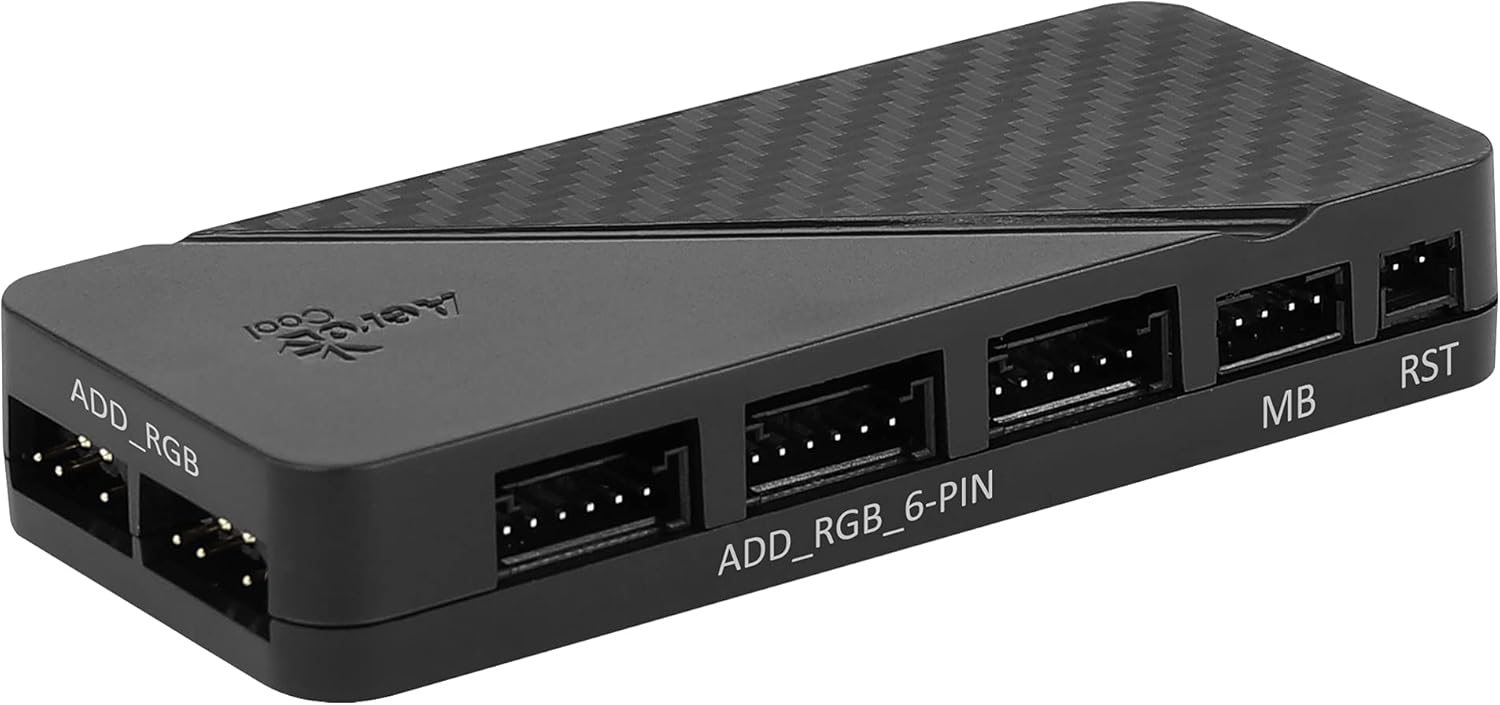
Image 3.2.1: The H66F control hub with various connection ports.
- ચાહક કનેક્શન: Connect each 6-pin fan cable from the Aerocool Eclipse 12 fans to the "ADD_RGB_6-PIN" ports on the H66F hub. The hub supports up to six fans.
- Motherboard ARGB Sync (Optional): If your motherboard has a 5V 3-pin ARGB header, connect the included ARGB sync cable from the H66F hub's "MB" port to your motherboard's ARGB header. This allows software control of lighting.

છબી ૪.૧: ઉદાહરણample of connection cables, including the ARGB sync cable.
- Motherboard PWM Control (Optional): Connect the included PWM cable from the H66F hub's "PWM" port to a 4-pin PWM fan header on your motherboard. This enables motherboard control of fan speed.
- Reset Switch Connection (Optional): If desired, connect your PC case's reset switch cable to the "RST" port on the H66F hub. This allows you to cycle through lighting modes using the case's reset button.
3.3 Fan Mounting
- Identify suitable mounting locations within your PC case (e.g., front, top, rear, bottom).
- Position each fan in the desired orientation for airflow (intake or exhaust).
- Secure each fan using the provided mounting screws. The anti-vibration pads on the fan corners help reduce noise.
4. ઓપરેટિંગ સૂચનાઓ
Once all connections are secure and your computer is powered on, the fans will begin to operate. You can control the fan speed and RGB lighting effects using the included remote control or, if connected, through your motherboard's ARGB software.

Image 4.1: Aerocool Eclipse 12 Pro fans and the remote control for operation.
4.1 રીમોટ કંટ્રોલ કાર્યો
The remote control provides direct access to various lighting modes, colors, and fan speed settings.
- પાવર બટન: Turns the lighting on/off.
- PWM બટન: Toggles between PWM control (if connected to motherboard) and fixed fan speed.
- હબ બટન: Switches control to the H66F hub's internal modes.
- MOBO બટન: Switches control to motherboard ARGB sync (if connected).
- MODE / MODE+ Buttons: Cycles through different lighting effects.
- COLOR / COLOR+ Buttons: Changes the static color or color scheme of the lighting effect.
- SPEED / SPEED+ Buttons: ગતિશીલ લાઇટિંગ અસરોની ગતિને સમાયોજિત કરે છે.
- એસ્ટ્રો / ઓટો / રેઈનબો બટન્સ: Direct access to specific lighting presets.
- બ્રાઇટનેસ બટન્સ (સૂર્ય ચિહ્નો): Adjusts the brightness of the lighting.
- લોક બટન: વર્તમાન લાઇટિંગ સેટિંગ્સને લોક કરે છે.
4.2 Motherboard Software Control
If the H66F hub is connected to your motherboard's 5V ARGB header, you can use your motherboard's proprietary RGB software (e.g., ASUS Aura Sync, MSI Mystic Light Sync, Gigabyte RGB Fusion, ASRock Polychrome Sync) to customize lighting effects. Ensure the remote control is set to "MOBO" mode for motherboard software to take control.
5. RGB Lighting Features
The Aerocool Eclipse 12 Pro fans feature a dual slim ring lighting design, providing vibrant and customizable illumination. The Addressable RGB (ARGB) technology allows for individual LED control, enabling complex and dynamic lighting patterns.

Image 5.1: Aerocool Eclipse 12 Pro fans showcasing their ARGB lighting effects.
You can switch between various pre-programmed effects using the remote control or synchronize the lighting with other ARGB components in your system via motherboard software.
6. જાળવણી
Regular maintenance helps ensure optimal performance and longevity of your Aerocool Eclipse 12 Pro fans.
- સફાઈ: Periodically clean dust from the fan blades and frames using compressed air or a soft, dry cloth. Ensure the computer is powered off and unplugged before cleaning.
- નિરીક્ષણ: Check fan cables for any signs of wear or damage. Ensure all connections to the H66F hub and motherboard remain secure.
- પર્યાવરણ: Operate the fans in a clean, dry environment to prevent dust buildup and moisture damage.
7. મુશ્કેલીનિવારણ
| સમસ્યા | સંભવિત કારણ | ઉકેલ |
|---|---|---|
| Fans not spinning. | No power to H66F hub; loose fan connection; faulty fan. | Ensure SATA power cable is securely connected to the H66F hub and power supply. Check all 6-pin fan connections to the hub. Test individual fans if possible. |
| RGB લાઇટિંગ કામ કરી રહી નથી. | No power to H66F hub; loose ARGB connection; remote control not working; hub in wrong mode. | Verify SATA power. Check 6-pin fan connections. Ensure remote control battery is functional. Press "HUB" or "MOBO" on the remote to select the correct control mode. If using motherboard sync, ensure the 5V ARGB cable is connected and motherboard software is configured. |
| રિમોટ કંટ્રોલ જવાબ આપી રહ્યું નથી. | Battery depleted; signal obstruction. | Replace the remote control battery. Ensure there are no obstructions between the remote and the H66F hub. |
| Fan speed not controllable via motherboard. | PWM cable not connected; remote not in PWM mode; motherboard header not configured. | Ensure the PWM cable is connected from the H66F hub to a 4-pin PWM header on the motherboard. Press the "PWM" button on the remote. Check motherboard BIOS/UEFI settings for fan header configuration. Note: Fan RPM may not be displayed by the motherboard when connected via the H66F hub. |
8. સ્પષ્ટીકરણો
| લક્ષણ | વિગત |
|---|---|
| મોડલ નંબર | ECLIPSE12PRO |
| ફેન પરિમાણો | ૬૫ મીમી x ૬૫ મીમી x ૬૫ મીમી (આશરે ૨.૫ x ૨.૫ x ૨.૫ ઇંચ) |
| ચાહક ઝડપ | Up to 2000 RPM (Max) |
| અવાજ સ્તર | 15 dB (Min) - 19.8 dB (Eclipse 12 Pro specific) |
| એરફ્લો | 32.1 CFM (Eclipse 12 Pro specific) |
| સ્થિર દબાણ | 1.27 mm-H2O (Eclipse 12 Pro specific) |
| રેટેડ વોલ્યુમtage | 12 વી |
| પાવર કનેક્ટર | 6-Pin (Fans), SATA (Hub) |
| આરજીબી કનેક્ટર | Addressable RGB (5V 3-pin) |
| નિયંત્રણ પદ્ધતિ | Remote Control, Motherboard ARGB Sync, Motherboard PWM |
| સામગ્રી | Copper (referring to internal components, not fan frame) |
| સુસંગત ઉપકરણો | ડેસ્કટોપ પીસી |
9. વોરંટી અને સપોર્ટ
વોરંટી માહિતી અને ટેકનિકલ સપોર્ટ માટે, કૃપા કરીને સત્તાવાર AeroCool નો સંદર્ભ લો. webસાઇટ પર જાઓ અથવા તમારા રિટેલરનો સંપર્ક કરો. વોરંટી દાવાઓ માટે ખરીદીનો પુરાવો રાખો.
એરોકુલ ઓફિશિયલ Webસાઇટ: www.aerocool.io


