1. પરિચય
This manual provides detailed instructions for the setup, operation, and maintenance of your Volcora Thermal Receipt Printer, Model 500204. This high-speed 80mm POS printer features an auto cutter and offers versatile connectivity options including USB and Bluetooth, supporting various operating systems. Please read this manual thoroughly before using the printer to ensure proper functionality and longevity.
2. સલામતી માહિતી
- ખાતરી કરો કે પ્રિન્ટર ગ્રાઉન્ડેડ પાવર આઉટલેટ સાથે જોડાયેલ છે.
- પ્રિન્ટરને પાણી કે ઉચ્ચ ભેજના સંપર્કમાં ન લાવો.
- પ્રિન્ટરને સીધા સૂર્યપ્રકાશમાં અથવા ગરમીના સ્ત્રોતોની નજીક રાખવાનું ટાળો.
- ફક્ત પ્રિન્ટર સાથે પૂરા પાડવામાં આવેલ પાવર એડેપ્ટરનો ઉપયોગ કરો.
- પ્રિન્ટરને જાતે ડિસએસેમ્બલ કરવાનો કે રિપેર કરવાનો પ્રયાસ કરશો નહીં. સહાય માટે ગ્રાહક સપોર્ટનો સંપર્ક કરો.
- Keep hands clear of the auto cutter mechanism during operation.
3. પેકેજ સામગ્રી
ખાતરી કરો કે નીચે સૂચિબદ્ધ બધી વસ્તુઓ તમારા પેકેજમાં શામેલ છે:
- Volcora Thermal Receipt Printer - Standard
- પાવર એડેપ્ટર
- પેપર રોલર
- યુએસબી કેબલ
- CD (for drivers and manual)
- મેન્યુઅલ
- Sample Receipt Paper

આકૃતિ 3.1: Included Components - Thermal Receipt Printer, Power Adapter, USB Cable, Test Paper, and Installation CD.
4. ઉત્પાદન ઓવરview

આકૃતિ 4.1: આગળ view of the Volcora Thermal Receipt Printer with a sampલે રસીદ.
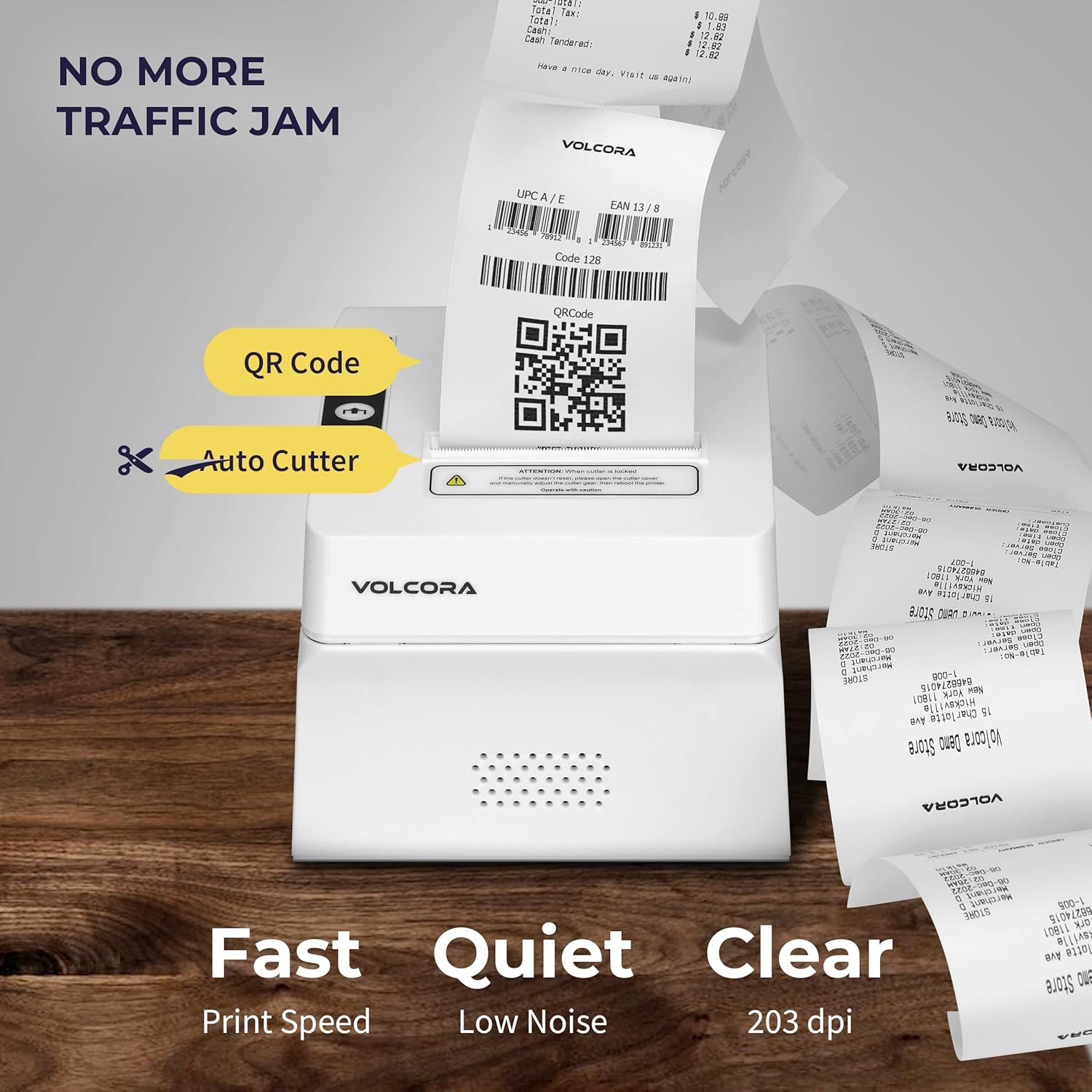
આકૃતિ 4.2: Key features include QR code printing, automatic cutter, fast print speed, low noise, and 203 dpi clear printing.
૪.૧ પોર્ટ અને બટનો

આકૃતિ 4.3: Rear ports include Power Supply, Cash Drawer Port (6Pin RJ11), and USB Port. Front panel features Power LED, Error LED, Paper LED, Feed Button, and Cover Open Button.
૩.૧ પ્લેસમેન્ટ વિકલ્પો

આકૃતિ 4.4: The printer supports both wall mounting (as a kitchen printer) and counter placement (as a receipt printer).
5. સેટઅપ
5.1 Initial Connection and Paper Roll Installation
- Unbox the printer and all accessories.
- Connect the power adapter to the printer and a power outlet.
- Open the paper cover by pressing the "PUSH" button.
- Insert the 80mm thermal paper roll, ensuring the paper feeds from the bottom and the leading edge extends slightly past the cutter.
- કાગળનું કવર જ્યાં સુધી તે જગ્યાએ ન આવે ત્યાં સુધી તેને મજબૂતીથી બંધ કરો.
- Connect the USB cable from the printer to your computer (for initial setup or USB printing).

આકૃતિ 5.1: ઉપરview of the installation process: Download drivers, Install, Connect power and USB, and Test print.
5.2 Printer Self-Test
Performing a self-test helps verify the printer's basic functionality and prints its configuration settings.
- ખાતરી કરો કે પ્રિન્ટર બંધ છે.
- Press and hold the "Feed" button.
- While holding the "Feed" button, power on the printer.
- Release the "Feed" button after approximately 5 seconds. The printer should print a self-test page.
For a visual guide on unboxing, connecting, and performing a self-test, please watch the video below:
વિડિઓ 5.1: Getting Started with Volcora Thermal Receipt Printer - Unboxing, Connecting, and Self-Test.
6. ડ્રાઇવર ઇન્સ્ટોલેશન અને કનેક્ટિવિટી
The Volcora Thermal Receipt Printer supports USB and Bluetooth connectivity. Proper driver installation is crucial for seamless operation.
૨.૩ સિસ્ટમ સુસંગતતા
કૃપા કરીને પુનઃview the compatibility chart before proceeding with driver installation:

આકૃતિ 6.1: સુસંગતતા સમાપ્તview for USB and Bluetooth connections across various operating systems. Note that Mac OS and iOS are not supported.

આકૃતિ 6.2: List of compatible and non-compatible POS software applications.
6.2 Windows Driver Installation (USB)
For Windows users, download the latest drivers from the official Volcora support website. The installation CD also contains the necessary drivers.
- વિન્ડોઝ માટે ડ્રાઇવર અહીંથી ડાઉનલોડ કરો volcora.com/support.
- ડાઉનલોડ કરેલ અનઝિપ કરો file and open the driver application.
- Follow the on-screen prompts, select your printer model (500204), and complete the installation.
- After installation, the printer should be recognized in your Windows "Printers & Scanners" settings, allowing you to print a test page.
Refer to Video 5.1 for initial connection steps. The video also demonstrates driver installation and testing tools for Windows.
6.3 Bluetooth Connection with Windows PC
This section outlines two methods for connecting your printer via Bluetooth to a Windows PC.
Method 1: Driver Pre-installed with USB Connection
- Ensure the printer driver has been installed using a USB cable connection (refer to Section 6.2).
- Go to Windows Settings > Bluetooth & devices > Add device > Bluetooth.
- Select the printer (e.g., "500203" or "Volcora Thermal Printer") from the list of available devices and pair it. Enter the default PIN (usually "0000" or "1234").
- After pairing, check the printer's properties in "Devices and Printers" to identify the assigned COM port (e.g., COM4).
- Use the Setting Tool (available from volcora.com/support) to select the correct COM port and perform a test print.
Method 2: Driver Installation After Bluetooth Connection
- Start by pairing the printer via Bluetooth directly (Windows Settings > Bluetooth & devices > Add device > Bluetooth). Enter the default PIN.
- Open Device Manager (search in Windows) and expand "Ports (COM & LPT)" to find the COM port used by the Bluetooth printer (e.g., COM3 or COM4).
- Install the printer driver (from volcora.com/support or CD), selecting the identified COM port during the installation process. If the first COM port doesn't work, try the other one listed.
- Once the driver is installed, the printer should appear in "Printers & Scanners" and be ready for use.
વિડિઓ 6.3: How to connect your Volcora Thermal Receipt Printer via Bluetooth to a Windows PC.
6.4 Bluetooth Connection with Android Tablets
To connect your printer to an Android tablet, follow these steps:
- Go to your Android tablet's Settings and enable Bluetooth.
- માટે શોધો new devices and select your printer (e.g., "500203"). Pair the device using the default PIN (usually "0000" or "1234").
- Download the "PrintDemo Tool" from volcora.com/support.
- Open the PrintDemo Tool, go to "Setting", select "Bluetooth" as the interface, and search for your paired printer.
- Perform a "print test" to confirm connectivity.
- For POS applications like Loyverse POS or W&O POS, navigate to their printer settings, select "Bluetooth" as the interface, and choose your Volcora printer to perform a test print.
વિડિઓ 6.4: How to connect your Volcora Thermal Receipt Printer via Bluetooth to an Android Tablet.
7. ઓપરેટિંગ સૂચનાઓ
Once the printer is successfully connected and drivers are installed, it will function as a standard printer for your compatible system or POS application. Ensure your application is configured to use the Volcora Thermal Printer for receipt printing.
- પ્રિન્ટીંગ: Send print commands from your software. The printer will automatically feed and cut the receipt.
- Paper Feed: Press the "Feed" button on the front panel to manually advance the paper.
- ભૂલ સૂચક: The "Error" LED will illuminate if there is a paper jam, paper out, or other issues. Refer to the troubleshooting section.
8. જાળવણી
નિયમિત જાળવણી શ્રેષ્ઠ કામગીરી સુનિશ્ચિત કરે છે અને તમારા પ્રિન્ટરનું આયુષ્ય વધારે છે.
- પ્રિન્ટ હેડની સફાઈ: નરમ, લિન્ટ-ફ્રી કાપડનો ઉપયોગ કરો ડીampened with isopropyl alcohol to gently wipe the thermal print head. Ensure the printer is off and cooled down before cleaning.
- પ્લેટન રોલરની સફાઈ: Rotate the platen roller and wipe it with an alcohol-dampened cloth to remove paper dust or adhesive residue.
- બાહ્ય સફાઈ: Wipe the exterior of the printer with a soft, dry cloth. Avoid abrasive cleaners.
9. સ્પષ્ટીકરણો
Detailed technical specifications for the Volcora Thermal Receipt Printer Model 500204:

આકૃતિ 9.1: Visual representation of printer dimensions and key specifications.
| લક્ષણ | વિગત |
|---|---|
| ઉત્પાદન પરિમાણો | 4"D x 8"W x 8"H |
| પ્રિન્ટ ઝડપ | 220mm/s |
| કાગળની પહોળાઈ | 80 mm (79.5 millimeters) |
| પ્રિન્ટ પહોળાઈ | 72 મીમી |
| ડોટ ડેન્સિટી | 8 dot/mm, 576 dot/line |
| પ્રિન્ટ રિઝોલ્યુશન | 203 dpi (203 x 203 DPI) |
| પ્રિન્ટર આદેશ | ESC/POS |
| બારકોડ પ્રકારો | UPC-A/ UPC-E/ EAN13/ EAN8/ CODE39/ ITF25/ CODABAR/ CODE93/ CODE128/ QRCODE/ PDF417/ Data matrix |
| ઇનપુટ પાવર | AC 110V/240V, 50-60Hz |
| આઉટપુટ પાવર | DC 24V/2A |
| Auto Cutter Life | 1.5 મિલિયન કાપ |
| કનેક્ટિવિટી ટેકનોલોજી | બ્લૂટૂથ, યુએસબી |
| પ્રિન્ટીંગ ટેકનોલોજી | થર્મલ |
| સુસંગત ઉપકરણો | Laptops, PC, Tablets |
| મેમરી સ્ટોરેજ ક્ષમતા | 64 KB |
| વસ્તુનું વજન | 3.76 પાઉન્ડ (1.71 કિલોગ્રામ) |
| મોડલ નંબર | 500204 |
| યુપીસી | 810041565044 |
10. મુશ્કેલીનિવારણ
If you encounter issues with your Volcora Thermal Receipt Printer, consider the following common solutions:
- પ્રિન્ટર જવાબ આપી રહ્યું નથી:
- પાવર કનેક્શન તપાસો અને ખાતરી કરો કે પ્રિન્ટર ચાલુ છે.
- Verify USB or Bluetooth connection status.
- Perform a printer self-test (Section 5.2) to confirm internal functionality.
- Reinstall drivers if necessary.
- નબળી પ્રિન્ટ ગુણવત્તા:
- ખાતરી કરો કે તમે ઉચ્ચ-ગુણવત્તાવાળા થર્મલ પેપરનો ઉપયોગ કરી રહ્યા છો.
- Clean the thermal print head (Section 8).
- Check printer settings for print density or speed adjustments.
- પેપર જામ:
- Turn off the printer and carefully open the paper cover.
- Remove any jammed paper or debris.
- Ensure the paper roll is correctly installed and not too tight.
- બ્લૂટૂથ કનેક્શન સમસ્યાઓ:
- ખાતરી કરો કે પ્રિન્ટર અને તમારા ઉપકરણ બંને પર બ્લૂટૂથ સક્ષમ છે.
- Unpair and re-pair the printer.
- Verify the correct COM port is selected in your driver or application settings.
For further assistance, please refer to the support information in Section 11.
11. વોરંટી અને સપોર્ટ
All Volcora products are backed by a limited lifetime warranty. Our US-based customer support team is available to assist with any issues regarding setup, connection, compatibility, or other product-related concerns.
- Visit Help Portal: https://help.volcora.com
- Download Support Center: https://volcora.com/support
- ગ્રાહક સપોર્ટ સંપર્ક: support@volcora.com

આકૃતિ 11.1: Volcora offers US-based customer support for product assistance.


