પરિચય
This manual provides detailed instructions for the setup, operation, and maintenance of your Pantum M6550NW/M6552NW Monochrome Multifunction Laser Printer. Please read this manual thoroughly before using the printer to ensure proper and safe operation.

છબી: આગળ view of the Pantum M6550NW/M6552NW Monochrome Multifunction Laser Printer.
ઉત્પાદન ઓવરview
The Pantum M6550NW/M6552NW is a versatile monochrome laser printer designed for efficient printing, copying, and scanning. It features wireless and Ethernet networking capabilities, a compact design, and an intuitive LCD control panel.
મુખ્ય લક્ષણો
- Print, Copy, Scan functionality
- USB, Network, and Wireless connectivity
- 20,000-page monthly duty cycle
- 150 sheets input tray capacity
- Up to 23 letter pages per minute print speed
- ઓટોમેટિક ડોક્યુમેન્ટ ફીડર (ADF)
- LCD Control Panel for easy operation
- One-step driver installation
- મોબાઇલ પ્રિન્ટીંગ સપોર્ટ

Image: Diagram showing key components of the printer, including the All-in-One Toner Cartridge slot, Paper Input Tray, Auto Document Feeder, LCD Control Panel, and highlighting its small footprint and networking capabilities.
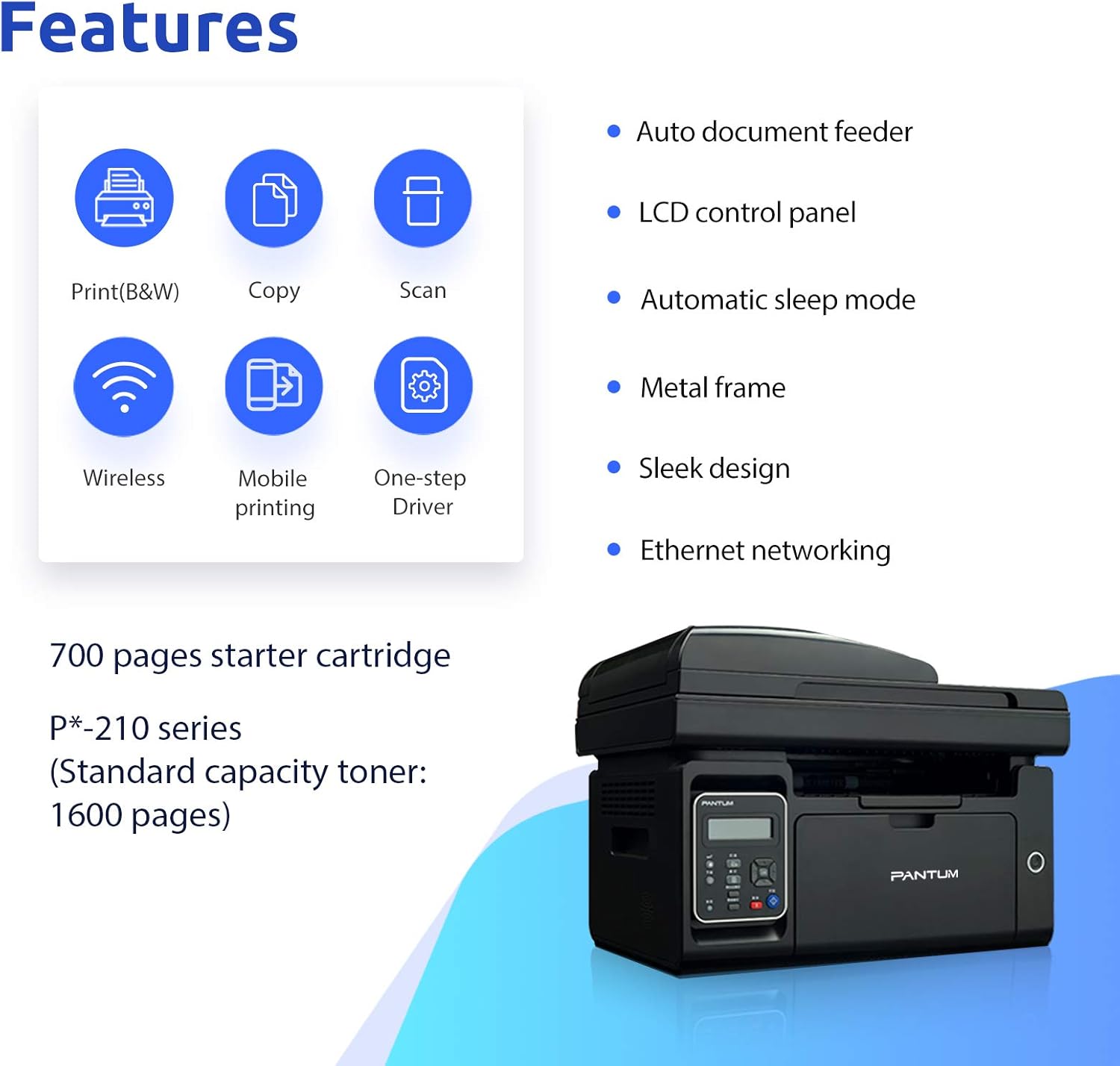
Image: Visual representation of the printer's core features: Print (B&W), Copy, Scan, Wireless, Mobile printing, and One-step Driver installation. Also notes the 700-page starter cartridge and P*-210 series standard capacity toner (1600 pages).
સેટઅપ
Follow these steps for the initial setup of your printer.
1. અનપેકિંગ અને કમ્પોનન્ટ ચેક
Carefully remove the printer from its packaging. Verify that all included components are present:
- Pantum M6550NW/M6552NW Printer
- પાવર કોર્ડ
- યુએસબી ઇન્ટરફેસ કેબલ
- Starter toner cartridge
- ઝડપી સેટઅપ માર્ગદર્શિકા
- CD-ROM (for drivers and software)

Image: Contents typically found in the printer box, including the printer, power cord, USB cable, starter cartridge, quick setup guide, and CD-ROM.
2. ટોનર કારતૂસ ઇન્સ્ટોલેશન
Before first use, install the toner cartridge. Refer to the quick setup guide for specific instructions, but generally, this involves:
- પ્રિન્ટરનું આગળનું કવર ખોલો.
- Carefully unpackage the toner cartridge.
- Remove any protective seals or tapes from the cartridge.
- કારતૂસને નિયુક્ત સ્લોટમાં દાખલ કરો જ્યાં સુધી તે સ્થાન પર ક્લિક ન કરે.
- આગળનું કવર બંધ કરો.

Image: Step-by-step visual guide for installing the toner cartridge: 1) Take out the cartridge, 2) Remove the seal, 3) Install the cartridge.
3. પાવર કનેક્શન
પાવર કોર્ડને પ્રિન્ટર સાથે અને પછી ગ્રાઉન્ડેડ ઇલેક્ટ્રિકલ આઉટલેટ સાથે જોડો.
4. Driver Installation and Connectivity
Install the printer drivers from the included CD-ROM or download the latest drivers from the official Pantum website. You can connect the printer via USB, Wi-Fi, or wired network.
- યુએસબી કનેક્શન: પ્રદાન કરેલ USB કેબલનો ઉપયોગ કરીને પ્રિન્ટરને તમારા કમ્પ્યુટર સાથે કનેક્ટ કરો.
- Wi-Fi કનેક્શન: Follow the on-screen instructions on the printer's LCD panel or use the setup wizard on your computer to connect to your wireless network. The printer supports Wi-Fi Hotspot direct connection.
- વાયર્ડ નેટવર્ક કનેક્શન: પ્રિન્ટરમાંથી તમારા નેટવર્ક રાઉટર અથવા સ્વિચ સાથે ઇથરનેટ કેબલ કનેક્ટ કરો.

Image: Illustrations demonstrating the three easy driver installation and connection methods: USB, Wi-Fi, and wired network.
ઓપરેટિંગ સૂચનાઓ
Using the LCD Control Panel
The LCD control panel allows you to navigate printer functions, view status, and configure settings. Use the arrow keys and OK button to make selections.

છબી: ક્લોઝ-અપ view of the printer's LCD control panel, showing buttons for navigation, status, copy functions, and start/cancel.
પ્રિન્ટીંગ
દસ્તાવેજ છાપવા માટે:
- ખાતરી કરો કે પ્રિન્ટર ચાલુ છે અને તમારા ઉપકરણ સાથે જોડાયેલ છે.
- ઇનપુટ ટ્રેમાં કાગળ લોડ કરો.
- તમારા કમ્પ્યુટર અથવા મોબાઇલ ઉપકરણ પરથી, તમે જે દસ્તાવેજ છાપવા માંગો છો તે ખોલો.
- પ્રિન્ટ વિકલ્પ પસંદ કરો (સામાન્ય રીતે File > છાપો).
- Choose the Pantum M6550NW/M6552NW from the list of available printers.
- જરૂર મુજબ પ્રિન્ટ સેટિંગ્સ (દા.ત., નકલોની સંખ્યા, કાગળનું કદ, ગુણવત્તા) ગોઠવો.
- "છાપો" પર ક્લિક કરો.
For mobile printing, download the Pantum app. It supports direct printing from your smartphone or tablet via Wi-Fi.

Image: Screenshot of the Pantum mobile application interface, demonstrating its capabilities for printing documents (Word, PDF, PPT, Excel, TXT) and scanning, highlighting easy wireless and mobile printing.
નકલ કરી રહ્યા છીએ
નકલ બનાવવા માટે:
- દસ્તાવેજને સ્કેનર ગ્લાસ પર નીચે તરફ અથવા ઓટોમેટિક ડોક્યુમેન્ટ ફીડર (ADF) માં ઉપર તરફ રાખો.
- કંટ્રોલ પેનલ પર, "કૉપિ કરો" ફંક્શન પસંદ કરો.
- Adjust settings such as number of copies, copy quality, or enlargement/reduction if available.
- કૉપિ કરવાનું શરૂ કરવા માટે "સ્ટાર્ટ" બટન દબાવો.
સ્કેનિંગ
દસ્તાવેજ સ્કેન કરવા માટે:
- Place the document face-down on the scanner glass or face-up in the ADF.
- From your computer, open the scanning software (usually installed with the printer drivers) or use the Pantum app on your mobile device.
- Select the "Scan" function.
- Choose scan settings such as resolution, color mode, and destination folder.
- પ્રક્રિયા શરૂ કરવા માટે "સ્કેન" પર ક્લિક કરો.
જાળવણી
નિયમિત જાળવણી શ્રેષ્ઠ કામગીરી સુનિશ્ચિત કરે છે અને તમારા પ્રિન્ટરનું આયુષ્ય વધારે છે.
પ્રિન્ટરની સફાઈ
- પ્રિન્ટરના બાહ્ય ભાગને સોફ્ટ, ડી વડે સાફ કરોamp, લિન્ટ-ફ્રી કાપડ.
- Periodically clean the scanner glass with a glass cleaner applied to a cloth (not directly to the glass).
- ઘર્ષક ક્લીનર્સ અથવા સોલવન્ટનો ઉપયોગ કરશો નહીં.
ટોનર કારતૂસ રિપ્લેસમેન્ટ
When the toner is low or empty, the printer's LCD panel will display a message. Replace the cartridge as follows:
- ખાતરી કરો કે પ્રિન્ટર ચાલુ છે.
- આગળનું કવર ખોલો.
- જૂના ટોનર કારતૂસને કાળજીપૂર્વક દૂર કરો.
- Unpack the new Pantum P*-210 series toner cartridge and remove all protective materials.
- Insert the new cartridge firmly until it locks into place.
- આગળનું કવર બંધ કરો.
Dispose of used toner cartridges according to local regulations.
મુશ્કેલીનિવારણ
આ વિભાગ તમને આવી શકે તેવી સામાન્ય સમસ્યાઓનું નિરાકરણ લાવે છે.
પ્રિન્ટર જવાબ આપી રહ્યું નથી
- Check if the printer is powered on and the power cord is securely connected.
- Verify the USB cable is properly connected to both the printer and the computer, or that the Wi-Fi/Ethernet connection is active.
- પ્રિન્ટર અને તમારા કમ્પ્યુટર/ઉપકરણ બંનેને પુનઃપ્રારંભ કરો.
- Ensure the correct printer driver is installed and selected as the default printer.
નબળી પ્રિન્ટ ગુણવત્તા
- Check the toner level and replace the cartridge if it's low.
- Ensure you are using appropriate paper for laser printing.
- Clean the printer's internal components as per the maintenance section if streaks or smudges appear.
Connectivity Issues (Wi-Fi/Network)
- ખાતરી કરો કે પ્રિન્ટર તમારા વાયરલેસ રાઉટરની રેન્જમાં છે.
- Verify that the Wi-Fi password entered is correct.
- તમારા રાઉટર અને પ્રિન્ટરને ફરીથી શરૂ કરો.
- Check your network settings on both the printer and your computer.
- If using a wired connection, ensure the Ethernet cable is securely plugged in.
વિશિષ્ટતાઓ
| લક્ષણ | વિગત |
|---|---|
| મોડલ | M6550NW/M6552NW |
| કાર્યો | પ્રિન્ટ, કોપી, સ્કેન |
| પ્રિન્ટીંગ ટેકનોલોજી | લેસર (મોનોક્રોમ) |
| મહત્તમ પ્રિન્ટ ઝડપ (મોનોક્રોમ) | 23 ppm (Letter) |
| મહત્તમ પ્રિન્ટ રિઝોલ્યુશન | 1200 x 1200 ડીપીઆઇ |
| સ્કેનર પ્રકાર | શીટફેડ |
| સ્કેનર રિઝોલ્યુશન | 1200 x 1200 ડીપીઆઇ |
| કનેક્ટિવિટી | USB 2.0, Wi-Fi, Ethernet |
| ઇનપુટ ટ્રે ક્ષમતા | 150 શીટ્સ |
| સુસંગત ઉપકરણો | સ્માર્ટફોન (એન્ડ્રોઇડ, આઇઓએસ) |
| ઉત્પાદન પરિમાણો | 16.42 x 12.01 x 11.85 સેમી |
| વસ્તુનું વજન | 9.02 કિગ્રા |
| સમાવાયેલ ઘટકો | USB cable, Starter Toner Cartridge |
વોરંટી અને આધાર
For warranty information and technical support, please refer to the documentation included with your printer or visit the official PANTUM webસાઇટ. વોરંટી દાવાઓ માટે ખરીદીના પુરાવા તરીકે તમારી ખરીદી રસીદ રાખો.


