1. પરિચય
This manual provides comprehensive instructions for the installation, operation, and maintenance of your COUGAR Archon 2 RGB Mid Tower Case. Please read this manual carefully before beginning installation to ensure proper setup and to maximize the performance and longevity of your product.

આકૃતિ 1.1: કોણીય view of the COUGAR Archon 2 RGB Mid Tower Case, showcasing the tempered glass side panel and front RGB fans.
2. ઉત્પાદન સુવિધાઓ
The COUGAR Archon 2 RGB Mid Tower Case is designed for PC enthusiasts seeking a balance of aesthetics, airflow, and functionality. Key features include:
- Elegant Design with Tempered Glass: A sleek black finish combined with a tempered glass side panel allows for a clear view આંતરિક ઘટકો અને RGB લાઇટિંગ.
- ઑપ્ટિમાઇઝ્ડ એરફ્લો: Supports multiple fan configurations and includes three pre-installed 120mm ARGB fans at the front for efficient cooling.
- વ્યાપક સુસંગતતા: Accommodates Mini ITX, Micro ATX, and ATX motherboards.
- Ample Storage Options: Provides bays for both 3.5" HDDs and 2.5" SSDs.
- Convenient Front I/O: Features USB 3.0 and USB 2.0 ports for easy peripheral connectivity.
- RGB લાઇટિંગ નિયંત્રણ: Integrated ARGB fans offer customizable lighting effects.

આકૃતિ 2.1: ફ્રન્ટ view of the COUGAR Archon 2 RGB case, highlighting the three pre-installed ARGB fans.
3. સેટઅપ માર્ગદર્શિકા
Follow these steps to properly install your components into the COUGAR Archon 2 RGB case.
3.1. પ્રી-ઇન્સ્ટોલેશન ચેકલિસ્ટ
- Ensure you have all necessary components: motherboard, CPU, RAM, GPU, power supply, storage drives, and appropriate tools (screwdriver, zip ties).
- Work on a clean, static-free surface. Consider using an anti-static wrist strap.
૪.૨. કેસ ખોલવો
- Carefully remove the tempered glass side panel by unscrewing the thumbscrews located at the rear of the case. Set the panel aside on a soft, flat surface to prevent scratches.
- Remove the opposite metal side panel by unscrewing its thumbscrews and sliding it backward.
3.3. મધરબોર્ડ ઇન્સ્ટોલેશન
- કેસના પાછળના ભાગમાં I/O શિલ્ડ (જો તમારા મધરબોર્ડ સાથે પહેલાથી જોડાયેલ ન હોય તો) ઇન્સ્ટોલ કરો.
- Align your motherboard with the standoffs inside the case. Ensure all standoffs match the screw holes on your motherboard.
- આપેલા સ્ક્રૂનો ઉપયોગ કરીને મધરબોર્ડને સુરક્ષિત કરો. વધારે કડક ન કરો.
૩. પાવર સપ્લાય યુનિટ (PSU) ઇન્સ્ટોલેશન
- Locate the PSU mounting area at the bottom rear of the case.
- Slide your PSU into the designated bay from the rear of the case, ensuring the fan faces downwards for optimal cooling (if the case has a bottom vent).
- કેસના પાછળના ભાગમાંથી સ્ક્રૂ વડે PSU ને સુરક્ષિત કરો.
3.5. સ્ટોરેજ ડ્રાઇવ ઇન્સ્ટોલેશન
The Archon 2 RGB supports both 3.5" HDDs and 2.5" SSDs.
- For 3.5" HDDs: Locate the drive cage usually beneath the PSU shroud. Slide the HDD into the drive bay and secure it with screws.
- For 2.5" SSDs: Mount SSDs to the designated mounting points on the back of the motherboard tray or within the drive cage, securing them with screws.
3.6. Expansion Card (GPU) Installation
- કેસના પાછળના ભાગમાંથી જરૂરી PCIe સ્લોટ કવર દૂર કરો.
- Insert your graphics card or other expansion cards into the appropriate PCIe slot on the motherboard.
- Secure the card with screws to the case.
3.7. Cable Management and Front Panel Connections
Route all power and data cables neatly behind the motherboard tray. Connect the front panel I/O cables (USB, audio, power switch, reset switch, LED indicators) to their respective headers on the motherboard according to your motherboard manual.

Figure 3.1: Dimensions of the COUGAR Archon 2 RGB case, useful for planning component fit and space.
4. ઓપરેટિંગ સૂચનાઓ
4.1. પાવરિંગ ચાલુ
Once all components are installed and cables are connected, replace both side panels. Connect your monitor, keyboard, mouse, and power cable to the PSU. Press the power button on the top panel of the case to start your system.
4.2. RGB લાઇટિંગ કંટ્રોલ
The pre-installed ARGB fans are typically controlled via a dedicated button on the case's front I/O panel or through your motherboard's RGB software (if connected to an ARGB header). Refer to your motherboard manual for software-based control options.
5. જાળવણી
નિયમિત જાળવણી તમારા પીસી ઘટકોની શ્રેષ્ઠ કામગીરી અને આયુષ્ય સુનિશ્ચિત કરવામાં મદદ કરે છે.
- ધૂળ સફાઈ: Periodically clean dust filters (if present) and internal components using compressed air. Ensure the system is powered off and unplugged before cleaning.
- કેબલ મેનેજમેન્ટ: Ensure cables are neatly routed to avoid obstructing airflow.
- પંખાનું નિરીક્ષણ: Check fans for dust buildup or obstructions that could impede their operation.
6. મુશ્કેલીનિવારણ
જો તમને સમસ્યાઓ આવે, તો નીચેના સામાન્ય મુશ્કેલીનિવારણ પગલાંનો સંદર્ભ લો:
- સિસ્ટમ ચાલુ નથી થઈ રહી:
- બધા પાવર કનેક્શન તપાસો, જેમાં PSU થી વોલ આઉટલેટ, PSU થી મધરબોર્ડ (24-પિન અને CPU 8-પિન), અને ફ્રન્ટ પેનલ પાવર સ્વીચ હેડરનો સમાવેશ થાય છે.
- ખાતરી કરો કે PSU સ્વીચ 'ચાલુ' સ્થિતિમાં છે.
- પંખા ફરતા નથી / RGB કામ કરતું નથી:
- ખાતરી કરો કે પંખા પાવર કેબલ મધરબોર્ડ અથવા પંખા નિયંત્રક સાથે સુરક્ષિત રીતે જોડાયેલા છે.
- Check ARGB headers for proper connection to the motherboard or RGB controller.
- Ensure RGB software or case button is correctly configured.
- કોઈ ડિસ્પ્લે આઉટપુટ નથી:
- Confirm the monitor cable is connected to the graphics card (not the motherboard integrated graphics, unless no dedicated GPU is present).
- ગ્રાફિક્સ કાર્ડ અને રેમ મોડ્યુલો ફરીથી સેટ કરો.
7. સ્પષ્ટીકરણો
Detailed specifications for the COUGAR Archon 2 RGB Mid Tower Case:
| લક્ષણ | વિગત |
|---|---|
| મોડેલનું નામ | ARCHON 2 RGB |
| કેસનો પ્રકાર | મિડ ટાવર |
| મધરબોર્ડ સુસંગતતા | મીની આઇટીએક્સ, માઇક્રો એટીએક્સ, એટીએક્સ |
| પરિમાણો (LxWxH) | 14.96 x 8.27 x 18.5 ઇંચ (380 x 210 x 470 mm) |
| વસ્તુનું વજન | 11.37 પાઉન્ડ (5.17 કિગ્રા) |
| સામગ્રી | ધાતુ, ટેમ્પર્ડ ગ્લાસ |
| રંગ | કાળો |
| પ્રી-ઇન્સ્ટોલ કરેલ ચાહકો | 3 x 120mm ARGB fans (Front) |
| પંખો સપોર્ટ (આગળ) | 3 x 120 મીમી અથવા 2 x 140 મીમી |
| I/O પોર્ટ્સ | 1 x USB 2.0, 2 x USB 3.0, Audio In/Out |
| પાવર સપ્લાય માઉન્ટિંગ પ્રકાર | બોટમ માઉન્ટ |
| ઠંડક પદ્ધતિ | હવા |
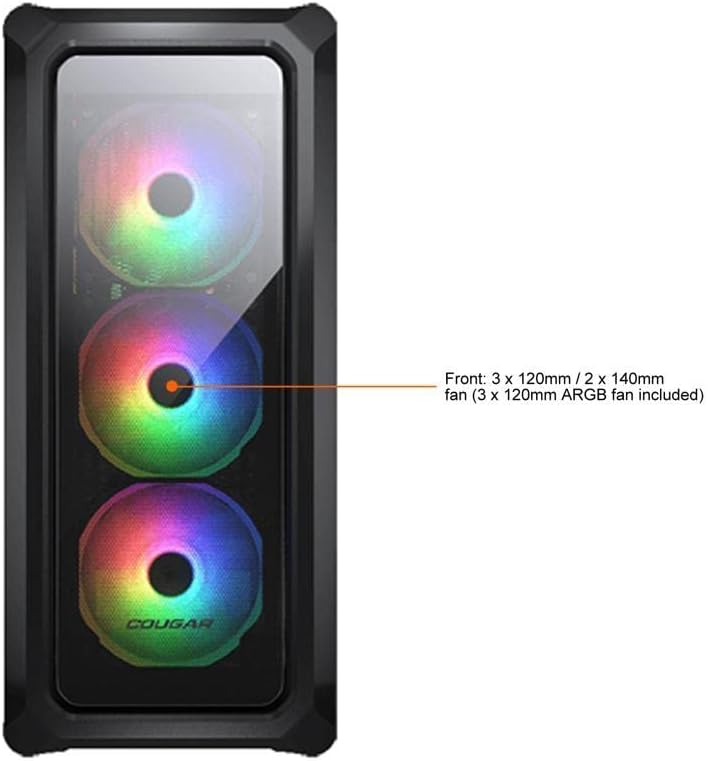
Figure 7.1: Front panel fan configuration and size options for the COUGAR Archon 2 RGB case.
8. વોરંટી અને સપોર્ટ
For warranty information and technical support, please refer to the official COUGAR webસાઇટ પર જાઓ અથવા તેમના ગ્રાહક સેવા વિભાગનો સંપર્ક કરો. વોરંટી દાવાઓ માટે ખરીદીનો પુરાવો રાખો.
COUGAR Official Webસાઇટ: cougargaming.com


