1. પરિચય
Thank you for choosing the ROADOM Portable Monitor Z1-5S. This 15.6-inch Full HD (1920x1080) IPS display is designed to enhance your productivity and entertainment experience on the go. Featuring HDR mode, a 178° wide viewing angle, and versatile connectivity options, it serves as an excellent external display for laptops, smartphones, gaming consoles, and more. This manual provides essential information for setting up, operating, and maintaining your monitor.
પેકેજ સામગ્રી
- ROADOM Portable Monitor Z1-5S
- Smart Protective Cover (doubles as a stand)
- USB-C to USB-C Cable (for power and video)
- મીની HDMI થી HDMI કેબલ (વિડિઓ માટે)
- USB-A to USB-C Cable (for power)
- પાવર એડેપ્ટર
- વપરાશકર્તા માર્ગદર્શિકા (આ દસ્તાવેજ)

છબી 1.1: The ROADOM Portable Monitor Z1-5S showcasing its visual capabilities, including Full HD 1080P resolution, IPS panel technology, 100% sRGB color gamut, 178° viewing angle, and HDR support for a perfect visual experience.
2. સેટઅપ સૂચનાઓ
Follow these steps to connect your ROADOM Portable Monitor to various devices.
2.1 મોનિટરને પાવરિંગ
The monitor can be powered via the included power adapter or directly from a compatible device using a USB-C cable.
- પાવર એડેપ્ટરનો ઉપયોગ: Connect the USB-A to USB-C cable to the power adapter, then plug the USB-C end into one of the monitor's USB-C ports (labeled 'PD' or 'Power'). Plug the adapter into a wall outlet.
- Using USB-C from Device: If your laptop or smartphone supports power delivery via USB-C, connect a full-featured USB-C to USB-C cable from your device to one of the monitor's USB-C ports. This single cable can provide both power and video signal.
2.2 ઉપકરણો સાથે જોડાઈ રહ્યું છે
The monitor offers multiple connectivity options for various devices.
- For Laptops/PCs (USB-C): Use a full-featured USB-C to USB-C cable to connect your laptop's USB-C port to one of the monitor's USB-C ports. This provides both video and power.
- For Laptops/PCs (HDMI): Connect the Mini HDMI to HDMI cable from the monitor's Mini HDMI port to your laptop's HDMI port. You will also need to power the monitor separately using the power adapter or a USB-A to USB-C cable connected to a power source.
- For Smartphones (USB-C): If your smartphone supports DisplayPort Alternate Mode (DP Alt Mode) via USB-C, connect it to the monitor using a full-featured USB-C to USB-C cable. This enables screen mirroring or desktop mode (e.g., Samsung DeX).
- For Gaming Consoles (PS4/Xbox/Switch): Connect the gaming console via the Mini HDMI to HDMI cable. Ensure the monitor is powered separately. For Nintendo Switch, a full-featured USB-C cable can also be used, and the monitor can reverse charge the Switch.

છબી 2.1: The monitor connected to a laptop and a smartphone, illustrating the ease of connection using USB-C for both power and video, enabling extended display for productivity or entertainment.
2.3 Using the Smart Cover as a Stand
The included magnetic smart cover protects your monitor and doubles as an adjustable stand.
- Fold the cover along its creases to form a triangular stand.
- Place the monitor into the grooves of the folded cover to achieve desired viewing angles. The cover supports two different angles.
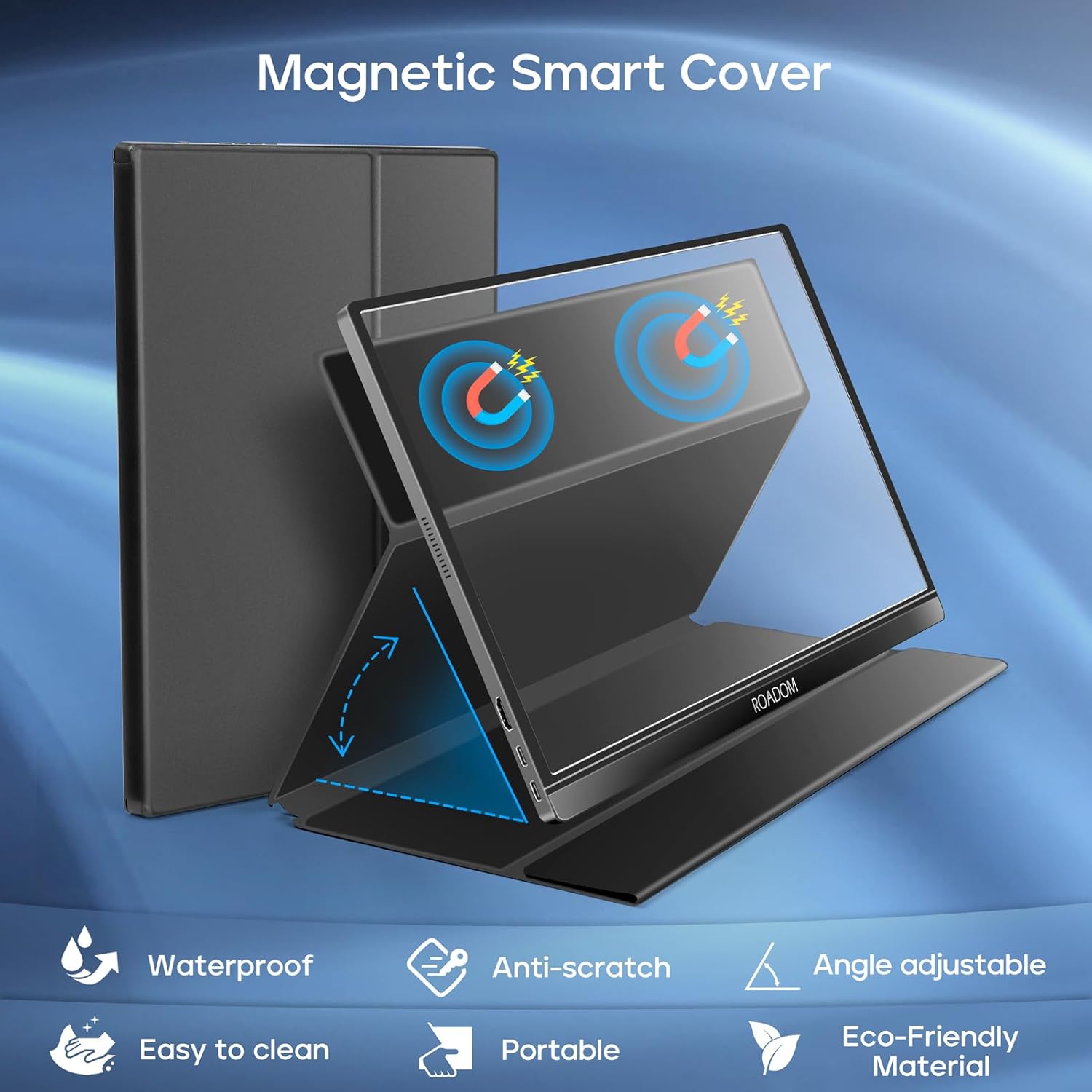
છબી 2.2: The magnetic smart cover in use, demonstrating its dual function as a protective case and an adjustable stand, allowing for versatile placement of the monitor.
3. ઓપરેટિંગ સૂચનાઓ
3.1 પાવર ચાલુ/બંધ
Press the power button located on the side of the monitor to turn it on or off.
૪.૧ ઓન-સ્ક્રીન ડિસ્પ્લે (OSD) મેનુ
The monitor features an OSD menu for adjusting various settings. Use the control buttons on the side of the monitor to navigate and select options.
- મેનુ બટન: OSD મેનુ ખોલવા માટે દબાવો.
- ઉપર/નીચે બટનો: મેનુ વિકલ્પો મારફતે નેવિગેટ કરો.
- બટન દાખલ કરો: કોઈ વિકલ્પ પસંદ કરો અથવા સેટિંગની પુષ્ટિ કરો.
- બહાર નીકળો બટન: Go back or exit the menu.
ઝડપી ટીપ: Some buttons may have shortcuts. For example, one button might directly adjust brightness, and another might adjust volume.
3.3 ડિસ્પ્લે મોડ્સ
The monitor supports multiple display modes to suit your needs:
- ડુપ્લિકેટ મોડ: Mirrors your primary screen, ideal for presentations or sharing content.
- એક્સ્ટેન્ડ મોડ: Extends your desktop, providing more screen real estate for multitasking.
- Second Screen Mode: Uses only the portable monitor as the display.
- લેન્ડસ્કેપ મોડ: Standard horizontal orientation.
- પોટ્રેટ મોડ: Vertical orientation, useful for coding, document viewing, or specific applications.
To switch between landscape and portrait modes, you may need to adjust settings on your connected device's operating system (e.g., Display Settings on Windows, System Preferences on macOS).
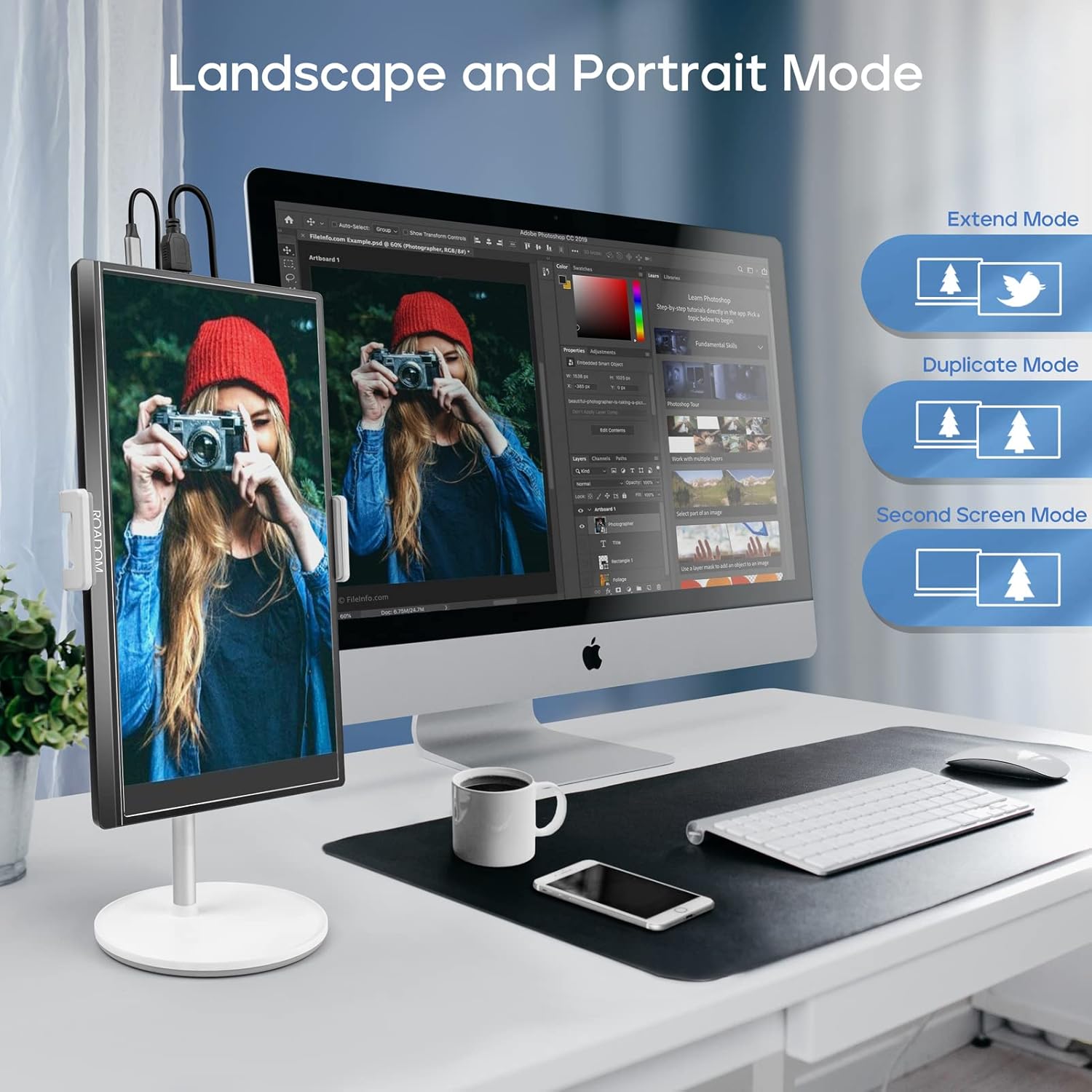
છબી 3.1: The monitor configured in both landscape and portrait orientations, demonstrating its flexibility for different work and viewing scenarios, including extend and duplicate display modes.
3.4 ઓડિયો સેટિંગ્સ
The monitor has built-in dual speakers. You can adjust the volume through the OSD menu or via quick access buttons. For private listening, connect headphones to the 3.5mm audio port.
૩.૪ આંખની સંભાળની સુવિધાઓ
The monitor incorporates flicker-free technology and a blue light filter to reduce eye strain during prolonged use. These settings can be adjusted in the OSD menu.
4. જાળવણી
Proper care and maintenance will ensure the longevity and optimal performance of your ROADOM Portable Monitor.
૮.૧ સ્ક્રીન સાફ કરવી
- Always turn off the monitor and disconnect it from power before cleaning.
- નરમ, લિન્ટ-ફ્રી કાપડનો ઉપયોગ કરો, સહેજ ડીampપાણી અથવા ઘર્ષણ વિનાના સ્ક્રીન ક્લીનરથી ધોઈ લો.
- Wipe the screen gently. Avoid applying excessive pressure.
- Do not use alcohol, ammonia-based cleaners, or abrasive materials, as these can damage the screen surface.
.4.2.૧ સામાન્ય કાળજી
- Avoid exposing the monitor to extreme temperatures, direct sunlight, or high humidity.
- Keep the monitor away from liquids and dust.
- Use the protective smart cover when transporting the monitor to prevent scratches and damage.
- Handle the monitor by its edges; avoid touching the screen directly.
5. મુશ્કેલીનિવારણ
જો તમને તમારા મોનિટરમાં કોઈ સમસ્યા આવે, તો નીચેની સામાન્ય સમસ્યાઓ અને ઉકેલોનો સંદર્ભ લો.
5.1 No Signal / Black Screen
- કેબલ્સ તપાસો: Ensure all video (USB-C or HDMI) and power cables are securely connected to both the monitor and the source device.
- પાવર સ્ત્રોત: Verify the monitor is receiving adequate power. If using a single USB-C cable for power and video, ensure your device supports sufficient power output. Try connecting the monitor to its dedicated power adapter.
- ઇનપુટ સ્ત્રોત: Use the OSD menu to manually select the correct input source (USB-C or HDMI).
- Device Output: Confirm your source device (laptop, phone, console) is configured to output video to an external display. Try restarting the source device.
5.2 Display Flickering or "Blips"
- કેબલ ગુણવત્તા: Ensure you are using the provided high-quality cables. Faulty or low-quality cables can cause signal instability.
- પાવર સ્થિરતા: Inconsistent power supply can cause flickering. Ensure the monitor is connected to a stable power source.
- તાજું દર: Check the display settings on your source device to ensure the refresh rate is compatible with the monitor (60Hz).
5.3 Settings Not Saving
- After making changes in the OSD menu, ensure you select "Save" or "Exit" properly if prompted.
- Some settings, particularly brightness, might reset upon power cycle depending on the power source and device connection. This is sometimes expected behavior for portable monitors.
5.4 No Audio from Speakers
- વોલ્યુમ સ્તર: Check the volume setting in the monitor's OSD menu and on your source device.
- ઓડિયો આઉટપુટ: Ensure your source device is configured to output audio to the external monitor.
- હેડફોન: If headphones are plugged into the 3.5mm jack, the built-in speakers will be muted.
6. સ્પષ્ટીકરણો
| બ્રાન્ડ | રોડમ |
| મોડલ નંબર | Z1-5S |
| સ્ક્રીન માપ | 15.6 ઇંચ |
| ડિસ્પ્લે રિઝોલ્યુશન | ૧૯૨૦ x ૧૦૮૦ પિક્સેલ્સ (FHD ૧૦૮૦p) |
| પેનલ પ્રકાર | આઈપીએસ |
| પાસા રેશિયો | 16:9 |
| તાજું દર | 60 હર્ટ્ઝ |
| પ્રતિભાવ સમય | 1 મિલીસેકન્ડ |
| છબી વિરોધાભાસ ગુણોત્તર | 1000:1 |
| તેજ | ૨૫૦ સીડી/મીટર² (નિટ્સ) |
| કનેક્ટિવિટી | 2x USB-C (Full-featured), 1x Mini HDMI, 1x 3.5mm Audio Jack |
| ખાસ લક્ષણો | Blue Light Filter, Built-In Speakers, Flicker-Free, Portable, HDR |
| ઉત્પાદન પરિમાણો | 0.89 x 36.83 x 22.35 સેમી |
| વસ્તુનું વજન | ૭૯૮.૩૨ ગ્રામ (આશરે ૧.૭૬ પાઉન્ડ) |
7. વોરંટી અને સપોર્ટ
For warranty information and technical support, please refer to the warranty card included in your product packaging or visit the official ROADOM website. If you have any questions or require assistance, please contact ROADOM customer service.


