1. પરિચય
This manual provides essential instructions for the setup, operation, maintenance, and troubleshooting of your Epson EcoTank L3251 printer. The L3251 is an A4 color 3-in-1 printer designed for home use, offering print, scan, and copy functionalities with Wi-Fi and Smart Panel App connectivity.

છબી 1.1: આગળ view of the Epson EcoTank L3251 printer, showing paper tray and ink tanks.
2. પ્રારંભિક સેટઅપ
Follow these steps to set up your printer for the first time.
2.1 અનપેકિંગ અને પ્લેસમેન્ટ
- પ્રિન્ટરમાંથી બધી પેકેજિંગ સામગ્રી, ટેપ અને રક્ષણાત્મક ફિલ્મો દૂર કરો.
- પ્રિન્ટરને સ્થિર, સપાટ સપાટી પર મૂકો જેમાં તેની આસપાસ કામગીરી અને વેન્ટિલેશન માટે પૂરતી જગ્યા હોય.
- Ensure the power cable can reach an electrical outlet without strain.
૨.૨ શાહી ટાંકીઓ ભરવા
The EcoTank L3251 uses refillable ink tanks. Use only genuine Epson ink bottles for optimal performance and to avoid damage.
- પ્રિન્ટરની બાજુમાં આવેલ શાહી ટાંકી યુનિટ કવર ખોલો.
- શાહીની બોટલનું ટોપીનું ટોપીનું ટોપી રંગ (કાળો, વાદળી, મજેન્ટા, પીળો) મુજબ ઢાંકણ ખોલો.
- Insert the ink bottle into the correct tank opening. The bottles are designed to prevent incorrect filling.
- Allow the ink to drain completely into the tank. Do not squeeze the bottle.
- Remove the empty bottle and recap the tank.
- બધા રંગો માટે પુનરાવર્તન કરો.
- શાહી ટાંકી યુનિટ કવર બંધ કરો.

Image 2.1: Illustration of refilling an ink tank on the Epson EcoTank L3251 printer.
2.3 Power On and Initial Ink Charge
- પાવર કોર્ડને પ્રિન્ટર સાથે અને પછી પાવર આઉટલેટ સાથે જોડો.
- પ્રિન્ટર ચાલુ કરવા માટે પાવર બટન દબાવો.
- Follow the on-screen instructions (if applicable) or refer to the quick start guide for initiating the initial ink charge. This process primes the print head and can take several minutes. Do not turn off the printer during this process.
૩.૫ સોફ્ટવેર ઇન્સ્ટોલેશન અને કનેક્ટિવિટી
To use all printer functions, install the necessary software and drivers on your computer or smart device.
- કમ્પ્યુટર્સ માટે: Insert the provided installation CD or download the latest drivers from the official Epson website. Follow the on-screen instructions to install.
- Wi-Fi સેટઅપ: The printer supports Wi-Fi and Wi-Fi Direct. Use the Epson Smart Panel app for easy wireless setup from your smart device.
- Epson Smart Panel App: Download the Epson Smart Panel app from your device's app store (e.g., Google Play Store for Android). This app allows wireless setup, monitoring, and printing from your smartphone or tablet.

Image 2.2: Icon representing the Epson Smart Panel App for mobile device connectivity.
3. ઓપરેટિંગ સૂચનાઓ
3.1 પેપર લોડ કરી રહ્યું છે
- પેપર સપોર્ટ ખોલો અને એક્સટેન્શન બહાર કાઢો.
- ધાર માર્ગદર્શિકાઓને તમારા કાગળની પહોળાઈ પર સ્લાઇડ કરો.
- પાછળના પેપર ફીડ સ્લોટમાં કાગળ લોડ કરો, બાજુ ઉપર છાપો.
- Adjust the edge guides against the paper.
- The maximum sheet capacity is 100 sheets of plain paper.
3.2 પ્રિન્ટીંગ
- કમ્પ્યુટરથી: Select "Print" from your application. Choose the Epson EcoTank L3251 as your printer. Adjust print settings (paper size, quality, color/black & white) as needed. Click "Print".
- From a Smart Device (Epson Smart Panel App): Open the app, select the document or photo you wish to print, choose printer settings, and initiate printing.
- Wi-Fi Direct Printing: Connect your device directly to the printer's Wi-Fi Direct network (SSID and password can be found on the printer's network status sheet).
3.3 સ્કેનિંગ
- દસ્તાવેજને સ્કેનર ગ્લાસ પર નીચેની તરફ મૂકો, તેને ખૂણાના ચિહ્ન સાથે ગોઠવો.
- સ્કેનરનું ઢાંકણ હળવેથી બંધ કરો.
- કમ્પ્યુટરથી: Use the Epson Scan software or your operating system's scanning utility. Select scan settings (resolution, color/grayscale, destination) and start the scan.
- From a Smart Device (Epson Smart Panel App): Use the app's scan function to scan documents directly to your device.
૬.૩ નકલ કરવી
- દસ્તાવેજને સ્કેનર ગ્લાસ પર નીચે તરફ રાખો.
- Press the Black & White copy button or the Color copy button on the printer's control panel.
- For multiple copies or advanced settings, use the Epson Smart Panel app or refer to the full user guide.
4. જાળવણી
નિયમિત જાળવણી તમારા પ્રિન્ટરની શ્રેષ્ઠ કામગીરી અને આયુષ્ય સુનિશ્ચિત કરે છે.
4.1 Checking Ink Levels and Refilling
- Visually inspect the ink tanks on the front of the printer to monitor ink levels.
- Refill tanks when ink levels approach the lower line, following the procedure in Section 2.2.
- The printer includes enough ink for approximately 8,100 black pages and 6,500 color pages.

Image 4.1: Epson EcoTank L3251 printer with included ink bottles.
૪.૨ પ્રિન્ટ હેડ ક્લીનિંગ
જો પ્રિન્ટ ગુણવત્તામાં ઘટાડો થાય (દા.ત., ખૂટતી રેખાઓ, ખોટા રંગો), તો પ્રિન્ટ હેડની સફાઈ કરો.
- From your computer's printer utility or the Epson Smart Panel app, select "Print Head Cleaning".
- Follow the on-screen instructions. This process uses a small amount of ink.
- સફાઈ કર્યા પછી, સુધારો ચકાસવા માટે નોઝલ ચેક પેટર્ન છાપો. જો જરૂરી હોય તો પુનરાવર્તન કરો.
૪.૩ નોઝલ ચેક
Perform a nozzle check to determine if the print head nozzles are clogged. This can be done via the printer utility on your computer or the Epson Smart Panel app.
4.4 સામાન્ય સફાઈ
- પ્રિન્ટરના બાહ્ય ભાગને સોફ્ટ, ડી વડે સાફ કરોamp કાપડ
- Clean the scanner glass regularly with a lint-free cloth and glass cleaner.
- ઘર્ષક ક્લીનર્સ અથવા સોલવન્ટ્સનો ઉપયોગ કરવાનું ટાળો.
5. મુશ્કેલીનિવારણ
This section addresses common issues you might encounter with your Epson EcoTank L3251 printer.
૬.૧ પ્રિન્ટર જવાબ આપી રહ્યું નથી
- Ensure the printer is powered on and connected to the computer or Wi-Fi network.
- Check for any error messages on the printer's control panel or in the Epson Smart Panel app.
- પ્રિન્ટર અને તમારા કમ્પ્યુટર/સ્માર્ટ ડિવાઇસને ફરીથી શરૂ કરો.
- Verify that the correct printer is selected in your application's print dialog.
૫.૩ નબળી પ્રિન્ટ ગુણવત્તા
- Perform a nozzle check (Section 4.3) and clean the print head if necessary (Section 4.2).
- શાહીનું સ્તર તપાસો અને કોઈપણ ઓછી ટાંકીઓ ફરીથી ભરો.
- ખાતરી કરો કે તમે તમારી પ્રિન્ટ સેટિંગ્સ માટે યોગ્ય કાગળનો ઉપયોગ કરી રહ્યા છો.
- Verify that the print quality settings in your printer driver are set correctly.
5.3 Paper Feed Issues
- Ensure paper is loaded correctly and the edge guides are adjusted.
- Remove any jammed paper carefully, following instructions in the full user guide.
- કાગળની ટ્રે વધુ પડતી ભરવાનું ટાળો.
- If paper feeding issues persist after extensive use, the paper pickup roller may require cleaning or replacement.
5.4 Slow Printing Speed
- Printing at high quality or on special media (e.g., glossy photo paper) will naturally take longer.
- For faster printing, select "Standard" or "Draft" quality settings in your printer driver.
- Ensure your computer meets the minimum system requirements for printing.
6. સ્પષ્ટીકરણો
| મોડેલનું નામ | એલ3251 |
| કાર્યો | પ્રિન્ટ, સ્કેન, કોપી (3-ઇન-1) |
| પ્રિન્ટર ટેકનોલોજી | Inkjet (EcoTank) |
| મહત્તમ પ્રિન્ટ રિઝોલ્યુશન (રંગ) | 1200 ડીપીઆઈ |
| મહત્તમ પ્રિન્ટ રિઝોલ્યુશન (કાળો અને સફેદ) | 1200 ડીપીઆઈ |
| મહત્તમ પ્રિન્ટ ઝડપ (રંગ) | 10 પૃષ્ઠ પ્રતિ મિનિટ (ppm) |
| Maximum Print Speed (Black & White) | 14 પૃષ્ઠ પ્રતિ મિનિટ (ppm) |
| સ્કેનર પ્રકાર | ફ્લેટબેડ |
| મહત્તમ મીડિયા કદ | A4 |
| Paper Size Support | A4 |
| મહત્તમ શીટ ક્ષમતા | 100 sheets (plain paper) |
| કનેક્ટિવિટી ટેકનોલોજી | વાઇ-ફાઇ, વાઇ-ફાઇ ડાયરેક્ટ |
| સુસંગત ઉપકરણો | સ્માર્ટફોન, ટેબ્લેટ, કમ્પ્યુટર |
| નિયંત્રક પ્રકાર | Android (via Smart Panel App) |
| આઇટમના પરિમાણો (D x W x H) | 50D x 25W x 41H સેન્ટિમીટર |
| વસ્તુનું વજન | 5.83 કિલોગ્રામ |
| સમાવાયેલ ઘટકો | શાહી બોટલ |
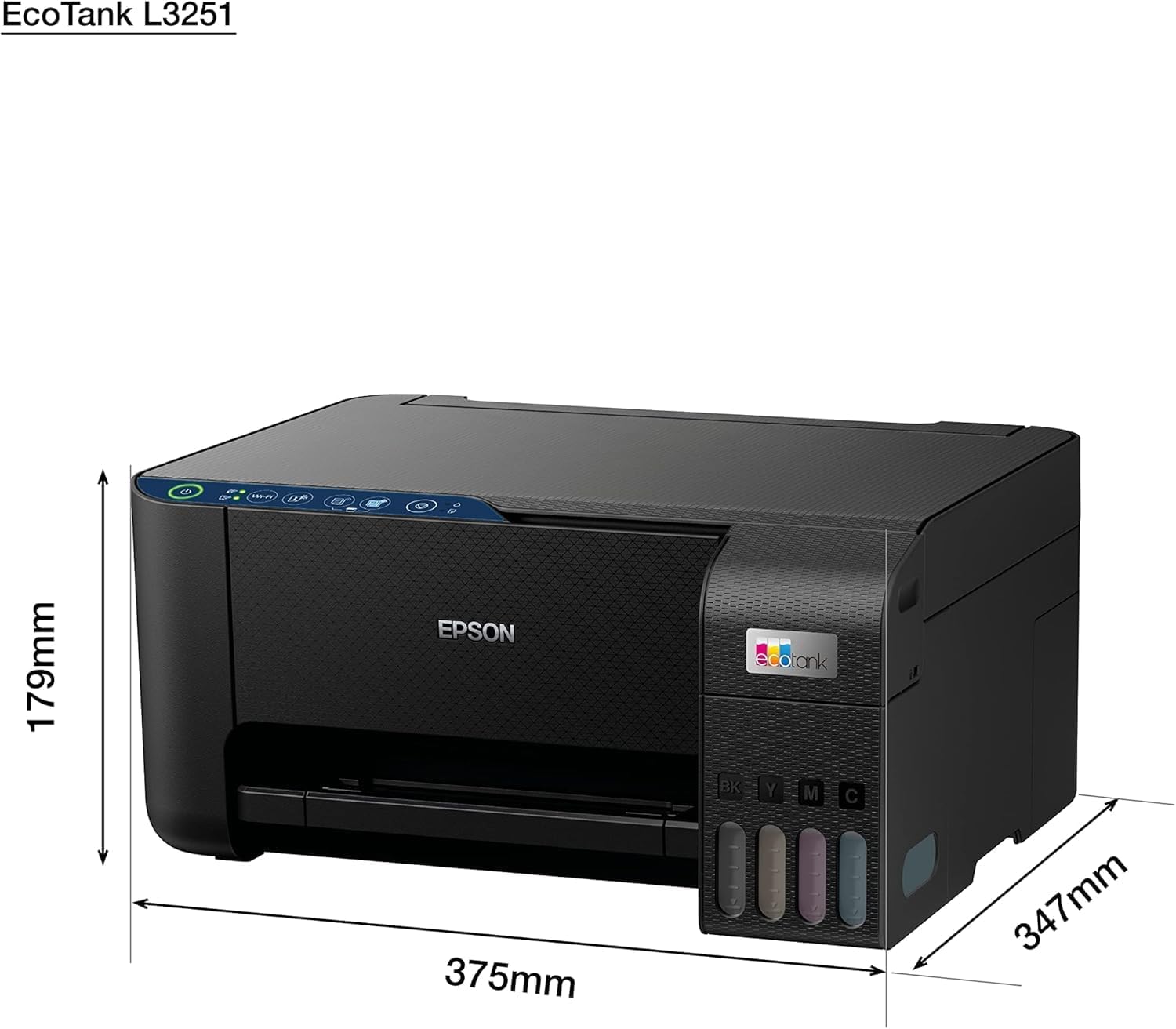
Image 6.1: Diagram showing the dimensions of the Epson EcoTank L3251 printer.
7. વોરંટી અને સપોર્ટ
૧.૨ પ્રોડક્ટની વોરંટી
The Epson EcoTank L3251 printer comes with a standard warranty. You can enjoy an additional 2 years of extended warranty by registering your printer on the official Epson website after purchase. Please refer to the warranty documentation included with your product for specific terms and conditions.
7.2 ગ્રાહક સપોર્ટ
વધુ સહાય, ટેકનિકલ સપોર્ટ, અથવા નવીનતમ ડ્રાઇવરો અને સોફ્ટવેર ડાઉનલોડ કરવા માટે, કૃપા કરીને સત્તાવાર એપ્સન સપોર્ટની મુલાકાત લો. website. You can also find detailed FAQs and troubleshooting guides there.


