1. પરિચય
This manual provides essential instructions for the safe and efficient operation of your RONGTA SE4770 Rugged PDA Barcode Scanner. This device is a high-performance mobile handheld terminal designed for various applications including retail, warehouse management, logistics, and inventory control. It combines the functionality of an Android 11 smartphone with an integrated Zebra SE4770 barcode scanner, offering robust performance and durability.
Please read this manual thoroughly before using the device and retain it for future reference.
2. ઉત્પાદન ઓવરview
૨.૧ ઉપકરણ ઘટકો
The RONGTA SE4770 features a rugged design with a 6-inch HD touch screen and an integrated barcode scanner. Key components include:
- ફ્રન્ટ ડિસ્પ્લે: 6-inch FHD+ 1080P HD screen for clear visual interaction.
- રીઅર પેનલ: Integrated Zebra SE4770 barcode scanner, camera, and battery compartment.
- બાજુના બટનો: Power button, volume controls, and dedicated scan buttons.
- બંદરો: ચાર્જિંગ અને ડેટા ટ્રાન્સફર માટે USB-C પોર્ટ.

આકૃતિ ૩.૧: આગળ અને પાછળ view of the RONGTA SE4770 PDA Barcode Scanner, showing the display and rear scanner module.
2.2 મુખ્ય લક્ષણો
- ઓપરેટિંગ સિસ્ટમ: Android 11 for a familiar and versatile user experience.
- પ્રોસેસર: Octa-core 2.0GHz CPU for high performance and stability.
- મેમરી અને સ્ટોરેજ: 4GB RAM + 64GB ROM, expandable via microSD card (not included).
- પ્રદર્શન: 6-inch FHD+ (1080P) HD touch screen, visible in strong outdoor light, supports multi-touch with gloves or wet hands.
- બારકોડ સ્કેનર: Integrated Zebra SE4770 for fast and accurate scanning of 1D, 2D, and QR barcodes, even if blurred, dirty, or worn.
- ટકાઉપણું: IP68 rated for water and dust resistance, and 1.5m drop resistance.
- બેટરી: 5000mAh large capacity battery with QC3.0 18W fast charging. Features a SuperCap power change solution for seamless battery swaps without shutdown.
- કનેક્ટિવિટી: 2.4G/5G Dual-band Wi-Fi, 4G Full Network support, and Bluetooth 5.1.
- કેમેરા: 1600W+500W Pixel Camera (details on usage in Operating Instructions).
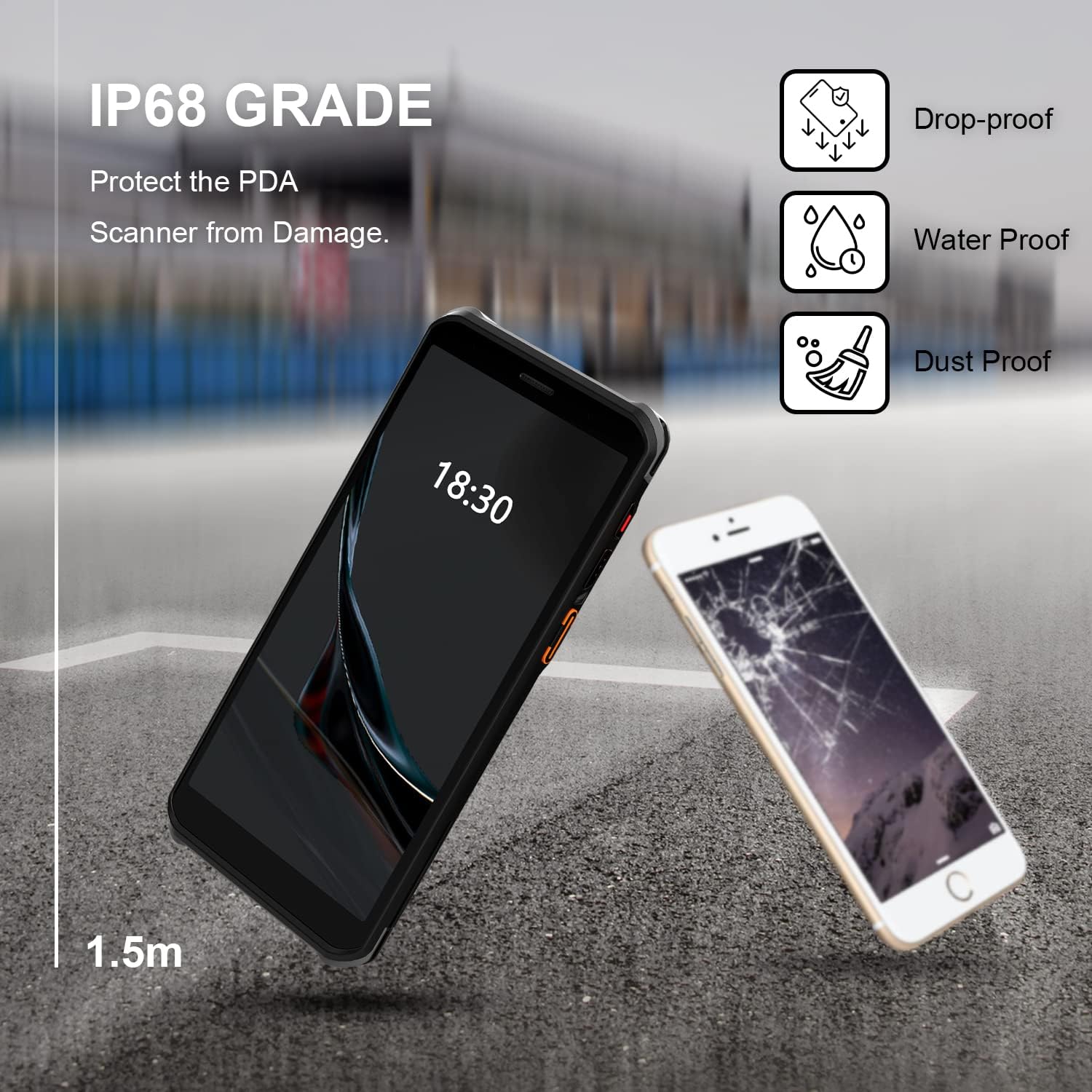
Figure 2.2: The RONGTA SE4770 PDA is designed with IP68 water and dust resistance and 1.5m drop protection, ensuring durability in demanding environments.

Figure 2.3: The device supports 2.4G/5G Dual-band WIFI and Bluetooth 5.1 for reliable wireless connectivity.
3. સેટઅપ
૧.૧ અનબોક્સિંગ અને પ્રારંભિક નિરીક્ષણ
Carefully remove all components from the packaging. Verify that all items are present and undamaged. The package should include the RONGTA SE4770 PDA, a USB-C cable, a power adapter, and a hand-strap belt.
૫.૧ બેટરી ઇન્સ્ટોલેશન અને ચાર્જિંગ
- ઉપકરણના પાછળના ભાગમાં બેટરી કમ્પાર્ટમેન્ટ શોધો.
- If the battery is not pre-installed, insert the 5000mAh Lithium-Ion battery, ensuring correct orientation.
- બેટરીના ડબ્બાને સુરક્ષિત રીતે બંધ કરો.
- Connect the USB-C cable to the device's charging port and the other end to the power adapter. Plug the adapter into a power outlet.
- Allow the device to charge fully before first use. The 18W fast charging feature will expedite this process.

Figure 3.1: The device charging, indicating battery status.
3.3 પાવરિંગ ચાલુ/બંધ
- પાવર ચાલુ કરવા માટે: Press and hold the Power button on the side of the device until the RONGTA logo appears on the screen.
- પાવર ઓફ કરવા માટે: Press and hold the Power button until the power options menu appears. Select 'Power Off'.
- પુનઃપ્રારંભ કરવા માટે: Press and hold the Power button until the power options menu appears. Select 'Restart'.
3.4 Initial Android Setup
Upon first power-on, follow the on-screen prompts to complete the initial Android 11 setup. This typically includes selecting your language, connecting to a Wi-Fi network, setting up a Google account (optional), and configuring security settings.
4. ઓપરેટિંગ સૂચનાઓ
4.1 બારકોડ સ્કેનરનો ઉપયોગ કરવો
The RONGTA SE4770 is equipped with a high-performance Zebra SE4770 scanner capable of reading various 1D, 2D, and QR barcodes.
- Open an application that requires barcode input (e.g., inventory management software, POS application).
- Point the scanner window, located on the top rear of the device, towards the barcode.
- Press one of the dedicated scan buttons on the side of the device. A red aiming beam will appear.
- Align the aiming beam with the center of the barcode. The device will emit a beep or vibrate upon successful scan, and the data will be entered into the active field of your application.

Figure 4.1: A user scanning a package barcode using the RONGTA SE4770 PDA.

Figure 4.2: The SE4770 Zebra scanner in use, demonstrating fast and accurate scanning in a warehouse environment.
4.2 Navigating Android 11
The device operates on Android 11, providing a familiar interface. Use touch gestures to navigate:
- ટૅપ કરો: કોઈ વસ્તુ પસંદ કરવા અથવા એપ્લિકેશન ખોલવા માટે.
- સ્વાઇપ કરો: To scroll through lists or switch between home screens.
- ઝૂમ કરવા માટે પિંચ કરો: છબીઓને ઝૂમ ઇન અથવા આઉટ કરવા માટે અને web પૃષ્ઠો
- સૂચનાઓ: સૂચનાઓ અને ઝડપી સેટિંગ્સને ઍક્સેસ કરવા માટે સ્ક્રીનની ટોચ પરથી નીચે સ્વાઇપ કરો.
4.3 કનેક્ટિવિટી
આ ઉપકરણ વિવિધ કનેક્ટિવિટી વિકલ્પોને સપોર્ટ કરે છે:
- Wi-Fi: Go to Settings > Network & internet > Wi-Fi to connect to available wireless networks. Supports 2.4GHz and 5GHz bands.
- બ્લૂટૂથ: Go to Settings > Connected devices > Connection preferences > Bluetooth to pair with Bluetooth-enabled devices like headsets or printers.
- મોબાઇલ ડેટા (4G): If equipped with a SIM card slot (check device specifications), insert a compatible SIM card to access mobile data.
૩.૩ કેમેરાનો ઉપયોગ
The device includes a camera for capturing images or videos. Open the Camera application from the home screen or app drawer. Tap the screen to focus and press the shutter button to take a photo or start/stop video recording.
5. જાળવણી
5.1 ઉપકરણની સફાઈ
શ્રેષ્ઠ કામગીરી અને દેખાવ જાળવવા માટે:
- Wipe the screen and device body with a soft, lint-free cloth.
- હઠીલા ડાઘ માટે, સહેજ ડીampપાણી અથવા સ્ક્રીન ક્લીનરથી કાપડને સાફ કરો. કઠોર રસાયણો અથવા ઘર્ષક પદાર્થો ટાળો.
- Ensure the scanner window is clean and free of dust or debris for accurate scanning.
5.2 બેટરી કેર
Proper battery care extends the lifespan of your device:
- Charge the battery regularly using the provided charger.
- વારંવાર બેટરી સંપૂર્ણપણે ડિસ્ચાર્જ કરવાનું ટાળો.
- If storing the device for an extended period, charge the battery to approximately 50% and store in a cool, dry place.
- The SuperCap power change solution allows for hot-swapping batteries without device shutdown, ensuring continuous operation.
5.3 સોફ્ટવેર અપડેટ્સ
Periodically check for software updates to ensure your device has the latest features and security patches. Go to Settings > System > System update.
6. મુશ્કેલીનિવારણ
This section addresses common issues you might encounter with your RONGTA SE4770 PDA.
| સમસ્યા | સંભવિત કારણ | ઉકેલ |
|---|---|---|
| ઉપકરણ પાવર ચાલુ કરતું નથી | Low or depleted battery; device malfunction. | Charge the device for at least 30 minutes. If it still doesn't power on, contact support. |
| Scanner not reading barcodes | Dirty scanner window; incorrect aiming; unsupported barcode type; application issue. | Clean the scanner window. Ensure the aiming beam covers the entire barcode. Verify the barcode type is supported. Restart the scanning application or the device. |
| વાઇ-ફાઇ/બ્લુટુથ કનેક્ટિવિટી સમસ્યાઓ | Out of range; incorrect password; interference. | Move closer to the Wi-Fi router or Bluetooth device. Re-enter the password. Restart Wi-Fi/Bluetooth on the device. |
| Device is slow or unresponsive | Too many applications running; low storage; software glitch. | Close unnecessary applications. Clear cache. Restart the device. Consider a factory reset if issues persist (backup data first). |
7. સ્પષ્ટીકરણો
Detailed technical specifications for the RONGTA SE4770 PDA Barcode Scanner:
- ઉત્પાદન પરિમાણો: 3.03 x 0.51 x 6.41 ઇંચ
- વસ્તુનું વજન: 10.6 ઔંસ
- બેટરી: 1 લિથિયમ આયન બેટરી જરૂરી છે (સમાવેલ)
- પાવર સ્ત્રોત: બેટરી સંચાલિત
- ઉત્પાદક: રોંગટા
- સુસંગત ઉપકરણો: Desktop, Laptop, Smartphone (for data transfer/management)
- કનેક્ટિવિટી ટેકનોલોજી: Bluetooth, Wi-Fi (2.4G/5G Dual-band), 4G
- ઓપરેટિંગ સિસ્ટમ: એન્ડ્રોઇડ 11
- પ્રોસેસર: ઓક્ટા-કોર 2.0GHz
- મેમરી: 4GB રેમ
- સંગ્રહ: 64GB ROM
- સ્ક્રીનનું કદ: 6 inches FHD+ (1080P) HD Touch Screen
- સ્કેનર: Zebra SE4770 (1D, 2D, QR)
- ટકાઉપણું: IP68 Water and Dust Resistant, 1.5m Drop Protection
- બેટરી ક્ષમતા: 5000mAh
- ચાર્જિંગ: QC3.0 18W Fast Charge
8. વોરંટી અને સપોર્ટ
For warranty information and technical support, please refer to the documentation included with your purchase or visit the official RONGTA website. If you encounter any issues not covered in this manual, please contact RONGTA customer service for assistance.


