1. પરિચય
This manual provides comprehensive instructions for the setup, operation, and maintenance of your Xprinter XP-Q801K Thermal Receipt Printer. This printer is designed for efficient and reliable receipt printing in various business environments, featuring high-speed direct thermal printing and a USB interface for easy connectivity.

આકૃતિ 1: ફ્રન્ટ view of the Xprinter XP-Q801K Thermal Receipt Printer, showing the paper output slot and control buttons.
2. સેટઅપ
2.1 અનપેકિંગ
Carefully remove the printer and all accessories from the packaging. Verify that all components are present:
- Xprinter XP-Q801K Thermal Receipt Printer
- પાવર એડેપ્ટર
- યુએસબી કેબલ
- Paper Roll (starter)
- વપરાશકર્તા માર્ગદર્શિકા (આ દસ્તાવેજ)
2.2 પ્રિન્ટરને કનેક્ટ કરી રહ્યું છે
Before connecting, ensure the printer is powered off. Locate the ports on the rear of the printer.
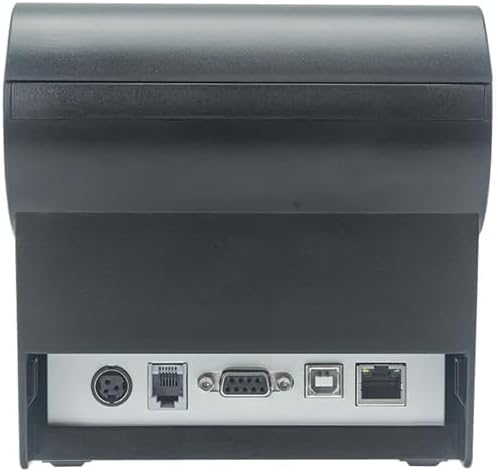
આકૃતિ 2: પાછળ view of the printer, highlighting the power, USB, and other interface ports.
- પાવર કનેક્ટ કરો: Insert the power adapter cable into the printer's power input port (DC 24V/2.5A) and plug the adapter into a suitable electrical outlet (AC 100-240V, 50-60Hz).
- યુએસબી કનેક્ટ કરો: Connect one end of the provided USB cable to the USB port on the printer and the other end to an available USB port on your computer.
- Cash Drawer (Optional): If using a cash drawer, connect its cable to the cash drawer port (DC 24V/1A) on the printer.
2.3 Loading the Paper Roll
The printer uses 80mm wide thermal paper rolls.
- Open the paper cover by pushing the cover open button (usually located on the side or front).
- Insert the thermal paper roll with the printing surface facing the print head. Ensure the roll is seated correctly in the paper compartment.
- કટરની પાછળથી થોડો કાગળ બહાર કાઢો.
- કાગળનું કવર જ્યાં સુધી તે જગ્યાએ ન આવે ત્યાં સુધી તેને મજબૂતીથી બંધ કરો.
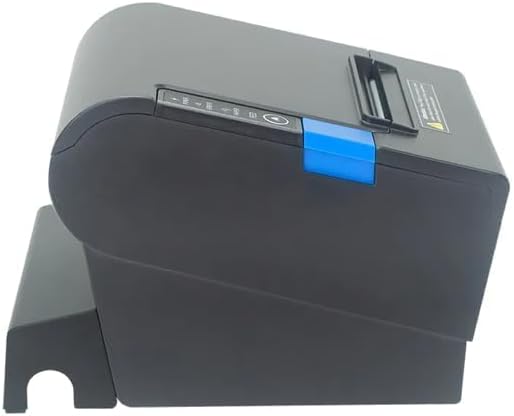
આકૃતિ 3: બાજુ view of the printer, illustrating the paper cover mechanism.
2.4 ડ્રાઇવર ઇન્સ્ટોલેશન
The printer requires a driver to communicate with your computer. Drivers are typically available for Windows, Linux, Android, and Mac operating systems.
- For Windows users, the printer often supports plug-and-play installation or requires a specific Windows driver.
- For Linux, Android, and Mac, SDKs (Software Development Kits) are usually provided for integration.
ઉત્પાદકનો સંદર્ભ લો website or the included driver CD/USB drive for the latest drivers and installation instructions specific to your operating system.
૩. પ્રિન્ટરનું સંચાલન
3.1 પાવરિંગ ચાલુ/બંધ
Locate the power switch on the side or rear of the printer. Flip the switch to the 'ON' position to power on the printer. The 'POWER' indicator light will illuminate. Flip to 'OFF' to power down.
3.2 Indicator Lights and Buttons
The front panel typically features several indicator lights and buttons:
- પાવર: Indicates the printer is powered on.
- ભૂલ: Illuminates or flashes to indicate an error condition (e.g., paper out, print head overheating, cutter error).
- પેપર: Indicates that the paper roll is low or out.
- ફીડ બટન: Press to manually feed paper. Hold to perform a self-test print (if supported by model).
3.3 મૂળભૂત છાપકામ
Once the printer is connected and drivers are installed, you can print receipts from your POS software or application. Ensure the printer is selected as the default or active printer in your system settings.
The printer supports various print speeds up to 300 mm/s and automatic paper cutting after each print job.
4. જાળવણી
નિયમિત જાળવણી શ્રેષ્ઠ કામગીરી સુનિશ્ચિત કરે છે અને તમારા પ્રિન્ટરનું આયુષ્ય વધારે છે.
૫.૧ પ્રિન્ટ હેડ સાફ કરવું
The print head should be cleaned regularly, especially if print quality degrades.
- Turn off the printer and disconnect the power cable.
- પેપર કવર ખોલો.
- કપાસના સ્વેબનો હળવા હાથે ઉપયોગ કરો dampened with isopropyl alcohol (ethanol) to gently wipe the thermal elements of the print head.
- Allow the print head to dry completely before closing the cover and reconnecting power.
4.2 Cleaning the Cutter
Paper dust can accumulate around the cutter blade, affecting its performance.
- Turn off the printer and disconnect the power cable.
- Carefully remove any visible paper dust or debris from around the cutter blade using a soft brush or compressed air.
- Do not use liquids on the cutter.
4.3 સામાન્ય સફાઈ
પ્રિન્ટરના બાહ્ય ભાગને સોફ્ટ, ડી વડે સાફ કરોamp કાપડ કઠોર રસાયણો અથવા ઘર્ષક ક્લીનર્સનો ઉપયોગ કરવાનું ટાળો.
5. મુશ્કેલીનિવારણ
આ વિભાગ તમારા પ્રિન્ટરમાં આવતી સામાન્ય સમસ્યાઓને સંબોધિત કરે છે.
| સમસ્યા | સંભવિત કારણ | ઉકેલ |
|---|---|---|
| પ્રિન્ટર ચાલુ થતું નથી. | Power cable not connected; Power outlet faulty; Power switch off. | Ensure power cable is securely connected. Test power outlet. Turn power switch to 'ON'. |
| No printing. | Paper out; Paper loaded incorrectly; Driver not installed or incorrect; USB cable loose; Printer not selected. | Load new paper roll. Re-load paper correctly. Install/reinstall correct driver. Check USB connection. Select printer in software. |
| ERROR light is on/flashing. | Paper out; Paper jam; Print head overheating; Cutter error. | Load paper. Clear paper jam. Allow printer to cool down. Check cutter for obstructions. |
| નબળી પ્રિન્ટ ગુણવત્તા. | Dirty print head; Low quality paper; Old paper roll. | Clean the print head (see Section 4.1). Use high-quality thermal paper. Replace old paper rolls. |
જો આ ઉકેલો અજમાવવા પછી પણ સમસ્યા ચાલુ રહે, તો કૃપા કરીને ગ્રાહક સપોર્ટનો સંપર્ક કરો.
6. સ્પષ્ટીકરણો
| લક્ષણ | વિગત |
|---|---|
| પ્રિન્ટીંગ પદ્ધતિ | ડાયરેક્ટ થર્મલ |
| કાગળની પહોળાઈ | 80 મીમી |
| પ્રિન્ટ ઝડપ | 230 mm/s, 260 mm/s, 300 mm/s |
| ઈન્ટરફેસ | યુએસબી |
| રેખા અંતર | 3.75 mm (adjustable by commands) |
| Character Size (ANK) | Font A: 1.5 × 3.0 mm (12 × 24 dots) Font B: 1.1 × 2.1 mm (9 × 17 dots) |
| Character Size (Chinese/Traditional Chinese) | 3.0 × 3.0 mm (24 × 24 dots) |
| બારકોડ પ્રકારો | UPC-A / UPC-E / JAN13 (EAN13) / JAN8 (EAN8) / CODE39 / ITF / CODABAR / CODE93 / CODE128 |
| 2D બારકોડ | QR Code / PDF417 |
| NV Flash Memory | 256 KB |
| ઇનપુટ પાવર | એસી 100-240 વી, 50-60 હર્ટ્ઝ |
| આઉટપુટ પાવર | DC 24V/2.5A |
| Cash Drawer Output | DC 24V/1A |
| વજન | 1.0 કિગ્રા |
| પરિમાણો (D × W × H) | 194.5 × 145 × 146.4 મીમી |
| ઓપરેટિંગ તાપમાન | 0~45°C |
| ઓપરેટિંગ ભેજ | 10~80% RH |
| કટર જીવન | 1.5 મિલિયન કાપ |
| પ્રિન્ટ હેડ લાઇફ | 150 કિ.મી |
| OS સુસંગતતા | Windows, Linux, Android, Mac |


