1. પરિચય
Thank you for choosing the Mecer 23.8 Inch Full HD LED Monitor. This manual provides essential information for setting up, operating, and maintaining your monitor. Please read it thoroughly before use to ensure proper functionality and longevity of your device.
This monitor features a 23.8-inch Full HD (1920 x 1080) display, offering crisp and clear visuals. It incorporates TFT LED panel technology for energy efficiency and vibrant colors, with a 16:9 aspect ratio suitable for widescreen viewing. Connectivity options include VGA and HDMI, making it compatible with various devices. Built-in speakers provide basic audio, and wide 178° viewing angles ensure comfortable use. With a 2ms response time, it is suitable for general computing and multimedia consumption.
2. સલામતી માહિતી
- પાવર સ્ત્રોત: મોનિટર સાથે પૂરા પાડવામાં આવેલ પાવર એડેપ્ટરનો જ ઉપયોગ કરો. ખાતરી કરો કે પાવર આઉટલેટ યોગ્ય રીતે ગ્રાઉન્ડ થયેલ છે.
- વેન્ટિલેશન: વેન્ટિલેશનના છિદ્રોને અવરોધિત કરશો નહીં. વધુ ગરમ થવાથી બચવા માટે યોગ્ય હવા પ્રવાહ માટે મોનિટરની આસપાસ પૂરતી જગ્યા આપો.
- પ્લેસમેન્ટ: મોનિટરને સ્થિર, સપાટ સપાટી પર મૂકો. તેને સીધા સૂર્યપ્રકાશમાં, ગરમીના સ્ત્રોતોની નજીક અથવા વધુ પડતી ધૂળ કે ભેજવાળા વાતાવરણમાં રાખવાનું ટાળો.
- સફાઈ: Disconnect the power cord before cleaning. Use a soft, dry cloth for the screen and a slightly damp cloth for the casing. ઘર્ષક ક્લીનર્સ અથવા સોલવન્ટ્સનો ઉપયોગ કરવાનું ટાળો.
- પ્રવાહી એક્સપોઝર: Keep liquids away from the monitor. If liquid enters the monitor, disconnect power immediately and contact qualified service personnel.
- છૂટા પાડવા: મોનિટરને જાતે ડિસએસેમ્બલ કરવાનો કે રિપેર કરવાનો પ્રયાસ કરશો નહીં. બધી સર્વિસિંગ લાયક સેવા કર્મચારીઓને સોંપો.
3. પેકેજ સામગ્રી
બધી વસ્તુઓ હાજર છે તેની ખાતરી કરવા માટે કૃપા કરીને પેકેજની સામગ્રી તપાસો:
- Mecer 23.8 Inch LED Monitor
- મોનિટર સ્ટેન્ડ (બેઝ અને નેક)
- પાવર એડેપ્ટર અને કેબલ
- HDMI કેબલ
- વીજીએ કેબલ
- વપરાશકર્તા માર્ગદર્શિકા (આ દસ્તાવેજ)
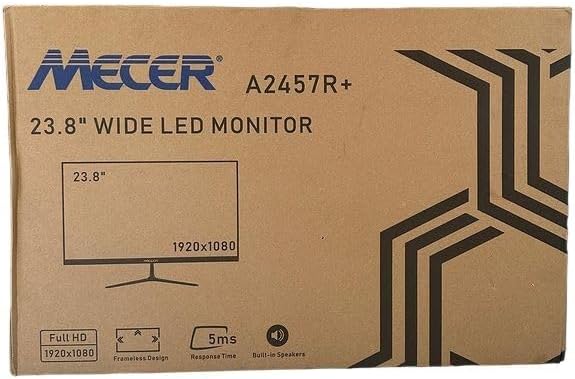
છબી 3.1: The monitor packaging box, indicating the model A2457R+ and key features like 23.8" display, Full HD 1920x1080 resolution, frameless design, 5ms response time, and built-in speakers.
4. સેટઅપ
4.1. મોનિટર સ્ટેન્ડ એસેમ્બલ કરવું
- પેકેજિંગમાંથી મોનિટર અને સ્ટેન્ડના ઘટકો કાળજીપૂર્વક દૂર કરો.
- ટેબ્સને સંરેખિત કરીને અને તે જગ્યાએ ક્લિક ન થાય ત્યાં સુધી મજબૂત રીતે દબાણ કરીને સ્ટેન્ડ નેકને મોનિટર પેનલ સાથે જોડો.
- Attach the stand base to the stand neck, securing it with the provided screw (usually hand-tightened).
- એસેમ્બલ કરેલા મોનિટરને સ્થિર, સપાટ સપાટી પર મૂકો.

છબી 4.1: આગળ view of the Mecer 23.8 Inch LED Monitor with its stand assembled, ready for connection.
4.2. કમ્પ્યુટરથી કનેક્ટ થઈ રહ્યું છે
The monitor supports both HDMI and VGA connections. Choose the appropriate cable for your computer.
- HDMI કનેક્શન: Connect one end of the HDMI cable to the HDMI port on your computer's graphics card and the other end to the HDMI port on the monitor. HDMI transmits both video and audio signals.
- VGA કનેક્શન: Connect one end of the VGA cable to the VGA port on your computer's graphics card and the other end to the VGA port on the monitor. VGA transmits only video signals.

છબી 4.2: પાછળ view of the Mecer 23.8 Inch LED Monitor, showing the input ports including HDMI and VGA, as well as the power input.
4.3. પાવર કનેક્શન
- Connect the power adapter cable to the DC IN port on the back of the monitor.
- પાવર એડેપ્ટરને વોલ આઉટલેટમાં પ્લગ કરો.
5. ઓપરેટિંગ સૂચનાઓ
5.1. પાવર ચાલુ/બંધ
Press the power button, typically located on the bottom right side or rear of the monitor, to turn the monitor on or off. The power indicator light will illuminate when the monitor is on.
5.2. ઇનપુટ સ્ત્રોત પસંદગી
If you have multiple devices connected, you may need to manually select the input source. Use the monitor's control buttons (usually located near the power button) to navigate to the input selection menu and choose between HDMI or VGA.
5.3. ઓન-સ્ક્રીન ડિસ્પ્લે (OSD) મેનુ
The OSD menu allows you to adjust various display settings. Use the monitor's control buttons to:
- OSD મેનૂને ક્સેસ કરો.
- Navigate through menu options (e.g., Brightness, Contrast, Color Settings, Input Source).
- Adjust values or select options.
- OSD મેનૂમાંથી બહાર નીકળો.
Common adjustable settings include:
- બ્રાઇટનેસ/કોન્ટ્રાસ્ટ: એકંદર તેજ અને પ્રકાશ અને અંધારાવાળા વિસ્તારો વચ્ચેનો તફાવત સમાયોજિત કરો.
- રંગ સેટિંગ્સ: Adjust color temperature, RGB values, or select preset color modes.
- પાસા ગુણોત્તર: Change between 16:9, 4:3, or other available options.
- ઓડિયો: Adjust volume for the built-in speakers.
5.4. બિલ્ટ-ઇન સ્પીકર્સ
The monitor includes built-in speakers for basic audio output. If using an HDMI connection, audio will be transmitted automatically. For VGA connections, ensure your computer's audio output is configured correctly. Adjust the volume through the OSD menu or your computer's operating system.
6. જાળવણી
6.1. મોનિટર સાફ કરવું
- સફાઈ કરતા પહેલા હંમેશા મોનિટરને પાવર આઉટલેટમાંથી અનપ્લગ કરો.
- સ્ક્રીન: નરમ, લિન્ટ-ફ્રી કાપડથી સ્ક્રીનને ધીમેથી સાફ કરો. હઠીલા નિશાનો માટે, હળવા હાથે ડીampen the cloth with water or a specialized screen cleaner (ensure it's alcohol-free and ammonia-free) and wipe carefully. Do not spray liquid directly onto the screen.
- Casing: મોનિટર સાફ કરવા માટે નરમ, સૂકા કપડાનો ઉપયોગ કરો casing. If necessary, a slightly damp કાપડનો ઉપયોગ કરી શકાય છે, ત્યારબાદ સૂકું કપડું વાપરી શકાય છે.
6.2. સંગ્રહ
જો મોનિટરને લાંબા સમય સુધી સ્ટોર કરી રહ્યા હોવ, તો બધા કેબલ ડિસ્કનેક્ટ કરો, તેને તેના મૂળ પેકેજિંગમાં પેક કરો (જો ઉપલબ્ધ હોય તો), અને તેને સીધા સૂર્યપ્રકાશ અને અતિશય તાપમાનથી દૂર ઠંડી, સૂકી જગ્યાએ સંગ્રહિત કરો.
7. મુશ્કેલીનિવારણ
જો તમને તમારા મોનિટરમાં સમસ્યાઓ આવે, તો નીચેની સામાન્ય સમસ્યાઓ અને ઉકેલોનો સંદર્ભ લો:
- કોઈ શક્તિ નથી:
- ખાતરી કરો કે પાવર કેબલ મોનિટર અને વોલ આઉટલેટ સાથે સુરક્ષિત રીતે જોડાયેલ છે.
- બીજા ઉપકરણને પ્લગ ઇન કરીને પાવર આઉટલેટ કાર્યરત છે કે નહીં તે ચકાસો.
- Check if the power adapter is working correctly.
- સિગ્નલ નથી:
- Ensure the video cable (HDMI or VGA) is securely connected to both the monitor and the computer.
- Verify that the correct input source is selected on the monitor (via the OSD menu).
- Check if your computer is powered on and outputting a video signal.
- Try a different video cable if available.
- છબી ઝાંખી અથવા વિકૃત છે:
- Ensure the monitor's resolution is set to its native resolution (1920 x 1080) in your computer's display settings.
- Adjust the monitor's OSD settings for brightness, contrast, and sharpness.
- For VGA connections, use the 'Auto Adjust' function in the OSD menu if available.
- No Audio from Built-in Speakers:
- Ensure the monitor's volume is not muted or set too low in the OSD menu.
- Check your computer's audio output settings to ensure the monitor is selected as the playback device.
- If using VGA, ensure your computer's audio is routed to an external speaker system, as VGA does not carry audio.
8. સ્પષ્ટીકરણો
| લક્ષણ | સ્પષ્ટીકરણ |
|---|---|
| બ્રાન્ડ | મેસર |
| મોડલ નંબર | A2457R+ |
| ડિસ્પ્લે માપ | 23.8 ઇંચ |
| ઠરાવ | 1920 x 1080 પિક્સેલ્સ (ફુલ એચડી) |
| ડિસ્પ્લે પ્રકાર | LED (TFT LED Panel) |
| પાસા રેશિયો | 16:9 |
| પ્રતિભાવ સમય | 2 મિલિસેકંડ |
| તાજું દર | 75 હર્ટ્ઝ |
| Viewએન્ગલ | ૩૫૦° આડું / ૧૮૦° ઊભું |
| કનેક્ટિવિટી | 1x HDMI, 1x VGA |
| બિલ્ટ-ઇન સ્પીકર્સ | હા |
| રંગ | કાળો |
| ઉત્પાદનના પરિમાણો (D x W x H) | 560D x 42W x 410H millimetres |
| ખાસ લક્ષણો | High performance intelligent multi-frequency scanning, Micro Computer digital technology control, no radiation, no glare, Comply with VESA DPMS international power saving regulation, Support DDC 1/2B and Windows PNP Plug and Play |
9. વોરંટી અને સપોર્ટ
This Mecer monitor comes with a 1 વર્ષની મર્યાદિત વોરંટી ખરીદીની તારીખથી. વોરંટી દાવાઓ માટે કૃપા કરીને ખરીદીનો પુરાવો રાખો.
For technical support, service, or warranty inquiries, please contact your retailer or the authorized Mecer service center in your region. Do not attempt to repair the product yourself, as this may void your warranty.


