પરિચય
This manual provides instructions for the safe and effective use of your Ashfly Portable Handheld Kids Microscope. Please read this manual thoroughly before operating the device and retain it for future reference.
The Ashfly Portable Handheld Kids Microscope is designed to introduce young scientists to the microscopic world. Featuring a 2-inch LCD screen and 200x magnification, it allows for real-time observation of small objects.
પેકેજ સામગ્રી
ખાતરી કરો કે નીચે સૂચિબદ્ધ બધી વસ્તુઓ તમારા પેકેજમાં હાજર છે:
- Ashfly Portable Handheld Kids Microscope
- યુએસબી ચાર્જિંગ કેબલ
- Lanyard/Wrist Strap
- વપરાશકર્તા માર્ગદર્શિકા (આ દસ્તાવેજ)

Image: Contents of the Ashfly Portable Handheld Kids Microscope package, including the microscope, USB cable, and wrist strap.
સેટઅપ
1. ઉપકરણને ચાર્જ કરી રહ્યું છે
- Locate the USB charging port on the microscope.
- Connect the provided USB charging cable to the microscope and a compatible USB power source (e.g., computer, wall adapter).
- ચાર્જિંગ સૂચક લાઇટ પ્રકાશિત થશે. પૂર્ણ ચાર્જ માટે લગભગ 2-3 કલાકનો સમય આપો.
- એકવાર સંપૂર્ણ ચાર્જ થઈ ગયા પછી, ચાર્જિંગ કેબલને ડિસ્કનેક્ટ કરો.
2. Attaching the Lanyard/Wrist Strap
Thread the lanyard or wrist strap through the designated loop on the microscope to prevent accidental drops during use.
ઓપરેટિંગ સૂચનાઓ
1. પાવર ચાલુ/બંધ
- To power on, press and hold the power button (usually marked with a power symbol) for a few seconds until the screen illuminates.
- પાવર બંધ કરવા માટે, સ્ક્રીન બંધ ન થાય ત્યાં સુધી ફરીથી પાવર બટન દબાવો અને પકડી રાખો.
2. વસ્તુઓનું અવલોકન
- Place the object you wish to observe on a flat surface.
- Position the microscope's lens directly over the object.
- Adjust the focus wheel (if present) or move the microscope closer/further from the object until a clear image appears on the 2-inch LCD screen.
- Use the zoom adjustment button (4x zoom) to further magnify the image up to 200x.

Image: A child holding the Ashfly microscope, observing a small object on a surface, demonstrating its handheld operation.
૩. ફોટા અને વિડીયો કેપ્ચર કરવા
The microscope supports photo and video functions. It comes with built-in memory for storing observations.
- To take a photo: Press the designated photo capture button (refer to device markings).
- To record a video: Press the designated video record button to start recording, and press it again to stop.

Image: The Ashfly microscope's screen displaying a magnified image of an insect, illustrating its digital imaging capability.
4. Dual-Lens Design
This microscope features a dual-lens design. One side is the digital microscope for recording observations, and the other side is a physical magnifier for quick viewવસ્તુઓની રચના.
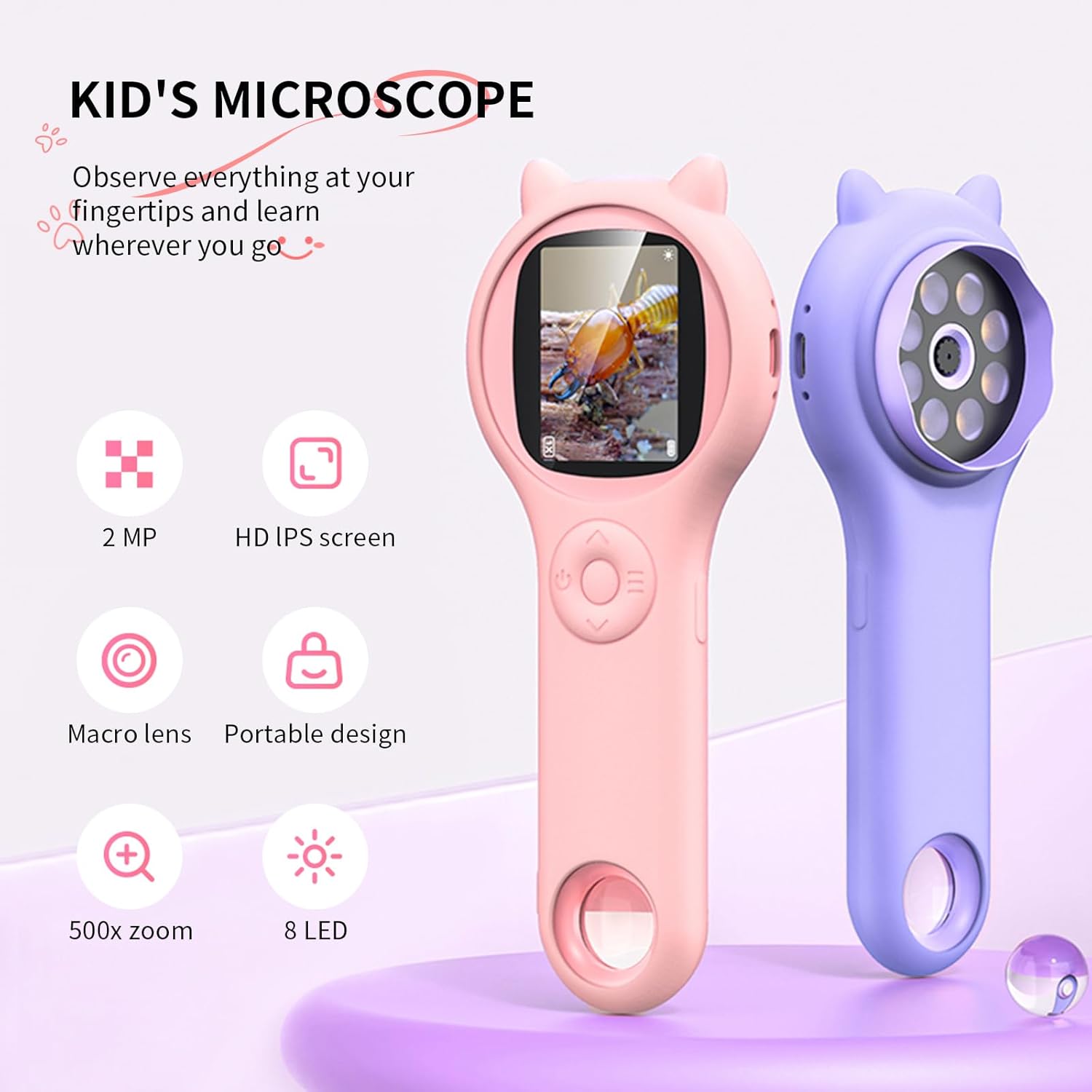
Image: Two Ashfly Kids Microscopes, one pink and one purple, illustrating the compact design and the different lenses/screens on each side.
જાળવણી
- સફાઈ: Use a soft, dry cloth to clean the exterior of the microscope. For the lens and screen, use a specialized lens cleaning cloth. Do not use abrasive cleaners or solvents.
- સંગ્રહ: Store the microscope in a cool, dry place away from direct sunlight and extreme temperatures.
- બેટરી સંભાળ: બેટરીનું આયુષ્ય વધારવા માટે, વારંવાર બેટરી સંપૂર્ણપણે ડિસ્ચાર્જ કરવાનું ટાળો. ઉપકરણને નિયમિતપણે ચાર્જ કરો, ભલે તે લાંબા સમય સુધી ઉપયોગમાં ન હોય.
મુશ્કેલીનિવારણ
| સમસ્યા | સંભવિત કારણ | ઉકેલ |
|---|---|---|
| ઉપકરણ પાવર ચાલુ કરતું નથી. | બેટરી ડિસ્ચાર્જ થાય છે. | પ્રદાન કરેલ USB કેબલનો ઉપયોગ કરીને ઉપકરણને ચાર્જ કરો. |
| Image on screen is blurry. | Incorrect focus or distance from object. | Adjust the microscope's distance from the object or use the focus wheel (if applicable) until the image is clear. |
| ફોટા/વિડિયો કેપ્ચર કરી શકાતા નથી. | આંતરિક મેમરી ભરેલી છે. | Transfer existing photos/videos to a computer to free up space. |
વિશિષ્ટતાઓ
| લક્ષણ | વિગત |
|---|---|
| મોડલ | ASIN B0DBVB3RGT |
| બ્રાન્ડ | એશફ્લાય |
| વિસ્તૃતીકરણ | Up to 200x (with 4x zoom adjustment) |
| સ્ક્રીન | 2-inch LCD, 1080P HD digital imaging |
| પ્રકાશ સ્ત્રોત | એલઇડી |
| સામગ્રી | પ્લાસ્ટિક |
| રંગ | જાંબલી |
| પાવર સ્ત્રોત | બેટરી સંચાલિત |
| ઉદ્દેશ્ય લેન્સ | વર્ણહીન |
વોરંટી માહિતી
Ashfly products are designed for quality and durability. For specific warranty details, please refer to the warranty card included with your product or visit the official Ashfly webસાઇટ. વોરંટી દાવાઓ માટે ખરીદીના પુરાવા તરીકે તમારી ખરીદી રસીદ રાખો.
ગ્રાહક આધાર
If you encounter any issues or have questions regarding your Ashfly Portable Handheld Kids Microscope, please contact our customer support team:
- Supportનલાઇન સપોર્ટ: ની મુલાકાત લો Ashfly Store on Amazon વારંવાર પૂછાતા પ્રશ્નો અને સંપર્ક વિકલ્પો માટે.
- ઈમેલ: ઉત્પાદન પેકેજિંગ અથવા સત્તાવાર જુઓ webસીધા ઇમેઇલ સપોર્ટ માટેની સાઇટ.


