1. પરિચય
This manual provides essential information for setting up, operating, maintaining, and troubleshooting your Alienware AW Pro Wireless Gaming Headset. Please read this manual thoroughly before using the product to ensure optimal performance and longevity.

Figure 1: Alienware Pro Wireless Gaming Headset and accessories.
2. પેકેજ સામગ્રી
ખાતરી કરો કે બધી વસ્તુઓ તમારા પેકેજમાં હાજર છે:
- Alienware Pro Wireless Headset
- યુએસબી-સી વાયરલેસ ડોંગલે
- USB-A થી USB-C એડેપ્ટર
- USB-A થી USB-C કેબલ
- ડિટેચેબલ બૂમ માઈક
- Mic Shield
- દસ્તાવેજીકરણ (આ માર્ગદર્શિકા)
3. સેટઅપ
3.1 પ્રારંભિક ચાર્જિંગ
Before first use, fully charge your headset. Connect the provided USB-A to USB-C cable to the headset's USB-C port and a power source. A full charge provides up to 75 hours of battery life via Bluetooth (ANC off) or 70 hours via 2.4GHz (ANC off). A 15-minute rapid charge can provide up to 8 hours of playback (ANC off).
૩.૨ માઇક્રોફોનને કનેક્ટ કરવું
Insert the detachable boom mic into the designated port on the left earcup. Ensure it is securely connected. The mic shield can be placed over the microphone for reduced plosive sounds.
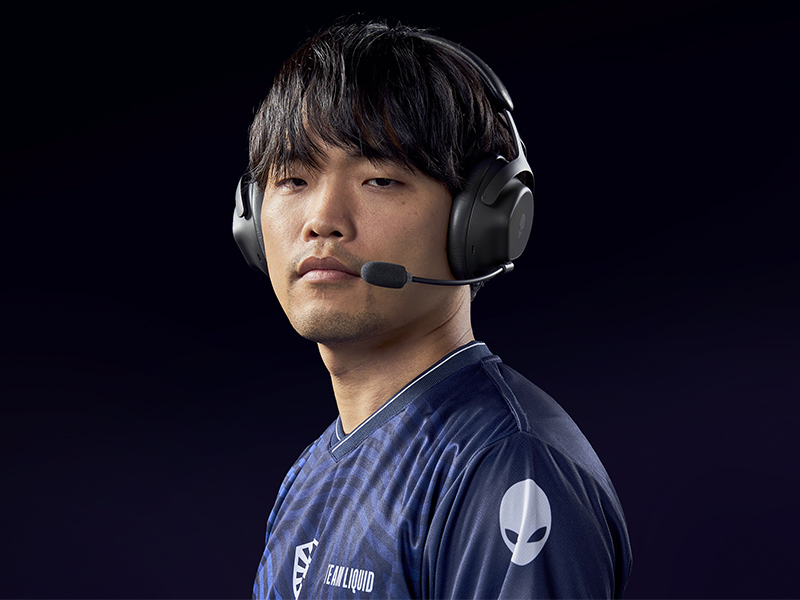
Figure 2: Attaching the detachable boom microphone.
૩.૧ કનેક્ટિવિટી વિકલ્પો
The headset supports tri-mode connectivity: 2.4GHz wireless, Bluetooth 5.3, and USB wired connection.
3.3.1 2.4GHz વાયરલેસ કનેક્શન
- Insert the USB-C Wireless Dongle into a compatible USB-C port on your device (PC, gaming console). Use the USB-A to USB-C adapter if your device only has USB-A ports.
- Power on the headset. It should automatically connect to the dongle. The LED indicator on the headset will confirm connection.
3.3.2 બ્લૂટૂથ કનેક્શન
- હેડસેટ પર પાવર.
- Activate Bluetooth pairing mode on the headset (refer to the operating controls section for specific button presses).
- On your device (PC, mobile, etc.), go to Bluetooth settings and select "Alienware Pro Headset" from the list of available devices.
- The headset supports Bluetooth 5.3 with a range of up to 30 meters.
૩.૧.૧ યુએસબી વાયર્ડ કનેક્શન
Connect the headset directly to your device using the USB-A to USB-C cable for a wired audio and charging connection.
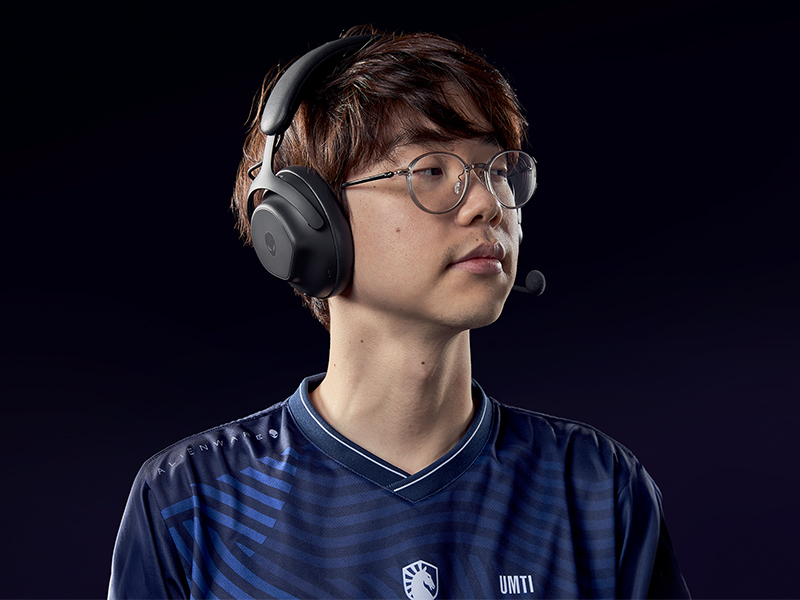
Figure 3: Connectivity options with dongle and adapter.
3.4 સૉફ્ટવેર ઇન્સ્ટોલેશન
For full customization and advanced features, install the Alienware Command Center software on your PC. This software allows you to tailor your sound experience, including Dolby Atmos integration, and manage headset settings.
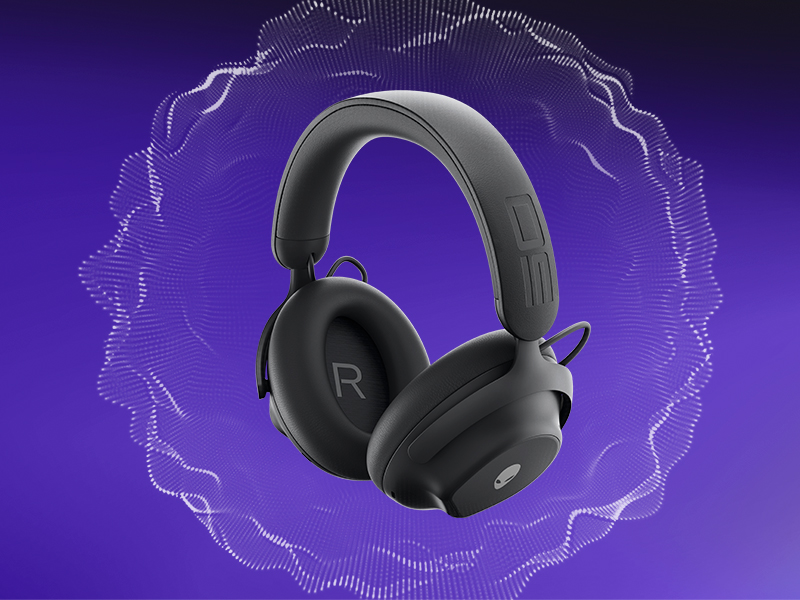
Figure 4: Customizing audio settings via Alienware Command Center.
4. હેડસેટનું સંચાલન
4.1 નિયંત્રણોview
The headset features intuitive controls for power, volume, microphone, and ANC modes. Refer to the product diagram for exact button locations.
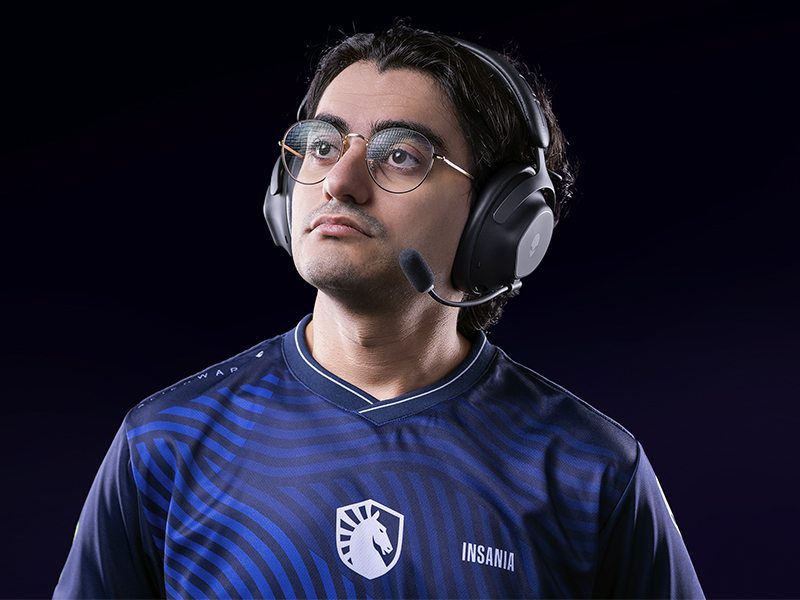
Figure 5: Built-in controls on the headset.
4.2 ઓડિયો ફીચર્સ
4.2.1 50mm Graphene-Coated Drivers
The headset is equipped with 50mm graphene-coated dynamic drivers, providing high-fidelity audio with a frequency response up to 40 KHz for an immersive sound experience.
Video 1: Demonstration of Alienware 50mm Graphene-Coated Drivers technology.
4.2.2 સક્રિય અવાજ રદ (ANC)
Engage Active Noise Cancellation to minimize external distractions and maintain focus during gameplay or other activities. The headset features Hybrid Noise Cancellation technology.
Video 2: Explanation of Alienware Active Noise Cancellation feature.
4.2.3 પારદર્શિતા મોડ
Transparency Mode allows you to hear your surroundings without removing the headset, useful for situational awareness.
૬.૨ માઇક્રોફોનનો ઉપયોગ
The two-mic AI Noise Cancellation system focuses on your voice, ensuring clear communication by filtering out background noise. Adjust microphone volume and settings via the Alienware Command Center software.
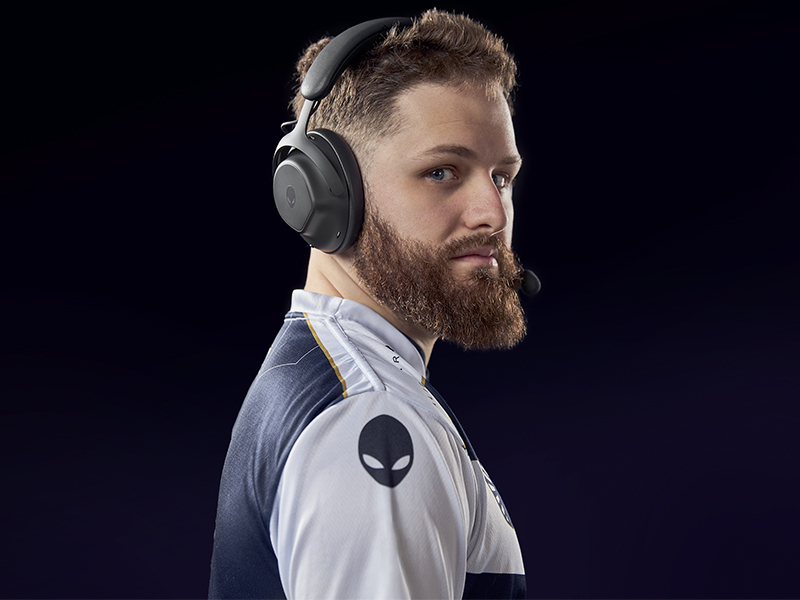
Figure 6: Two-Mic AI Noise Cancellation in action.
5. જાળવણી
5.1 સફાઈ
To clean your headset, use a soft, dry cloth. Avoid abrasive cleaners, solvents, or harsh chemicals. For earcups, gently wipe with a slightly damp કાપડથી ઢાંકી દો અને ઉપયોગ કરતા પહેલા હવામાં સંપૂર્ણપણે સૂકવવા દો.
5.2 સંગ્રહ
Store the headset in a cool, dry place away from direct sunlight and extreme temperatures. When not in use, it is recommended to store it in a protective case to prevent damage.
6. મુશ્કેલીનિવારણ
If you encounter issues with your Alienware Pro Wireless Gaming Headset, refer to the following common solutions:
6.1 No Audio or Intermittent Sound
- કનેક્શન તપાસો: Ensure the 2.4GHz dongle is properly inserted, or Bluetooth is correctly paired. For wired connection, verify the USB cable is secure.
- પાવર અને બેટરી: Confirm the headset is powered on and has sufficient battery charge.
- વોલ્યુમ સ્તરો: Check both the headset's volume control and your device's audio output settings.
- ઓડિયો સ્ત્રોત: Ensure the correct audio output device is selected on your computer or console.
- ડ્રાઇવર્સ/સોફ્ટવેર: Update your audio drivers and Alienware Command Center software to the latest version.
૬.૩ માઇક્રોફોન સમસ્યાઓ
- માઇક્રોફોન કનેક્શન: Ensure the detachable boom mic is fully inserted into its port.
- મ્યૂટ સ્ટેટસ: Check if the microphone is muted on the headset or in your device's settings.
- ઇનપુટ ઉપકરણ: Verify that the Alienware Pro Headset microphone is selected as the default input device in your system's sound settings.
- સૉફ્ટવેર સેટિંગ્સ: Adjust microphone sensitivity and AI Noise Cancellation settings within Alienware Command Center.
૭.૨ કનેક્ટિવિટી સમસ્યાઓ
- બ્લૂટૂથ ફરીથી જોડો: If Bluetooth connection is unstable, unpair and re-pair the headset with your device.
- Dongle Re-connection: For 2.4GHz, try unplugging and re-inserting the USB dongle.
- હસ્તક્ષેપ: અન્ય વાયરલેસ ઉપકરણોથી દૂર જાઓ જે દખલનું કારણ બની શકે છે.
- ફર્મવેર અપડેટ: Check for and install any available firmware updates for the headset via Alienware Command Center.
7. સ્પષ્ટીકરણો
| લક્ષણ | વિગત |
|---|---|
| મોડેલનું નામ | AW Pro Headset |
| કનેક્ટિવિટી ટેકનોલોજી | Bluetooth / 2.4 GHz radio frequency / USB |
| વાયરલેસ કોમ્યુનિકેશન ટેકનોલોજી | 2.4GHz, બ્લૂટૂથ 5.3 |
| બ્લૂટૂથ રેન્જ | 30 મીટર |
| અવાજ નિયંત્રણ | હાઇબ્રિડ અવાજ રદ |
| ઓડિયો ડ્રાઈવર પ્રકાર | Dynamic Driver (50mm Graphene-Coated) |
| આવર્તન પ્રતિભાવ | 40 KHz |
| બેટરી જીવન | Up to 75 Hours (Bluetooth, ANC off) |
| ચાર્જિંગ સમય | 15 minutes for up to 8 hours playback (ANC off) |
| માઇક્રોફોન | Detachable Boom Mic with 2-Mic AI Noise Cancellation, Beamforming |
| ખાસ લક્ષણો | Hearing Protection, Transparency Mode |
| સુસંગત ઉપકરણો | Gaming Consoles, Computers, Mobile Devices |
| વસ્તુનું વજન | 11 ઔંસ (312 ગ્રામ) |
| ઉત્પાદન પરિમાણો | 3.55 x 5.91 x 8.07 ઇંચ (9.02 x 15.01 x 20.50 સેમી) |
| યુપીસી | 884116469728 |
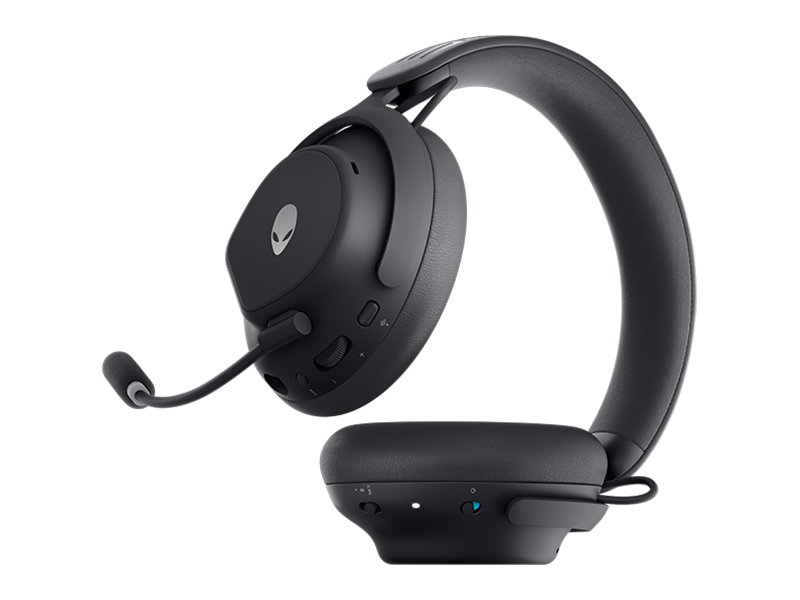
Figure 7: Headset dimensions.
8. વોરંટી અને સપોર્ટ
For warranty information, technical support, or further assistance, please visit the official Alienware or Dell support website. You can find drivers, firmware updates, and detailed troubleshooting guides there.
ઉત્પાદક: ડેલ


