1. પરિચય
This manual provides detailed instructions for the setup, operation, and maintenance of your JADENS Portable Thermal Printer (Model PDA4). This device is designed for convenient, inkless printing of documents up to 8.5" x 11" using thermal paper. Please read this manual thoroughly to ensure proper use and to maximize the lifespan of your printer.

Image 1.1: The JADENS Portable Thermal Printer in operation, demonstrating its ability to print documents.
The JADENS Portable Thermal Printer offers a compact and efficient alternative to traditional printers. It eliminates the need for ink cartridges, reducing operational costs and maintenance. Its lightweight design and long-lasting battery make it suitable for various mobile printing needs.

Image 1.2: A visual comparison highlighting the compact size and inkless nature of the JADENS printer versus a larger, traditional inkjet printer.
2. બોક્સમાં શું છે
Upon unpacking your JADENS Portable Thermal Printer, please verify that all the following components are included:
- JADENS Portable Thermal Printer (Model PDA4)
- યુએસબી ચાર્જિંગ કેબલ
- વપરાશકર્તા માર્ગદર્શિકા
- Thermal Paper Roll (starter pack)
3. સ્પષ્ટીકરણો
Refer to the table below for detailed technical specifications of the JADENS Portable Thermal Printer.
| લક્ષણ | સ્પષ્ટીકરણ |
|---|---|
| મોડેલનું નામ | પીડીએ4 |
| પ્રિન્ટીંગ ટેકનોલોજી | થર્મલ (શાહી વગરનું) |
| કનેક્ટિવિટી | બ્લૂટૂથ, યુએસબી |
| સુસંગત ઉપકરણો | iOS, Android, Windows, macOS |
| મહત્તમ પ્રિન્ટ રિઝોલ્યુશન | ૩૦૦ ડીપીઆઇ (મોનોક્રોમ) |
| મહત્તમ પ્રિન્ટ ઝડપ | 20 ppm (Monochrome) |
| Supported Paper Size | 2 to 8.5 inches wide (up to 8.5" x 11" US Letter) |
| કાગળનો પ્રકાર | Thermal Paper Only |
| બેટરી | 2 Lithium Ion batteries (2600mAh total) |
| બેટરી જીવન | Up to 3 hours continuous printing or 360 sheets; 90-day standby |
| ઉત્પાદન પરિમાણો | 10 x 3 x 2 ઇંચ |
| વસ્તુનું વજન | 2.29 પાઉન્ડ |
| બે બાજુ પ્રિન્ટીંગ | ના (સિમ્પ્લેક્સ) |

Image 3.1: Illustration of the printer's internal battery, indicating its 2600mAh capacity for extended use.
4. સેટઅપ
4.1. પ્રિન્ટર ચાર્જ કરવું
Before initial use, fully charge the printer using the provided USB cable. Connect the USB cable to the printer's charging port and a compatible USB power adapter (not included) or computer USB port. The indicator light will show charging status and turn solid when fully charged.
4.2. થર્મલ પેપર લોડ કરી રહ્યું છે
The JADENS Portable Thermal Printer supports both rolled and fan-fold thermal paper. Ensure you use only thermal paper, as the printer does not use ink.
- પેપર કમ્પાર્ટમેન્ટ કવર ખોલો.
- Insert the thermal paper, ensuring the printable side (usually smoother) faces the print head.
- Adjust any paper guides to fit the width of your paper.
- કાગળના ડબ્બાના કવરને સુરક્ષિત રીતે બંધ કરો.

Image 4.1: The printer demonstrating the use of both built-in paper bin for fan-fold paper and external roll paper.
4.3. એપ્લિકેશન ઇન્સ્ટોલેશન અને કનેક્શન
The JADENS printer connects wirelessly via Bluetooth to iOS and Android devices, and via USB to Windows and macOS computers. For mobile devices, download the dedicated JADENS Printer app.
- એપ ડાઉનલોડ કરો: Scan the QR code below or search for "JADENS Printer" in your device's app store.
- Enable Bluetooth & Location: તમારા સ્માર્ટફોન પર બ્લૂટૂથ અને લોકેશન સેવાઓ ચાલુ કરો.
- પરવાનગીઓ આપો: Allow the JADENS Printer app to access location and Bluetooth for device discovery.
- Turn on Printer: Press and hold the power button on your printer.
- એપ્લિકેશનમાં કનેક્ટ કરો: Open the JADENS Printer app, tap "Add a device" or the '+' icon. The app will search for nearby printers. Select your printer (e.g., "PDA4") from the list to connect.
- પેપર સેટિંગ્સ: Once connected, navigate to "More settings" within the app to configure paper size and other preferences.

Image 4.2: Visual guide for downloading the app, enabling Bluetooth, granting permissions, and connecting the printer via the JADENS Printer app. The QR code links to the app download page: https://u.shengcai.net/bnl7/H666G_ayKEG
4.4. USB Connection (Windows/macOS)
For computer connections, install the appropriate driver from the JADENS official website. Once the driver is installed, connect the printer to your computer using the USB cable. The printer will then be recognized as a standard printing device.

Image 4.3: Diagram illustrating Bluetooth connectivity for iOS/Android devices and USB cable connectivity for Windows/Mac laptops.
૩. પ્રિન્ટરનું સંચાલન
5.1. મૂળભૂત પ્રિન્ટીંગ
Once connected, you can print documents directly from the JADENS Printer app or from your computer's print dialogue. Select the JADENS printer from the available devices, adjust print settings as needed, and initiate the print job.
5.2. સપોર્ટેડ File Types and App Features
The JADENS Printer app supports various file types for printing, including Word documents, Excel spreadsheets, PowerPoint presentations, WebPages, TXT files, and images. The app also offers additional features such as graphic templates, web printing, and DIY customization.

Image 5.1: The JADENS Printer app displaying icons for various supported file formats (Word, Excel, PowerPoint, WebPage, TXT, Picture) and additional app functionalities like graphics, templates, and web પ્રિન્ટીંગ
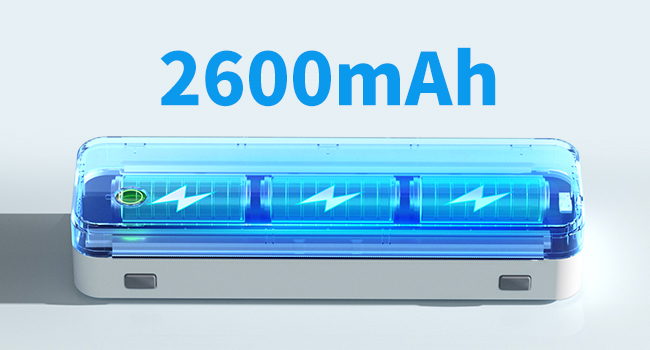
Image 5.2: The JADENS Printer app interface highlighting advanced AI functions such as handwriting erasure, photo-to-cartoon conversion, and camera translation.
5.3. Print Quality
The printer delivers crisp, clear monochrome prints at 203 dpi resolution. For optimal results, ensure the thermal paper is correctly loaded and the print density settings in the app are appropriate for your document.

છબી ૫.૧: એક વિસ્તૃત view comparing the precision and fine detail of prints from the JADENS printer against other printers, showing clearer output from the JADENS device.
૧૯.૧.૨. ડેટા સુરક્ષા
The JADENS printer supports secure local storage and direct printing without requiring network access or cloud transfers, helping to prevent potential data leakage.

Image 5.4: A diagram illustrating the JADENS printer's secure local storage and direct printing capability, contrasting it with other methods that might involve cloud transfers and potential data leakage.
5.5. Portability and Versatility
The compact and lightweight design of the JADENS Portable Thermal Printer makes it ideal for printing on the go. It can be easily carried in a bag and used in various environments, including business meetings, travel, school, or on-site work.

Image 5.5: A person placing the JADENS Portable Printer into a bag, demonstrating its compact size and ease of transport.

Image 5.6: A collage depicting diverse use cases for the JADENS Portable Printer, including business, photo printing, travel, car use, school, and on-site work.
6. જાળવણી
6.1. સામાન્ય સંભાળ
- Keep the printer clean and free from dust. Use a soft, dry cloth for cleaning the exterior.
- પ્રિન્ટરને અતિશય તાપમાન, સીધો સૂર્યપ્રકાશ અથવા ઉચ્ચ ભેજના સંપર્કમાં આવવાનું ટાળો.
- ઘર્ષક ક્લીનર્સ અથવા સોલવન્ટનો ઉપયોગ કરશો નહીં.
- Ensure the paper compartment is free of debris before loading paper.
6.2. Thermal Paper Considerations
Only use high-quality thermal paper designed for portable printers. The quality of thermal paper can affect print clarity and the longevity of the printout. Store thermal paper in a cool, dry place away from direct light to prevent premature fading.

છબી ૪.૧: ઉદાહરણample of rolled thermal paper compatible with the printer.

છબી ૪.૧: ઉદાહરણample of fan-fold thermal paper compatible with the printer.
7. મુશ્કેલીનિવારણ
If you encounter issues with your JADENS Portable Thermal Printer, refer to the following common problems and solutions:
- પ્રિન્ટર ચાલુ નથી થઈ રહ્યું:
- Ensure the printer is fully charged. Connect it to a power source and wait for the charging indicator.
- પાવર બટનને થોડી સેકંડ માટે દબાવી રાખો.
- Unable to connect via Bluetooth:
- Make sure Bluetooth is enabled on your mobile device and the printer is powered on.
- Ensure location services are enabled for the JADENS Printer app.
- Restart both your mobile device and the printer.
- તમારા ફોનના બ્લૂટૂથ સેટિંગ્સમાં ડિવાઇસ ભૂલી જાઓ અને એપ્લિકેશન દ્વારા ફરીથી જોડી બનાવવાનો પ્રયાસ કરો.
- Poor print quality or blank pages:
- Verify that you are using thermal paper and it is loaded correctly with the printable side facing the print head.
- Check the print density settings in the JADENS Printer app.
- Clean the print head gently with a soft, lint-free cloth if smudges appear.
- પેપર જામ:
- પ્રિન્ટર બંધ કરો.
- Carefully open the paper compartment and remove any jammed paper.
- Ensure paper is loaded correctly and not wrinkled or torn before closing the cover.
- Printer not recognized by computer via USB:
- Ensure the correct driver for your operating system (Windows/macOS) is installed.
- કોઈ અલગ USB પોર્ટ અથવા કેબલ અજમાવી જુઓ.
- Restart your computer and the printer.
8. આધાર
For further assistance, technical support, or warranty inquiries, please contact JADENS customer service. Contact information can typically be found on the official JADENS webસાઇટ અથવા તમારા ખરીદી પ્લેટફોર્મ દ્વારા.


