1. સેટઅપ
1.1. પેકેજ સામગ્રી
ખાતરી કરો કે બધા ઘટકો પેકેજમાં હાજર છે:
- AUSDOM 108-Key Wireless Keyboard
- AUSDOM Wireless Mouse
- યુએસબી રીસીવર (માઉસમાં સંગ્રહિત)
- USB-C ચાર્જિંગ કેબલ
- વપરાશકર્તા માર્ગદર્શિકા
1.2. Connecting the Combo
- USB રીસીવર શોધો: The 2.4GHz USB receiver is conveniently stored in a compartment on the underside of the wireless mouse. Gently slide open the battery cover to access it.
- રીસીવર દાખલ કરો: Plug the USB receiver into an available USB port on your computer (PC, laptop, or tablet). The system will automatically detect and install the necessary drivers.
- ઉપકરણો પર પાવર: Ensure both the keyboard and mouse are switched to the 'ON' position. The power switch for the keyboard is located on its top edge, and for the mouse, it is on the underside.

1.3. Charging the Combo
Both the keyboard and mouse are equipped with built-in rechargeable Lithium Polymer batteries. Use the provided USB-C cable to charge them.
- Connect the USB-C end of the cable to the charging port on the keyboard (located on the top edge) or the mouse (located on the front).
- Connect the USB-A end of the cable to a powered USB port on your computer or a USB wall adapter.
- સંપૂર્ણ ચાર્જ થવામાં લગભગ 2 કલાક લાગે છે અને 300 કલાક સુધીનો સ્ટેન્ડબાય સમય પૂરો પાડે છે.

2. ઓપરેટિંગ સૂચનાઓ
૪.૧. કીબોર્ડ સુવિધાઓ
The AUSDOM KAM200X keyboard features a full-size 108-key layout, including a dedicated numeric keypad and various function keys for enhanced productivity.
- Mechanical-Feel Keys: Experience tactile feedback similar to mechanical keyboards, combined with quiet scissor-switch mechanisms and a short 3.8mm key travel for comfortable and precise typing.
- Multimedia and Shortcut Keys: Utilize dedicated media controls (volume, play/pause) and app-switching shortcuts for streamlined workflow. Refer to the user manual for a complete list of function key combinations.
- ઓએસ સ્વિચિંગ: Easily switch between Windows and macOS layouts using specific function key combinations (e.g., Fn + P for Windows, Fn + O for Mac).


૪.૨. માઉસની સુવિધાઓ
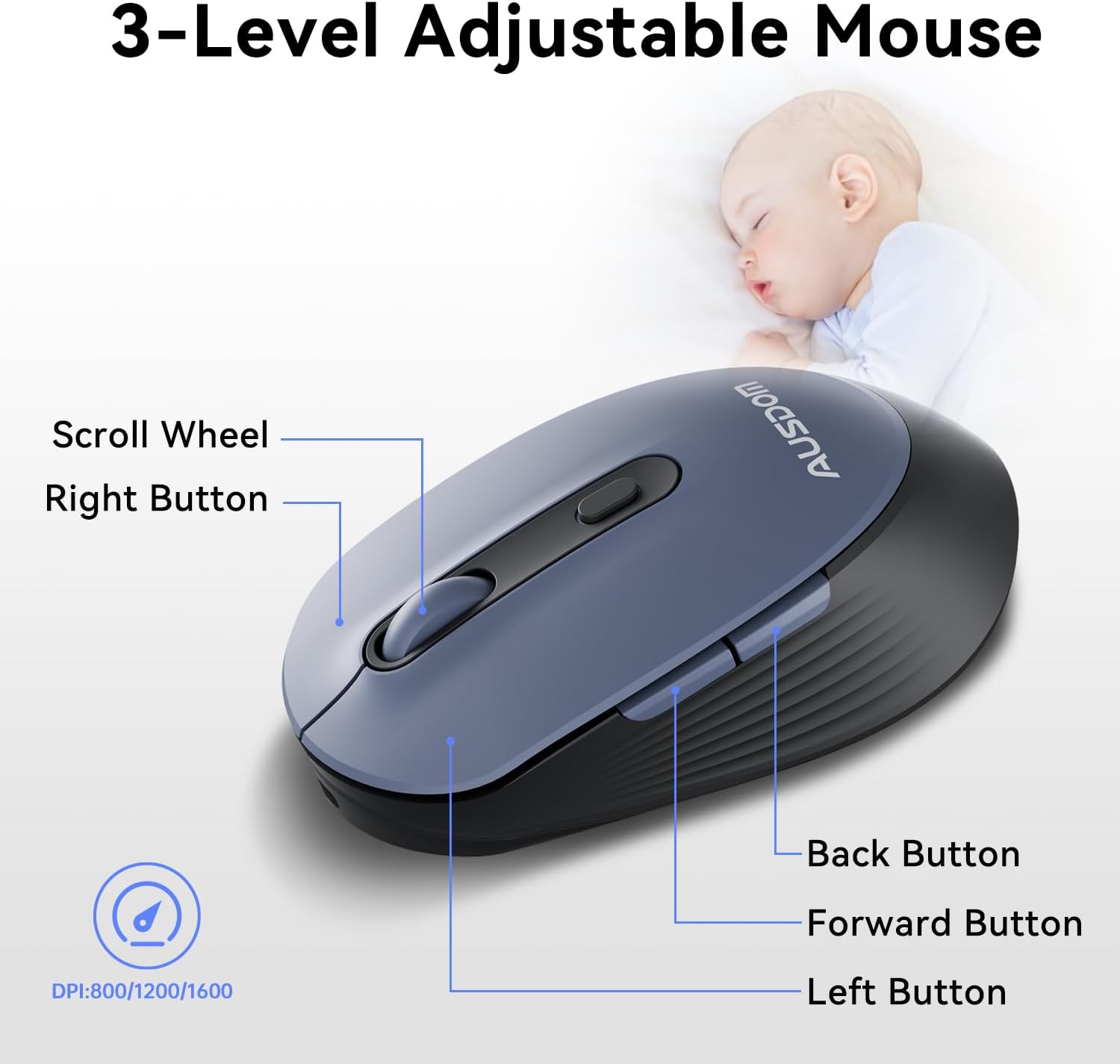
The ergonomic wireless mouse is designed for comfortable use and precise control.
- એડજસ્ટેબલ DPI: Cycle through 3 DPI levels (800, 1200, 1600) using the dedicated DPI button to adjust cursor sensitivity for different tasks.
- આગળ/પાછળ બટનો: Utilize the side buttons for quick navigation in web browsers and applications.
- સાયલન્ટ ક્લિક્સ: The mouse features silent click buttons to minimize noise in quiet environments.
2.3. વ્યાપક સુસંગતતા
The AUSDOM wireless combo is compatible with a broad range of operating systems and devices, ensuring seamless integration into your existing setup.
- ઓપરેટિંગ સિસ્ટમ્સ: Compatible with Windows XP/ME/Vista/7/8/10/11 and macOS.
- ઉપકરણો: Works instantly with desktops, laptops, and other computers without requiring additional software or drivers.

3. જાળવણી
3.1. સફાઈ
To ensure the longevity and optimal performance of your AUSDOM combo, regular cleaning is recommended.
- Use a soft, dry, lint-free cloth to wipe down the surfaces of the keyboard and mouse.
- હઠીલા ગંદકી માટે, સહેજ ડીampen the cloth with water or a mild cleaning solution, ensuring no liquid enters the device openings.
- કઠોર રસાયણો, ઘર્ષક ક્લીનર્સ અથવા દ્રાવકનો ઉપયોગ કરવાનું ટાળો.
3.2. સંગ્રહ
When not in use for extended periods, store the keyboard and mouse in a cool, dry place away from direct sunlight and extreme temperatures. The USB receiver can be stored inside the mouse to prevent loss.
4. મુશ્કેલીનિવારણ
4.1. કનેક્શન મુદ્દાઓ
- Check Receiver: Ensure the USB receiver is firmly plugged into a working USB port on your computer.
- પાવર ચાલુ: Verify that both the keyboard and mouse are switched to the 'ON' position.
- બેટરી સ્તર: Confirm that both devices have sufficient battery charge. Recharge if necessary.
- Try Different Port: Plug the USB receiver into a different USB port on your computer.
4.2. Lag or Unresponsiveness
- હસ્તક્ષેપ ઘટાડો: Move the keyboard and mouse closer to the USB receiver. Avoid placing large metal objects between the devices and the receiver.
- Check for Other Devices: Other 2.4GHz wireless devices might cause interference. Try to minimize their use or move them further away.
- રિચાર્જ: Ensure both devices are fully charged.
4.3. Keyboard Specific Issues
- કીઝ જવાબ નથી આપી રહી: Gently clean around the affected keys to remove any debris.
- Incorrect Key Output: Check your computer's operating system settings to ensure the correct keyboard layout is selected.
4.4. Mouse Specific Issues
- Erratic Cursor: Clean the optical sensor on the underside of the mouse. Ensure you are using the mouse on a suitable, non-reflective surface.
- DPI સમાયોજિત કરવું: Press the DPI button on the top of the mouse to cycle through the 800/1200/1600 DPI settings.
5. ઉત્પાદન સ્પષ્ટીકરણો
| લક્ષણ | સ્પષ્ટીકરણ |
|---|---|
| બ્રાન્ડ | AUSDOM |
| મોડલ નંબર | KAM200X |
| ઉત્પાદન પરિમાણો | 17.44 x 5.31 x 0.79 ઇંચ |
| વસ્તુનું વજન | 1.8 પાઉન્ડ |
| બેટરીઓ | 2 લિથિયમ પોલિમર બેટરી જરૂરી છે (સમાવેલ) |
| કનેક્ટિવિટી ટેકનોલોજી | 2.4Ghz વાયરલેસ |
| ખાસ લક્ષણો | Lightweight, Rechargeable, Scissor Switch, Wireless |
| સુસંગત ઉપકરણો | લેપટોપ, પર્સનલ કોમ્પ્યુટર, ટેબ્લેટ |
6. વોરંટી માહિતી
For detailed warranty information regarding your AUSDOM KAM200X Wireless Keyboard and Mouse Combo, please refer to the official documentation included in your product packaging or visit the manufacturer's official webસાઇટ. વોરંટીના નિયમો અને શરતો પ્રદેશ અને ઉત્પાદન પ્રમાણે બદલાઈ શકે છે.
7. ગ્રાહક આધાર
If you encounter any issues or have questions about your AUSDOM KAM200X Wireless Keyboard and Mouse Combo, please contact AUSDOM customer support through their official channels. You can often find support contact information, FAQs, and additional resources on the AUSDOM Store Page અથવા તેમના અધિકારી webસાઇટ


