1. પરિચય
This manual provides essential information for the proper setup, operation, and maintenance of your KOORUI E2711K 27 Inch 144Hz FHD IPS Monitor. Please read this manual thoroughly before using the product and retain it for future reference.
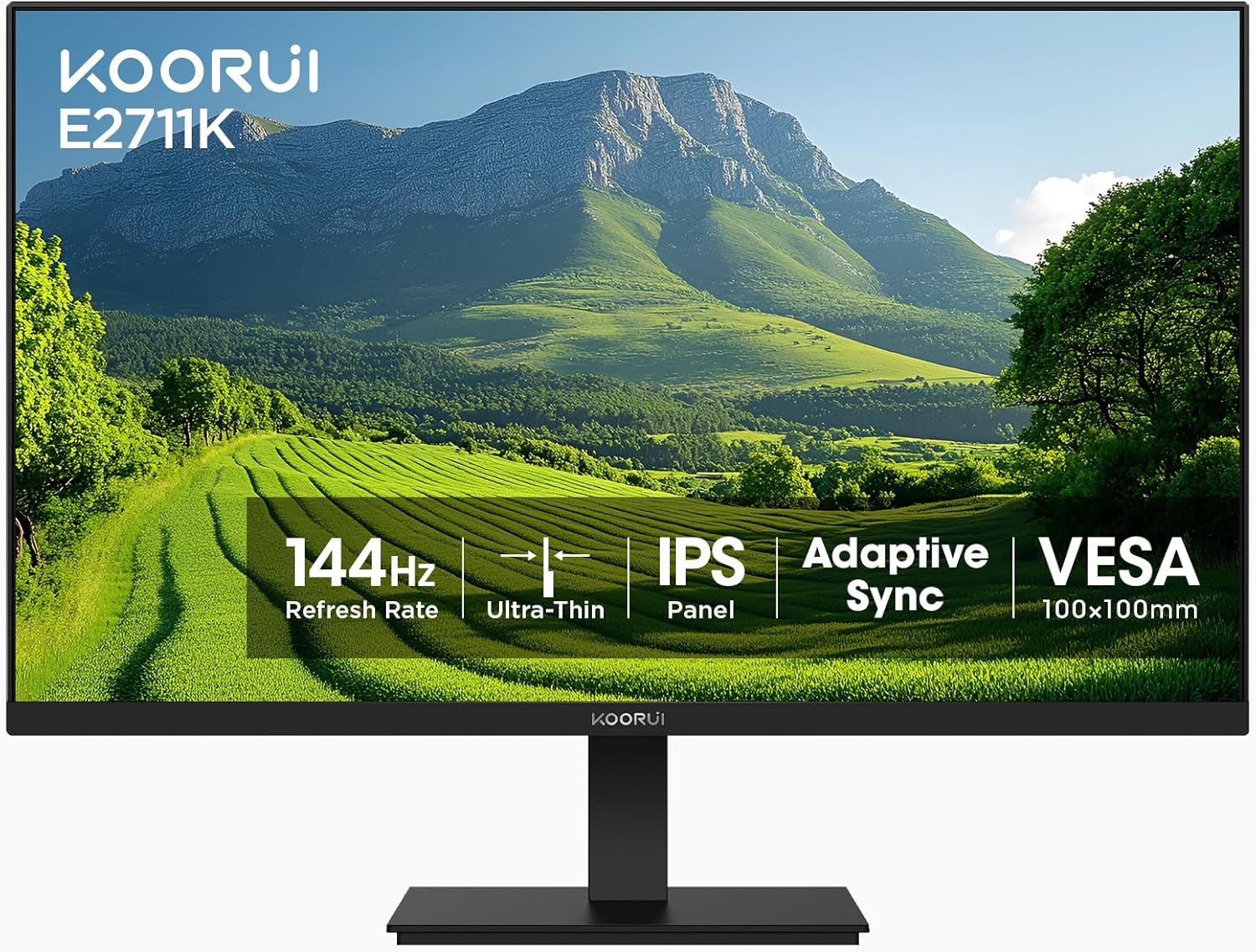
છબી 1.1: આગળ view of the KOORUI E2711K 27 Inch Monitor, showcasinતેના પાતળા ફરસી અને સ્ટેન્ડ.
2. પેકેજ સામગ્રી
ખાતરી કરો કે બધી વસ્તુઓ પેકેજમાં હાજર છે:
- 27 ઇંચ મોનિટર
- પાવર કેબલ
- HDMI કેબલ
- વપરાશકર્તા માર્ગદર્શિકા
3. સેટઅપ સૂચનાઓ
૪.૧ સ્ટેન્ડ એસેમ્બલી
- પેકેજિંગમાંથી મોનિટર અને સ્ટેન્ડના ઘટકો કાળજીપૂર્વક દૂર કરો.
- સ્ટેન્ડ બેઝને સ્ટેન્ડ નેક સાથે જોડો, તેને આપેલા સ્ક્રૂથી સુરક્ષિત કરો.
- Align the assembled stand with the mounting slot on the back of the monitor and push until it clicks into place. Ensure it is securely fastened.
3.2 VESA માઉન્ટ કરવાનું
The monitor supports VESA 100x100mm mounting for alternative installation options such as wall mounts or monitor arms. Remove the stand before attaching a VESA-compatible mount.

છબી 3.1: પાછળ view of the monitor showing the VESA 100x100mm mounting points for attaching to a monitor arm or wall mount.
3.3 ઉપકરણો સાથે જોડાઈ રહ્યું છે
Connect the monitor to your computer or other devices using the available ports:
- એચડીએમઆઈ: Use the provided HDMI cable to connect to an HDMI port on your device. The HDMI port supports a 144Hz refresh rate.
- વીજીએ: Use a VGA cable (not included) to connect to a VGA port on your device. The VGA port supports a 60Hz refresh rate.
- ઓડિયો આઉટપુટ: Connect external speakers or headphones to the 3.5mm audio output jack.
- ડીસી પાવર: Connect the power cable to the DC input on the monitor and then to a power outlet.

Image 3.2: Close-up of the monitor's rear panel, highlighting the HDMI, VGA, Audio Output, and DC power ports, along with an illustration of the tilt adjustment range.
4. ઓપરેટિંગ સૂચનાઓ
4.1 પાવર ચાલુ/બંધ
મોનિટર ચાલુ કે બંધ કરવા માટે તેના પર સ્થિત પાવર બટન દબાવો. જ્યારે મોનિટર સક્રિય હશે ત્યારે પાવર સૂચક લાઇટ પ્રકાશિત થશે.
૪.૧ ઓન-સ્ક્રીન ડિસ્પ્લે (OSD) મેનુ
The OSD menu allows you to adjust various monitor settings. Use the vertical buttons on the back of the monitor to navigate and select options within the OSD menu.

છબી ૪.૧: બાજુ view of the monitor emphasizing its slim design and the location of the vertical control buttons for OSD navigation.
4.3 ડિસ્પ્લે સેટિંગ્સ
- ઠરાવ: The monitor supports a native Full HD (1920 x 1080) resolution for clear and detailed images.
- તાજું દર: Enjoy smooth visuals with a 144Hz refresh rate, reducing motion blur in fast-paced content.
- એડેપ્ટિવ સિંક (ફ્રીસિંક): This technology synchronizes the monitor's refresh rate with your graphics card's frame rate, eliminating screen tearing and stuttering for a fluid experience.
- HDR10: High Dynamic Range 10 provides enhanced contrast and color depth for compatible content.
- રંગ ગામટ: The monitor covers 99% sRGB color gamut, offering accurate and vibrant color reproduction.

Image 4.2: A comparison demonstrating sharper text and clearer motion at 144Hz refresh rate compared to 75Hz, highlighting reduced eye fatigue.

Image 4.3: A visual representation of the monitor's 99% sRGB color gamut, indicating its ability to display a wide range of accurate colors.
૩.૪ આંખની સંભાળની સુવિધાઓ
The monitor incorporates features designed to reduce eye strain during extended use:
- ફ્લિકર-ફ્રી: સ્ક્રીન ફ્લિકરિંગ દૂર કરે છે, જે આંખોનો થાક લાવી શકે છે.
- બ્લુ લાઇટ ફિલ્ટર: Reduces harmful blue light emissions to protect your eyes.
- વિરોધી ઝગઝગાટ: The matte screen surface minimizes reflections, improving visibility in various lighting conditions.
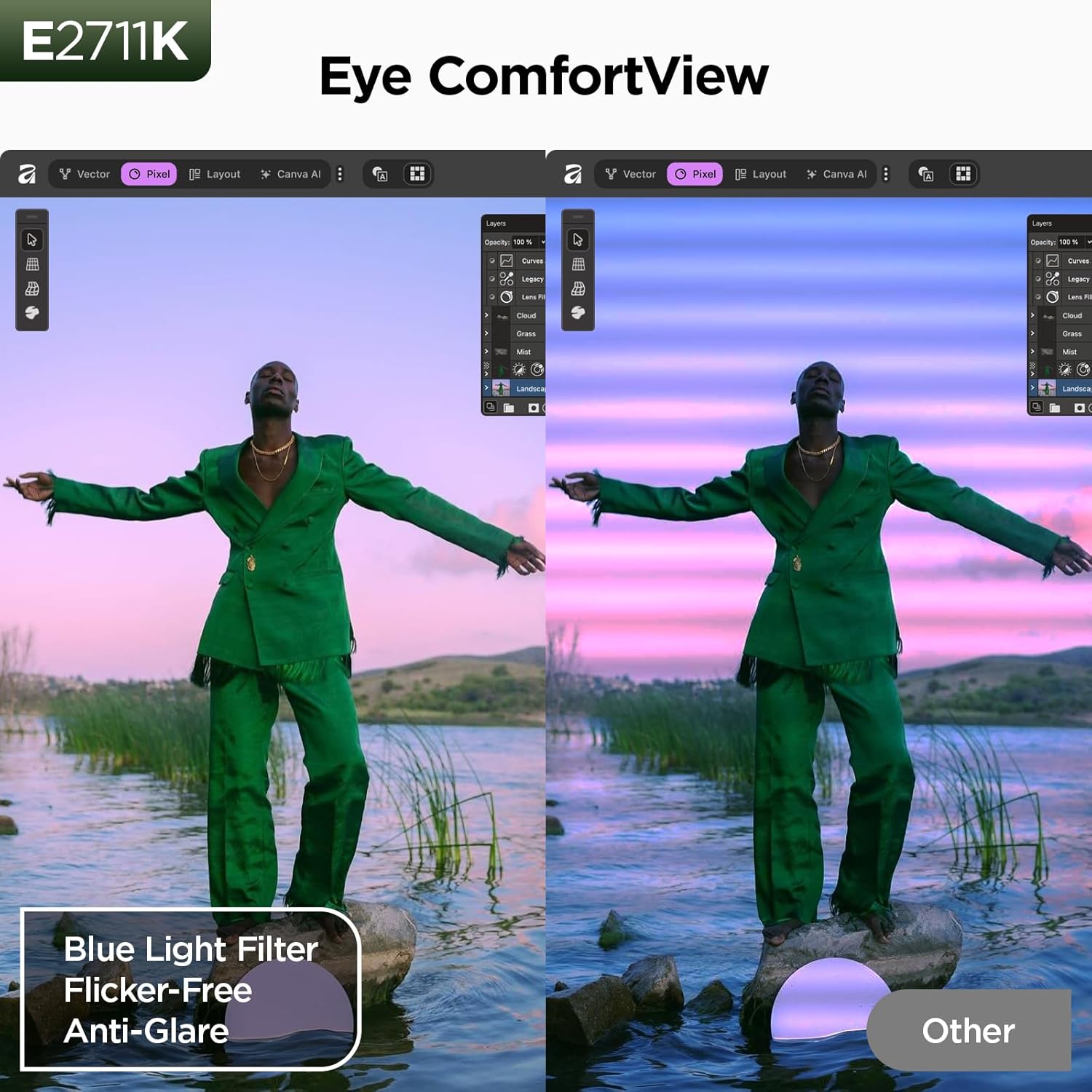
Image 4.4: A split-screen comparison illustrating the benefit of Eye ComfortView features, showing reduced blue light and glare compared to a standard display.
૪.૩ એર્ગોનોમિક ગોઠવણો
The monitor stand allows for tilt adjustment to optimize your viewing comfort. You can tilt the screen from -5 degrees forward to 15 degrees backward.

Image 4.5: A visual demonstration of the 178-degree wide viewing angle provided by the IPS panel, ensuring consistent image quality from various perspectives.
5. જાળવણી
5.1 મોનિટરની સફાઈ
મોનિટર સ્ક્રીન સાફ કરવા માટે, તેને નરમ, લિન્ટ-ફ્રી કાપડથી હળવેથી સાફ કરો. હઠીલા નિશાનો માટે, હળવા હાથે ડીampen the cloth with water or a mild, non-abrasive screen cleaner. Avoid using harsh chemicals or abrasive materials.
5.2 સંગ્રહ
મોનિટર સ્ટોર કરતી વખતે, ખાતરી કરો કે તે પાવર બંધ છે અને બધા કેબલથી ડિસ્કનેક્ટ થયેલ છે. તેને ધૂળ અને ભૌતિક નુકસાનથી બચાવવા માટે, તેને ઠંડી, સૂકી જગ્યાએ, પ્રાધાન્યમાં તેના મૂળ પેકેજિંગમાં સંગ્રહિત કરો.
6. મુશ્કેલીનિવારણ
જો તમને તમારા મોનિટરમાં સમસ્યાઓ આવે, તો નીચેની સામાન્ય સમસ્યાઓ અને ઉકેલોનો સંદર્ભ લો:
- કોઈ શક્તિ નથી: ખાતરી કરો કે પાવર કેબલ મોનિટર અને વર્કિંગ પાવર આઉટલેટ બંને સાથે સુરક્ષિત રીતે જોડાયેલ છે.
- સિગ્નલ નથી: Verify that the video cable (HDMI or VGA) is correctly connected to both the monitor and your device. Check that the correct input source is selected on the monitor.
- છબી ગુણવત્તા સમસ્યાઓ: Adjust resolution and refresh rate settings on your computer. Check for driver updates for your graphics card.
- સ્ક્રીન ફાટવી/હડકાવટ: Ensure Adaptive Sync (FreeSync) is enabled in both your monitor's OSD settings and your graphics card control panel.
7. સ્પષ્ટીકરણો
| લક્ષણ | સ્પષ્ટીકરણ |
|---|---|
| મોડલ નંબર | MB27V29Q |
| સ્ક્રીન માપ | 27 ઇંચ |
| ઠરાવ | ૧૯૨૦ x ૧૦૮૦ (FHD ૧૦૮૦p) |
| તાજું દર | 144Hz (via HDMI) |
| પેનલ પ્રકાર | આઈપીએસ |
| પાસા રેશિયો | 16:9 |
| છબીની તેજ | 250 કેન્ડેલા |
| કોન્ટ્રાસ્ટ રેશિયો | 20,000,000:1 (ડાયનેમિક) |
| રંગ ગામટ | 99% sRGB |
| Viewએન્ગલ | 178° |
| કનેક્ટિવિટી | HDMI 1.4, VGA, Audio Output |
| VESA સુસંગતતા | 100x100 મીમી |
| ટિલ્ટ એડજસ્ટમેન્ટ | -5° થી 15° |
| ઉત્પાદન પરિમાણો | 24.13 x 7.28 x 18.15 ઇંચ |
| વસ્તુનું વજન | 10.68 પાઉન્ડ |
૫.૮. પ્રોડક્ટ વિડીયો ઓવરview
Watch this video for a visual guide on the features and benefits of the KOORUI E2711K monitor.
વિડિઓ ૪.૧: એક સત્તાવાર ઉત્પાદન વિડિઓ શોasing the KOORUI 27 inch 144hz monitor E2711K, demonstrating its design, features, and connectivity options.
9. વોરંટી અને સપોર્ટ
KOORUI provides a 3 વર્ષની મર્યાદિત વોરંટી for this product. For technical assistance, troubleshooting, or warranty claims, please contact KOORUI customer support. Refer to the contact information provided in your product packaging or on the official KOORUI webસાઇટ


