પરિચય
This manual provides detailed instructions for the setup, operation, and maintenance of your MoKo Ergonomic Foldable Bluetooth Keyboard DF047. Please read this manual thoroughly before using the product to ensure optimal performance and longevity.
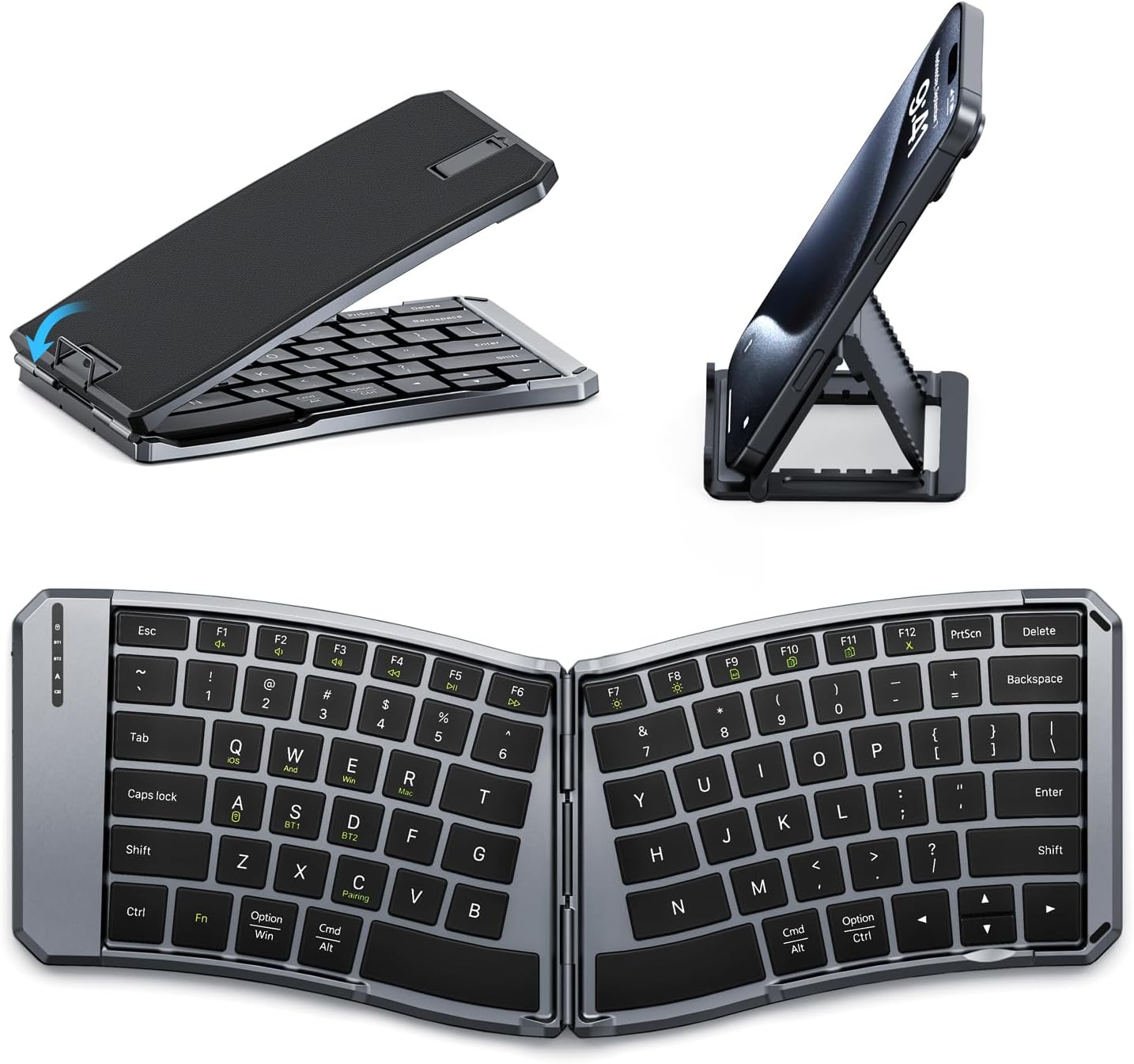
Image: The MoKo Ergonomic Foldable Bluetooth Keyboard shown in its compact folded form, alongside a phone stand, and fully unfolded, highlighting its ergonomic design.
ઉત્પાદન લક્ષણો
- Ergonomic design for comfortable typing.
- Foldable and portable for easy travel.
- Dual connection modes: Bluetooth and 2.4G wireless.
- Connects up to 3 Bluetooth devices simultaneously.
- Wide compatibility with iOS, Android, Windows, and Mac OS.
- Built-in 140mAh rechargeable battery (USB-C).
- Auto-sleep function for extended battery life.
- Back locking clasp for stability during use.
- PU leather non-slip pad on base.
- Scissor mechanism keys for quiet typing.
સેટઅપ
1. અનબોક્સિંગ અને પ્રારંભિક નિરીક્ષણ
Carefully remove the keyboard and all accessories from the packaging. Inspect for any signs of damage.
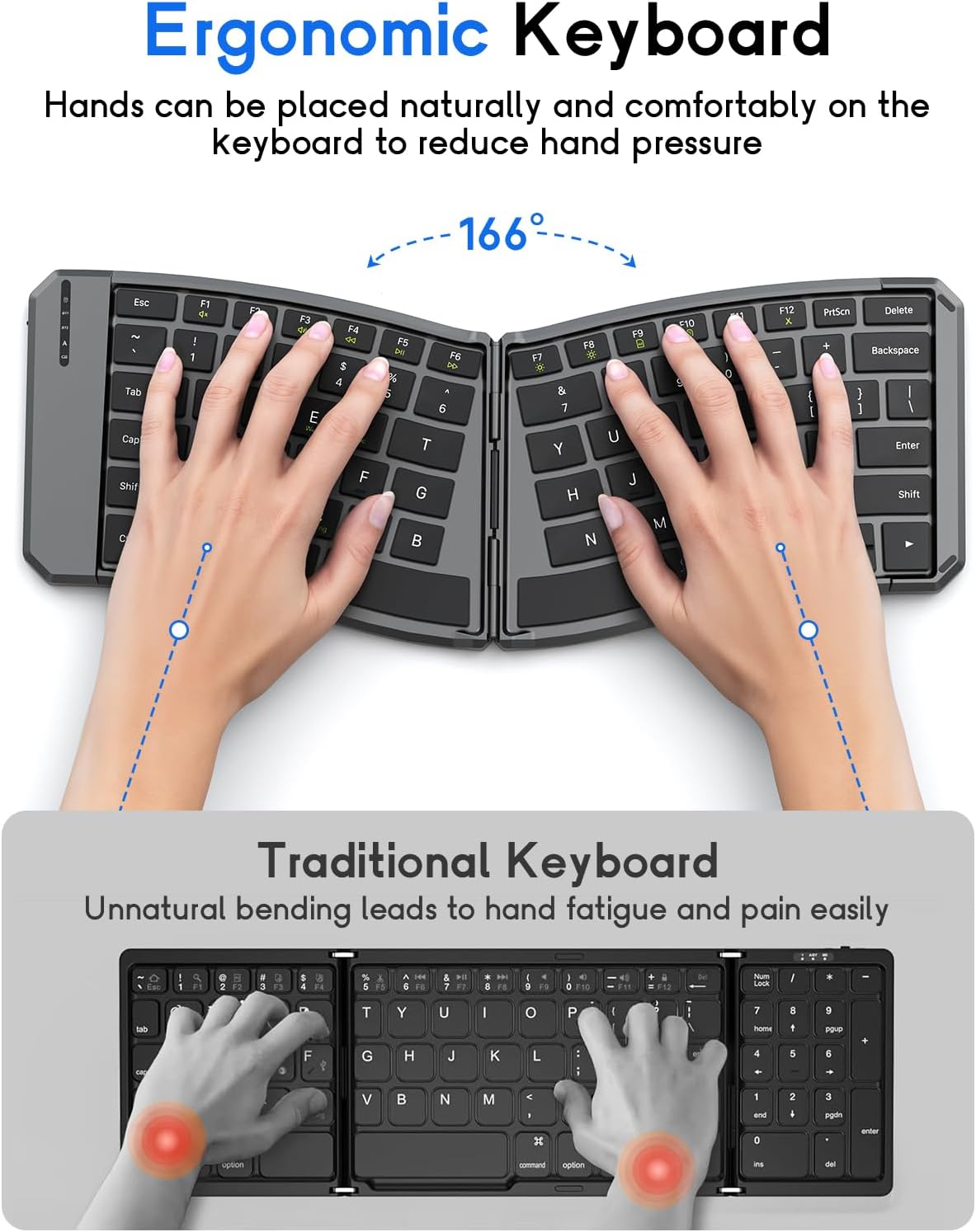
Image: The MoKo Ergonomic Foldable Bluetooth Keyboard in its compact, folded form, ready for transport.
૩.૧. કીબોર્ડ ચાર્જ કરવું
- Locate the USB-C charging port on the side of the keyboard.
- Connect the provided USB-C cable to the keyboard and a power source (e.g., computer USB port, USB wall adapter).
- The charging indicator light will illuminate. A full charge typically takes about 2 hours.
- Once fully charged, the indicator light will change or turn off.

છબી: ક્લોઝ-અપ view of the keyboard's USB-C charging port, illustrating where to connect the charging cable.
3. Unfolding the Keyboard
Gently unfold the keyboard until it lies flat. Ensure the back locking clasp is engaged for stability, especially when using on a lap.

Image: The MoKo Ergonomic Foldable Bluetooth Keyboard fully opened, showcasing its split ergonomic layout.

છબી: વિગતવાર view of the back locking clasp, which secures the keyboard in its unfolded position for stable typing.
ઓપરેટિંગ સૂચનાઓ
1. પાવર ચાલુ/બંધ
Slide the power switch located on the side of the keyboard to the "ON" position to turn it on. Slide it to "OFF" to power down.
2. બ્લૂટૂથ દ્વારા કનેક્ટ થઈ રહ્યું છે
- કીબોર્ડ ચાલુ કરો.
- દબાવો Fn + Q (for iOS), Fn + W (for Android), or Fn + E (for Windows) keys to select the appropriate operating system mode.
- દબાવો Fn + C to enter pairing mode. The Bluetooth indicator light will flash.
- On your device (smartphone, tablet, PC), go to Bluetooth settings and search for "Bluetooth Keyboard" or a similar name.
- Select the keyboard to pair. The indicator light will stop flashing once connected.
- To switch between paired Bluetooth devices (up to 3), press Fn + BT1, Fn + BT2, અથવા Fn + BT3.
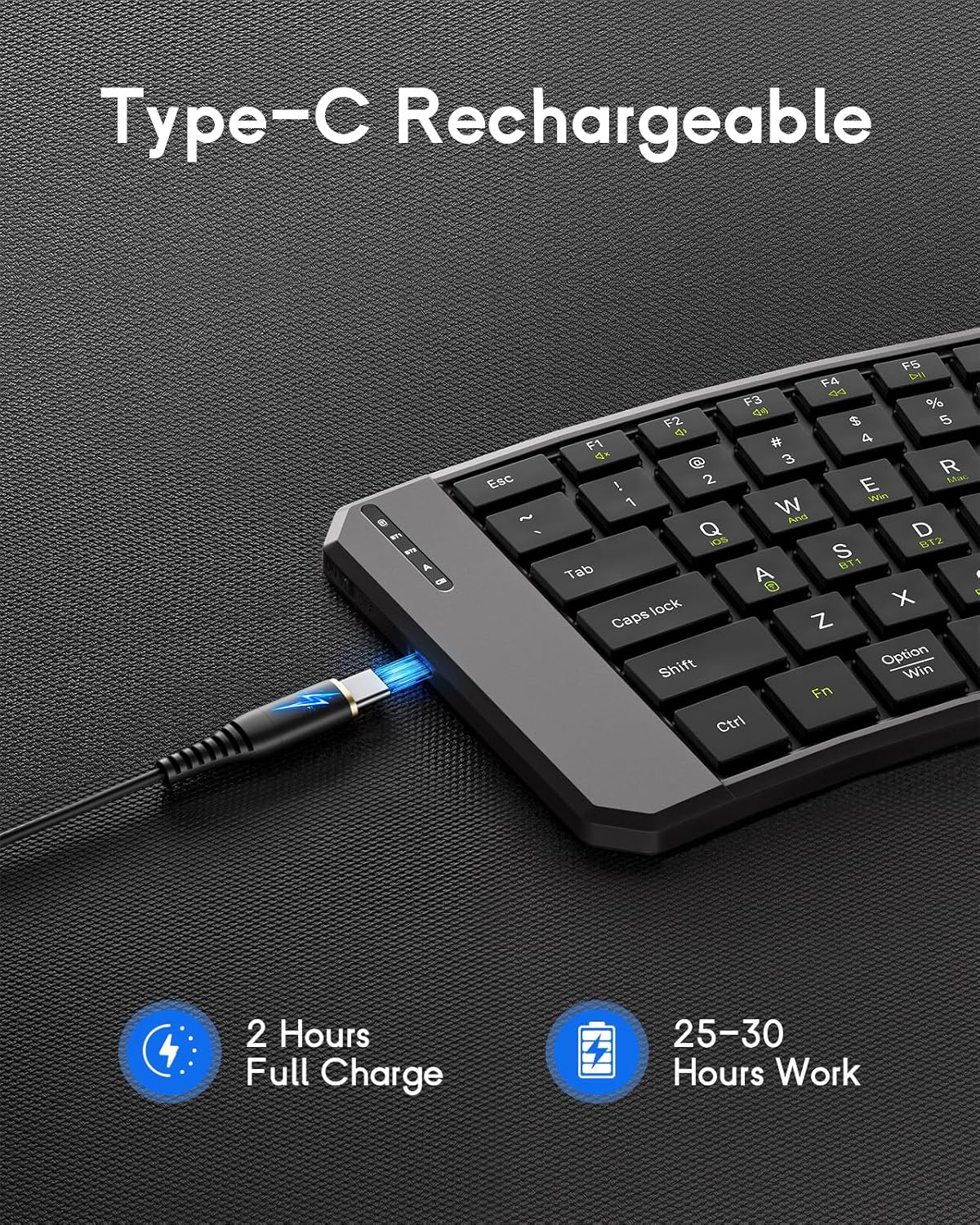
Image: The keyboard demonstrating its ability to connect to a smartphone, tablet, and laptop simultaneously using Bluetooth and 2.4G wireless connections.
3. Connecting via 2.4G Wireless (USB Receiver)
- કીબોર્ડ ચાલુ કરો.
- 2.4G USB રીસીવર શોધો (સામાન્ય રીતે કીબોર્ડ પરના ડબ્બામાં સંગ્રહિત).
- તમારા કમ્પ્યુટર અથવા ઉપકરણ પર ઉપલબ્ધ USB પોર્ટમાં USB રીસીવર પ્લગ કરો.
- કીબોર્ડ આપમેળે કનેક્ટ થવું જોઈએ.
4. System Compatibility Selection
- Fn + Q: આઇઓએસ
- Fn + W: એન્ડ્રોઇડ
- Fn + E: વિન્ડોઝ
- Fn + R: Mac OS

Image: A visual guide illustrating the Fn key combinations required to switch between iOS, Android, Windows, and Mac OS modes for optimal compatibility.
5. Multimedia Keys
The keyboard features dedicated multimedia keys for quick access to functions like volume control, playback, etc. Refer to the key legends for specific functions.

Image: The keyboard layout emphasizing the independent multimedia keys for efficient task processing.
જાળવણી
- કીબોર્ડને નરમ, સૂકા કપડાથી સાફ કરીને સાફ રાખો.
- Avoid exposing the keyboard to extreme temperatures, moisture, or direct sunlight.
- કઠોર રસાયણો અથવા ઘર્ષક ક્લીનર્સનો ઉપયોગ કરશો નહીં.
- Store the keyboard in its folded position when not in use to protect the keys and conserve space.
મુશ્કેલીનિવારણ
Keyboard Not Connecting:
- ખાતરી કરો કે કીબોર્ડ ચાલુ છે અને સંપૂર્ણપણે ચાર્જ થયેલ છે.
- ચકાસો કે તમારા ઉપકરણ પર બ્લૂટૂથ સક્ષમ છે.
- Make sure the correct operating system mode is selected (Fn + Q/W/E/R).
- Re-enter pairing mode (Fn + C) and try connecting again.
- If using 2.4G, ensure the USB receiver is properly plugged in.
- Try restarting both the keyboard and your device.
કીઝ જવાબ નથી આપી રહી:
- બેટરી લેવલ તપાસો અને જો જરૂરી હોય તો રિચાર્જ કરો.
- ખાતરી કરો કે કીબોર્ડ તમારા ઉપકરણ સાથે યોગ્ય રીતે જોડાયેલ છે.
- ચાવીઓની આસપાસનો કોઈપણ કાટમાળ સાફ કરો.
Lag or Disconnections:
- દખલગીરી ઘટાડવા માટે તમારા ઉપકરણની નજીક જાઓ.
- Ensure no other devices are causing Bluetooth interference.
- Re-pair the keyboard with your device.
વિશિષ્ટતાઓ
| લક્ષણ | વિગત |
|---|---|
| મોડલ | DF047 |
| ઉત્પાદનના પરિમાણો (ફોલ્ડ કરેલ) | 7.09 × 4.92 × 1.5 ઇંચ (18 × 12.5 × 3.8 સે.મી.) |
| ઉત્પાદન પરિમાણો (વિસ્તૃત) | 14.09 × 4.92 × 0.75 ઇંચ (35.8 × 12.5 × 1.9 સે.મી.) |
| વસ્તુનું વજન | 13.4 ઔંસ |
| કનેક્ટિવિટી ટેકનોલોજી | Bluetooth, 2.4G Wireless |
| બેટરી ક્ષમતા | 140mAh |
| ચાર્જિંગ પોર્ટ | યુએસબી-સી |
| ચાર્જિંગ સમય | આશરે. 2 કલાક |
| કામ કરવાનો સમય | 25-30 hours (fully charged) |
| સુસંગતતા | iOS, Android, Windows, Mac OS |
| કીબોર્ડ લેઆઉટ | QWERTY |
| ખાસ લક્ષણો | Ergonomic, Foldable, Lightweight, Portable, Auto-sleep, Back Locking Clasp, Non-slip Pad, Scissor-switch keys |
સત્તાવાર ઉત્પાદન વિડિઓ
Video: An official product video demonstrating the features and functionality of the MoKo Ergonomic Foldable Bluetooth Keyboard, including its ergonomic design, portability, and connectivity options.
વોરંટી અને આધાર
For warranty information and customer support, please refer to the contact details provided in your product packaging or visit the official MoKo webસાઇટ વોરંટી દાવા માટે તમારી ખરીદીની રસીદ રાખો.
Manufacturer: MoKo
ASIN: B0FD9K7DKS


