1. પરિચય
This user manual provides detailed instructions for the Bemi Cognita Tab 6+ E-Reader. Please read this manual carefully before using your device to ensure proper operation and to maximize your reading experience. Keep this manual for future reference.
1.1 પેકેજ સામગ્રી
- Bemi Cognita Tab 6+ E-Reader
- યુએસબી ચાર્જિંગ કેબલ
Ensure all items are present and in good condition upon unboxing.
2. ઉપકરણ ઓવરview
Familiarize yourself with the physical components of your Bemi Cognita Tab 6+ E-Reader.

આકૃતિ 2.1: આગળ view of the Bemi Cognita Tab 6+ E-Reader. The device features a 6-inch E-Ink display with the Bemi logo and model name visible. The screen is designed to mimic paper for a comfortable reading experience.

આકૃતિ 2.2: આગળ અને પાછળ view of the Bemi Cognita Tab 6+ E-Reader. This image highlights the device's thin design and the textured back cover, which provides a secure grip.

આકૃતિ 2.3: બાજુ view of the Bemi Cognita Tab 6+ E-Reader, illustrating the location of the power button and a small LED indicator. This button is used for turning the device on/off and waking it from sleep.
2.1 Key Components:
- 6-inch E-Ink Touchscreen: Glare-free display for comfortable reading.
- પાવર બટન: Located on the side for turning the device on/off and sleep/wake.
- યુએસબી-સી પોર્ટ: ચાર્જિંગ અને ડેટા ટ્રાન્સફર માટે.
- માઇક્રોએસડી કાર્ડ સ્લોટ: Expandable storage up to 256GB.
- Side Control Buttons: For page turning and navigation.
- SMARTlight: Adjustable front light for reading in various conditions.
3. સેટઅપ
3.1 પ્રારંભિક ચાર્જિંગ
Before first use, fully charge your Bemi Cognita Tab 6+ E-Reader. Connect the provided USB cable to the device's USB-C port and the other end to a compatible USB power adapter (not included) or a computer's USB port.
- સંપૂર્ણ ચાર્જ થવામાં સામાન્ય રીતે લગભગ 2-3 કલાક લાગે છે.
- ચાર્જિંગ સૂચક લાઇટ ચાર્જિંગ સ્થિતિ બતાવશે.
3.2 પાવરિંગ ચાલુ/બંધ
- પાવર ચાલુ કરવા માટે: Press and hold the Power button (refer to Figure 2.3) for a few seconds until the screen activates.
- પાવર ઓફ કરવા માટે: Press and hold the Power button until a power-off menu appears, then select "Power Off".
- સૂવા/જાગવા માટે: Briefly press the Power button to put the device into sleep mode or wake it up.
3.3 Wi-Fi કનેક્શન
Connecting to Wi-Fi allows you to download books, transfer files, and access online services.
- From the home screen, tap the સેટિંગ્સ ચિહ્ન
- પસંદ કરો Wi-Fi.
- Wi-Fi સ્વિચને આના પર ટૉગલ કરો On.
- The device will scan for available networks. Select your desired network from the list.
- જો પૂછવામાં આવે તો પાસવર્ડ દાખલ કરો, પછી ટેપ કરો કનેક્ટ કરો.
3.4 પ્રારંભિક રૂપરેખાંકન
Upon first power-on, you may be guided through initial setup steps, including language selection and time zone settings. Follow the on-screen prompts.
4. ઓપરેટિંગ સૂચનાઓ
૫.૧ ઇન્ટરફેસ નેવિગેટ કરવું
The Bemi Cognita Tab 6+ features a touch-sensitive E-Ink screen and physical side buttons for navigation.
- સ્પર્શ સંકેતો: Tap to select, swipe to scroll, pinch to zoom (where supported).
- બાજુના બટનો: Use the physical buttons on the side to turn pages forward or backward during reading.
- જી-સેન્સર: The device automatically rotates the screen orientation based on how you hold it, accommodating both right and left-handed users.
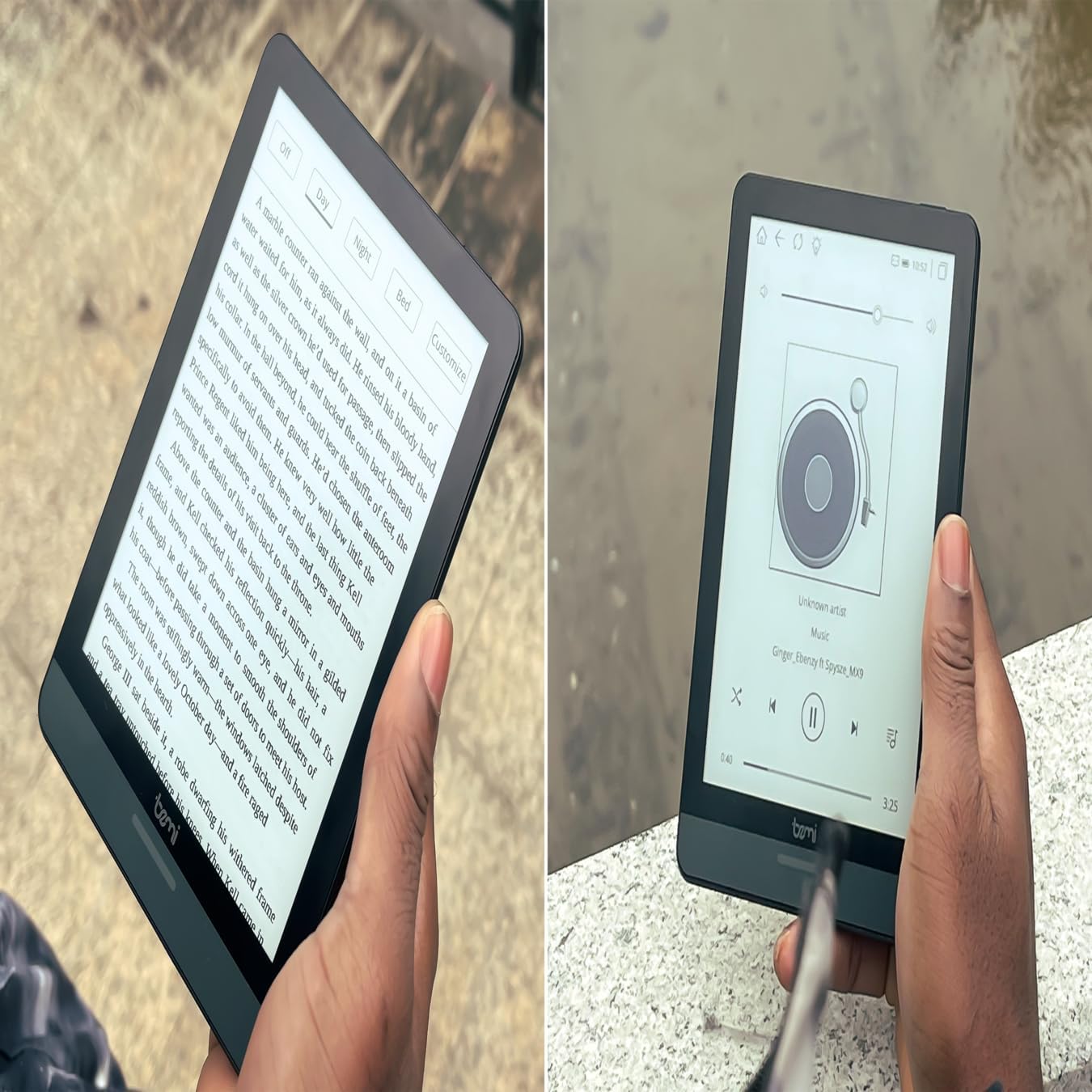
આકૃતિ 4.1: User holding the Bemi Cognita Tab 6+ E-Reader while reading. The image shows the clear text display on the E-Ink screen, highlighting the device's readability.
૩.૨ પુસ્તકો વાંચવા
To open and read a book:
- From the home screen, tap on the પુસ્તકાલય or પુસ્તકો ચિહ્ન
- Browse your collection or use the search function to find a book.
- Tap on the book cover to open it.
- Use the touch screen or side buttons to turn pages.
4.3 Adjusting SMARTlight
The SMARTlight feature allows you to adjust both the brightness and color temperature of the screen's front light.
- During reading, tap the center of the screen to bring up the reading menu.
- માટે જુઓ પ્રકાશ or SMARTlight ચિહ્ન
- Adjust the sliders for brightness (intensity) and color temperature (warm to cool) to your preference.
૩.૩૧ ટ્રાન્સફર Files
You can transfer e-books and other supported files to your device via Wi-Fi or USB cable.
- Wi-Fi દ્વારા: If your device supports cloud services or direct Wi-Fi transfer, follow the specific application instructions.
- યુએસબી કેબલ દ્વારા:
- Connect your E-Reader to a computer using the provided USB cable.
- The device will appear as a removable storage drive on your computer.
- Drag and drop your desired files (e.g., EPUB, PDF, MOBI) into the appropriate folders on the E-Reader (e.g., "Books" folder).
- Safely eject the device from your computer before disconnecting the cable.
4.5 Using MicroSD Card
To expand storage, insert a microSD card (up to 256GB) into the designated slot.
- Gently insert the microSD card with the gold contacts facing down until it clicks into place.
- To remove, gently push the card inward until it springs out.
- Files on the microSD card will be accessible through the device's file manager or library.
5. જાળવણી
5.1 ઉપકરણની સફાઈ
- ઉપકરણની સ્ક્રીન અને બોડીને નરમાશથી સાફ કરવા માટે નરમ, લિન્ટ-ફ્રી કાપડનો ઉપયોગ કરો.
- હઠીલા ડાઘ માટે, સહેજ ડીampપાણી અથવા ખાસ ઇલેક્ટ્રોનિક્સ માટે રચાયેલ સ્ક્રીન ક્લીનર સાથે કાપડ.
- કઠોર રસાયણો, ઘર્ષક સામગ્રી અથવા વધુ પડતા ભેજનો ઉપયોગ કરવાનું ટાળો.
5.2 બેટરી કેર
- બેટરીનું જીવન વધારવા માટે, વારંવાર બેટરીને સંપૂર્ણપણે ડિસ્ચાર્જ કરવાનું ટાળો.
- જ્યારે ઉપકરણ લાંબા સમય સુધી ઉપયોગમાં ન હોય ત્યારે તેને ઠંડી, સૂકી જગ્યાએ સંગ્રહિત કરો.
- Charge the device regularly, even if not used, to prevent deep discharge.
5.3 સંગ્રહ
When not in use, store your E-Reader in a protective case to prevent scratches and damage to the screen.
6. મુશ્કેલીનિવારણ
If you encounter issues with your Bemi Cognita Tab 6+, refer to the following common solutions:
| સમસ્યા | ઉકેલ |
|---|---|
| ડિવાઇસ ચાલુ થતું નથી. | Ensure the battery is charged. Connect the device to a power source for at least 30 minutes. If it still doesn't turn on, try a hard reset by holding the power button for 10-15 seconds. |
| સ્ક્રીન સ્થિર છે અથવા પ્રતિભાવ આપતી નથી. | Perform a soft reset by holding the power button for 5-7 seconds until the device restarts. If the issue persists, try a hard reset. |
| Wi-Fi થી કનેક્ટ કરી શકાતું નથી. | Check if Wi-Fi is enabled in settings. Verify the Wi-Fi password. Restart your E-Reader and your Wi-Fi router. Ensure you are within range of the Wi-Fi signal. |
| Books are not appearing in the library. | ખાતરી કરો files are in a supported format (e.g., EPUB, PDF). If transferred via USB, ensure they are in the correct folder. Try refreshing the library or restarting the device. |
| બેટરી ઝડપથી ખતમ થઈ જાય છે. | Reduce screen brightness. Turn off Wi-Fi and Bluetooth when not in use. Close background applications. Ensure the device is not constantly searching for networks. |
7. સ્પષ્ટીકરણો
| લક્ષણ | વિગત |
|---|---|
| મોડેલનું નામ | Bemi Cognita Tab 6+ |
| સ્ક્રીન માપ | 6 Inches (E-Ink Carta, 1024x758, 212 ppi) |
| આંતરિક મેમરી | 32 જીબી |
| એક્સપાન્ડેબલ સ્ટોરેજ | MicroSD card slot, up to 256 GB |
| કનેક્ટિવિટી | Wi-Fi, બ્લૂટૂથ |
| ઓપરેટિંગ સિસ્ટમ | એન્ડ્રોઇડ 8.1 |
| માનવ ઇન્ટરફેસ ઇનપુટ | Touchscreen, Side Control Buttons |
| ખાસ લક્ષણો | Adjustable SMARTlight, G-Sensor for auto-rotation, Glare-Free & Eye-Friendly E-Ink Display |
| પરિમાણો (અંદાજે) | 7 મીમી જાડાઈ |
| સમાવાયેલ ઘટકો | યુએસબી કેબલ |
8. વોરંટી અને સપોર્ટ
8.1 વોરંટી માહિતી
Your Bemi Cognita Tab 6+ E-Reader comes with a standard manufacturer's warranty. Please refer to the warranty card included in your product packaging or visit the official Bemi webવોરંટી કવરેજ અને અવધિ સંબંધિત વિગતવાર નિયમો અને શરતો માટે સાઇટ.
Optional protection plans may be available for extended coverage. Please check with your retailer for details.
8.2 ગ્રાહક સપોર્ટ
For technical assistance, troubleshooting beyond this manual, or warranty claims, please contact Bemi customer support:
- Webસાઇટ: www.bemi-electronics.com
- ઈમેલ: Refer to the Bemi webસંપર્ક ઇમેઇલ માટે સાઇટ.
- ફોન: Refer to the Bemi webસંપર્ક ફોન નંબરો માટેની સાઇટ.
When contacting support, please have your device model (Cognita Tab 6+) and purchase information ready.


